You clicked Update, and now your site shows a blank white page, a “critical error” message, or a layout that looks nothing like it did a minute ago. Take a breath. When a WordPress update broke your site, your posts, pages, and orders are almost always still safe in the database. What broke is usually one plugin, one theme, or one compatibility clash, and you can undo it.
This guide gives you a 5-minute rollback plan you can follow even if you can’t log in to wp-admin. You’ll learn how to spot what broke, get back into your site, roll back the faulty plugin, theme, or WordPress core update, restore a backup if needed, and set up a WordPress update routine so it doesn’t happen again.
Before you start
Keep these within reach. You won’t need all of them, but having them ready saves minutes:
- Your WordPress admin login.
- Your hosting account login (for the file manager, backups, and PHP settings).
- FTP/SFTP details, or access to your host’s File Manager.
- The email inbox for your site’s admin address, where WordPress sends recovery links.
Why a WordPress update breaks your site
Most WordPress update failures come from a handful of causes: a plugin that isn’t yet compatible with the new WordPress or PHP version, two plugins that now conflict with each other, a theme that relied on code a plugin removed, a WordPress update that stopped halfway because of a timeout, or aggressive caching that serves old files with new code. Knowing this helps, because each cause has a quick, specific fix.
The 5-minute rollback plan at a glance
Here’s the whole plan on one screen. Work through it in order and stop as soon as your site is back.
| Minute | Step | Goal |
|---|---|---|
| 0:00 – 1:00 | 1. Identify what broke | Match the symptom to the likely cause |
| 1:00 – 2:00 | 2. Get back in | Recovery mode, or disable the culprit via File Manager or FTP |
| 2:00 – 3:30 | 3. Roll back the WordPress update | Reinstall the previous version of the plugin, theme, or core |
| 3:30 – 4:30 | 4. Restore a backup (if needed) | Use your host’s or plugin’s backup when a rollback isn’t enough |
| 4:30 – 5:00 | 5. Verify and clear caches | Confirm key pages work and visitors see the fixed version |
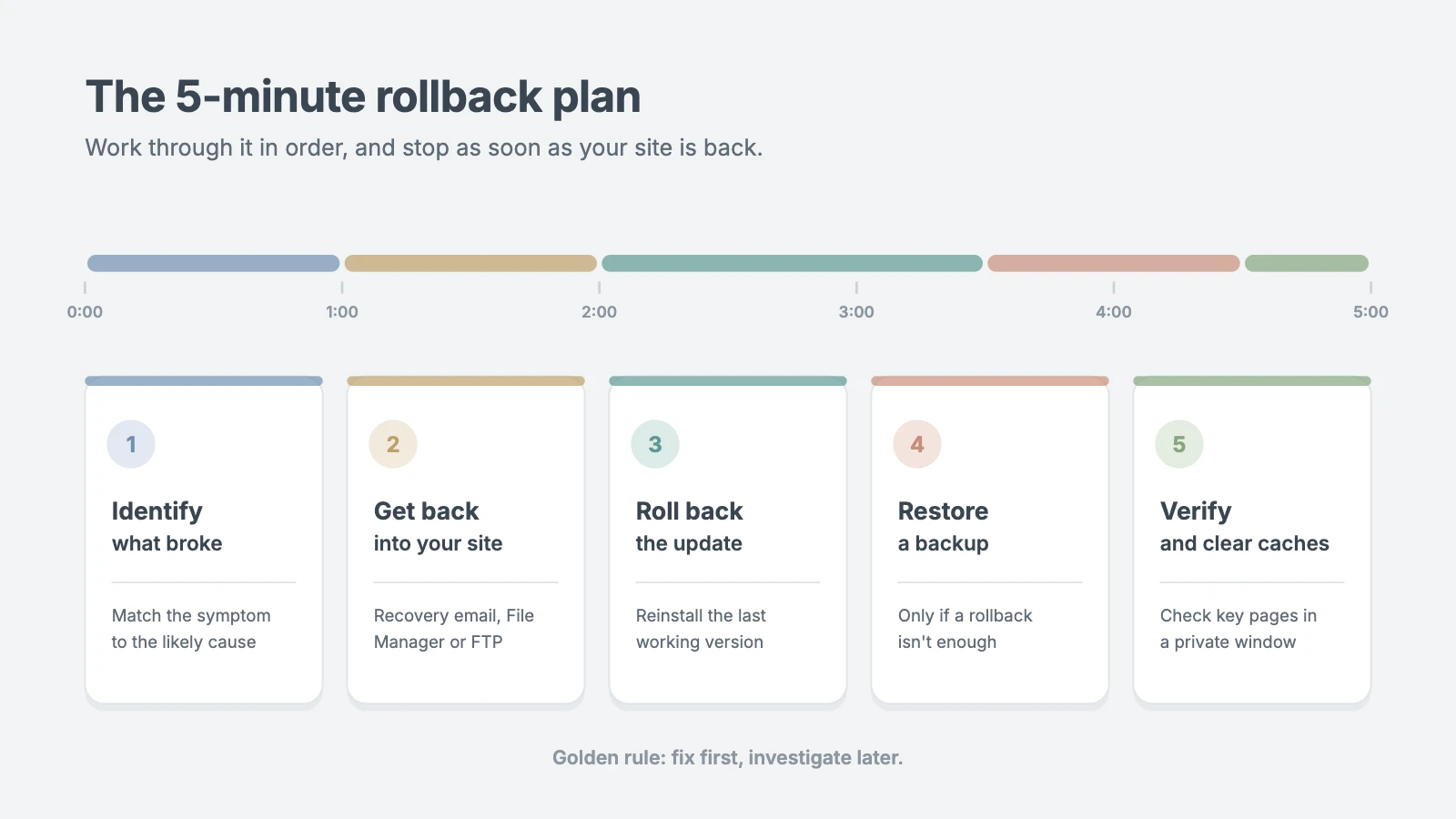
The golden rule: fix first, investigate later. Get the site working for visitors, then figure out the root cause once the pressure is off.
Step 1: Identify what broke (minute 0 to 1)
Before you change anything, spend 60 seconds on diagnosis. The symptom usually points straight at the cause.
| What you see | Most likely cause | Go to |
|---|---|---|
| “There has been a critical error on this website” | A plugin or theme triggered a PHP fatal error | Step 2: recovery mode email |
| Blank white screen | PHP fatal error with error display turned off, or memory limit reached | Step 2: disable via File Manager |
| “Briefly unavailable for scheduled maintenance” that won’t go away | A WordPress update stopped halfway and left a .maintenance file | Delete the file (below) |
| Layout broken, styles or images missing | Theme or page builder conflict, or stale cache | Step 3 (theme), then Step 5 (caches) |
| One feature stopped working (forms, sliders, checkout) | That plugin’s update or a conflict with it | Step 3: roll back that plugin |
| 500 Internal Server Error | PHP error, a bad .htaccess rule, or a PHP version mismatch | Step 2, then check PHP version |
| “Database update required” loop | A plugin or core database upgrade didn’t finish | Run the update once, then clear caches |
Quick tip: if several plugins updated at once, check the automatic-update emails WordPress sends to the admin address, or your host’s activity log, to see exactly which ones changed. The most recently updated plugin is your first suspect.
Fix a stuck maintenance message in 30 seconds
If visitors see “Briefly unavailable for scheduled maintenance. Check back in a minute” for more than a few minutes, open your host’s File Manager (or connect via FTP), go to your site’s root folder (the one containing wp-config.php), and delete the file named .maintenance. You may need to enable “Show hidden files” to see it. Reload your site, then re-run any update that didn’t complete.
Step 2: Get back into your site (minute 1 to 2)
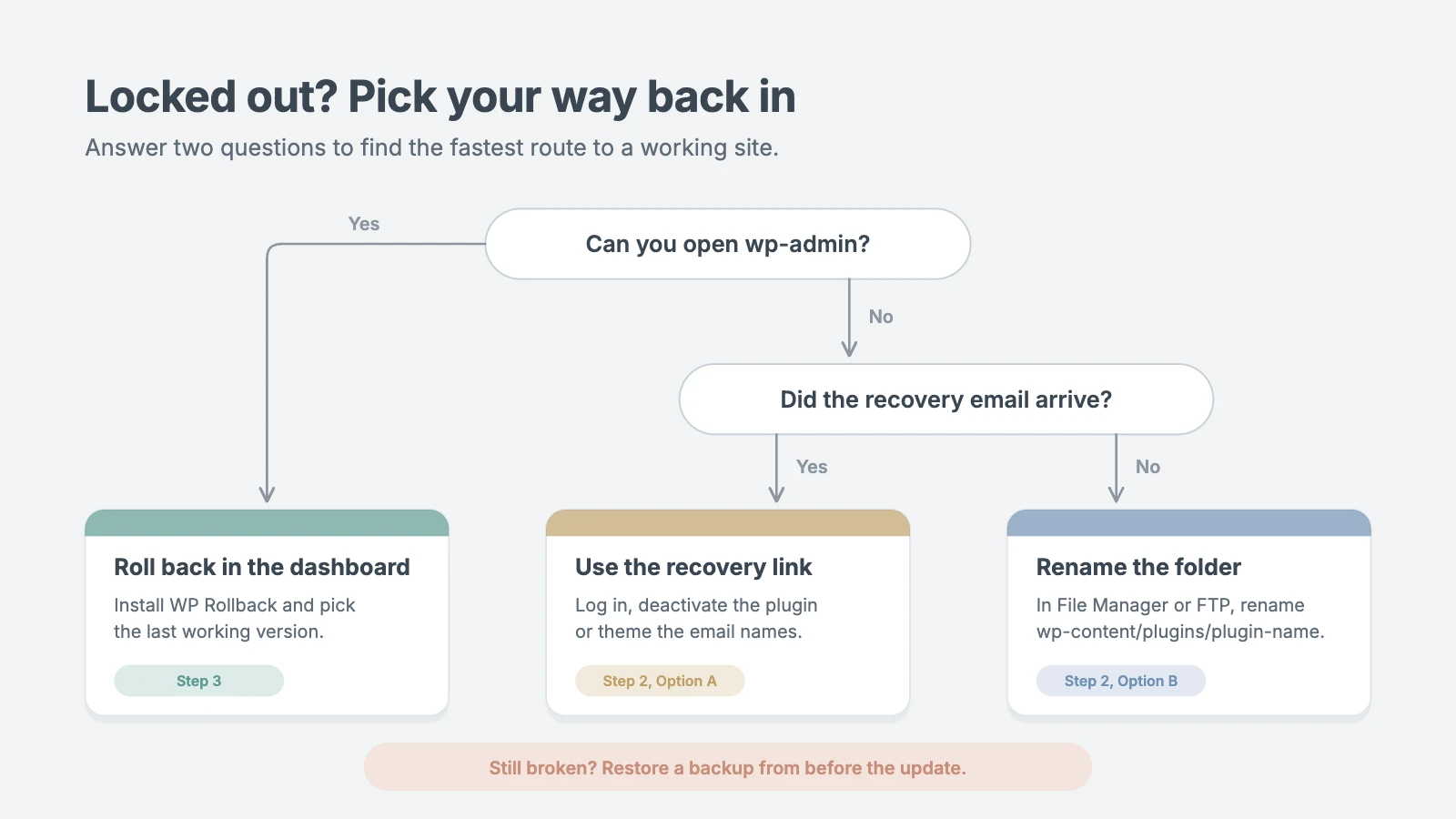
If you can still open wp-admin, skip to Step 3. If not, use one of these three ways back in, fastest first.
Option A: Use the recovery mode email
When a plugin or theme causes a fatal error, WordPress pauses it and emails your site’s admin address with the subject “Your Site is Experiencing a Technical Issue.” The email names the plugin or theme that failed and includes a special recovery mode link.
- Open the email and click the recovery mode link. The link only works for a limited time, so use it promptly.
- Log in as usual. WordPress loads the dashboard with the faulty extension paused.
- Go to Plugins (or Appearance › Themes) and deactivate the extension named in the email.
- Click Exit Recovery Mode in the top admin bar once your site loads normally.
No email? Check your spam folder. If it still hasn’t arrived, your site may not be sending email reliably, which is worth fixing later with an SMTP plugin such as WP Mail SMTP. For now, use Option B.
Option B: Disable the culprit with File Manager or FTP
This works even when you’re completely locked out.
- Log in to your hosting account and open File Manager, or connect with an FTP/SFTP app such as FileZilla.
- Go to
wp-content/plugins/. - Find the folder of the plugin you just updated and rename it, for example from
contact-form-plugintocontact-form-plugin.off. WordPress deactivates any plugin whose folder it can’t find. - Reload your site. If it works, you’ve found the culprit.
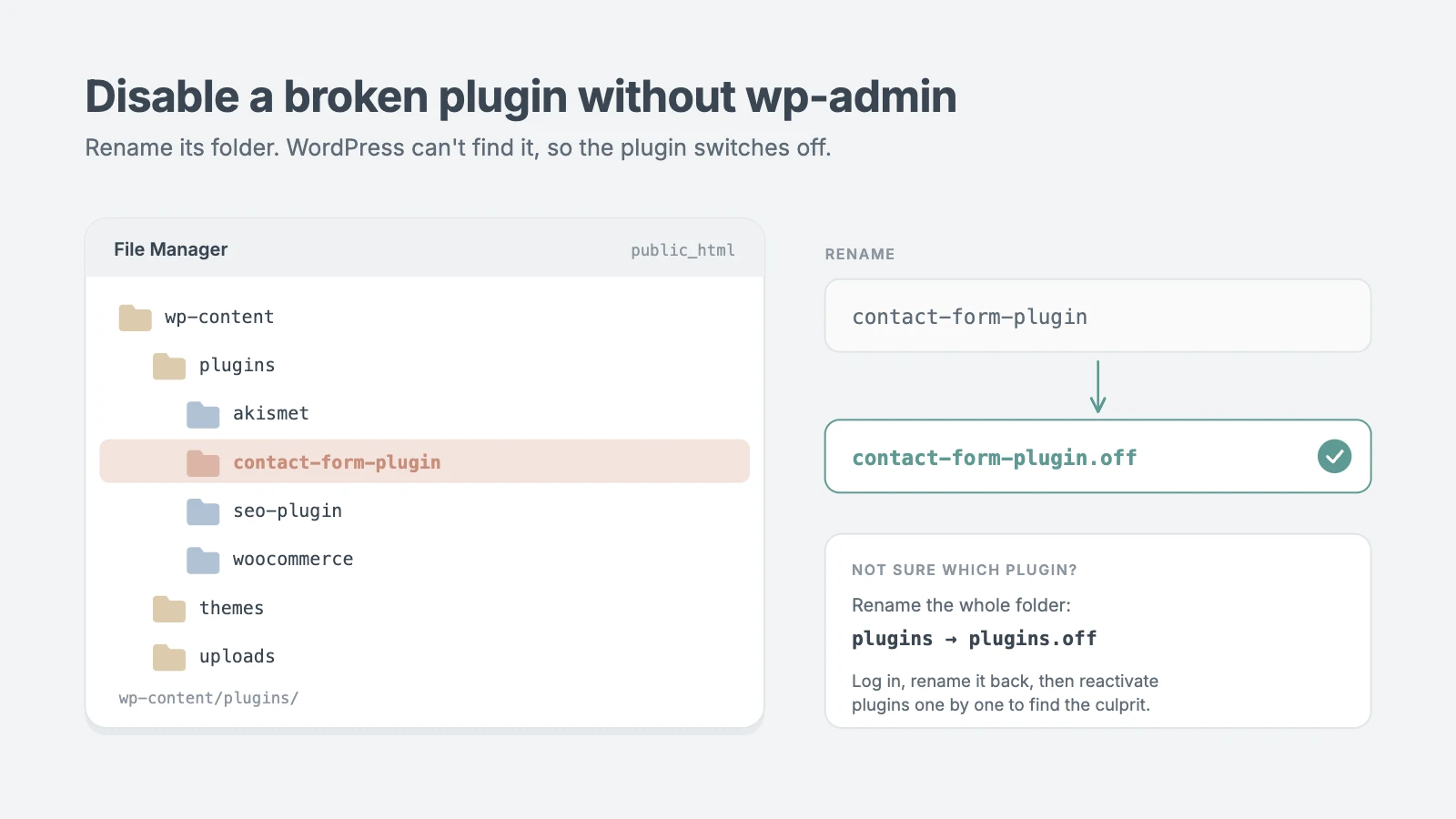
Not sure which plugin? Rename the whole plugins folder to plugins.off. That deactivates every plugin at once. Once you can log in, rename it back to plugins, then reactivate plugins one at a time from the Plugins screen, reloading the site after each, until the error returns.
Theme problem? Go to wp-content/themes/ and rename your active theme’s folder. WordPress falls back to a default theme such as Twenty Twenty-Five, as long as one is installed. If none is, upload a fresh copy of a default theme first.
Option C: Use WP-CLI (for developers and SSH users)
If your host gives you SSH access, WP-CLI is the fastest route of all. From your site’s root folder:
wp plugin deactivate plugin-slug
wp theme activate twentytwentyfive
wp plugin list --status=active
Turn on debug logging if you’re still stuck
If you can’t tell what’s failing, add these lines to wp-config.php above the line that says That’s all, stop editing!:
define( 'WP_DEBUG', true );
define( 'WP_DEBUG_LOG', true );
define( 'WP_DEBUG_DISPLAY', false );
Reload the broken page, then open wp-content/debug.log. The last “Fatal error” line shows the file path of the plugin or theme at fault. Set WP_DEBUG back to false and delete the log when you’re done, because it can expose server paths.
Step 3: Roll back the WordPress update (minute 2 to 3:30)
Deactivating a plugin stops the crash, but you probably still need what it does. Rolling back to the last working version restores the feature while you wait for a fixed release.
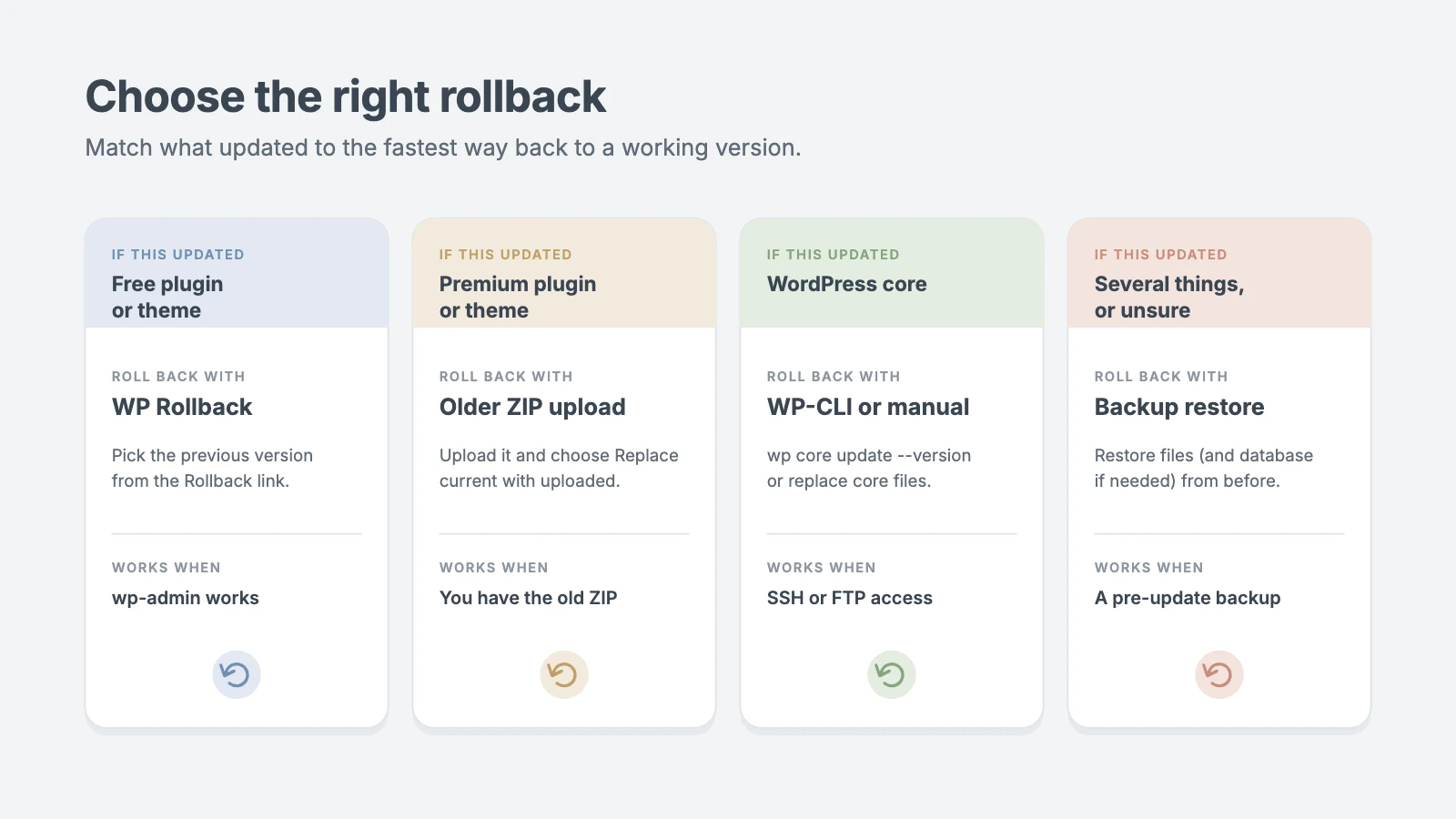
| What updated | Fastest rollback | Works when |
|---|---|---|
| Free plugin from WordPress.org | WP Rollback plugin | You can reach wp-admin |
| Free theme from WordPress.org | WP Rollback plugin | You can reach wp-admin |
| Premium plugin or theme | Upload the previous ZIP and replace | You have the older ZIP from the vendor |
| WordPress core | WP-CLI or manual file replacement | You have SSH or FTP access |
| Anything, if you have SSH | WP-CLI with --version | Your host supports WP-CLI |
Roll back a free plugin or theme with WP Rollback
- Go to Plugins › Add New Plugin, search for WP Rollback, then install and activate it.
- Go to Plugins › Installed Plugins and click the new Rollback link under the plugin that broke. For themes, open Appearance › Themes, click the theme, and choose Rollback.
- Select the last version that worked for you (usually the one just below the current version) and click Rollback.
- Confirm, then reactivate the plugin or theme and check your site.
While you’re on the Plugins screen, turn off auto-updates for that plugin so it doesn’t jump straight back to the broken version tonight.
Roll back a premium plugin or theme
WP Rollback only works with WordPress.org products. For premium ones:
- Log in to the vendor’s account area and download the previous version’s ZIP file. Most vendors keep older versions available, or will send one through support.
- In WordPress, go to Plugins › Add New Plugin › Upload Plugin (or Appearance › Themes › Add New Theme › Upload Theme) and upload the ZIP.
- When WordPress asks, click Replace current with uploaded.
Roll back WordPress core
A WordPress update to core breaks sites less often than a plugin update does, and downgrading core should be a short-term measure. The usual culprit is a plugin that isn’t ready for the new version, so updating or rolling back that plugin is often the better fix. If you do need to downgrade core:
With WP-CLI:
wp core update --version=6.7.2 --forceReplace 6.7.2 with the last version that worked for you.
Manually: download that version from the WordPress.org release archive, then upload only its wp-admin and wp-includes folders and the root files over your existing ones. Never overwrite wp-content or wp-config.php. Take a backup first, and if WordPress later asks to update the database, let it.
Roll back with WP-CLI
For developers, any WordPress.org plugin or theme can be pinned to a specific version in one line:
wp plugin install plugin-slug --version=2.4.1 --force
wp theme install theme-slug --version=1.8.0 --force
What about automatic rollbacks?
Recent versions of WordPress try to protect you automatically. If an automatic plugin update causes a fatal error, WordPress attempts to roll that plugin back to the previous version and emails you. This safety net doesn’t cover manual updates, premium plugins that use their own updater, or breakages that don’t cause a fatal error, so keep this plan handy anyway.
Step 4: Restore from a backup (minute 3:30 to 4:30)
If rolling back didn’t fix it, several things updated at once, or you can’t pin down the cause, restore a backup taken before the WordPress update. It’s the closest thing WordPress has to an undo button.
Option A: Your host’s backup tool
Most managed WordPress hosts keep daily backups. Look in your hosting dashboard for Backups, Restore, or Snapshots. In cPanel, it’s often under Files › Backup or a backup tool such as JetBackup.
- Pick the most recent backup from before the WordPress update.
- Choose whether to restore files only, database only, or both. For a broken WordPress update, restoring files alone is often enough and won’t erase new orders, comments, or form entries saved since the backup.
- Start the restore and wait for confirmation.
Option B: Your backup plugin
If you use a backup plugin such as UpdraftPlus, Duplicator, BlogVault, or Jetpack VaultPress Backup, open it from the dashboard (or from its own site if wp-admin is down), choose the pre-update backup, and click Restore. Plugins with off-site restore, such as BlogVault and Jetpack, can restore your site even if WordPress won’t load.
Don’t lose new data
Before restoring the database on a store or membership site, export anything that came in after the backup: WooCommerce orders, form entries, new users. A full restore rolls everything back to the backup’s moment, including the good changes.
No backup? Steps 2 and 3 still work without one. Then make setting up automatic backups your very next task.
Step 5: Verify the fix and clear caches (minute 4:30 to 5)
Your site may look fixed to you while visitors still see the broken version from a cache. Finish with this quick checklist:
- Clear your caching plugin’s cache (for example WP Rocket, LiteSpeed Cache, or W3 Total Cache).
- Purge your host’s server cache and your CDN cache, such as Cloudflare, if you use one.
- If you use a page builder like Elementor or Divi, regenerate its CSS files from the builder’s settings.
- Open your site in a private browser window and check the homepage, a post, your contact form, and checkout if you run a store.
- Log in to wp-admin and confirm there are no new error notices.
- If you edited
wp-config.phpfor debugging, turnWP_DEBUGback off. - Note which plugin, theme, or version caused the problem, and report it to the developer with the error message.
When a fixed version is released, run that WordPress update on its own, ideally after testing it on a staging site first.
How to prevent the next broken WordPress update
The best rollback plan is the one you never need. A simple routine removes most of the risk from WordPress updates.
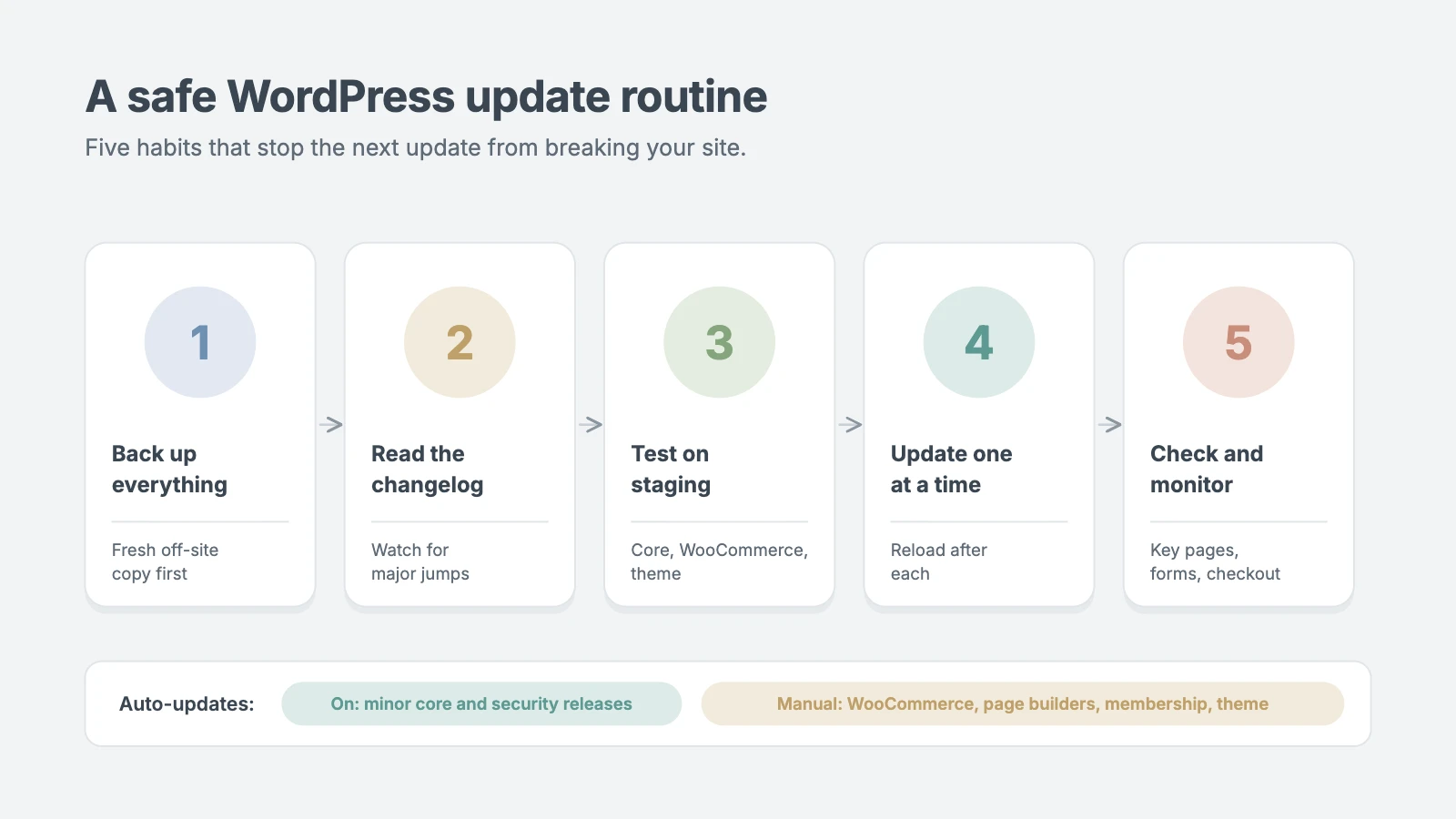
- Back up before every WordPress update session. Make sure you have an automatic daily backup stored off your server, and take a fresh manual backup right before larger updates.
- Read the changelog. On Dashboard › Updates or the Plugins screen, click View version details. Security fixes should go in quickly; major version jumps (2.x to 3.0) deserve extra caution.
- Use a staging site for big updates. Many hosts offer one-click staging. Test WordPress core releases, WooCommerce, page builders, and your theme there first.
- Update one thing at a time. Update, reload the site, then move to the next item. If something breaks, you’ll know exactly which update caused it.
- Choose auto-updates carefully. Leave automatic minor core and security releases on. On the Plugins screen, enable auto-updates for small, well-maintained plugins, and keep manual control of WooCommerce, page builders, membership plugins, and your theme.
- Run WordPress updates when you can watch. Avoid updating right before a launch, a sale, or the weekend. Update at a quiet time when you can check the site afterwards.
- Keep PHP current, but deliberately. Switch PHP versions in your hosting panel only after confirming your plugins support the new version. If an upgrade causes errors, switch back from the same panel.
- Make sure WordPress can email you. Recovery mode links are only useful if they arrive. Test your site’s email, and set up SMTP if messages go missing.
Your rollback toolkit
| Need | Tools to have ready |
|---|---|
| Backups | Host backups plus a plugin such as UpdraftPlus, Duplicator, BlogVault, or Jetpack VaultPress Backup |
| Version rollback | WP Rollback (free), older ZIPs for premium plugins, WP-CLI |
| Testing | Your host’s staging environment, or a local copy with tools like LocalWP |
| Access | FTP/SFTP login, File Manager access, SSH if available |
| Alerts | Working site email (SMTP), uptime monitoring |
Frequently asked questions
Will rolling back a WordPress update delete my content?
No. Rolling back a plugin, theme, or WordPress core only replaces code files. Your posts, pages, media, and settings live in the database and stay untouched. Only a full database restore from a backup rolls content back in time.
How do I undo a WordPress plugin update?
If you can reach wp-admin, install WP Rollback and choose the previous version from the plugin’s Rollback link. If you’re locked out, rename the plugin’s folder in wp-content/plugins/ to deactivate it first, then roll it back once you’re in.
How long does a WordPress update rollback take?
For a single plugin or theme, a WordPress update rollback usually takes two to five minutes: a minute to spot the culprit, a minute to get back in, and a couple of minutes to reinstall the previous version. Restoring a full backup can take longer on large sites, depending on your host.
Can I undo a WordPress update without a backup?
Yes, in most cases. A WordPress update to a plugin or theme can be undone with WP Rollback or by uploading the previous ZIP file, and a WordPress update to core can be reversed with WP-CLI. A backup only becomes essential when the database changed or several updates ran at once.
Should I install every WordPress update right away?
Install security releases quickly. For a major WordPress update, such as a new core version or a big plugin release, wait a few days, read the changelog, and test it on a staging site first.
Why didn’t I get the recovery mode email?
WordPress sends it to the address under Settings › General › Administration Email Address. If that address is old, or your server can’t send email reliably, the message never arrives. Check spam, then fix your site’s email with an SMTP plugin once the site is back.
Is it safe to downgrade WordPress core?
As a short-term fix, yes, if you take a backup first and don’t overwrite wp-content or wp-config.php. Move back to the latest version as soon as your plugins are compatible, because older versions miss security fixes.
Should I turn off automatic WordPress updates?
Not completely. Automatic minor and security updates protect you and rarely break anything. Turn off auto-updates only for complex plugins and your theme, and update those manually after a backup.
What if none of these steps work?
Restore a backup from before the WordPress update, contact your host’s support with the exact error message and the time it started, or get a WordPress developer to look at the error log. The faster you share the exact error, the faster it gets fixed.
Conclusion
A broken WordPress update feels like an emergency, but it’s almost always a quick fix. Identify the symptom, get back in with recovery mode or a renamed folder, roll back the WordPress update that caused it, restore a backup if you need to, and clear your caches. That’s five calm minutes between a broken site and a working one.
Then spend fifteen minutes on prevention: set up automatic off-site backups, use staging for big updates, and update one thing at a time. The next WordPress update won’t catch you off guard.
Don’t want to handle the next broken WordPress update yourself?
If your site is down right now, or you’d rather never run updates again, the WPInterface team can step in.
| If you need… | Our service |
|---|---|
| Your broken site fixed fast by a WordPress expert | VIP Support |
| Updates, backups, and monitoring handled for you every month | WordPress Care Plans |
| A developer on call for update testing and custom fixes | Developer Hours & Retainers |
| A cleanup if the “broken update” turns out to be a hack | Malware Removal & Security Hardening |
| A move to a host with staging and reliable daily backups | WordPress Migration |
Not sure which you need? Tell us what happened and we’ll help you get back online, or browse all WPInterface services.
Reactions
How did this make you feel?
Be the first to react
One reaction per visitor. Tap again to change or remove it.




Leave a reply