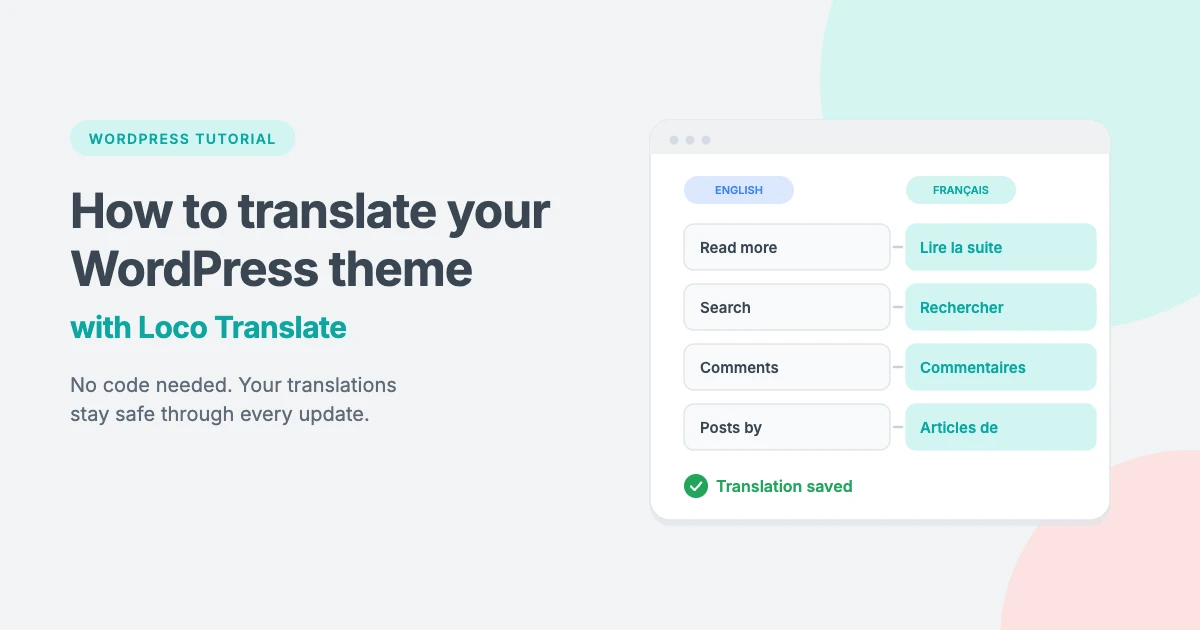
Every WPInterface theme is translation ready. That means every word built into the theme, such as “Read more”, “Search”, “Leave a comment” or “Posts by”, can be shown in your own language. The easiest way to do this is with Loco Translate, a free plugin that lets you translate your theme right from the WordPress dashboard, with no code and no extra software.
In this tutorial, we’ll show you how to use Loco Translate to translate your WPInterface theme step by step. You’ll learn which language settings to check first, where to save your translation files so updates never wipe them out, how to keep translations up to date after a theme update, and what to do if your translations don’t show up.
What is Loco Translate?
Loco Translate is a free WordPress plugin with more than one million active installs. It adds a translation editor to your dashboard so you can translate the text that comes with your themes and plugins.
Here’s what it can do:
- Translate in the browser. Edit translations in a simple two-column editor inside WordPress.
- Create language files for you. It builds the
.po,.moand.jsonfiles WordPress needs, so you never have to touch them. - Protect your work. It can save translations in a special folder that theme and plugin updates don’t touch.
- Sync new text. When a theme update adds new text, one click pulls it into your translation.
- Suggest translations. It can connect to machine translation services such as DeepL, Google and Microsoft to fill in a first draft, which you can then review.
- Keep backups. It can keep earlier versions of your translation files so you can restore one if you make a mistake.
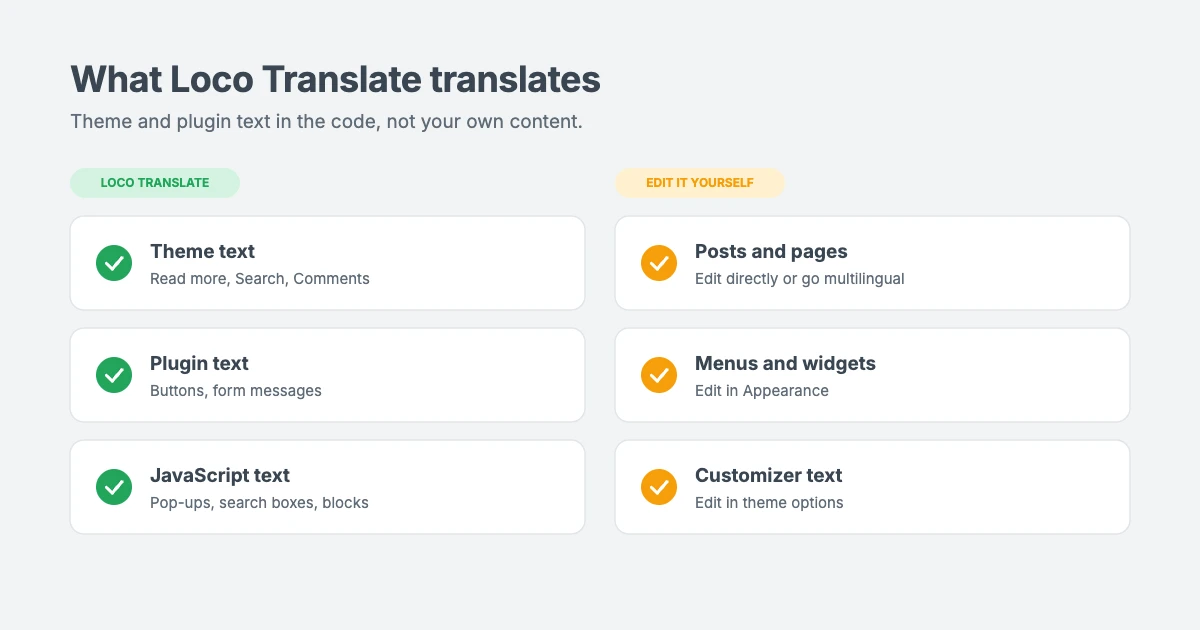
What Loco Translate translates (and what it doesn’t)
It helps to know which text Loco Translate can change before you start.
| Text on your site | Translate it with |
|---|---|
| Theme text such as “Read more”, “Search results for”, “Older posts” and “Comments” | Loco Translate (theme) |
| Plugin text such as WooCommerce buttons or contact form messages | Loco Translate (plugin) |
| WordPress core text such as dates and admin menus | Site Language setting in WordPress |
| Your posts, pages, menus and widget content | Edit it directly, or use a multilingual plugin |
| Text you typed into the Customizer or theme options | Edit it directly in the Customizer or theme options |
Loco Translate translates the words that developers wrote into the theme’s code. It doesn’t translate your own content. If you want visitors to switch between several languages, for example English and French versions of every post, you need a multilingual plugin. WPInterface themes are tested with WPML, and work with other multilingual plugins too.
Before you start
Check these three things so your translations show up straight away.
Set your site language
WordPress only loads translations for the language your site uses. Go to Settings » General, choose your language in the Site Language dropdown and click Save Changes. WordPress will also download its own translations for the dashboard and core text.
Check your profile language
Each user can choose a different language for the dashboard. Go to Users » Profile and look at the Language setting. If you want to see the dashboard in your new language too, choose it here or leave it on Site Default.
Back up your site
Loco Translate only adds new files, so it’s safe. Still, it’s good practice to make a backup before installing new plugins, especially on a live site.
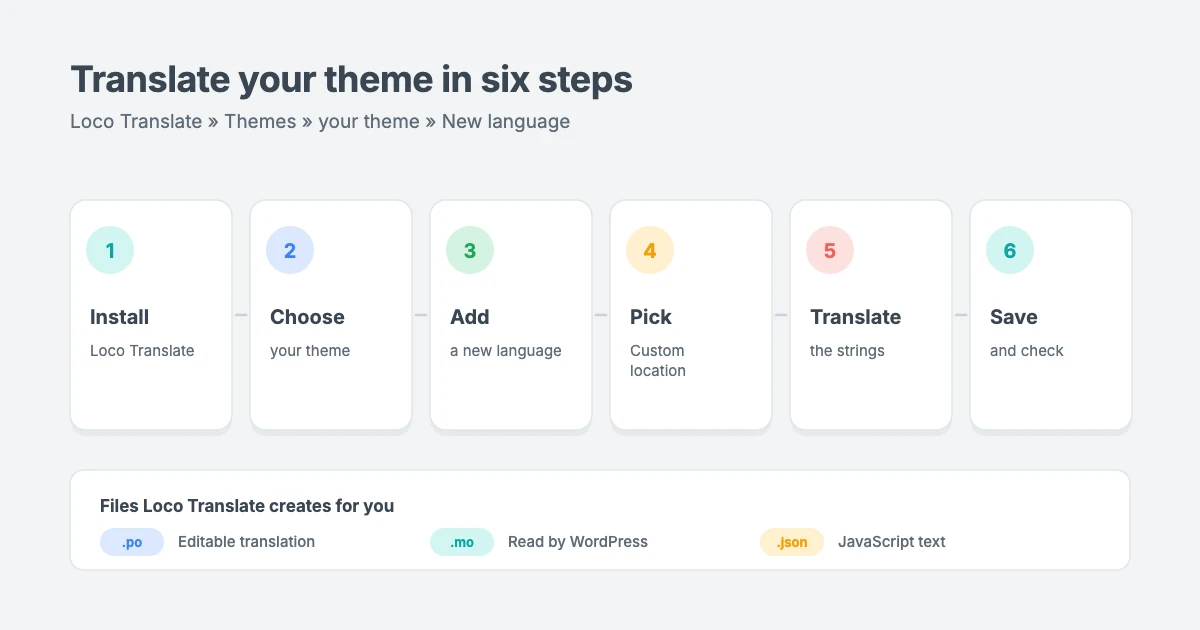
How to translate your WPInterface theme with Loco Translate
Here’s the whole process from start to finish.
Step 1: Install and activate Loco Translate
- In your dashboard, go to Plugins » Add New Plugin.
- Search for Loco Translate.
- Click Install Now, then Activate.
A new Loco Translate menu appears in your dashboard sidebar.
Step 2: Choose your theme
Go to Loco Translate » Themes. You’ll see a list of every theme installed on your site. Click the name of your WPInterface theme, for example NewsMachine Pro or BlogAura Pro.
Loco Translate shows the theme’s translation overview, including any languages that already exist and the theme’s template file. The template is a list of every piece of text in the theme that can be translated.
Step 3: Add a new language
- Click New language.
- Under Choose a language, pick WordPress language and select your language from the list, for example Français or Español. You can also choose a specific regional version, such as Spanish (Mexico).
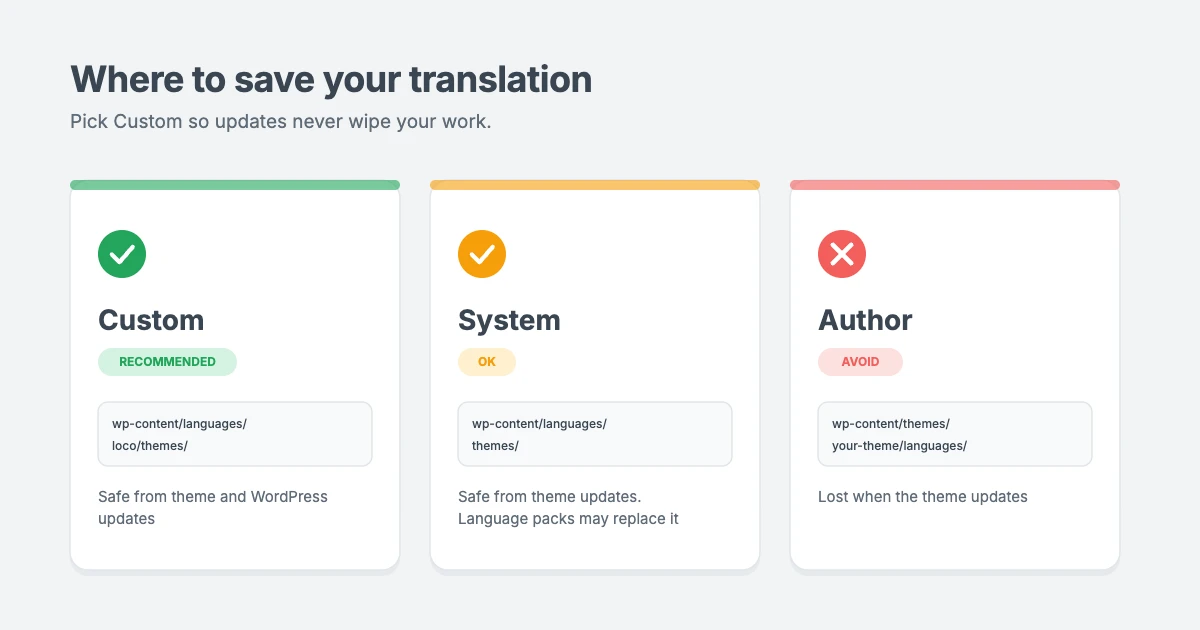
Step 4: Choose where to save the translation
This is the most important step. Loco Translate offers three locations:
- Custom: saves to
wp-content/languages/loco/themes/. This folder belongs to Loco Translate, so neither theme updates nor WordPress updates ever touch it. This is the option we recommend. - System: saves to
wp-content/languages/themes/, the folder WordPress uses for official language packs. It survives theme updates, but WordPress can replace files here when it downloads language updates. - Author: saves inside the theme’s own
languagesfolder. Avoid this one. When you update the theme, the folder is replaced and your translation is lost.
Select Custom and click Start translating.
Step 5: Translate the text
Loco Translate opens the editor. At the top, you’ll see a list of every piece of text in the theme, called “strings”. Below it are two boxes: the original English text and your translation.
- Click a string in the list, for example Read More.
- Type your translation in the translation box below, for example Lire la suite.
- Move on to the next string.
Use the Filter box above the list to find a specific string quickly. Start with the text visitors see most, such as buttons, navigation labels, search text and comment forms. You don’t have to translate everything at once. Any string you leave empty simply stays in English.
Some strings contain placeholders such as %s or %d. These are replaced with real values on your site, like a name or a number. Keep them in your translation, in the right place for your language. For example, “Posts by %s” could become “Articles de %s”.
Step 6: Save your translation
Click Save in the editor toolbar. Loco Translate creates the language files for you:
.pofile: the editable translation file..mofile: the compiled file that WordPress reads..jsonfiles: translations for text shown by JavaScript, if the theme has any.
Now visit your site. You should see your translated text right away. If you use a caching plugin or your host has a server cache, clear it first.
How to translate plugin text with Loco Translate
You can translate your plugins in the same way. Go to Loco Translate » Plugins, choose the plugin, click New language and follow the same steps. Again, choose the Custom location to keep your translation safe from plugin updates.
Many popular plugins already have official translations from WordPress.org. They download automatically once you set your site language, so check the plugin’s text on your site before you start translating it yourself. You can then use Loco Translate to change just the few strings you don’t like.
How to keep translations up to date after a theme update
When we release a theme update, it may include new features with new text. Your existing translation keeps working, but the new strings will show in English until you translate them.
- Go to Loco Translate » Themes and click your theme.
- Click the language you translated, for example French.
- Click Sync in the editor toolbar. Loco Translate adds the new strings and removes ones the theme no longer uses.
- Translate the new strings, which appear without a translation, and click Save.
It’s a good idea to do this every time you update your theme.
How to use machine translation in Loco Translate
If your theme has hundreds of strings, machine translation can save time. Loco Translate supports services such as DeepL, Google Translate and Microsoft Translator. To set it up:
- Go to Loco Translate » Settings » API keys (in some versions, look under Settings).
- Add an API key from the translation service you want to use. Most services have a free tier for small volumes.
- In the editor, use the Auto or Suggest button to fill in translations.
Always review machine translations before you save them. Short interface text like “Read more” or “Older posts” is easy to get wrong without context.
How to translate your theme into a right-to-left language
If you’re translating into Arabic, Hebrew, Persian or Urdu, your site also needs to switch to a right-to-left (RTL) layout. Most WPInterface themes include full RTL support, so this happens automatically.
- Go to Settings » General and set the Site Language to your RTL language.
- Translate your theme with Loco Translate as shown above, saving it in the Custom location.
- Visit your site. The menu, sidebar, text alignment and icons should flip to the right-to-left direction.
If some parts of the layout still read left to right, clear your cache first. If the problem stays, it usually comes from a plugin that doesn’t support RTL, or from custom CSS you’ve added. Look for CSS that uses fixed left or right values and adjust it for RTL pages.
Tips for better theme translations
A few habits make your translated site read naturally and save you time later:
- Translate the most visible text first. Start with buttons, menus, search text, comment forms and “Read more” links. Visitors see these on every page.
- Keep it short. Buttons and labels have limited space. If your translation is much longer than the English, look for a shorter word so the layout doesn’t break, especially on mobile.
- Check the context. The same English word can need different translations. Loco Translate shows a context note under some strings, and you can search the theme for where a string is used.
- Use the same terms everywhere. If you translate “post” as “article” once, use it on every string so your site feels consistent.
- Preview on real pages. After saving, open your homepage, a single post, an archive, a search results page and the comments section to check the wording in place.
- Keep a backup copy. Download your
.pofile from time to time, so you can restore your work if you ever move or rebuild the site.
Translations not showing up? Try these fixes
If your translated text doesn’t appear on your site, work through these checks.
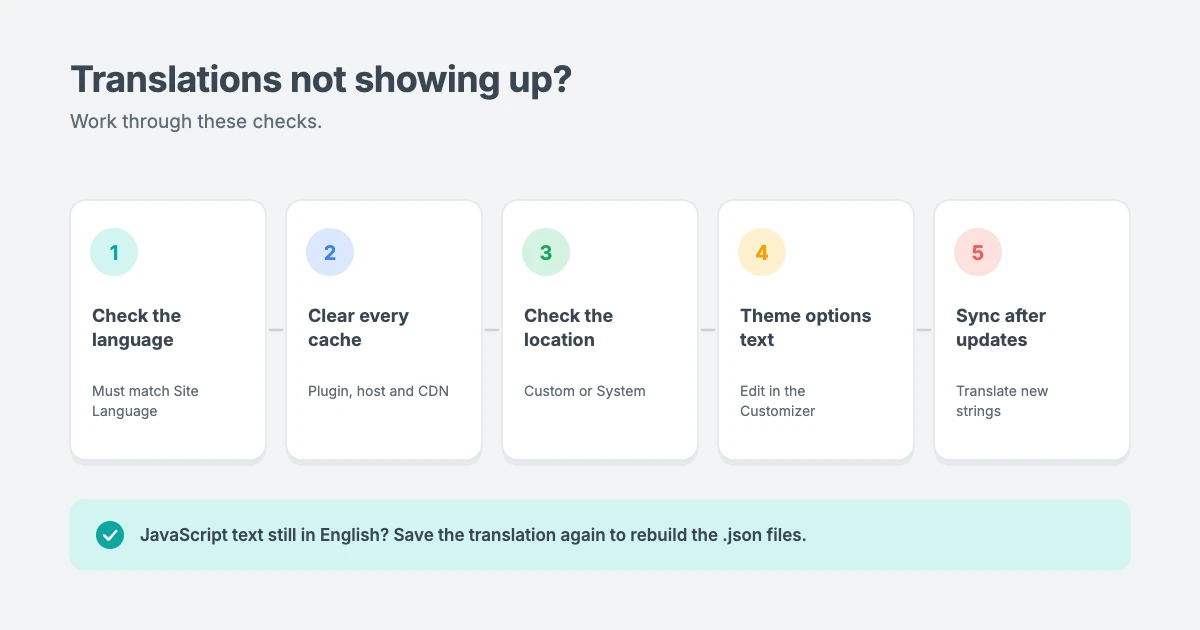
- Check the language. Your translation’s language must match the Site Language in Settings » General exactly. A translation for Spanish (Spain) won’t load if your site is set to Spanish (Mexico).
- Clear your caches. Clear your caching plugin, your host’s cache and your CDN. Then reload the page in a private window.
- Check the location. In Loco Translate » Themes, open your theme and make sure the language file is in the Custom or System location, not in a folder that was replaced by an update.
- Look for theme options text. Some text, such as a footer copyright line or a custom button label, comes from the Customizer or theme options rather than the theme’s code. Change it there instead.
- Sync after updates. If only some text is in English, the theme may have new strings. Click Sync and translate them.
- Check JavaScript text. If text in pop-ups, search boxes or blocks stays in English, save the translation again so Loco Translate rebuilds the
.jsonfiles, then clear your cache.
Translation-ready WPInterface themes
Every WPInterface theme is built to be translated. Most also include full RTL support for right-to-left languages such as Arabic, Hebrew and Persian. Here are two popular examples.
NewsMachine Pro

NewsMachine Pro is a lifestyle and magazine theme with a clean, image-led layout. It’s translation ready with full RTL support, and it’s tested with WPML, so you can run your magazine in any language.
BlogAura Pro

BlogAura Pro is a colorful, fast blog theme. Like every WPInterface theme, it’s translation ready with full RTL support, and every core block is styled for the block editor.
Want access to every theme? The All-Access Pass gives you all current and future WPInterface themes for one price.
Need help translating your site?
If you’d rather have experts handle it, the WPInterface team can help:
- WordPress Theme Customization: we translate and adjust your theme’s text, set up RTL layouts and fine-tune the design for your language.
- VIP Support: a $29 priority ticket for quick help when translations won’t load.
- Custom WordPress Development: we set up multilingual sites with language switchers, translated menus and SEO for every language.
- WordPress Care Plans: we keep your theme, plugins and translations up to date, with backups and monitoring.
You can also see all our professional WordPress services.
Frequently asked questions
Is Loco Translate free?
Yes. The plugin is free on WordPress.org. Some machine translation services you can connect to it are paid once you go beyond their free limits, but you don’t need them to translate your theme by hand.
Will I lose my translations when I update my theme?
Not if you save them in the Custom location. That folder is separate from your theme, so updates don’t touch it. If you save them in the Author location inside the theme folder, an update will replace them.
Can Loco Translate make my site multilingual?
No. Loco Translate translates your theme and plugins into the language your site uses. To offer several languages with a language switcher, use a multilingual plugin such as WPML, Polylang or TranslatePress. You can still use Loco Translate to adjust theme text in each language.
Does Loco Translate slow down my site?
No. Loco Translate saves standard WordPress language files, which WordPress loads in the normal way. You can even deactivate the plugin once you’ve finished translating, and your translations will keep working. Just reactivate it when you want to edit or sync them.
Can I edit an existing translation that I don’t like?
Yes. If your theme or a plugin already has a translation for your language, open it in Loco Translate and click Copy to make your own version in the Custom location. Edit the strings you want and save. Your version loads instead of the original.
Do WPInterface themes support right-to-left languages?
Yes. Our themes are translation ready, and most include full RTL support. When you set your site language to a right-to-left language such as Arabic or Hebrew, the layout flips automatically.
Why is some text still in English after translating?
That text probably comes from a plugin, your theme options or WordPress core, rather than the theme’s code. Translate plugin text under Loco Translate » Plugins, edit theme options text in the Customizer, and set your Site Language for core text.
Conclusion
Loco Translate is the simplest way to translate your WPInterface theme into your own language. Set your site language, install Loco Translate, add a new language for your theme, save it in the Custom location, and translate the strings your visitors see most. After each theme update, click Sync to translate any new text.
Looking for a theme that’s ready for your language? Browse our translation-ready WordPress themes, or get every theme with the All-Access Pass.
Reactions
How did this make you feel?
Be the first to react
One reaction per visitor. Tap again to change or remove it.



Leave a reply