Have you ever tapped a button on a website and waited for something to happen? That small pause is exactly what Interaction to Next Paint (INP) measures. It’s one of Google’s Core Web Vitals, and a poor INP score means your site feels slow and unresponsive, even if your pages load quickly.
The good news is that you don’t need to be a developer to improve INP in WordPress. In most cases, the problem comes from a few heavy scripts, and you can find and fix them with free tools.
In this beginner’s guide, we’ll explain what INP is, how to measure it, what usually causes a poor score on WordPress sites, and the fixes that make the biggest difference, in the order you should try them.
What is INP (Interaction to Next Paint)?
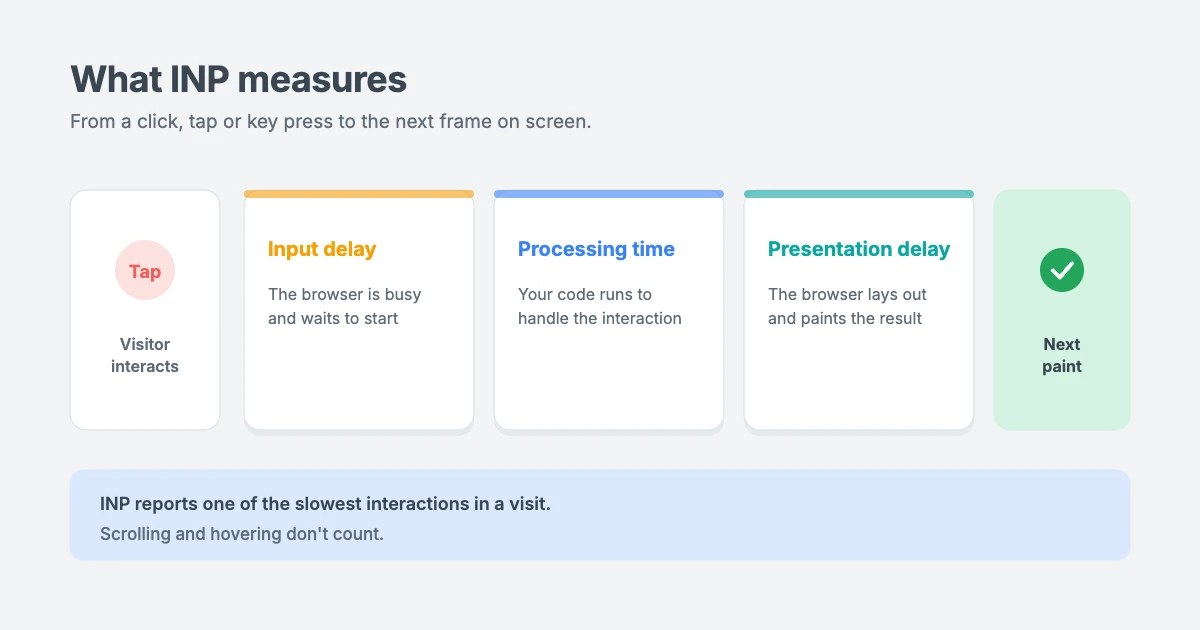
INP measures how quickly your page responds when someone interacts with it. Every time a visitor clicks a link, taps a button or types in a field, the browser has to run some code and then update the screen. INP is the time between the interaction and the next time the screen is updated, which is called the next paint.
INP looks at every interaction during a visit and reports one of the slowest. That makes it a good measure of how responsive your site feels overall, not just on the first click.
Each interaction has three parts:
- Input delay: the time the browser waits before it can start handling the interaction, usually because it’s busy running other JavaScript.
- Processing time: the time it takes to run the code that responds to the interaction.
- Presentation delay: the time it takes the browser to work out the new layout and paint the result on screen.
Scrolling and hovering don’t count towards INP. Only clicks, taps and key presses do.
INP became a Core Web Vital on March 12, 2024, replacing First Input Delay (FID). FID only measured the delay before the first interaction, so a site could pass FID and still feel sluggish. INP is a much stricter test. You can read Google’s own explanation on web.dev.
What is a good INP score?
Google uses these thresholds:
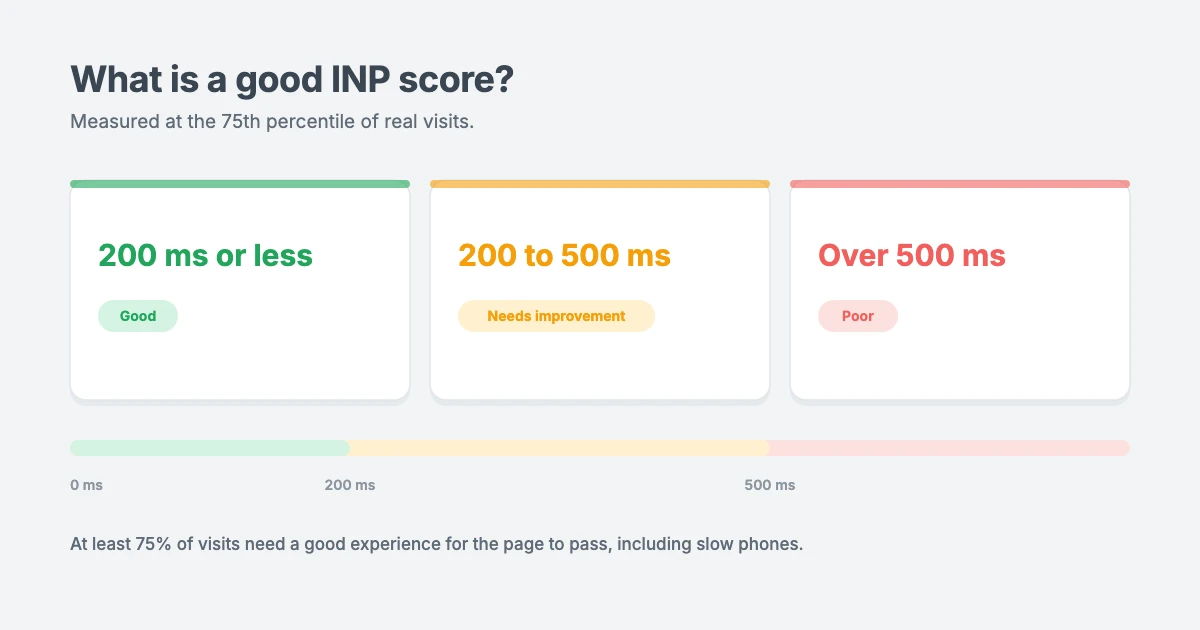
| INP score | Rating |
|---|---|
| 200 ms or less | Good |
| 200 to 500 ms | Needs improvement |
| Over 500 ms | Poor |
The score is based on the 75th percentile of real visits. In simple terms, at least 75% of your visitors need to have a good experience for your page to pass. That includes people on older or budget phones, which is why INP problems often show up on mobile first.
How to measure INP in WordPress
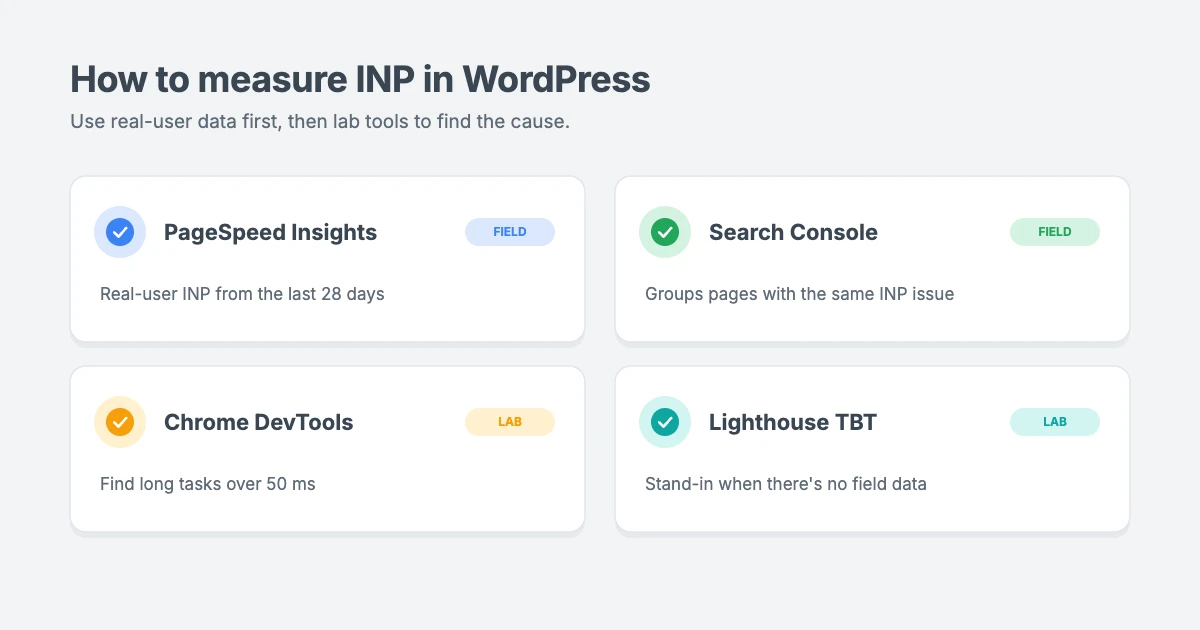
Before you try to improve INP in WordPress, measure your current INP so you know where you’re starting from and can see if your fixes work.
PageSpeed Insights
Open PageSpeed Insights, enter a page URL and look at the Core Web Vitals Assessment at the top. This section uses real data from Chrome users over the last 28 days, so it’s the score Google actually uses. Check both the Mobile and Desktop tabs.
If you see “not enough real-world speed data”, your page doesn’t get enough traffic for field data yet. Use the lab tools below instead, and check again as your traffic grows.
Google Search Console
In Search Console, go to Core Web Vitals under Experience. This report groups pages with the same problem, such as “INP issue: longer than 200 ms (mobile)”. It’s the best way to see whether a problem affects one page or your whole site, which often points to a plugin or your theme.
Chrome DevTools
To find out what’s slowing down a specific interaction:
- Open the page in Chrome, right-click and choose Inspect.
- Go to the Performance tab.
- Turn on CPU throttling (for example, 4x slowdown) to act like a slower phone.
- Click Record, then use the page like a visitor: open the menu, click buttons, fill in a form.
- Stop the recording and look at the Main track for long tasks. Any task over 50 ms is marked with a red corner.
The Bottom-up and Summary views show which scripts used the most time. This helps you tell whether the problem is your own site’s code or a third-party script such as a chat widget or ad.
Lighthouse Total Blocking Time
Lighthouse, which also powers the lab section of PageSpeed Insights, can’t measure INP directly because it doesn’t interact with the page. But its Total Blocking Time (TBT) score is a useful stand-in. A high TBT usually means heavy JavaScript that will also cause a poor INP.
What causes a poor INP score in WordPress?
On most sites, the main cause of a poor INP in WordPress is too much JavaScript. The browser can only do one thing at a time on its main thread. If it’s busy running a large script when a visitor taps a button, the tap has to wait.
The most common sources of heavy JavaScript are:
- Plugins that load scripts on every page, even pages where they’re not used, such as form, slider or gallery plugins.
- Page builder bundles, which often load code for every widget, not just the ones on the page.
- Sliders and carousels, especially on the homepage.
- Third-party tags, such as live chat, heatmaps, A/B testing tools, social media pixels and marketing scripts.
- Ads, which can load many scripts and change the page while visitors use it.
- Embeds, such as videos, maps and social media posts.
What about hosting? Slow hosting increases your Time to First Byte (TTFB) and hurts your loading speed, but TTFB isn’t part of INP. Better hosting won’t fix a poor INP on its own. It’s still worth improving as part of your overall speed work.
How to improve INP in WordPress: 6 fixes in order
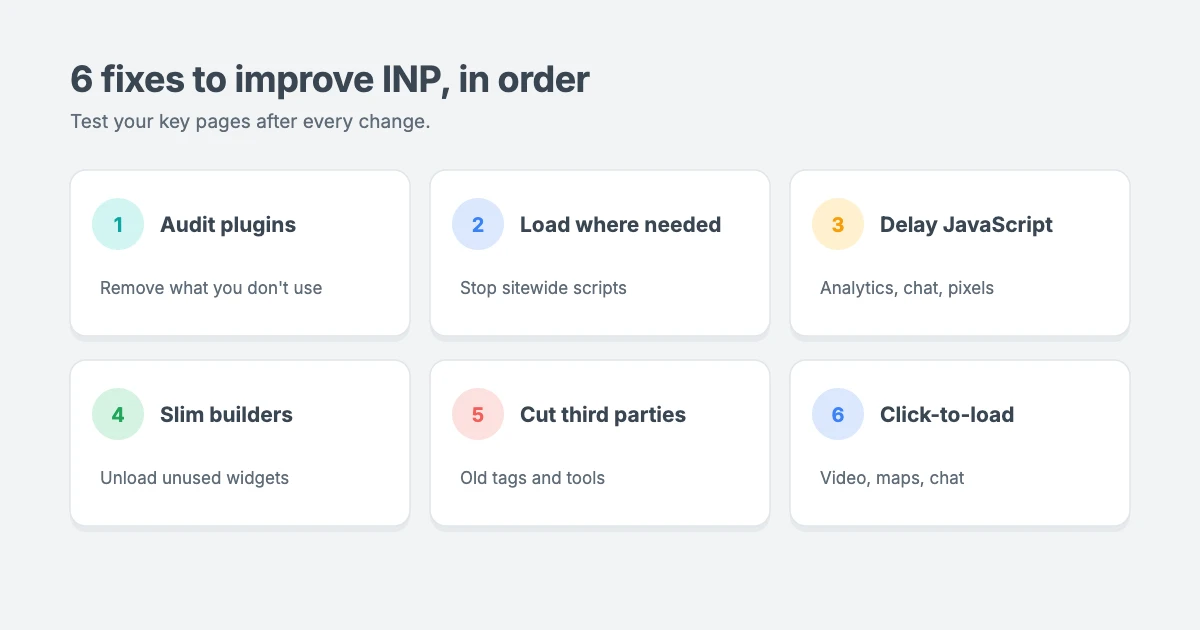
Work through these fixes one at a time, starting with the easiest. Each one can improve INP in WordPress on its own, and together they usually make the biggest difference. After each change, test your key pages and measure again.
Before you start: make a full backup of your site, and test changes on a staging site if you can. Some JavaScript changes can break menus, sliders or cookie banners.
Fix 1: Audit your plugins
Plugins are the most common cause of a poor INP in WordPress, because every active plugin can add scripts to your pages. Go to Plugins » Installed Plugins and ask yourself which ones you really need.
- Deactivate and delete plugins you don’t use. Deactivated plugins don’t load scripts, but deleting them keeps your site cleaner and safer.
- Look for overlap. Two plugins doing the same job, such as two social sharing tools, double the work.
- Replace heavy plugins with lighter ones that do the same job.
- Prefer plugins that only load their files where they’re used, for example a form plugin that only loads its scripts on pages with a form.
To find which plugin is causing the problem, deactivate plugins one at a time on a staging site and re-test in DevTools or PageSpeed Insights.
Fix 2: Load scripts only where they’re needed
Many plugins load their JavaScript on every page, even if you only use them on one. If you’re comfortable adding code, you can stop a script from loading on pages that don’t need it. Add this to a code snippets plugin or your child theme’s functions.php file, replacing the handle and page slug with your own:
add_action( 'wp_enqueue_scripts', function () {
    if ( ! is_page( 'contact' ) ) {
        wp_dequeue_script( 'example-form-script' );
        wp_dequeue_style( 'example-form-style' );
    }
}, 100 );
This example only loads a form plugin’s files on the Contact page. You can find a script’s handle by looking at the id attribute of its <script> tag in your page source, which ends in -js. Remove the -js part to get the handle.
Some performance and caching plugins include a script manager that lets you do the same thing without code.
Fix 3: Delay or defer non-critical JavaScript
Delaying scripts is one of the quickest ways to improve INP in WordPress. Scripts that aren’t needed straight away, such as analytics, popups, chat widgets and tracking pixels, don’t need to run as soon as the page loads. Delaying them frees up the main thread so your page can respond to visitors faster.
- Defer tells the browser to download a script without blocking the page and run it after the HTML has loaded.
- Delay goes further and waits until the visitor first interacts with the page, such as scrolling or moving the mouse, before running the script.
Most caching and performance plugins include a “delay JavaScript” or “defer JavaScript” setting, and many hosts include one in their own caching tools. Turn it on, then test your key pages.
If you build your own theme or plugin, WordPress 6.3 and later can defer a script for you when you enqueue it:
wp_enqueue_script(
    'my-script',
    get_stylesheet_directory_uri() . '/js/my-script.js',
    array(),
    '1.0',
    array( 'strategy' => 'defer', 'in_footer' => true )
);
Be careful: delaying the wrong script can break things like menus, sliders, cookie consent banners and forms. Add scripts to your delay list one at a time, and test after each change. If something breaks, exclude that script.
Fix 4: Slim down page builders and sliders
Page builders and sliders are some of the heaviest parts of many WordPress sites, so slimming them down can improve INP in WordPress quickly.
- Turn on your page builder’s performance options. Many builders can load only the code for widgets used on each page, or turn off features you don’t use.
- Only load sliders on pages that use them. Many slider plugins have a setting for this.
- Consider replacing the homepage slider with a static hero section. A single strong image and headline is often faster, clearer and better for conversions than a rotating slider.
- Use a lightweight theme that doesn’t depend on a page builder for its layout.
Fix 5: Cut back on third-party tags
Third-party scripts are often the biggest cause of a poor INP in WordPress, and you have little control over their code.
- Remove tools you no longer use, such as old heatmap or A/B testing scripts. Check your theme settings, header and footer code, and any tag manager containers.
- Ask whether each tool is worth its cost. If you never look at your heatmaps, that script is slowing your site for nothing.
- Delay the scripts you keep, using Fix 3.
Fix 6: Use click-to-load embeds
Some embeds are essential, such as support chat, video, maps or payment forms. You can’t change their code, but you can control when they load.
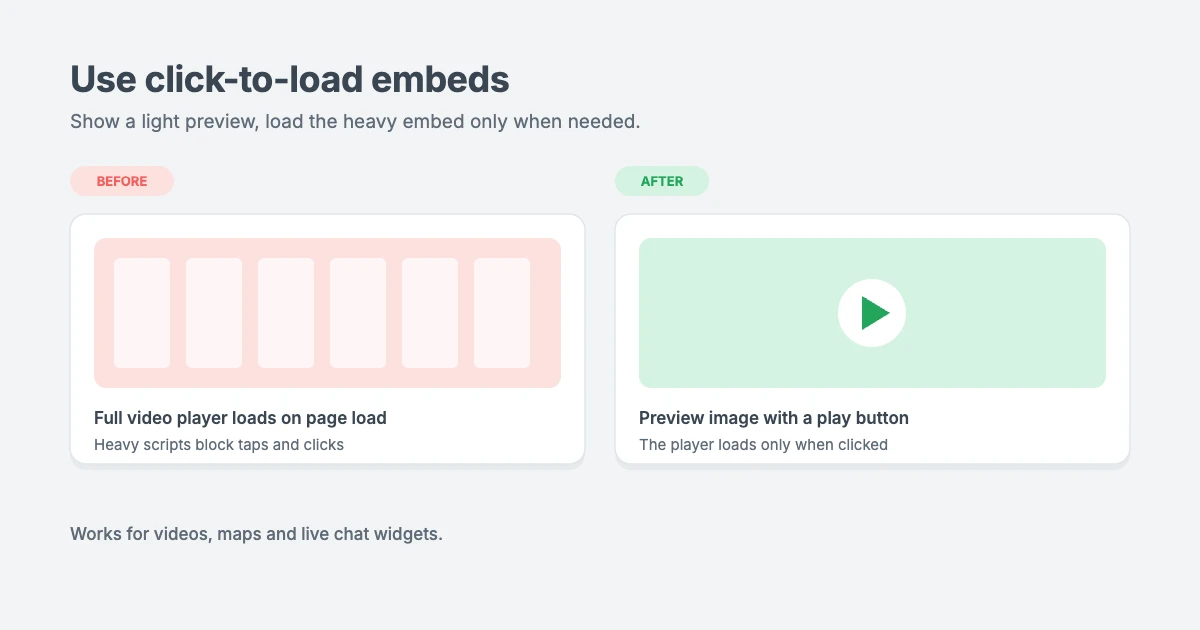
- Videos: show a preview image with a play button, and only load the video player when someone clicks it. This is often called a “facade”.
- Live chat: load the chat widget after the visitor’s first interaction, or when they click a chat button.
- Maps: show a static map image with a link, and load the interactive map only when clicked.
- Ads: if an ad placement is causing a poor INP, removing it can be the right decision.
Don’t forget budget phones
Because INP uses the 75th percentile, slow phones have a big effect on your score. If you want to improve INP in WordPress for everyone, you need to test on the kind of devices your visitors really use, not just your own fast computer. A site that feels fast on your laptop may be sluggish on an older Android phone. Always test with CPU throttling in DevTools, and if you can, try your site on a real low-cost phone.
Choose a lightweight theme for a better INP
Your theme loads on every page, so it has a big effect on INP in WordPress. WPInterface Pro themes are built to be lightweight and fast, with design settings in the WordPress Customizer and no page builder required to create a great-looking site. Here are three that are a good fit for speed-focused sites.
SpeedNews Pro
SpeedNews Pro is a fast, lightweight news and magazine theme built for sites that publish a lot of content and need pages to respond quickly.

SpeedBlog Pro
SpeedBlog Pro is a minimal blog theme focused on fast loading and easy reading, a great choice for writers and content creators.

MagNine Pro
MagNine Pro is a clean magazine theme with flexible layouts for categories and featured stories, without the weight of a page builder.

You can see all our themes on the WordPress themes page. While you’re working on speed, our guide to finding and fixing autoloaded options bloat can also make your dashboard and uncached pages faster.
Let our team improve your Core Web Vitals
If you’d rather have an expert improve INP in WordPress for you, the WPInterface team can help:
- WordPress Speed Optimization: we audit your plugins, scripts, theme and hosting, and improve your Core Web Vitals, including INP.
- WordPress Care Plans: regular updates, backups and performance monitoring, so your site stays fast.
- WordPress Theme Customization: replace a heavy slider or page builder layout with a lighter, faster design.
- VIP Support: a $29 priority ticket for fast expert help with a single problem.
You can also see all our professional WordPress services.
Frequently asked questions
What is INP in WordPress?
INP in WordPress, or Interaction to Next Paint, is a Core Web Vital that measures how quickly your page responds when someone clicks, taps or types. It reports one of the slowest interactions during a visit.
What is a good INP score?
An INP of 200 milliseconds or less is good. Between 200 and 500 milliseconds needs improvement, and over 500 milliseconds is poor.
Does INP affect SEO?
INP is one of Google’s Core Web Vitals, which are part of its page experience signals. Good content matters most, but a responsive site gives visitors a better experience and can help your pages compete.
Why does PageSpeed Insights say there isn’t enough data?
Field data comes from real Chrome users. If a page doesn’t get enough visits, there isn’t enough data to report INP. Use the Lighthouse Total Blocking Time score and Chrome DevTools until your traffic grows.
Will a caching plugin fix INP?
Page caching alone won’t improve INP in WordPress. It makes pages load faster, but it doesn’t reduce the JavaScript that runs on the page. Many caching plugins also include options to delay or defer JavaScript, and those settings can improve INP.
Will better hosting improve INP?
Not directly. Hosting affects your Time to First Byte and loading speed, but INP depends mostly on the JavaScript running in the visitor’s browser.
What’s the difference between INP and FID?
FID only measured the delay before the first interaction on a page. INP measures the full response time of all interactions during a visit, so it’s a better measure of how responsive your site feels. INP replaced FID in March 2024.
Conclusion
A poor INP score usually comes down to too much JavaScript competing for the browser’s attention. To improve INP in WordPress, measure first with PageSpeed Insights, Search Console and Chrome DevTools, then work through the fixes in order: audit your plugins, load scripts only where they’re needed, delay non-critical JavaScript, slim down page builders and sliders, cut back on third-party tags and use click-to-load embeds.
Test after every change, re-check your scores in PageSpeed Insights after a few weeks, as field data takes up to 28 days to update, check your site on a slow phone, and choose a lightweight theme as your foundation. Your visitors will notice the difference every time they tap.
Reactions
How did this make you feel?
Be the first to react
One reaction per visitor. Tap again to change or remove it.







Leave a reply