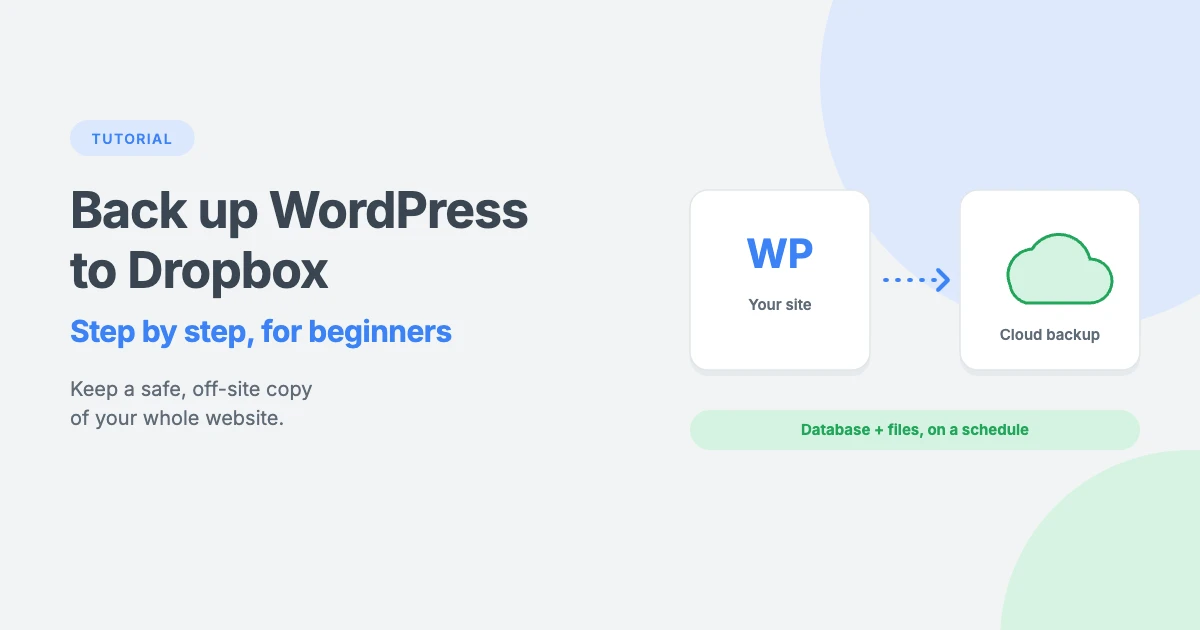
Most site owners don’t think about backups until the day they need one. A plugin update goes wrong, the site gets hacked or the server fails, and suddenly a recent backup is the difference between a quick fix and starting again.
Keeping backups on the same server as your website is risky, because if the server has a problem, your backups may be lost too. Dropbox gives you a simple, off-site home for your backups that you can reach from any device.
In this tutorial, we’ll show you how to back up a WordPress site to Dropbox step by step, how to schedule automatic backups, and how to restore your site from a Dropbox backup.
Why back up WordPress to Dropbox?
There are good reasons to back up WordPress to Dropbox rather than relying on your server alone.
A good backup strategy follows a simple rule: keep at least one copy of your site somewhere other than your web server. Dropbox is a popular choice because:
- It’s off-site. If your server crashes or your site is hacked, your backups are safe in the cloud.
- It’s easy to reach. You can view and download backups from any computer or phone.
- It’s familiar. Many people already have a Dropbox account.
- It’s affordable. Dropbox Basic is free with 2 GB of storage, and paid plans offer much more.
What a complete WordPress backup includes
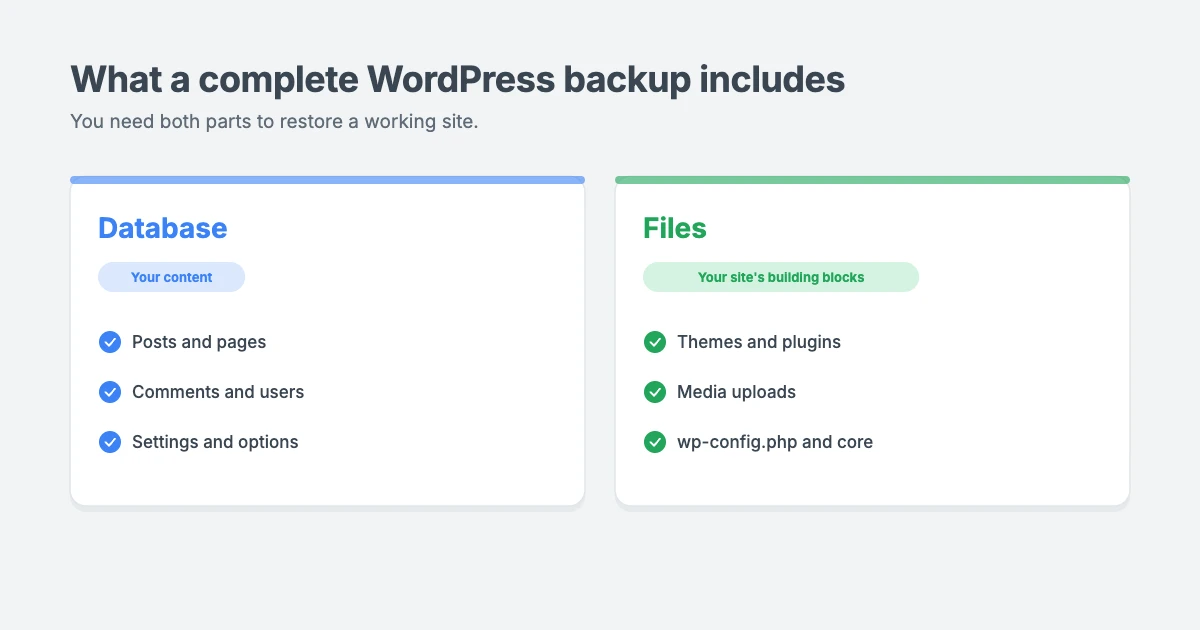
Before you start, it helps to know what you’re backing up. A full WordPress backup has two parts, as explained in the official WordPress backup documentation:
- Your database, which stores your posts, pages, comments, users and settings.
- Your files, including the
wp-contentfolder with your themes, plugins and media uploads, plus core files such aswp-config.php.
You need both to restore a working site. A backup of only one is incomplete.
Before you begin
- Check your Dropbox space. Look at the size of your site in your hosting account. The free 2 GB Dropbox plan suits small sites, but larger sites will need a paid plan.
- Choose a backup plugin with Dropbox support. Many WordPress backup plugins can send backups to Dropbox. Some include it in their free version, and others only in their premium version. Check the plugin’s features before you install it.
- Keep your Dropbox login secure. Turn on two-step verification in your Dropbox account settings, because your backups contain your whole site.
Step 1: Install a backup plugin
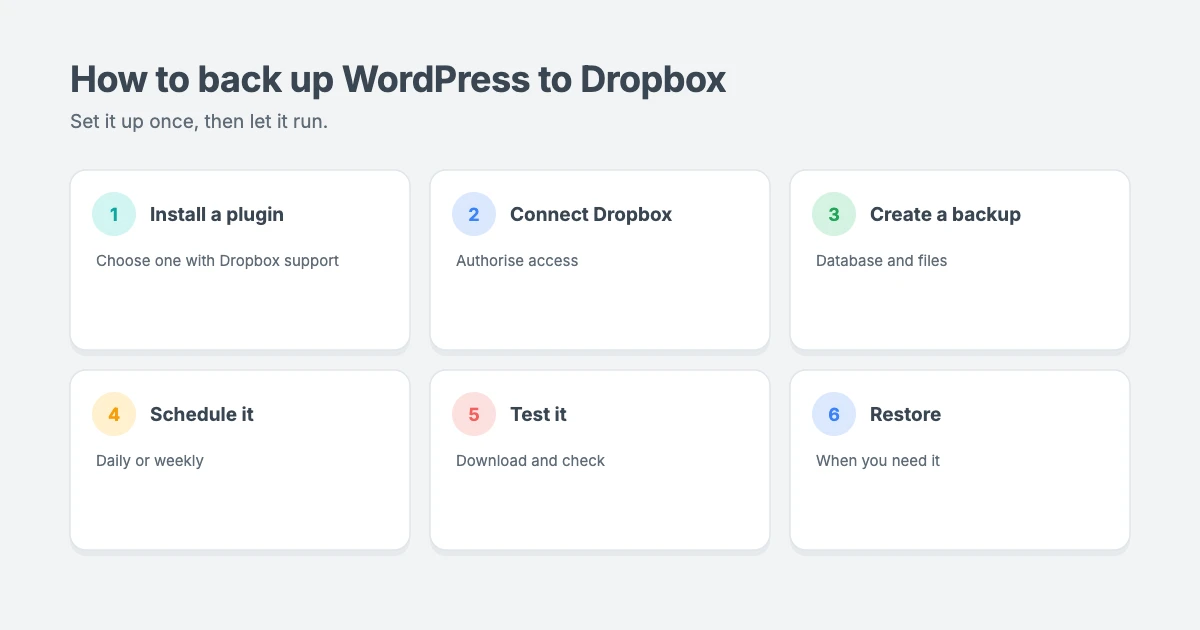
In your WordPress dashboard, go to Plugins » Add New, search for a well-reviewed backup plugin that supports Dropbox, then install and activate it. If you choose a premium plugin, upload the plugin file and activate your licence as instructed by the developer.
Look for a plugin that is updated regularly, has good reviews and clearly explains how to restore a backup, not just how to create one.
Step 2: Connect your site to Dropbox
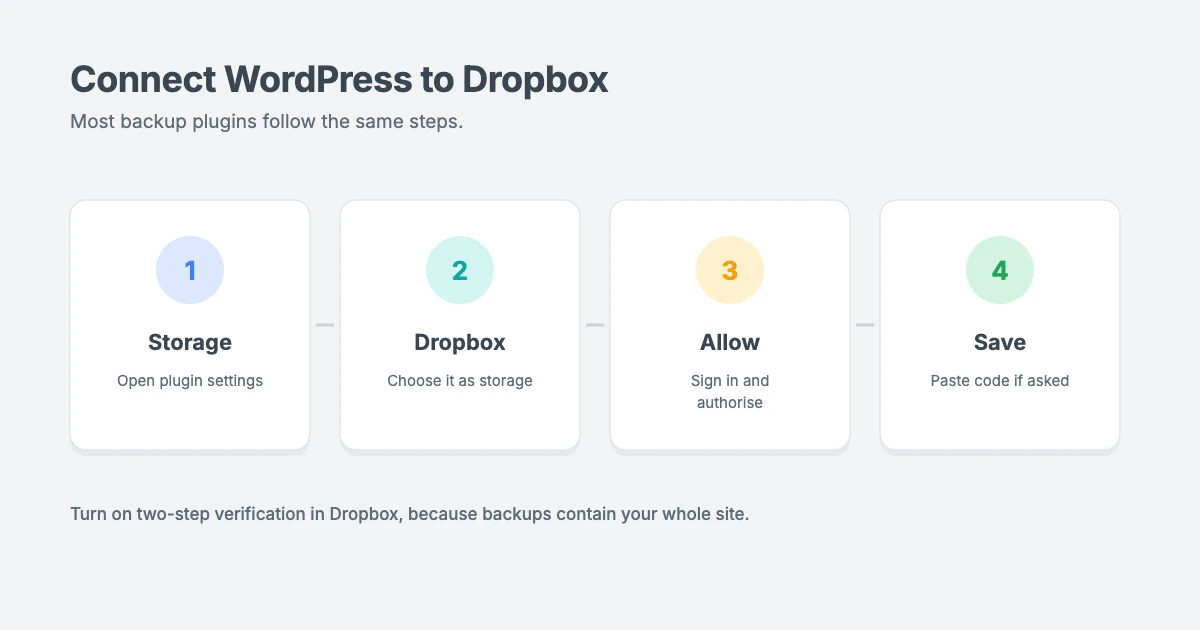
Most backup plugins connect to Dropbox in a similar way:
- Open the plugin’s Storage, Destinations or Settings page.
- Choose Dropbox as a storage location.
- Click the button to connect or authorise Dropbox.
- Sign in to Dropbox in the window that opens and click Allow to give the plugin access.
- If the plugin shows you an authorisation code, copy it and paste it back into the plugin settings.
- Save your settings.
Most plugins only ask for access to their own app folder in your Dropbox, rather than your whole account. That’s the safer option if you’re given the choice.
Step 3: Create your first backup
Now create a manual WordPress backup to make sure everything works:
- Go to the plugin’s Backups page and click to create a new backup.
- Choose a full backup that includes your database and all files.
- Select Dropbox as the storage location.
- Start the backup and wait. Small sites take a minute or two, while large sites can take longer.
- When it finishes, open Dropbox and check that the backup files are there.
Tip: many plugins create a ZIP archive for your files and a separate file for your database. Make sure both arrive in Dropbox.
Step 4: Schedule automatic backups
Manual backups are easy to forget, so set a schedule to back up WordPress to Dropbox automatically:
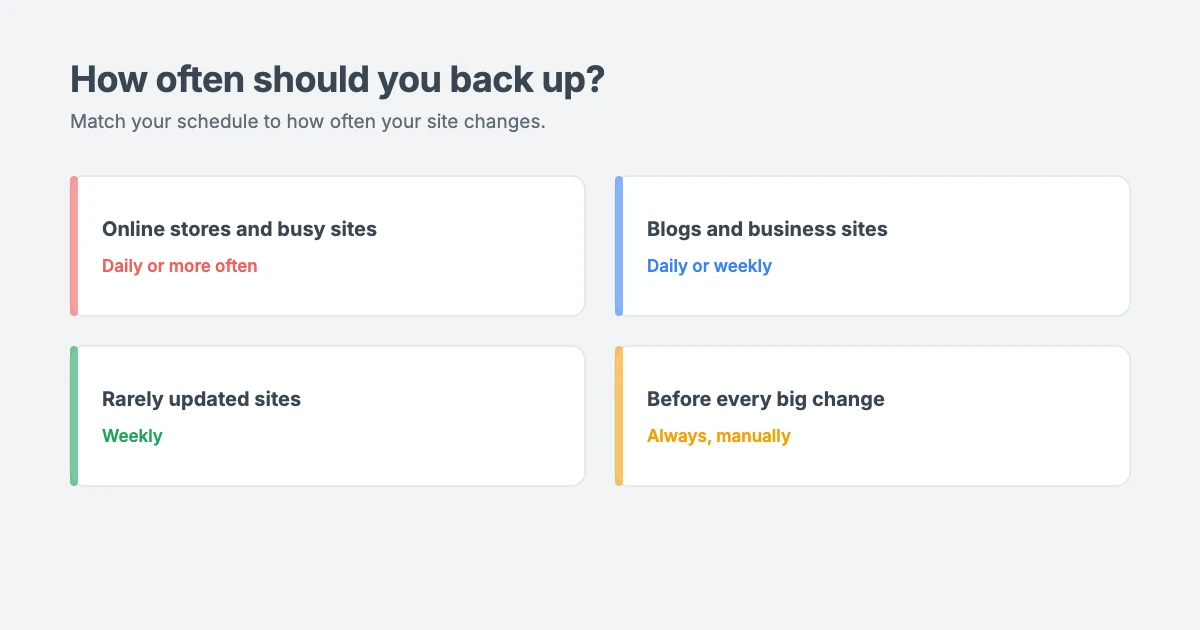
- Busy sites, such as online stores, news sites and membership sites, should back up daily or even more often.
- Blogs and business sites that change a few times a week are usually fine with daily or weekly backups.
- Rarely updated sites can back up weekly, plus a manual backup before any big change.
Also set how many backups to keep. Keeping the last 7 to 30 backups gives you options without filling your Dropbox. Older backups are usually deleted automatically.
Step 5: Test your backup
A WordPress backup you’ve never tested is a backup you can’t fully trust. Every few months:
- Download a recent backup from Dropbox and check that the files open.
- If you can, restore it to a staging site or a local copy of WordPress to confirm it works.
- Keep a note of how to restore, so you’re not working it out during an emergency.
How to restore your site from a Dropbox backup
The real value of a WordPress backup is being able to restore it quickly.
If something goes wrong, here’s the usual process for restoring a WordPress backup:
- Find the backup in Dropbox from a date before the problem started.
- Restore it from the plugin. Most backup plugins can restore directly from Dropbox, or let you upload the downloaded backup files.
- Follow the restore wizard and confirm. Restoring replaces your current database and files with the backup, so anything added after the backup date will be lost.
- Log in and check your site. Clear your cache, test your key pages, forms and checkout, and update your permalinks if links don’t work.
If you can’t log in to your dashboard, many plugins provide a standalone installer or recovery file. You can also ask your host for help, or follow our hacked WordPress site recovery checklist if security is the issue.
WordPress backup best practices
These habits apply whenever you back up WordPress to Dropbox or anywhere else.
- Follow the 3-2-1 rule: keep 3 copies of your data, on 2 different types of storage, with 1 copy off-site, such as Dropbox.
- Don’t rely only on your host’s backups. They’re useful, but they’re usually stored with the same provider.
- Back up before every big change, such as WordPress, theme or plugin updates. Our guide to rolling back a WordPress update shows why.
- Keep backups lean. Remove unused plugins, themes and media to make backups smaller and faster. See our guide on how to free up disk space in WordPress.
- Protect your accounts with strong passwords and two-step verification on both WordPress and Dropbox.
Lightweight WPInterface themes
Smaller sites back up faster. WPInterface Pro themes are lightweight, with lean code and design settings in the WordPress Customizer, so they keep your site fast and your backups small. Every theme is translation ready and RTL compliant.
SpeedBlog Pro
SpeedBlog Pro is a fast blog theme for travel, tech, personal and creative blogs, with a clean layout that keeps readers focused.

Business Interface Pro
Business Interface Pro is a lightweight multipurpose business theme with 12 starter sites, ideal for company websites that need to be fast and reliable.

SpeedNews Pro
SpeedNews Pro is a fast news and magazine theme with a trending ticker and mosaic headlines, built for publishers who post every day.

You can see all our themes on the WordPress themes page.
Let us handle backups for you
Don’t want to manage your WordPress backup yourself? The WPInterface team can help:
- WordPress Care Plans: updates, backups and monitoring, so your site is always protected.
- Malware Removal and Security Hardening: we start work within 4 hours, with a 30-day reinfection guarantee.
- WordPress Migration: move your site to a new host safely, with no downtime.
- VIP Support: a $29 priority ticket for quick expert help with backups or restores.
Frequently asked questions
Can I back up WordPress to Dropbox for free?
Yes, if you use a backup plugin whose free version supports Dropbox and your site fits in Dropbox’s free 2 GB plan. Larger sites will need more Dropbox storage.
How often should I back up my WordPress site?
It depends on how often your site changes. Online stores and busy sites should back up at least daily, while smaller sites can back up daily or weekly. Always back up before updates.
Is it safe to store WordPress backups in Dropbox?
Yes, as long as you protect your Dropbox account with a strong password and two-step verification. Backups contain your whole site, including user data, so treat them carefully.
What’s the difference between a full backup and a database backup?
A database backup saves your content and settings. A full backup also includes your themes, plugins, media and core files. You need a full backup to restore your whole site.
Are my host’s backups enough?
They’re a good safety net, but it’s best to keep your own copy somewhere else too. If your hosting account has a problem, you’ll still have your Dropbox backup.
Can I restore a Dropbox backup to a new host?
Usually, yes. Many backup plugins can restore or migrate a backup to a new server, which is a handy way to move hosts.
Final thoughts
Choosing to back up WordPress to Dropbox takes a few minutes to set up and could save you days of work. Connect a backup plugin to Dropbox, create a full backup, schedule automatic backups and test a restore every few months.
Once it’s running, you can update, experiment and grow your site with confidence, knowing there’s always a safe copy waiting in the cloud.
Reactions
How did this make you feel?
Be the first to react
One reaction per visitor. Tap again to change or remove it.





Leave a reply