WordPress is written in PHP, so the PHP version your server runs has a direct effect on how fast, secure and stable your site is. Many sites still run on PHP versions that no longer get security fixes, often without the owner knowing. The good news is that you can usually update the PHP version in WordPress in a couple of minutes from your hosting dashboard, with no code at all.
In this tutorial, we’ll show you how to check your current PHP version, prepare your site so nothing breaks, and update PHP on the most popular hosts. We’ll also explain what to do if your site has problems after the update.
Why you should update the PHP version in WordPress
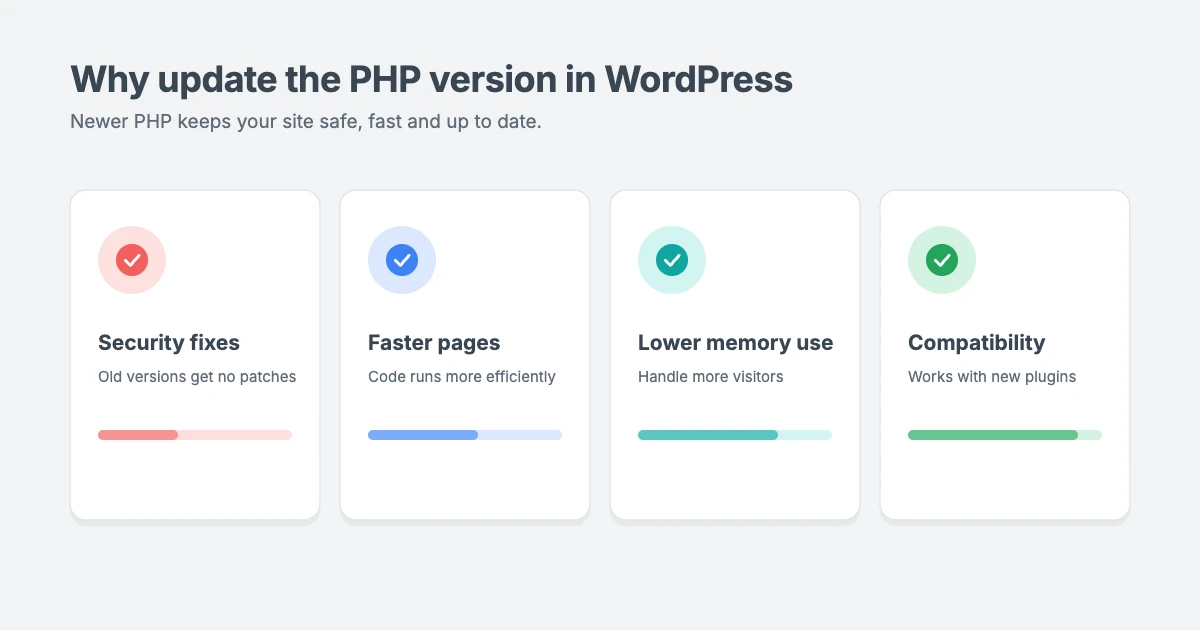
PHP is the programming language that runs WordPress core, your theme and your plugins. Every time someone visits a page, your server uses PHP to build it. A newer PHP version gives you three big benefits.
- Better security. Each PHP release line gets security fixes for a limited time. Once a version reaches end of life, new vulnerabilities in it are never patched, which leaves your site exposed.
- Faster pages. Newer PHP versions run code more efficiently and use less memory, so pages are generated faster and your server can handle more visitors.
- Compatibility. New versions of WordPress, themes and plugins are built and tested for current PHP. Staying on old PHP leads to warnings, broken features and, eventually, plugins you can’t update.
Which PHP version should you use?
The WordPress project recommends PHP 8.3 or greater. WordPress 7.0 and newer need at least PHP 7.4 to run, but PHP 7.4 reached end of life years ago and no longer gets security fixes, so you shouldn’t stay on it.
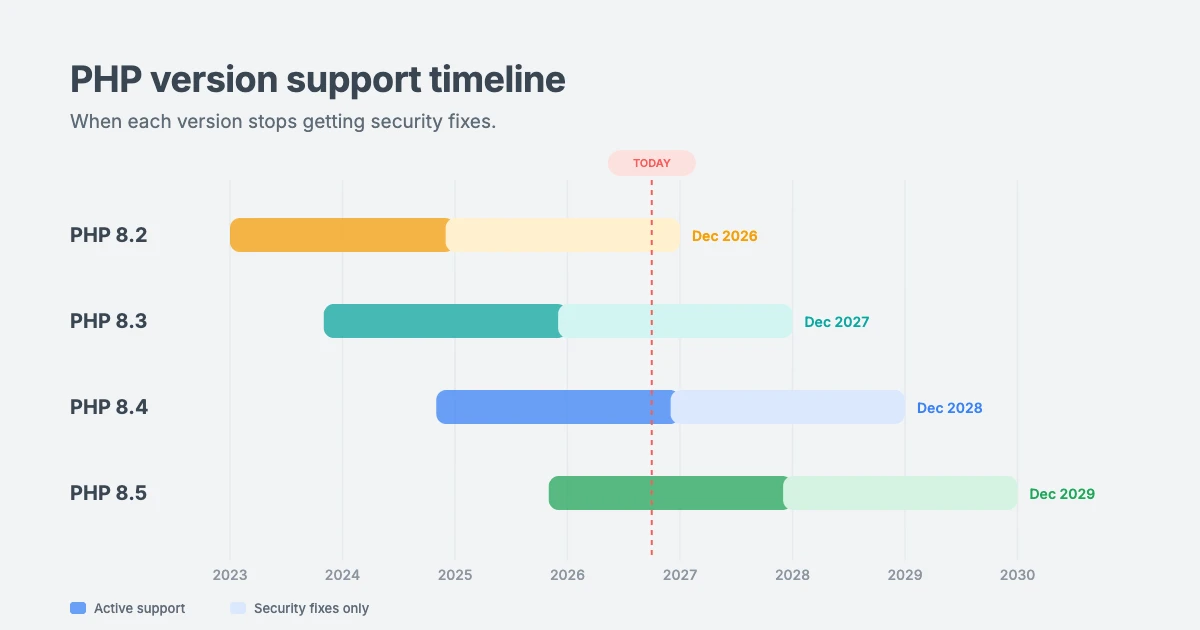
Here is the current support status of each PHP version, from the official PHP supported versions page:
| PHP version | Released | Active support until | Security fixes until | Our advice |
|---|---|---|---|---|
| 8.5 | November 2025 | 31 December 2027 | 31 December 2029 | Good choice if your plugins support it |
| 8.4 | November 2024 | 31 December 2026 | 31 December 2028 | Best choice for most sites |
| 8.3 | November 2023 | Ended | 31 December 2027 | Fine, but plan your next update |
| 8.2 | December 2022 | Ended | 31 December 2026 | Update soon |
| 8.1 and older | 2021 or earlier | Ended | Ended | Update now |
For most sites, PHP 8.4 is the sweet spot: it’s fast, fully supported, and widely tested by theme and plugin developers. If all your plugins list support for PHP 8.5, you can use that instead. Avoid jumping straight to a brand-new version in the first few weeks after release, while plugin authors catch up.
How to check your current PHP version
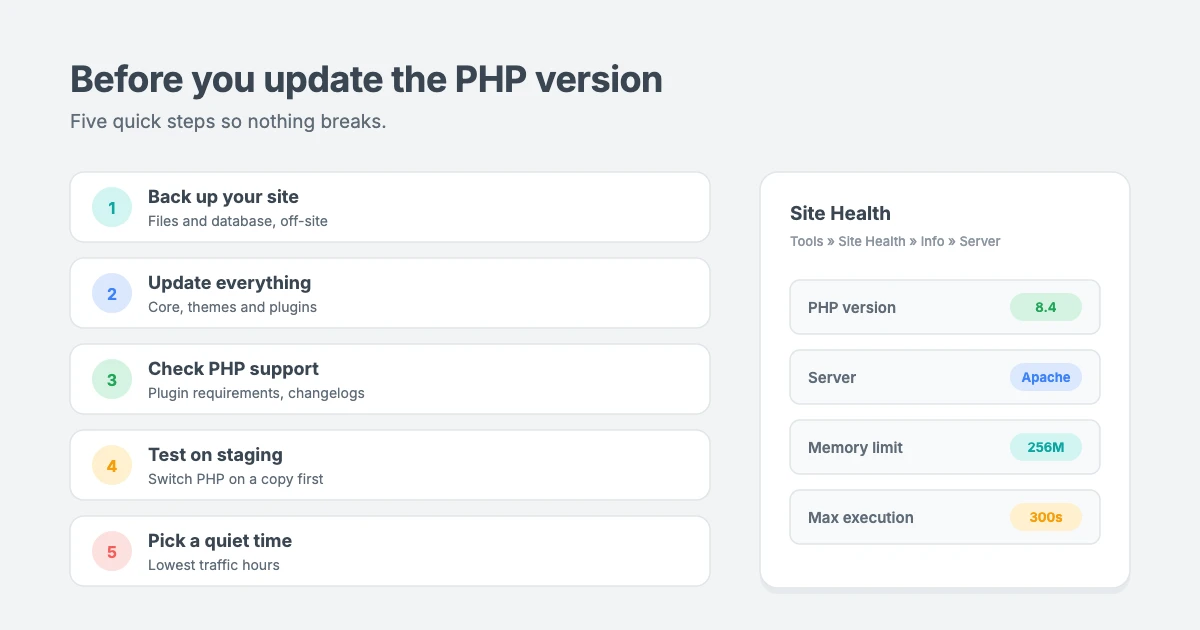
WordPress shows your PHP version in the dashboard:
- Go to Tools » Site Health in your WordPress admin.
- Click the Info tab.
- Expand the Server section.
- Look for PHP version.
If your PHP version is old, the Status tab of Site Health will usually also show a warning such as “Your site is running on an outdated version of PHP”. You can also see the PHP version in your hosting control panel, which we’ll show you below.
What to do before you update PHP
Most PHP updates go smoothly, but an old plugin or theme can stop working on a newer version. These steps take a few minutes and mean you can undo any problem quickly.
Step 1: Back up your site
Make a full backup of your files and database before you change anything. Use your host’s backup tool or a backup plugin, and keep a copy off the server. If something goes wrong, you can restore the backup in minutes. For a full recovery plan, see our tutorial on what to do when a WordPress update breaks your site.
Step 2: Update WordPress, themes and plugins
Go to Dashboard » Updates and install every available update. Developers fix PHP compatibility issues in their updates, so outdated code is the most common reason a site breaks after a PHP change. Delete any plugins and themes you no longer use, since they can still cause errors.
Step 3: Check your plugins and theme for PHP support
Open the page for each important plugin on WordPress.org and check the PHP version listed under requirements, along with the last updated date. A plugin that hasn’t been updated in two or more years is a risk. For premium plugins and themes, check the developer’s changelog or documentation.
You may see older guides recommend the PHP Compatibility Checker plugin. It’s no longer maintained and only checks up to PHP 8.0, so we don’t recommend relying on it today. Testing on a staging site is far more reliable.
Step 4: Test on a staging site
A staging site is a private copy of your website where you can test changes safely. Many hosts let you create one with one click. Change the PHP version on the staging site first, then click through your important pages, forms, checkout and admin screens. If everything works, repeat the change on your live site.
Step 5: Pick a quiet time
Make the change when your site gets the least traffic, so any problem affects as few visitors as possible.
How to update the PHP version in WordPress on your host
WordPress doesn’t control the PHP version. Your web host does, so you change it from your hosting dashboard. The menus differ a little between hosts and can change over time, but the steps below cover the most popular ones.
Hostinger
- Log in to hPanel and go to Websites, then click Dashboard next to your site.
- In the left menu, open Advanced » PHP Configuration.
- On the PHP versions tab, select the version you want.
- Click Update and confirm.
cPanel hosts
Many hosts use cPanel. Depending on your server, you’ll see one of two tools:
- Log in to cPanel and search for MultiPHP Manager (or Select PHP Version on CloudLinux servers).
- Tick the box next to your domain.
- Choose the new PHP version from the dropdown.
- Click Apply (or Set as current).
If you can’t find either tool, your host may manage PHP for you. Ask their support team to change it.
Bluehost
- Log in to your Bluehost account and go to Websites.
- Click Settings for the site you want to change.
- Find the PHP Version section and click Change.
- Select the new version and confirm.
SiteGround
- Go to Websites and click Site Tools for your site.
- Open Devs » PHP Manager.
- Click the pencil icon next to the current PHP version.
- Choose to change the PHP version manually, select the new version and click Confirm.
Plesk hosts
- Log in to Plesk and go to Websites & Domains.
- Click PHP (or PHP Settings) under your domain.
- Choose the new PHP version from the dropdown.
- Click OK or Apply.
Managed WordPress hosts
Managed hosts such as WP Engine, Kinsta and Pressable usually update PHP for you and give notice before they do. You can still change it yourself. Look for a PHP version or PHP engine option in the site’s settings or tools section. Some managed hosts also let you test a new PHP version for a short time before you switch.
Other hosts
Look for a PHP version, PHP settings or PHP configuration option in your control panel, often under an “Advanced” section. If you can’t find it, search your host’s help center or ask their support team.
What to check after you update PHP
Once the new version is active:
- Clear any caching plugin and your host’s cache, so you see the site as it runs now.
- Visit your homepage, a few posts and pages, and any forms or checkout pages.
- Log in to the dashboard and check that the admin works normally.
- Go back to Tools » Site Health » Info » Server and confirm the new PHP version shows.
- Check Dashboard » Updates for any updates that are now available.
If your control panel shows the new version but Site Health still shows the old one, wait a few minutes and clear the cache. If it still doesn’t change, your host may need to update the setting on their side.
Check PHP extensions and settings after the update
Each PHP version has its own settings and extensions. When your host switches you to a new PHP version, some of the custom settings you had before may reset to the defaults. Check these in Tools » Site Health » Info, under the Server and Media Handling sections, or in your host’s PHP options.
| Setting | What it controls | Good value for most sites |
|---|---|---|
| memory_limit | How much memory one PHP process can use | 256M or more |
| max_execution_time | How long a script can run before it stops | 120 to 300 seconds |
| upload_max_filesize | The largest file you can upload | 64M or more |
| post_max_size | The largest form submission, including uploads | Same as or larger than upload_max_filesize |
| max_input_vars | How many fields a form or menu can save | 3000 or more for large menus |
WordPress also needs some PHP extensions. The most important are mysqli (to connect to the database), curl and openssl (for secure connections and updates), mbstring, xml, zip, intl, and imagick or gd (for resizing images). Most hosts enable these by default. If Site Health shows a warning such as “One or more required modules are missing”, enable the missing extension in your host’s PHP options or ask support to turn it on.
How to update PHP on a VPS or cloud server
If you manage your own server, such as a VPS running Ubuntu, there’s no hosting panel to click. You install the new PHP version alongside the old one and then point your web server to it. The exact commands depend on your operating system and setup, so check your provider’s documentation first. On some Ubuntu releases, you’ll need to add a PHP package repository before the newest versions are available.
On Ubuntu, a typical update to PHP 8.4 with Nginx and PHP-FPM looks like this:
sudo apt update
sudo apt install php8.4-fpm php8.4-mysql php8.4-curl php8.4-xml php8.4-mbstring php8.4-zip php8.4-intl php8.4-gd php8.4-imagick
Next, update your Nginx site configuration so fastcgi_pass uses the new socket, for example unix:/run/php/php8.4-fpm.sock. Copy over any custom values from your old php.ini, then test and reload:
sudo nginx -t
sudo systemctl reload nginx
Keep the old PHP version installed until you’re sure the site works. If something goes wrong, point Nginx back to the old socket and reload. If you’d rather not touch the server yourself, our team can do it for you.
What to do if your site breaks after a PHP update
Don’t panic. Problems after a PHP update almost always come from one plugin or theme, and you can switch back to the old version at any time.
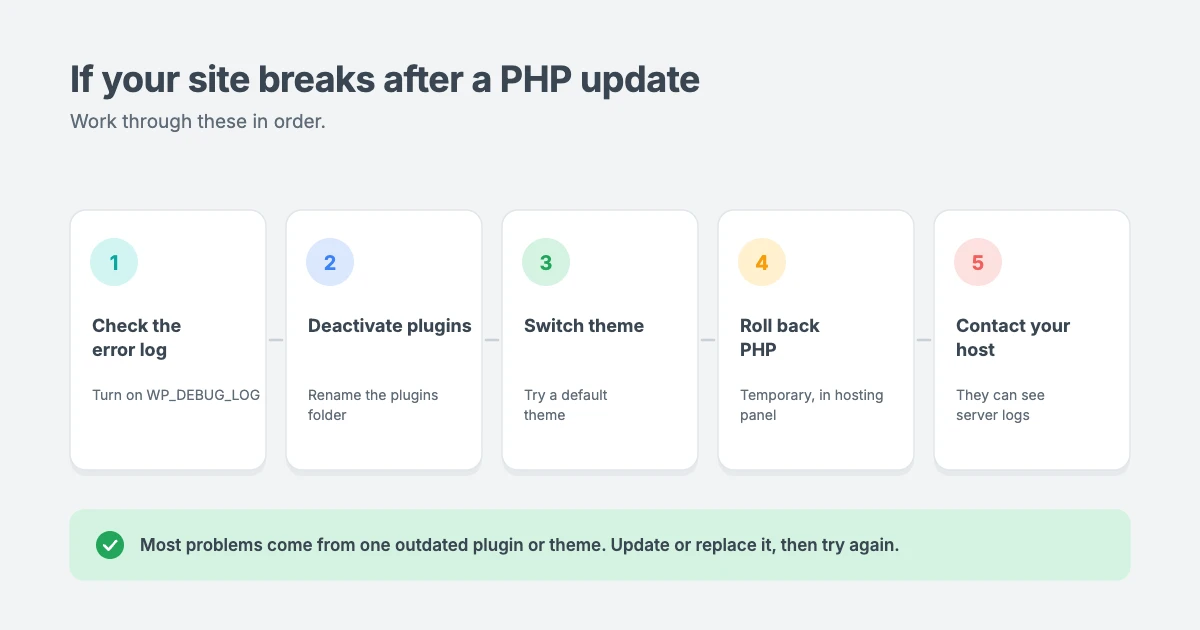
Check the error log
Turn on WordPress debug logging to see exactly which file is causing the problem. Add these lines to wp-config.php, above the line that says “That’s all, stop editing!”:
define( 'WP_DEBUG', true );
define( 'WP_DEBUG_LOG', true );
define( 'WP_DEBUG_DISPLAY', false );
Reload the broken page, then open wp-content/debug.log. The error message usually names the plugin or theme folder. Remove these lines when you’re done.
Deactivate plugins and switch themes
If one plugin is to blame, update it if you can, or replace it with a maintained alternative. If you can’t log in, rename the wp-content/plugins folder to plugins-off using your host’s File Manager to turn off all plugins at once. To test your theme, switch to a default theme such as Twenty Twenty-Five.
If you see a “500 Internal Server Error” or a blank page, follow our full guide on how to fix the 500 internal server error in WordPress.
Roll back the PHP version
If you need the site back online right away, switch back to the previous PHP version using the same steps you used to update it. This is a temporary fix. Find and replace the incompatible plugin or theme, then try the update again.
Contact your host
If you still can’t find the problem, contact your hosting support. They can check the server error logs and may already know about issues with a specific PHP version.
Let our team update PHP for you
If you’d rather not risk your live site, the WPInterface team can handle the whole update for you:
- WordPress Care Plans: we keep WordPress, plugins, themes and PHP up to date, with daily off-site backups and monitoring.
- VIP Support: a $29 priority ticket. We update your PHP version safely or fix a site that broke after an update.
- WordPress Speed Optimization: a modern PHP version is just the start. We tune caching, images and your database for faster pages.
- WordPress Migration: if your host doesn’t offer current PHP versions, we move your site to one that does, without downtime.
You can see all our professional WordPress services for more options.
Frequently asked questions
Can I update PHP from the WordPress dashboard?
No. The PHP version is set on your server, so you change it in your hosting control panel, not in WordPress. WordPress only shows you which version you’re using.
Will updating PHP break my website?
Usually not, as long as WordPress, your theme and your plugins are up to date. Old or abandoned plugins are the most common cause of problems. That’s why you should back up and test on a staging site first.
Is it safe to stay on PHP 7.4?
No. PHP 7.4 has been out of support for years and no longer receives security fixes. WordPress still runs on it, but your site is exposed to known vulnerabilities and will miss out on speed improvements.
What PHP version is best for WordPress in 2026?
PHP 8.4 is the best choice for most WordPress sites right now. PHP 8.3 is also fine, and PHP 8.5 works well if all your plugins support it.
How do I downgrade PHP if something goes wrong?
Use the same PHP version tool in your hosting dashboard and select the version you used before. Then find the plugin or theme causing the problem and fix or replace it before you update again.
My host updated PHP automatically. Is that normal?
Yes. Many hosts update PHP automatically when an old version reaches end of life, and usually send an email first. If an automatic update causes problems, you can normally switch back for a short time while you fix the cause.
Does a newer PHP version make WordPress faster?
Yes. Newer PHP versions run WordPress code more efficiently, which can reduce page generation time and server load. For the biggest gains, combine it with good caching and a fast host.
Conclusion
When you update the PHP version in WordPress, your site gets security fixes, faster pages and better compatibility with the latest themes and plugins. Check your current version in Site Health, back up your site, update everything, test on staging, and then switch PHP in your hosting dashboard. If something breaks, roll back, find the cause and try again.
If you’d like experts to handle it, our WordPress Care Plans keep your PHP version and your whole site up to date for you.
Reactions
How did this make you feel?
Be the first to react
One reaction per visitor. Tap again to change or remove it.



Leave a reply