Imagine finding out your website has been down for hours because a customer emailed to complain. By then, you may already have lost sales, sign-ups and a little bit of trust.
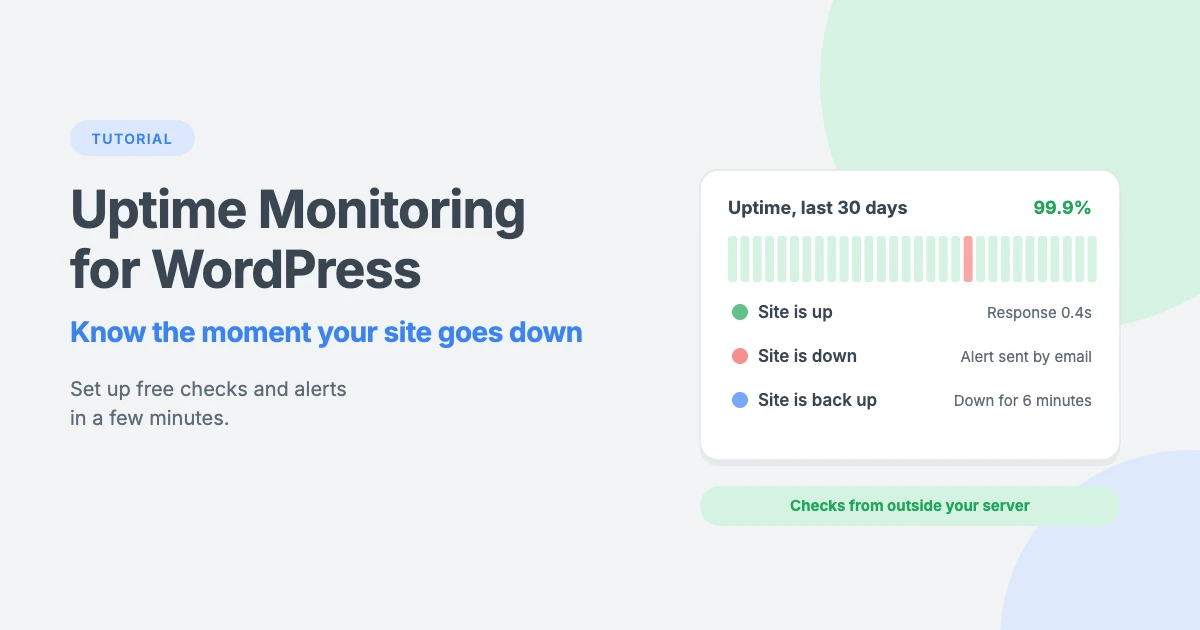
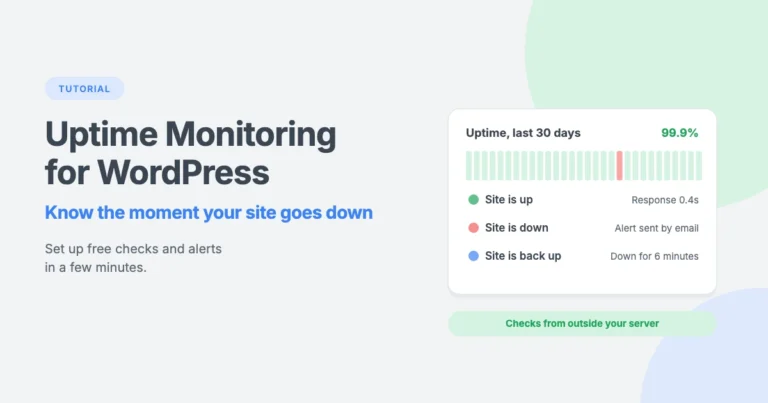
Uptime monitoring makes sure you hear about problems first. A monitoring service checks your WordPress site every few minutes, from outside your server, and alerts you the moment it stops responding.
In this tutorial, we’ll explain how uptime monitoring works, how to set it up for your WordPress site in a few minutes, and exactly what to do when you get a “site down” alert.
What is uptime monitoring?
Uptime is the amount of time your website is online and working. It’s usually shown as a percentage, such as 99.9%.
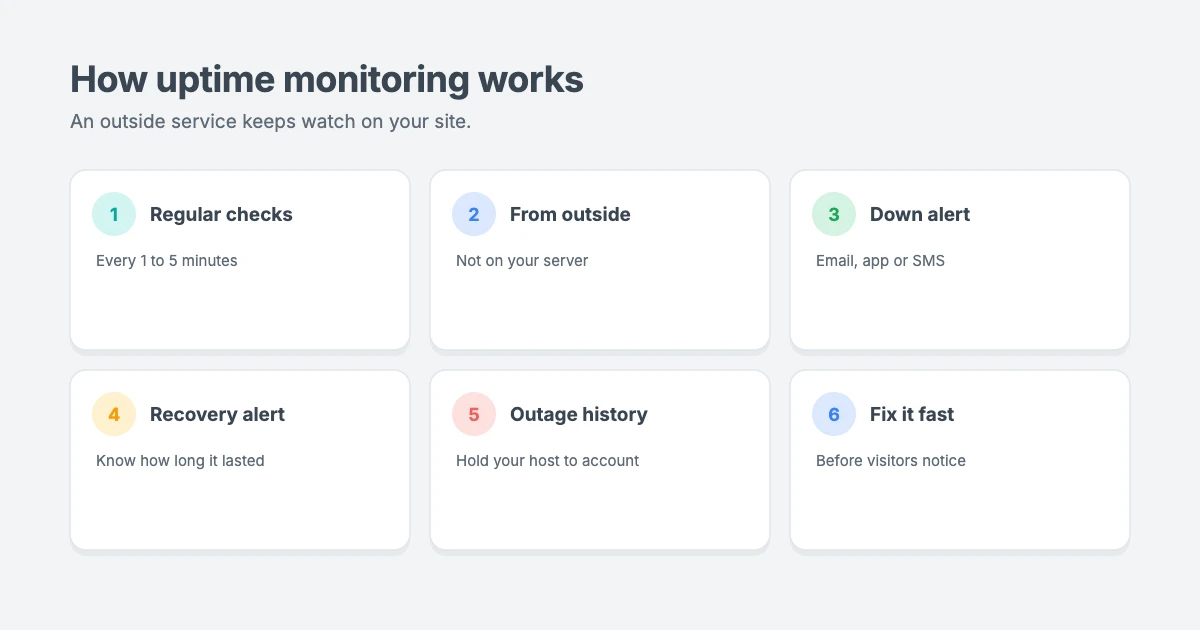
Uptime monitoring is a service that visits your website automatically at regular intervals, for example every 1 or 5 minutes. If your site doesn’t respond, responds too slowly or returns an error, the service sends you an alert. When the site comes back, you get another alert, so you know how long the outage lasted.
Most uptime monitoring services also keep a history of your response times and outages, which is useful when you need to check whether your web host is keeping its promises.
Why monitor your WordPress site’s uptime?
- You find out first. You can start fixing a problem before most visitors notice it.
- You protect your income. If your site sells products, takes bookings or collects leads, every minute of downtime can cost you money.
- You protect your reputation. Visitors who find a broken site may not come back.
- You protect your search rankings. According to Google’s documentation on HTTP status codes, server errors make Google’s crawlers slow down, and URLs that keep returning a server error can be removed from Google’s index. A short outage is unlikely to matter, but long or repeated outages can.
- You can hold your host to account. An outage history shows whether your hosting really delivers the uptime it promises.
What do uptime percentages really mean?
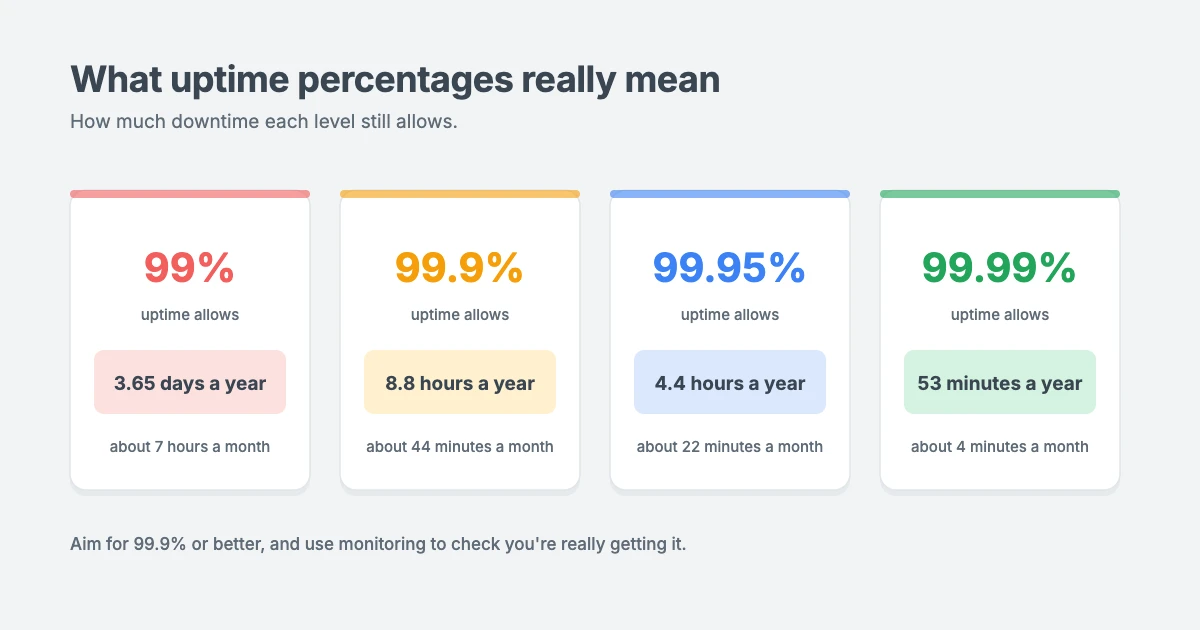
Many web hosts promise 99.9% uptime. That sounds almost perfect, but it still allows for some downtime. Here’s how much each level allows:
- 99% allows about 3.65 days of downtime a year, or roughly 7 hours a month.
- 99.9% allows about 8.8 hours a year, or roughly 44 minutes a month.
- 99.95% allows about 4.4 hours a year, or roughly 22 minutes a month.
- 99.99% allows about 53 minutes a year, or roughly 4 minutes a month.
For most business websites, 99.9% or better is a good target. Uptime monitoring is how you find out whether you’re actually getting it.
Why you need an external uptime monitor
You might wonder whether a WordPress plugin can monitor your site from the inside. The problem is simple: if your server goes down, anything running on that server goes down with it, including the plugin. It can’t send you an alert if it isn’t running.
That’s why uptime monitoring should always run from outside your server, using a separate service. Some WordPress plugins do offer downtime alerts, but they work by connecting your site to an external monitoring service.
What to look for in an uptime monitoring service
There are many uptime monitoring services, including well-known ones such as UptimeRobot and Pingdom. Several offer a free plan, which is enough for most small sites. Plans and limits change often, so check each provider’s pricing page before you sign up.
Look for:
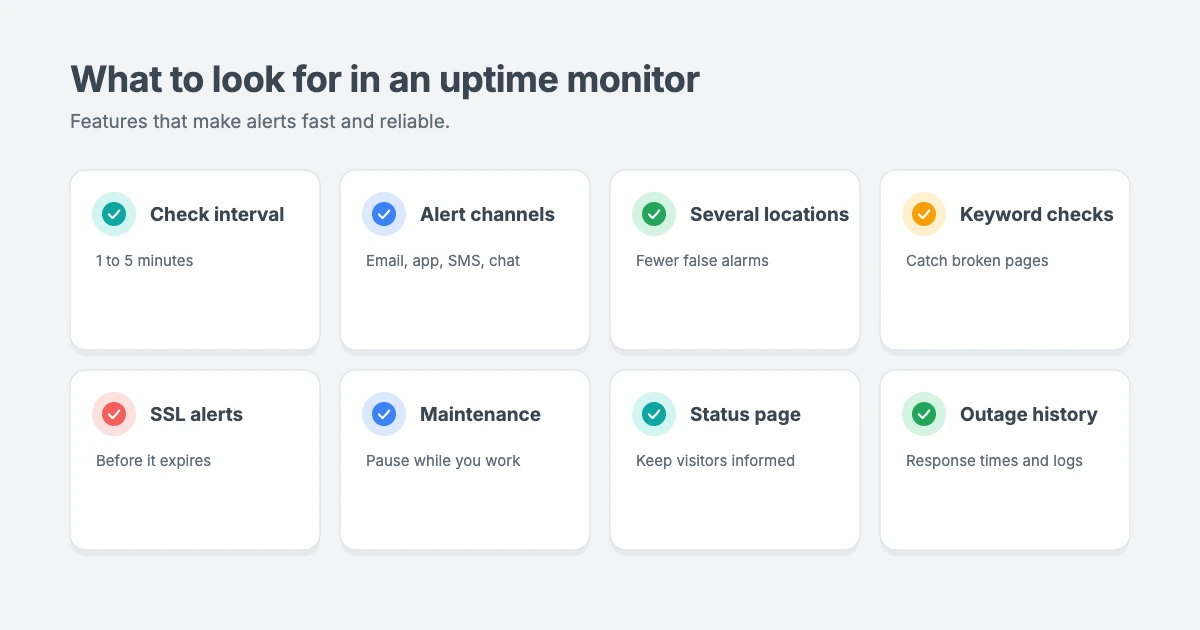
- Check interval: how often your site is checked. Every 5 minutes is fine for most sites. Busy online stores may want checks every minute.
- Alert channels: email is standard. Mobile app notifications, SMS or chat alerts help you react faster.
- Checks from several locations: this confirms an outage before alerting you, which means fewer false alarms.
- Keyword checks: alerts you if a page loads but is missing an expected word, such as your site name, or shows an error message instead.
- SSL certificate alerts: warns you before your SSL certificate expires.
- Maintenance windows: pauses alerts while you’re working on your site.
- Status pages: a public page that shows your visitors whether your site is up.
- Outage history and response times: helps you spot slow or unreliable hosting.
How to set up uptime monitoring for WordPress
The exact screens vary between services, but the setup is almost always the same.
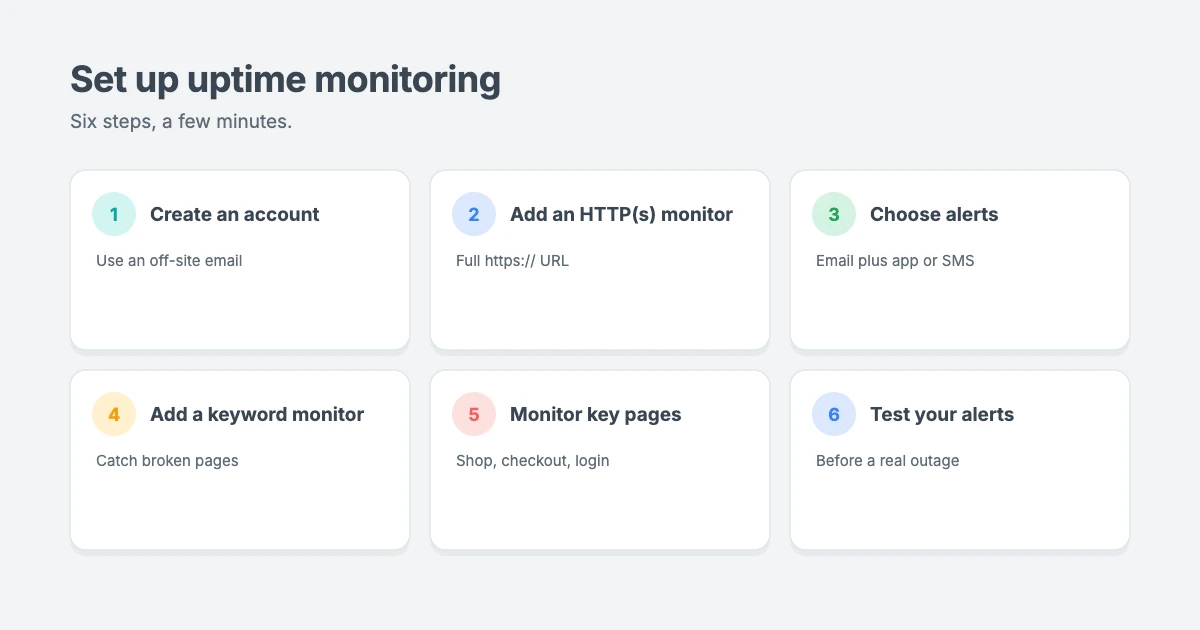
Step 1: Create an account
Sign up with the uptime monitoring service you’ve chosen. Use an email address that’s not on the domain you’re monitoring. If your site and email are hosted on the same server, a server outage could stop the alert from reaching you.
Step 2: Add an HTTP(s) monitor
Create a new monitor and choose the HTTP(s) or website monitor type. This checks that your site returns a normal response.
Then:
- Give the monitor a name, such as your site name.
- Enter your full URL, including
https://, for examplehttps://example.com/. - Choose a check interval, such as every 5 minutes.
Step 3: Choose how you’ll be alerted
Select at least one alert method. Email is the minimum, but a mobile app notification or SMS is much harder to miss. If several people look after the site, add each of them as a contact.
Step 4: Add a keyword monitor (optional, but recommended)
A site can be “up” but still broken. For example, it might show a blank page, an error message or content that shouldn’t be there. A keyword monitor checks that a word or phrase you expect, such as your site name or a phrase in your footer, appears on the page.
Choose a phrase that appears on every load of the page and doesn’t change, and avoid words that appear in error pages.
Step 5: Monitor important pages too
Your home page might be cached and load fine, even when the rest of your site has a problem. If you run an online store or a membership site, consider adding monitors for key pages, such as your shop, checkout or login page.
Step 6: Test your alerts
Don’t wait for a real outage to find out whether your alerts work. Most services let you send a test notification. You can also pause and resume a monitor, or briefly point a test monitor at a URL that doesn’t exist, to check that the alert arrives.
Avoiding false alarms
False alarms are annoying, and too many of them can train you to ignore alerts. To keep alerts reliable:
- Use confirmation checks from more than one location, if your service offers them.
- Make sure your security settings don’t block the monitor. Firewalls and bot protection can sometimes block monitoring services. If you get alerts while your site loads fine, check your firewall logs and allow the monitoring service if needed.
- Use maintenance windows when you update your site, or pause the monitor while you work.
- Don’t check too often. For most sites, every 1 to 5 minutes is plenty.
What to do when your WordPress site goes down
When you get an alert, stay calm and work through these steps.
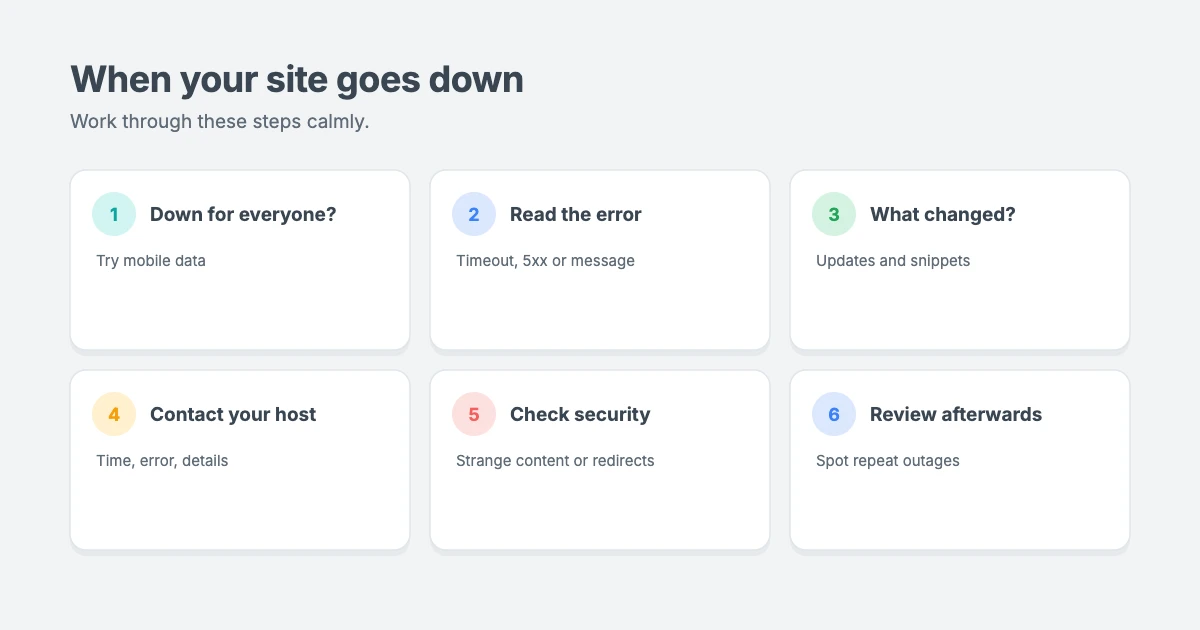
1. Check whether it’s down for everyone
Open your site on your phone using mobile data, not your Wi-Fi. If it loads, the problem may be with your own connection or your IP address, rather than your site. Clearing your browser cache, or trying another browser, can also help.
If you recently changed your domain’s DNS settings, the changes can take some time to spread across the internet, so your site may load for some people and not others.
2. Look at the error
The error message tells you a lot:
- Can’t reach the site at all or a timeout: often a server, network or DNS problem.
- A 5xx error, such as 500, 502 or 503: usually a problem with the server, PHP or WordPress itself.
- “Briefly unavailable for scheduled maintenance”: an update didn’t finish. Our guide on how to fix WordPress stuck in maintenance mode shows you how to fix it.
- “Error establishing a database connection”: WordPress can’t reach its database.
3. Think about what changed
Did you just update a plugin, theme or WordPress itself? Did you add a code snippet? Recent changes are the most common cause of problems. Our guide on rolling back a WordPress update that broke your site can help.
4. Contact your web host
If your site is down for everyone and nothing changed on your side, contact your hosting provider straight away. Give them the time the outage started, the error message and any details from your monitoring alert. They can check for server problems on their end.
5. Check for security problems
If your site shows strange content, redirects to another site or your keyword monitor reports missing text, your site may have been hacked. Follow our hacked WordPress site recovery guide.
6. Review the outage afterwards
Once your site is back, look at your monitoring history. How long was it down? Has it happened before? If outages keep happening, it may be time to look at a better hosting plan or provider.
How to reduce downtime
Uptime monitoring tells you about problems, but you can also make them less likely:
- Choose reliable hosting with good support. Our comparison of Apache vs Nginx vs LiteSpeed explains how your web server affects performance.
- Keep regular backups, stored away from your server. Our guide on how to back up WordPress to Dropbox shows you one way.
- Test updates on a staging site before you apply them to your live site.
- Harden your security. Our guide on how to harden WordPress security covers the essentials.
- Keep an eye on disk space, because a full disk can take a site offline. See our guide on how to free up disk space.
- Use caching and a lightweight theme, so your server copes better with traffic spikes.
Fast, reliable WPInterface themes
A lightweight theme puts less load on your server and helps your site stay fast during busy periods. WPInterface Pro themes are built with lean code, translation ready and RTL compliant.
Business Interface Pro
Business Interface Pro is a lightweight multipurpose business theme with 12 starter sites, ideal for company websites that need to be fast and professional.

SpeedNews Pro
SpeedNews Pro is a fast news and magazine theme with a trending ticker, mosaic headlines and three-column layouts, built for publishers who post every day.

SpeedBlog Pro
SpeedBlog Pro is a fast blog theme for travel, tech, personal and creative blogs, with a clean layout that keeps readers focused.

You can see all our themes on the WordPress themes page.
Need a hand?
If you’d rather someone else kept an eye on your site, the WPInterface team can help:
- WordPress Care Plans: updates, backups and monitoring, so problems are caught and fixed quickly.
- WordPress Migration: we move your site to a better host for you.
- WordPress Malware Removal: we clean up hacked sites and help keep them secure.
- VIP Support: a $29 priority ticket for quick expert help when your site is down.
Frequently asked questions
What is uptime monitoring?
Uptime monitoring is a service that checks your website at regular intervals, from outside your server, and alerts you when it goes down or comes back up.
Can I monitor my WordPress site’s uptime for free?
Yes. Several uptime monitoring services offer free plans, usually with checks every few minutes and email alerts. Check each service’s current limits and terms before you sign up.
What is good uptime for a website?
99.9% or higher is a good target for most sites. That still allows about 44 minutes of downtime a month, while 99% allows roughly 7 hours.
How often should my site be checked?
Every 5 minutes is enough for most blogs and business sites. Online stores and busy sites may want checks every minute.
Can a WordPress plugin monitor uptime on its own?
Not reliably. If your server goes down, a plugin running on it goes down too. Uptime monitoring needs to run from an outside service.
What should I do first when I get a downtime alert?
Check whether your site is down for everyone, for example by loading it on mobile data. Then look at the error message, think about any recent changes and contact your host if needed.
Final thoughts
Uptime monitoring is one of the simplest ways to protect your website. It takes a few minutes to set up, many services offer free plans, and it means you’ll hear about problems before your visitors do.
Sign up for a monitoring service, add an HTTP(s) monitor and a keyword monitor, test your alerts, and keep the checklist above handy for when an alert arrives.
Reactions
How did this make you feel?
1 reaction
One reaction per visitor. Tap again to change or remove it.




Leave a reply