If your host has sent a “disk quota exceeded” or “inode limit reached” warning, you don’t always need a bigger plan. Most WordPress sites can free up disk space by removing files they no longer need: old backups, cache folders, unused plugins, extra image sizes and a bloated database. A careful cleanup takes about an hour and often recovers a large share of your storage.
This beginner’s guide shows you how to free up disk space and reduce inode usage in WordPress, safely and step by step. You’ll learn what disk space and inodes are, how to check your usage, which ten fixes make the biggest difference, and how to stop the problem coming back. If you’d rather not touch your files, our team can do the whole job for you.
Before you start
Here’s what you’ll need:
- Access to your hosting control panel (hPanel, cPanel or your host’s own dashboard).
- An administrator login for WordPress.
- A recent, complete backup of your files and database, stored somewhere other than your server.
- About an hour, ideally at a quiet time for your site.
Take a backup first. Every fix below deletes something. A backup you can restore is what makes the cleanup safe. Download it to your computer or cloud storage, then you can delete the copy on the server later in this guide.
Disk space and inodes: what they mean
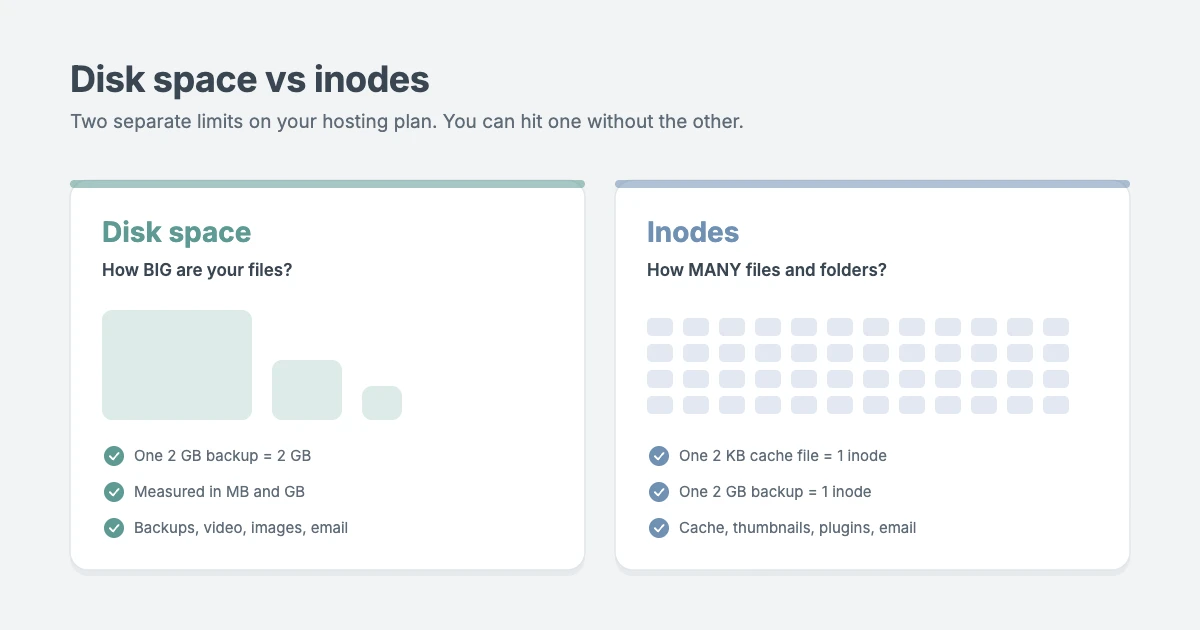
Before you free up disk space, it helps to know what you’re measuring. Your hosting plan limits two different things. They are related, but you can hit one without hitting the other.
| Limit | What it counts | Common causes of hitting it |
|---|---|---|
| Disk space | The total size of every file, in MB or GB | Backups, videos, large images, email, logs |
| Inodes | The number of files and folders, whatever their size | Cache files, thumbnails, plugin folders, email messages |
An inode is a small record that your server keeps for every file and folder. It stores details such as the file’s size, owner and permissions. A 2 KB cache file and a 2 GB backup each use exactly one inode. That’s why a site full of tiny files can run out of inodes while still having plenty of disk space free.
Shared and cloud hosting plans often allow somewhere between 100,000 and 600,000 inodes, and disk space from 10 GB to 200 GB. Check your own plan, because the numbers differ a lot between hosts.
Signs you’re close to the limit
When you hit a disk space or inode limit, WordPress starts to fail in confusing ways:
- Media uploads fail, or images upload but don’t appear.
- Plugin, theme or WordPress updates stop part way through.
- Posts and settings won’t save.
- Email stops arriving in mailboxes hosted on the same plan.
- Backups fail, cache plugins show errors, or the site goes offline.
If any of these appear suddenly, check your usage and free up disk space before you try anything else.
How to check your WordPress disk space and inode usage
Start by measuring before you free up disk space, so you know where the space has gone and can see the result of your cleanup.
In hPanel (Hostinger): open your website’s dashboard and look for the resource usage section. It shows disk usage and the number of files (inodes) against your plan’s limit.
In cPanel: the sidebar’s statistics panel shows Disk Usage and File Usage. Click Disk Usage to see which folders use the most space.
In WordPress: go to Tools » Site Health » Info and open the Directories and Sizes section. It shows the size of your uploads, themes, plugins and database. The numbers can take a minute to calculate.
With SSH (if your host offers it): these commands show the biggest folders and the folders with the most files. Run them from your site’s root folder.
du -h --max-depth=1 wp-content | sort -hr | head
find wp-content -type f | cut -d/ -f2 | sort | uniq -c | sort -nr | head
Note your starting numbers. Then work through the fixes below, starting with the ones that usually recover the most.
Where WordPress disk space usually goes
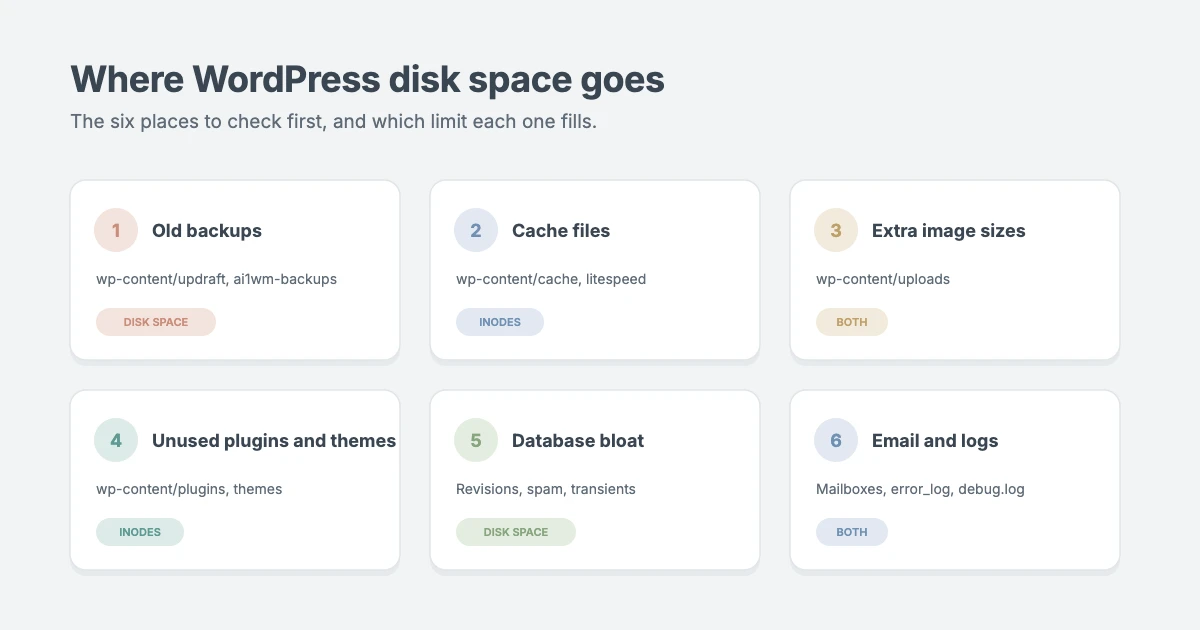
In our experience cleaning up client sites, the same culprits show up again and again:
| Culprit | Usually found in | Mostly affects |
|---|---|---|
| Old backups | wp-content/updraft, ai1wm-backups, backups |
Disk space |
| Cache files | wp-content/cache, litespeed |
Inodes |
| Extra image sizes | wp-content/uploads |
Both |
| Unused plugins and themes | wp-content/plugins, themes |
Inodes |
| Database bloat | Your MySQL database | Disk space |
| Email and logs | Mailboxes, error_log, debug.log |
Both |
10 ways to free up disk space and reduce inode usage
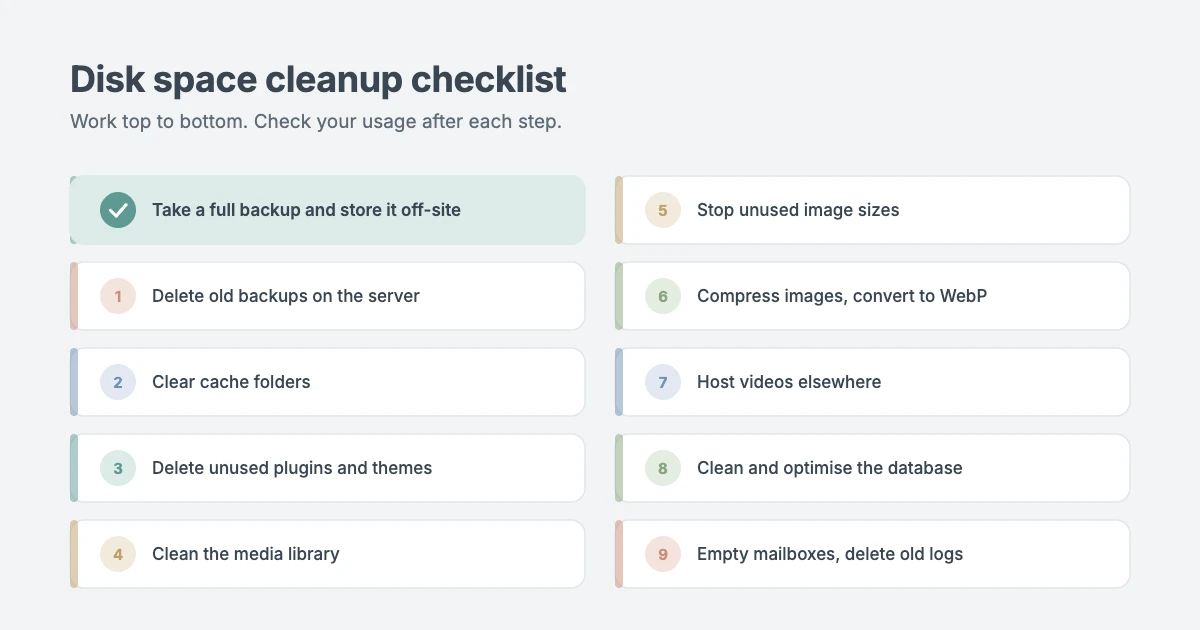
Work through these in order to free up disk space safely. After each one, check your usage again so you know what helped.
1. Delete old backups stored on your server
The fastest way to free up disk space is usually to delete old backups. They’re the biggest single cause of a full disk. Many backup plugins save a new archive every day or week and keep them all in wp-content, so ten copies of your site can sit on the same server they’re meant to protect.
- Open your backup plugin’s settings and download any backup you want to keep.
- Delete old archives from the plugin’s list, or remove them from its folder with your host’s file manager.
- Change the plugin to store backups off-site, for example in Google Drive, Dropbox or Amazon S3, and keep only the last few copies.
A backup on the same server doesn’t protect you if that server fails, so moving them off-site is safer as well as smaller.
2. Clear your cache folders
Caching plugins save a static copy of every page, and often separate copies for mobile visitors, logged-in users and each language. On a large site, that can mean tens of thousands of small files, which use up inodes fast.
- Use your caching plugin’s Purge All or Clear cache button.
- If you’ve switched caching plugins in the past, look for an old
wp-content/cachefolder left behind and delete it. - Check your host’s control panel for a server cache you can clear too.
Your cache rebuilds itself as visitors arrive, so clearing it is safe. The first few page loads afterwards may be a little slower.
3. Delete unused plugins and themes
Deleting what you don’t use is one of the easiest ways to free up disk space and inodes. Deactivating a plugin or switching theme doesn’t remove any files. A single plugin can contain thousands of files, so inactive plugins are an easy inode win.
- Go to Plugins » Installed Plugins, deactivate anything you don’t use, then click Delete.
- Go to Appearance » Themes, open each theme you don’t use and click Delete.
- Keep your active theme, its parent theme if you use a child theme, and one default WordPress theme for troubleshooting.
Deleting a plugin you really don’t use won’t affect your site. If you’re unsure whether something is in use, deactivate it first and check your site for a few days.
4. Clean up your media library
Your uploads folder is often the next place to free up disk space. Over time, the media library fills with images you replaced, duplicates and files from posts you’ve deleted.
- Go to Media » Library, switch to list view, and filter by Unattached to find files that aren’t attached to any post.
- Check carefully before deleting. An unattached image can still be used in a widget, a page builder layout or your theme settings.
- A media cleanup plugin can scan your content for unused files. Make sure your backup is fresh before you let one delete anything.
5. Stop WordPress creating image sizes you don’t use
Every image you upload is saved in several sizes. WordPress creates thumbnail, medium, medium-large and large copies, plus two extra-large sizes for big images, and your theme and plugins can add more. One upload can become eight or more files.
- Go to Settings » Media and set any size you don’t need to 0 × 0.
- Check which sizes your theme uses before turning anything off, or your layouts may show blurry or stretched images.
- To remove sizes you’ve already generated, use a thumbnail regeneration plugin that deletes unused sizes, or the WP-CLI command
wp media regenerate.
6. Compress images and convert them to WebP
Compressing images is a simple way to free up disk space without deleting anything. Smaller images save disk space and make your site load faster. Resize photos to the largest size your theme displays (often 1,200 to 2,000 pixels wide) before you upload them, and compress them with an image optimisation plugin.
The WebP format is usually much smaller than JPEG or PNG at the same quality. One warning: many plugins keep your original files as well as the WebP copies, which can increase your disk usage. Check the plugin’s settings for an option to delete or replace originals once you’re happy with the results.
7. Host videos and large downloads elsewhere
Moving videos off your server can free up disk space in minutes. Video files are huge, and serving them from shared hosting also eats your bandwidth. Upload videos to YouTube or Vimeo and embed them in your posts instead. WordPress turns a pasted video link into an embed automatically.
Large downloads such as PDFs, audio files and zip archives can move to cloud storage or a download service too.
8. Clean and optimise your database
A database cleanup can free up disk space you can’t see in your file manager. Your database grows with every post revision, auto-draft, spam comment and expired setting that plugins leave behind. It counts towards your disk space on most hosting plans.
- Delete spam and trashed comments from Comments.
- Empty the trash in Posts and Pages, and delete old drafts you won’t finish.
- Use a database cleanup plugin to remove old revisions, auto-drafts and expired transients.
- Limit future revisions by adding this line to your
wp-config.phpfile, as described in the WordPress wp-config documentation:
define( 'WP_POST_REVISIONS', 5 );Leftover tables from plugins you’ve deleted can also be removed, but only when you’re sure which plugin created them. If in doubt, leave them.
9. Empty mailboxes and delete old logs
If your email is hosted on the same plan as your website, every message and attachment counts towards your limits. Each email is usually stored as its own file, so a busy mailbox uses inodes quickly.
- Delete old emails and empty the trash and spam folders in each mailbox.
- Remove email accounts that nobody uses any more.
- Look for large
error_logfiles in your site’s folders anddebug.loginwp-content. Delete them, then fix the errors that created them, or they’ll grow back. - Turn off
WP_DEBUG_LOGinwp-config.phpwhen you’re not debugging.
10. Remove demo content, staging copies and anything suspicious
A few more places hide forgotten files:
- Demo content: if you imported a theme demo, delete the sample posts, pages and images you didn’t use.
- Old copies of your site: folders such as
old,backup,stagingorwordpress-oldin your hosting account can each hold a complete site. - Unexplained files: thousands of files you don’t recognise, PHP files inside
uploads, or a sudden jump in inode usage can be signs of a hacked site. Don’t just delete them, because the hole that let them in is still open. Get the site checked and cleaned properly.
How to keep disk space free after you clean up
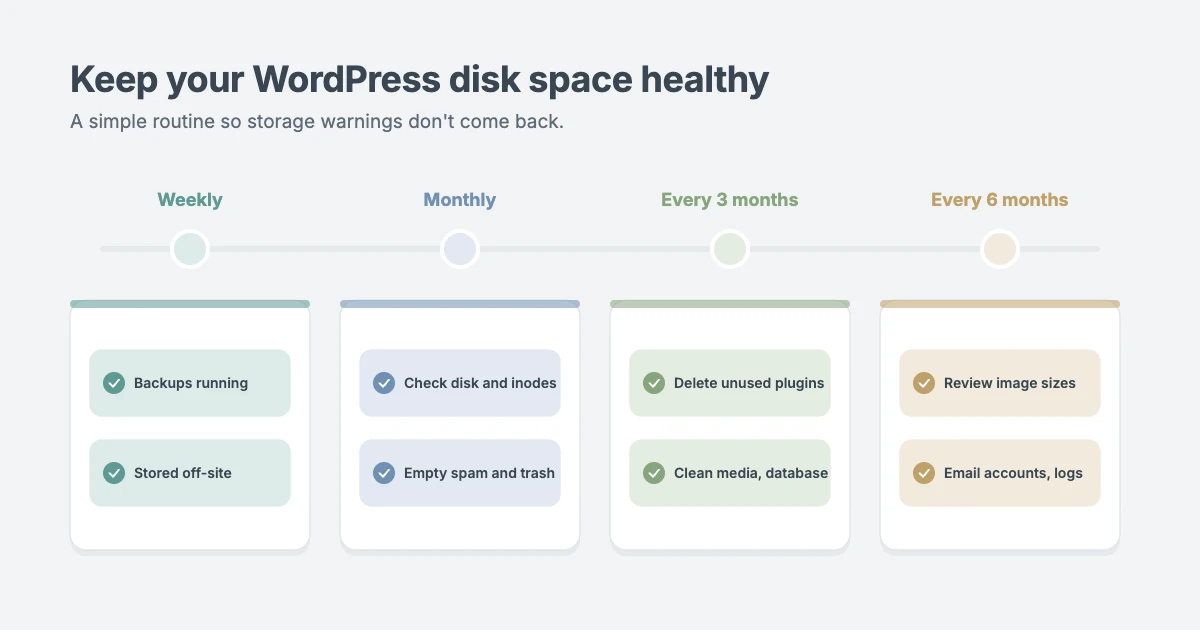
It’s good to free up disk space once. Keeping it free means a small routine.
| How often | What to do |
|---|---|
| Weekly | Check backups are running and stored off-site |
| Monthly | Check disk and inode usage; empty spam comments and trash |
| Every 3 months | Delete unused plugins, themes and media; clean the database |
| Every 6 months | Review image sizes, email accounts and log files |
Set a reminder, or let someone else handle it. Our WordPress care plans include weekly updates, daily off-site backups, uptime and security monitoring, and a monthly report, so files don’t quietly pile up on your server.
When to upgrade your hosting instead
Sometimes you can’t free up disk space any further, because a full disk is a sign of growth, not mess. If you’ve worked through this guide and you’re still close to your limits, your site may simply have outgrown its plan. Large shops, membership sites and busy blogs with years of media often need more room.
Compare plans with more storage and higher inode limits in our guide to the best WordPress hosting. If moving hosts feels risky, our WordPress migration service moves your site with a redirect for every URL, SEO checks and zero downtime.
Let us free up disk space for you
Trying to free up disk space on a live site means deleting files, and one wrong click can take your site offline. If you’d rather hand it over, the WPInterface team can help:
- Site Speed Optimization: a fixed-price job in three business days. We set up caching, convert images to WebP, trim scripts and clean your database, then send you a before-and-after report.
- WordPress Care Plans: ongoing maintenance with off-site backups and monitoring, so your storage stays healthy every month.
- VIP Support: one priority ticket that goes straight to a senior engineer. Ideal if a full disk has broken your uploads or updates right now.
- Malware Removal and Security Hardening: if unexplained files are filling your server, we clean the site by hand, close the hole and request blacklist reviews.
- WordPress Migration: when it’s time for a bigger plan, we move everything without losing rankings or a day online.
See all of our professional WordPress services.
Frequently asked questions
What is an inode in WordPress?
An inode is a record your server keeps for every file and folder. WordPress itself, your plugins, themes, images, cache files and emails each use inodes. Your hosting plan limits how many you can have, whatever the files’ size.
How much disk space does a WordPress site need?
A fresh WordPress install uses well under 1 GB. A small business site or blog often fits in 2 to 10 GB. Online stores, membership sites and media-heavy sites can need 25 GB or more, mainly for images and backups.
Will deleting unused plugins and themes break my site?
Not if they’re really unused. Inactive plugins and themes don’t run, so deleting them has no effect on your site. Keep your active theme, its parent theme and one default WordPress theme, and take a backup before you delete anything.
Is it safe to delete the cache folder?
Yes, and it’s a quick way to free up disk space and inodes. Your caching plugin rebuilds the cache as visitors view your pages. Use the plugin’s own clear cache button where you can, rather than deleting files by hand.
How often should I free up disk space?
Check your usage monthly and do a full cleanup every three to six months. Busy sites, online stores and sites that keep backups on the server need it more often.
Conclusion
To free up disk space and reduce inode usage in WordPress, start with a backup, then remove the biggest culprits first: old backups, cache files and unused plugins and themes. Next, tidy your media library, cut unneeded image sizes, clean your database and empty old email and logs. Free up disk space regularly and a little routine maintenance keeps your site fast and your hosting warnings away.
If you’d like experts to handle it, explore our professional WordPress services or start with a VIP Support ticket today.
Reactions
How did this make you feel?
Be the first to react
One reaction per visitor. Tap again to change or remove it.





Leave a reply