WooCommerce SEO is how you get your products and categories found on Google by the people who are ready to buy them. The good news: WooCommerce already gives you a solid technical base. The work that moves rankings sits in a few places you fully control, and none of them need a developer.
This beginner’s guide walks you through those places in the order that pays off fastest: your store structure, your product pages, one well-configured SEO plugin, product schema, speed, supporting content and tracking. Each step tells you what to do, where the setting lives and how to check that it worked.
Before you start
Have these ready. You’ll use most of them in the first hour:
- Admin access to your WordPress dashboard.
- A list of your main product categories and your ten best-selling products.
- A Google account to set up Google Search Console (free).
- A recent backup of your store, in case you change permalinks or plugins.
WooCommerce SEO at a glance
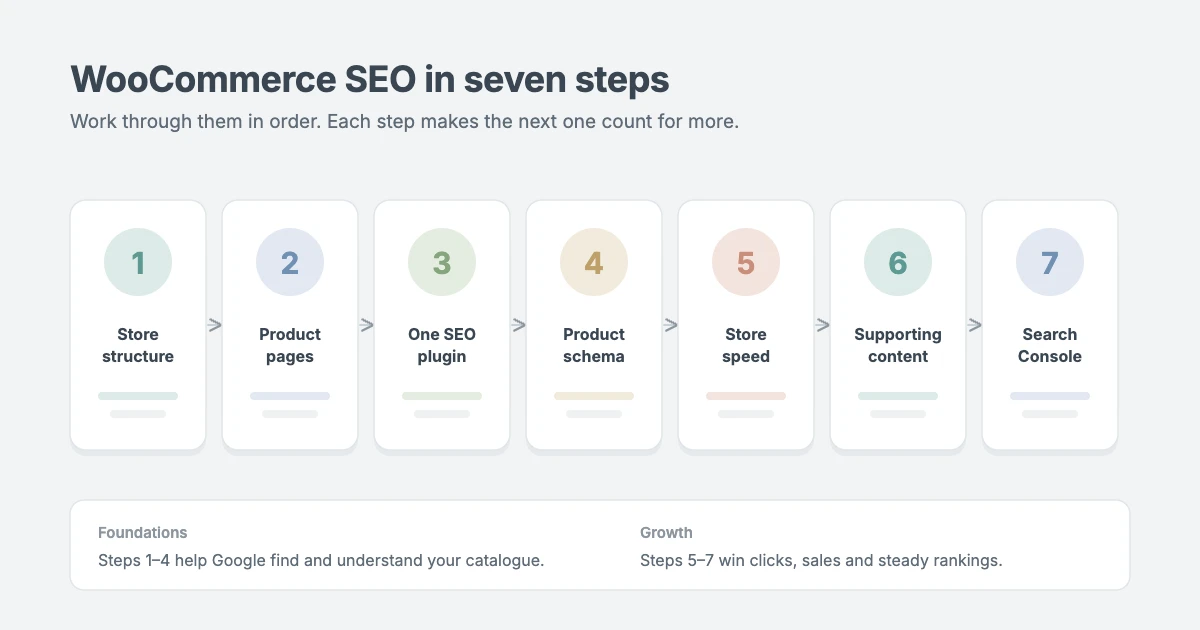
Here is the whole plan on one screen. Work through it in order, because each step makes the next one count for more.
| Step | What you fix | Why it matters |
|---|---|---|
| 1. Store structure | Permalinks, categories, breadcrumbs, filter URLs | Helps Google understand and crawl your catalogue |
| 2. Product pages | Titles, descriptions, images, reviews | Matches the words buyers type into Google |
| 3. One SEO plugin | Sitemaps, meta titles, canonicals, noindex | Controls what Google indexes and how it shows |
| 4. Product schema | Price, availability, ratings | Makes listings eligible for rich results |
| 5. Speed | Theme, images, hosting, caching | Better Core Web Vitals and fewer bounced shoppers |
| 6. Content | Buying guides, comparisons, how-tos | Captures research searches and links to products |
| 7. Tracking | Google Search Console | Shows what is indexed, ranking and earning clicks |
What WooCommerce does for SEO out of the box
A fresh WooCommerce store is not starting from zero. Out of the box you get readable product URLs (once WordPress permalinks are set to anything other than plain), a page for every product and every category, and basic structured data on product pages. WordPress also creates a simple sitemap.
What you don’t get is control. There’s no field for a custom meta title or description, no way to keep cart, checkout or filtered pages out of Google, no WooCommerce-aware sitemap you can shape, and no reporting. The steps below close those gaps.
Step 1: Build a store structure Google understands
Structure is the WooCommerce SEO step with the widest reach. Every product you add later inherits it, so getting it right early saves you from redirects and lost rankings later.
Choose your product permalinks once
Go to Settings → Permalinks and scroll to Product permalinks. WooCommerce gives you these options (see the WooCommerce permalinks documentation):
| Option | Example URL | Good for |
|---|---|---|
| Default | example.com/product/linen-shirt/ | Most stores. Short and stable |
| Shop base | example.com/shop/linen-shirt/ | Stores that want “shop” in every URL |
| Shop base with category | example.com/shop/shirts/linen-shirt/ | Small catalogues where products rarely change category |
| Custom base | example.com/your-text/linen-shirt/ | Special cases only |
For most stores, the default is the safest WooCommerce SEO choice. A category in the URL looks tidy, but the URL changes whenever a product moves category. Whatever you pick, pick it once. Changing permalinks on a live store changes every product URL, and old links return 404 errors unless you add redirects.
Name categories the way shoppers search
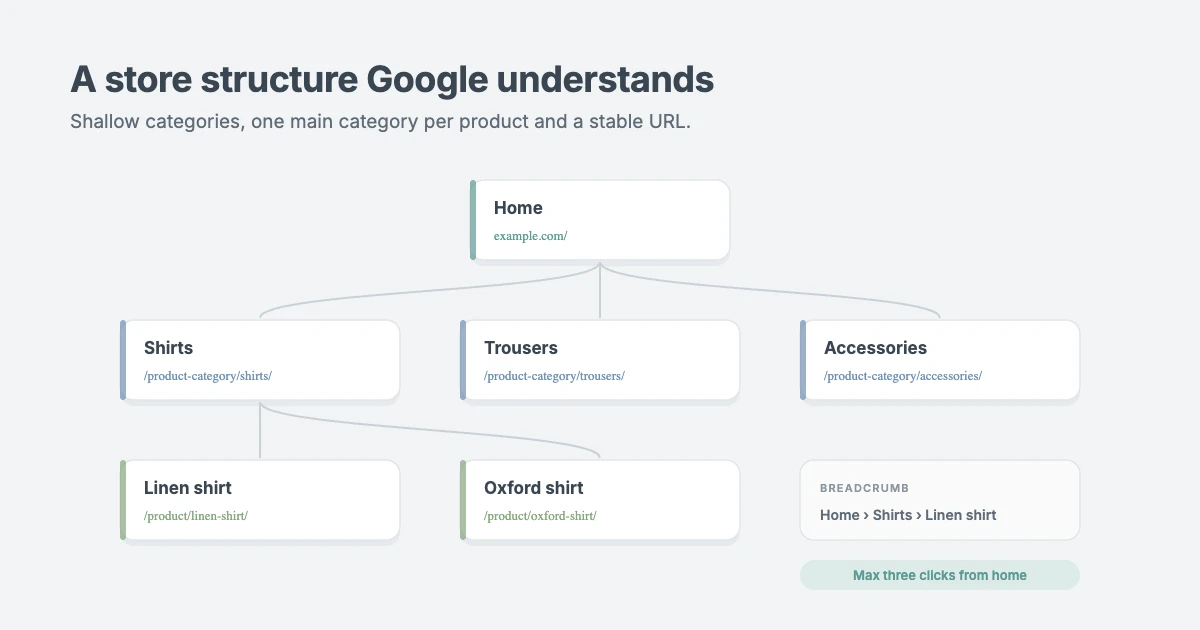
Category pages often rank better than single products, because they answer broad searches like “linen shirts” or “organic face serum”. Give each category a name a shopper would type, not an internal label like “Collection 03”. Keep the hierarchy shallow, so any product is no more than three clicks from your home page.
Then write a short, useful description for each main category: who the products are for, what makes them different and how to choose. Two or three helpful paragraphs are enough. On many stores this is the only real text on the category page, so it carries a lot of weight.
Keep breadcrumbs on and give each product one main category
Breadcrumbs (Home › Shirts › Linen shirt) help shoppers move around and help Google understand how your pages relate. Most WooCommerce themes show them by default, and SEO plugins can add breadcrumb schema. If a product sits in several categories, set one as the primary category in your SEO plugin, so the breadcrumb trail and canonical URL stay the same.
Stop filters and sorting from creating duplicate pages
Layered navigation, sorting and filters add parameters like ?orderby=price or ?filter_color=blue to your category URLs. Each combination is a new URL with almost the same products, which wastes Google’s time and splits your ranking signals. Your SEO plugin’s canonical tags point these variations back to the main category page. Keep this rule in mind: one indexable page per real shopping intent. Our guide on how to find and fix duplicate content in WordPress explains canonicals, noindex and redirects in more detail.
Step 2: Write product pages that match how buyers search
Product pages are where WooCommerce SEO turns into sales. They rank when their words match what buyers type, and they convert when they answer a shopper’s questions before they leave.
Write product titles in plain buyer language
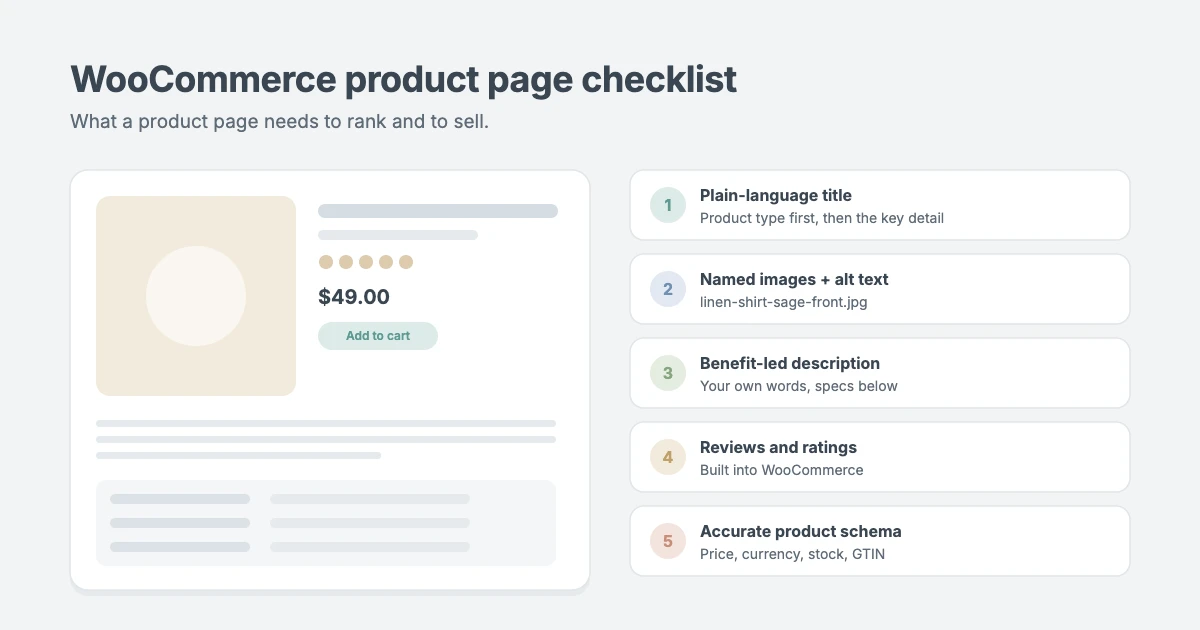
Use the words a buyer would search for: “Stainless steel French press, 1 litre” beats “FP-SS-1000”. Lead with the product type, then the key detail (material, size, colour or model). Keep internal codes in the SKU field, not the title. It’s the simplest WooCommerce SEO win on most stores.
Lead descriptions with benefits, then the specs
Start the description with two or three sentences in plain language: what it is, who it’s for and why it’s better. Put the specifications in a list or table below. Don’t paste the manufacturer’s description. Hundreds of other stores use the same text, so Google has no reason to rank yours. Use the Product short description for a quick summary near the Add to cart button.
Name and describe your product images
Rename image files before you upload them (linen-shirt-sage-front.jpg, not IMG_4021.jpg), and give each image alt text that describes what’s in it, such as “Sage linen shirt, front view”. Alt text helps Google Images and screen-reader users. Describe the image honestly instead of stuffing keywords into it. Compress images and upload them close to the size your theme displays.
Collect and show reviews
Reviews add fresh text in your customers’ own words and can show star ratings in search results. WooCommerce has reviews built in under WooCommerce → Settings → Products. Turn them on, ask for reviews in your follow-up emails and reply to them, including the critical ones.
Handle out-of-stock and discontinued products
If a product is out of stock but coming back, keep the page live and show the restock date. If it’s gone for good, redirect its URL to the closest replacement or its category with a 301 redirect, instead of deleting it and leaving a 404.
Step 3: Set up one SEO plugin properly
An SEO plugin gives you the WooCommerce SEO control that WooCommerce itself doesn’t. Popular choices include Rank Math, Yoast SEO and All in One SEO. Pick one, because two SEO plugins running together output duplicate tags and fight over the same settings. Whichever you choose, make sure these jobs are done:
- XML sitemap: includes products, product categories and your important pages, and leaves out cart, checkout, my account and thin tag pages.
- Meta title and description templates: sensible defaults for products and categories (for example, product name, category and store name), which you then improve by hand for your best sellers.
- Noindex for utility pages: cart, checkout, my account and order pages should not appear in Google.
- Canonical tags: so filtered, sorted and paginated URLs point to the main page.
- Breadcrumbs and product schema: turned on, so Google can read your structure and product details.
In Rank Math, WooCommerce options live under Rank Math SEO → General Settings → WooCommerce, and sitemap settings under Sitemap Settings. Some WooCommerce extras sit in paid plans: Rank Math PRO adds GTIN fields for products, for example, and Yoast sells a separate WooCommerce SEO add-on. The free versions handle the essentials above. A configured plugin is the foundation, not the whole strategy. It can’t write your category copy or make a slow theme fast.
Step 4: Add product schema and check it
Schema (structured data) is the most visible part of WooCommerce SEO. It’s code that tells Google the facts about a product: its name, price, currency, availability, brand and rating. With it, your products can show prices, stock status and stars right in the search results, and appear in Google’s shopping experiences.
In Google’s product structured data guidelines, store pages where a customer can buy count as merchant listings, and pages that review products as product snippets. Meeting the merchant listing requirements also makes a page eligible for product snippets. WooCommerce and your SEO plugin output the core fields. Your job is to keep them accurate: real prices, correct stock status and, where you have them, GTIN or MPN codes.
To check your markup, paste a product URL into Google’s Rich Results Test. For even more visibility, connect your store to Google Merchant Center and opt in to free listings. Google says that using both structured data and a Merchant Center feed gives you the best chance of appearing.
Step 5: Make your store fast
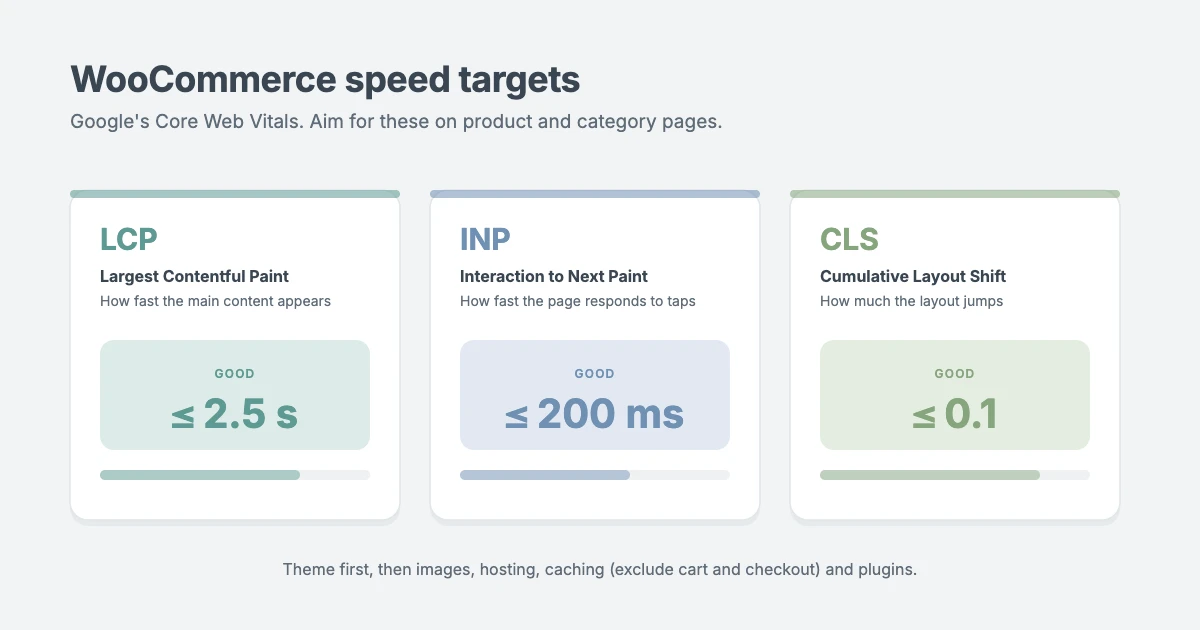
Speed affects WooCommerce SEO in two ways: through Google’s page experience signals, known as Core Web Vitals, and through shoppers who leave slow pages before they buy. Stores are heavier than blogs because of product galleries, variation scripts and cart fragments, so they need more care.
| Core Web Vital | What it measures | Good score |
|---|---|---|
| Largest Contentful Paint (LCP) | How quickly the main content appears | 2.5 seconds or less |
| Interaction to Next Paint (INP) | How quickly the page responds to taps and clicks | 200 milliseconds or less |
| Cumulative Layout Shift (CLS) | How much the layout jumps while loading | 0.1 or less |
Work through speed in this order:
- Theme: a lightweight, well-coded theme sets the ceiling for everything else. Test the theme demo in PageSpeed Insights before you buy.
- Images: compress them, serve WebP and let below-the-fold images lazy-load.
- Hosting: use a host with enough PHP workers for WooCommerce, not the cheapest shared plan.
- Caching: use page caching, but make sure cart, checkout and my account pages are excluded, or customers may see someone else’s cart.
- Plugins: remove the ones you don’t use, especially sliders and pop-ups that load on every page.
If you’d rather have an expert handle it, our Speed and Core Web Vitals optimization service covers WooCommerce stores.
Step 6: Publish content that supports your products
Most shoppers research before they buy. They search “how to choose a French press” or “linen vs cotton shirts” long before they search a product name. Buying guides, comparisons and how-to posts let you meet them at that stage and point them to the right products.
Keep it practical. Each article should answer one question well and link naturally to the category or product it relates to. Those internal links pass authority to your money pages and help Google find them. Content is the slowest part of WooCommerce SEO to pay off and the longest-lasting. Over time, it’s what breaks through the ceiling that product pages alone tend to hit.
Step 7: Track your results in Google Search Console
Google Search Console shows whether your WooCommerce SEO work is paying off: what Google has indexed, which searches show your store and which pages earn clicks. Set it up once, then check it every week:
- Verify your store and submit your sitemap under Sitemaps.
- Use the Pages report to find products that are not indexed and why.
- In Performance, filter by pages that contain
/product/to see which products get impressions and clicks. - Use URL inspection to request indexing for new or updated products.
Where to start with WooCommerce SEO
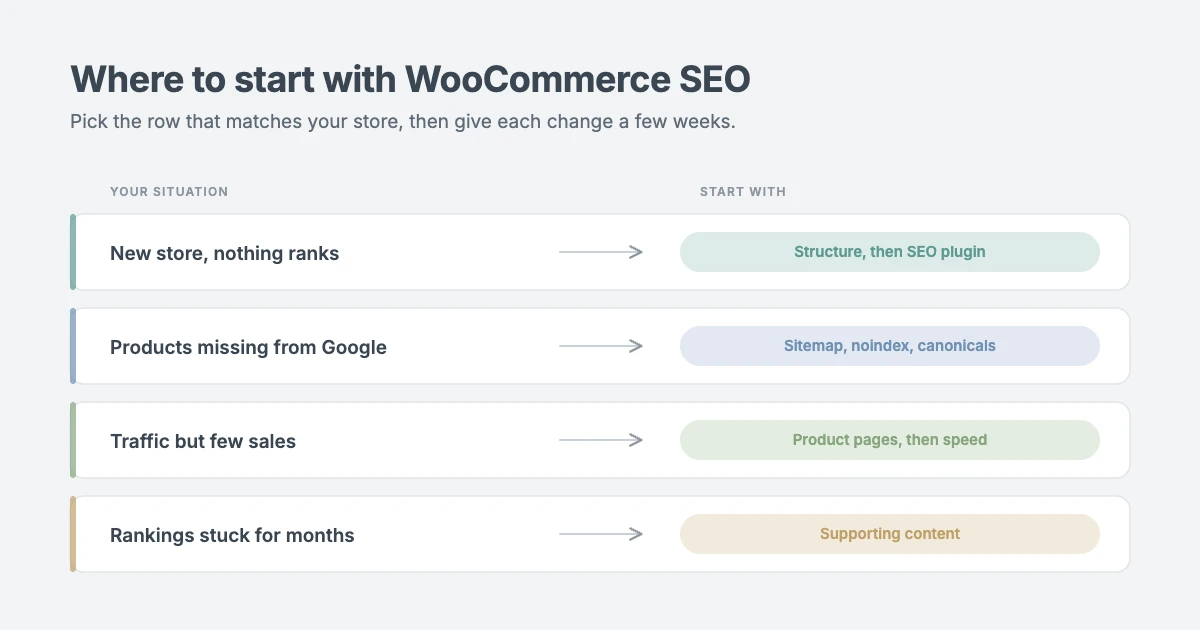
Not sure which step to tackle first? Use your situation as a guide, work on one row at a time and give each change a few weeks before you judge it.
| Your situation | Start with | Why |
|---|---|---|
| New store, nothing ranks yet | Structure, then the SEO plugin | The foundations compound and sitemaps get you indexed |
| Products are missing from Google | Sitemap, noindex and canonicals | Indexing problems come before everything else |
| Traffic but few sales | Product pages, then speed | Copy and loading time drive conversions |
| Rankings stuck for months | Supporting content | Product pages alone hit a ceiling |
Common WooCommerce SEO mistakes to avoid
- Copying manufacturer descriptions word for word.
- Changing product permalinks on a live store without redirects.
- Letting filter and sort URLs get indexed.
- Leaving cart, checkout and my account pages indexable.
- Running two SEO plugins at the same time.
- Deleting discontinued products instead of redirecting them.
- Uploading huge, unnamed images with no alt text.
Frequently asked questions
Is WooCommerce good for SEO?
Yes. WooCommerce runs on WordPress, so it gets clean URLs, full control over your content and access to mature SEO plugins. It still needs the WooCommerce SEO setup in this guide to compete, but the platform won’t hold you back.
Do I need an SEO plugin for WooCommerce?
Yes. WooCommerce doesn’t let you edit meta titles and descriptions, control your sitemap or noindex utility pages on its own. One well-configured SEO plugin covers all of that.
Why are my WooCommerce products not showing on Google?
Check indexing first in Google Search Console’s Pages report. The usual causes are a product page set to noindex, a sitemap that leaves products out, duplicate filtered URLs, thin copied descriptions or simply a new store that Google hasn’t crawled yet.
How long does WooCommerce SEO take to work?
Technical fixes such as sitemaps and noindex can show up within days. WooCommerce SEO gains for product and category pages usually take several weeks to a few months, depending on competition and how often you add useful content.
Final thoughts
WooCommerce SEO isn’t one big project. It’s a short list of steps done well: a clear structure, product pages written for buyers, one properly configured SEO plugin, accurate product schema, a fast store, helpful content and regular checks in Search Console. Start with the step that matches your situation and work down the list.
If you’d like a second pair of eyes, our Technical SEO for WordPress service audits and fixes WooCommerce stores for you.
Reactions
How did this make you feel?
1 reaction
One reaction per visitor. Tap again to change or remove it.



Leave a reply