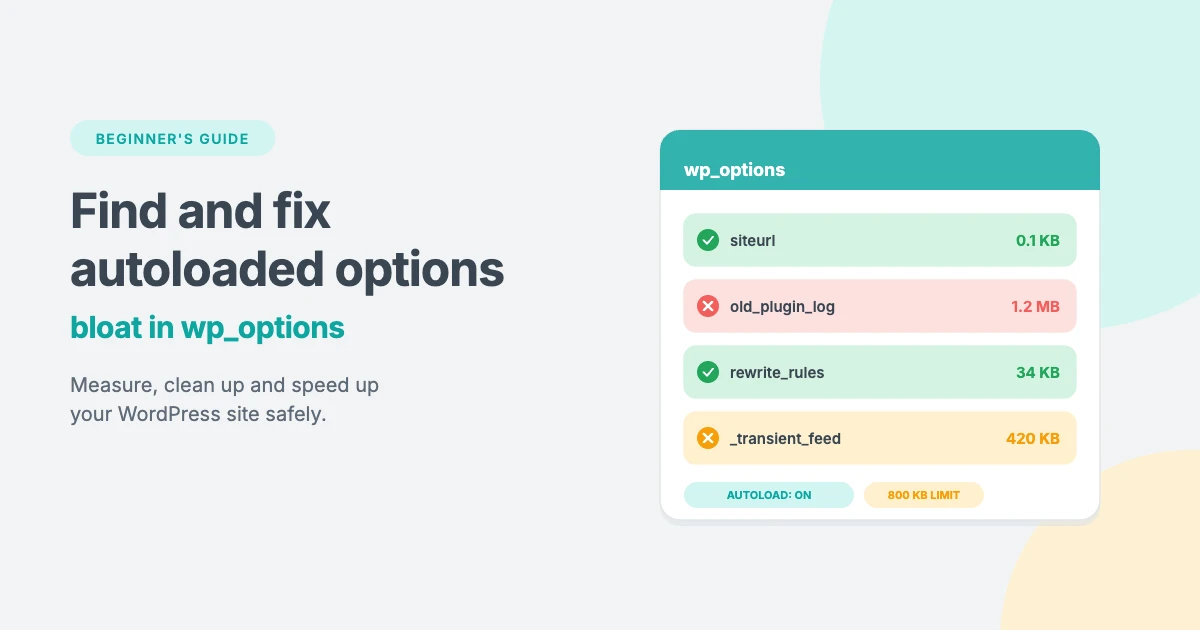
Is your WordPress site slow, even with caching turned on? Is the dashboard sluggish, even on good hosting? The cause may be hiding in your database. Every WordPress site has a table called wp_options, and many of its rows are marked as autoloaded options. WordPress loads all of them on almost every request, whether a page needs them or not.
On a fresh install, that’s only a small amount of data. But after years of installing, testing and deleting plugins, this autoloaded data can grow to several megabytes. That extra weight slows down every page view, every admin screen and every background request.
In this beginner’s guide, we’ll explain what autoloaded options are, how to check how big yours are, how to find the rows causing the bloat, and how to clean them up safely without breaking your site.
What are autoloaded options in WordPress?
WordPress stores most of its settings in the wp_options table. Your site title, your active plugins, your theme’s Customizer settings and many plugin settings all live there. Each row has three main parts:
- option_name: the name of the setting, such as
siteurlorblogname. - option_value: the saved value. This can be a short piece of text or a large serialized array.
- autoload: a flag that tells WordPress whether to load the row automatically.
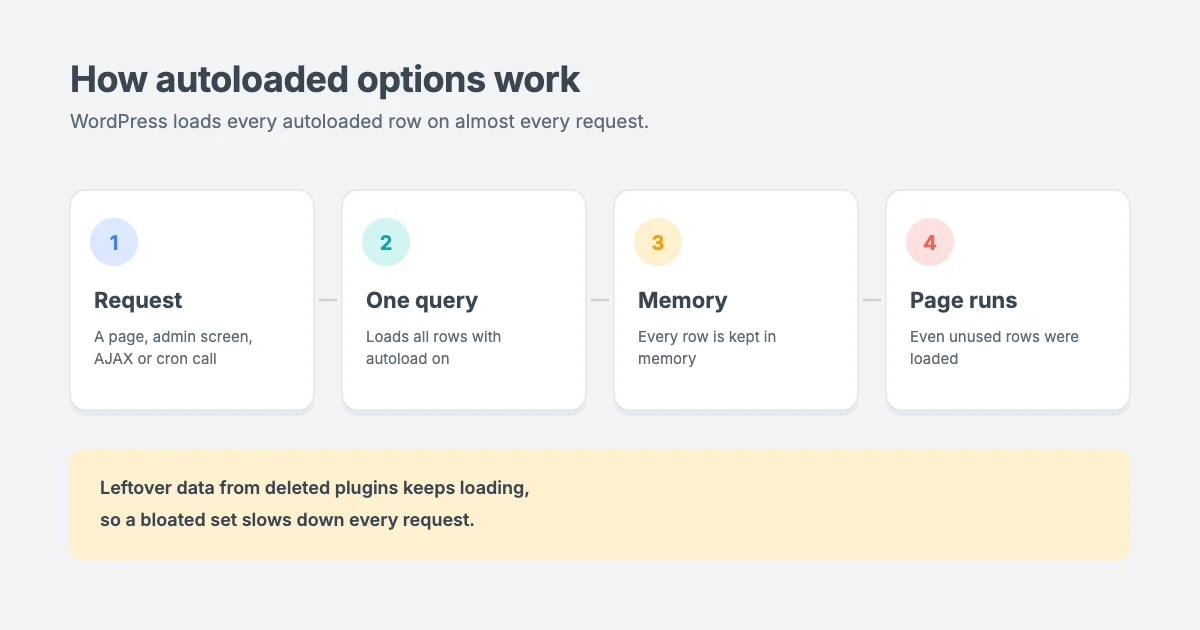
Instead of fetching settings one at a time, WordPress loads every autoloaded row in a single database query early in each request and keeps them in memory. This is fast when the set is small, because most settings are needed on every page anyway. The Options API documentation explains how this works.
The problem is that plugins can mark anything as autoloaded, including data that’s only used on one admin screen. When a plugin is deleted, its rows often stay behind. WordPress keeps loading that dead data on every request, forever.
How autoloaded options changed in WordPress 6.6
WordPress 6.6 made some important improvements:
- New autoload values. The
autoloadcolumn can now holdon,off,auto,auto-onorauto-off. The oldyesandnovalues still work and mean the same asonandoff. - Large options aren’t autoloaded by default. When a plugin saves an option without saying whether it should autoload, WordPress no longer autoloads it if the value is larger than 150 KB.
- A Site Health warning. Site Health now shows a critical issue when your autoloaded options add up to more than 800 KB.
These changes help new data, but they don’t clean up rows that were already saved on older versions. That’s still up to you.
What causes autoloaded options bloat?
Most bloat comes from a few common sources:
- Leftovers from deleted plugins. Many plugins don’t remove their settings when you delete them.
- Logs and history. Some backup, security and import plugins store logs or history inside a single option.
- Cached API responses. Social feeds, analytics and license checks sometimes save large responses as options.
- Transients. Transients are temporary cached data. Expired ones can pile up, and some are saved as autoloaded.
- Large serialized arrays. Page builders, form plugins and statistics tools sometimes keep big arrays of settings or data in one row.
Before you start: back up your database
Before you change anything, make a full backup of your database. Most hosts offer one-click backups in their control panel, and you can also export the database from phpMyAdmin with the Export tab. If you have a staging site, test your changes there first.
The good news is that the first two steps in this guide only use SELECT queries. They read data and can’t change anything. Only UPDATE and DELETE statements change your database, and we’ll show you how to use them safely.
If something does go wrong, our guide on what to do when a WordPress update breaks your site explains how to restore a backup.
Step 1: Check the total size of your autoloaded options
There are two easy ways to check how much data your site autoloads.
Option A: Use Site Health
Go to Tools » Site Health in your dashboard. If your autoloaded data is larger than 800 KB, you’ll see a critical issue that says your site has too many autoloaded options. If you don’t see it, your total is below that limit.
For more detail, you can install the free Performance Lab plugin, which is made by the WordPress Performance Team. It adds a list of your autoloaded rows to Site Health, so you can see the biggest rows without touching the database.
Option B: Run a SQL query in phpMyAdmin
Open phpMyAdmin from your hosting control panel, select your WordPress database and click the SQL tab. Then run this query:
SELECT ROUND(SUM(LENGTH(option_value)) / 1024, 1) AS autoload_kb,
       COUNT(*) AS autoload_rows
FROM wp_options
WHERE autoload IN ('yes', 'on', 'auto-on', 'auto');
This adds up the size of every autoloaded row and shows the total in KB. The list of values in the IN (...) part matches what WordPress itself treats as autoloaded. If your site is older than WordPress 6.6, WHERE autoload = 'yes' gives the same result.
Tip: if your database uses a different table prefix, replace wp_options with your real table name, such as wpx7_options. You can see the name in the table list on the left of phpMyAdmin, or in the $table_prefix line of your wp-config.php file.
What does the number mean?
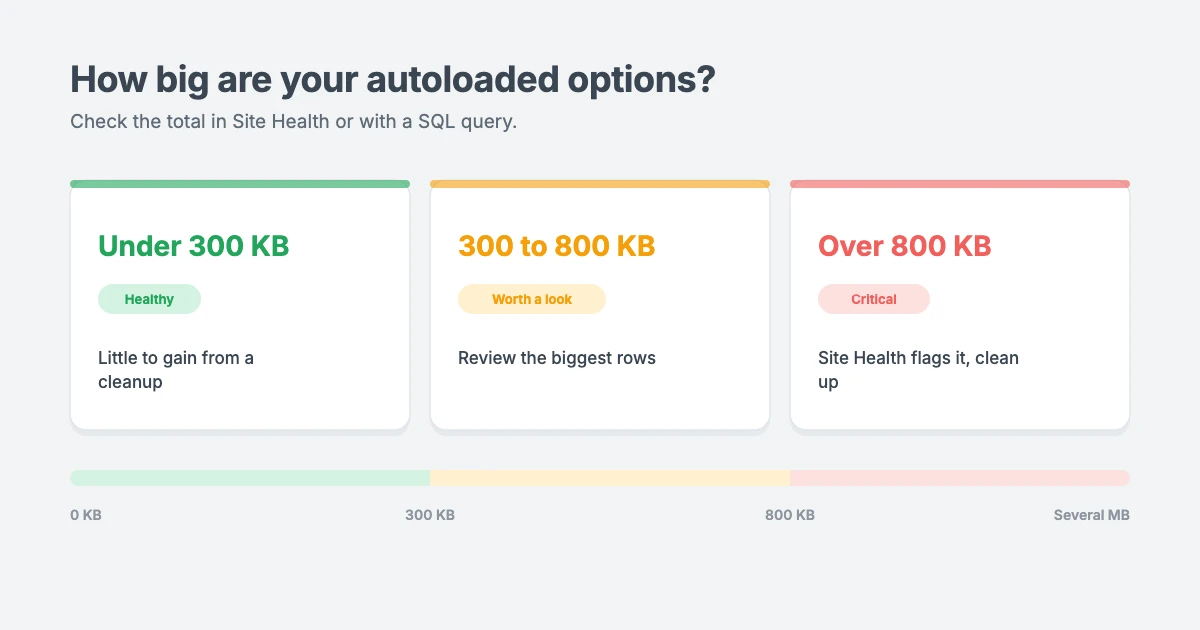
- Under about 300 KB: your site is healthy. Cleaning up will make little difference.
- About 300 KB to 800 KB: worth a quick look, especially if you’ve used many plugins over the years.
- Over 800 KB: WordPress flags this as a critical issue, and a cleanup is likely to help.
- Several MB: common on older sites. These sites usually see the biggest improvement.
Step 2: Find the biggest autoloaded options
Next, find out which rows take up the most space. Run this query in the same SQL tab:
SELECT option_name,
       ROUND(LENGTH(option_value) / 1024, 1) AS size_kb,
       autoload
FROM wp_options
WHERE autoload IN ('yes', 'on', 'auto-on', 'auto')
ORDER BY LENGTH(option_value) DESC
LIMIT 20;
You’ll see the 20 largest autoloaded options, with the biggest at the top. Now look at each option_name and work out where it comes from. The name usually starts with a prefix that tells you which plugin or theme created it:
- Core WordPress options such as
rewrite_rules,cronandwp_user_roles. These are normal and should stay. - Theme options start with
theme_mods_followed by the theme name. They hold your Customizer settings. - Transients start with
_transient_or_site_transient_. They’re temporary cached data. - Plugin options usually start with the plugin’s name or an abbreviation of it.
If you’re not sure what a prefix belongs to, search for the option name online, or check the folder names in wp-content/plugins.
What to look for
As you go through the list, look out for:
- Options from plugins you’ve already deleted.
- Theme options from themes you no longer use, such as
theme_mods_oldtheme. - Large options from active plugins that are only used in the dashboard, such as import history, backup logs or report data.
- Lots of transients.
You can also count expired transients with this read-only query:
SELECT COUNT(*) AS expired_transients
FROM wp_options
WHERE option_name LIKE '\_transient\_timeout\_%'
  AND option_value < UNIX_TIMESTAMP();
Step 3: Turn off autoload or delete the row
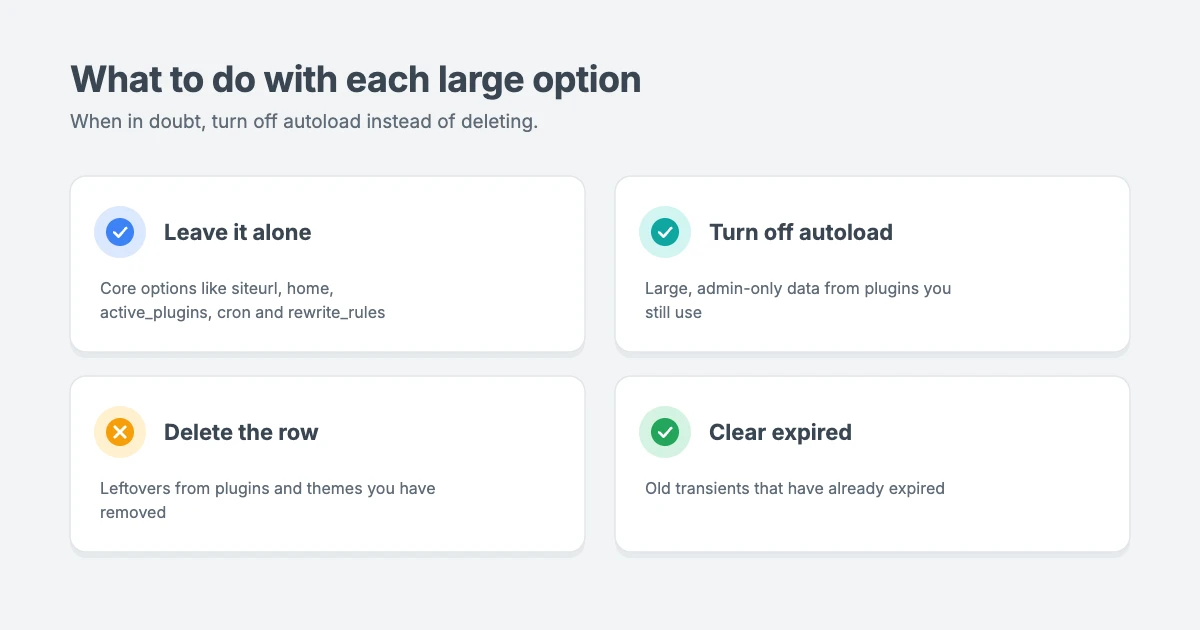
Once you know which rows are causing the bloat, you have two choices. Use this simple rule to decide which one is right.
Turn off autoload for options from active plugins
If a large option belongs to a plugin you still use, don’t delete it. Instead, stop WordPress from loading it on every request. The data stays in place, and the plugin can still read it when it needs to. Run this query, replacing the name with your own:
UPDATE wp_options
SET autoload = 'off'
WHERE option_name = 'example_plugin_report_data';
On sites older than WordPress 6.6, use 'no' instead of 'off'. This change is easy to undo. If anything stops working, run the same query with 'on' (or 'yes') instead.
This works best for data that’s only needed in the dashboard. If the plugin uses the option on every page, it will still load it, just with one extra query, so you won’t gain much.
Delete options from plugins you’ve removed
If a row belongs to a plugin or theme you’ve already deleted, you can remove it. First, check the Plugins page to be sure the plugin is really gone, not just deactivated. Then run:
DELETE FROM wp_options
WHERE option_name = 'old_plugin_settings';
If you plan to reinstall the plugin later, keep the row and turn off autoload instead. Deleting it will reset the plugin’s settings.
Clean up expired transients
Expired transients are safe to remove, because WordPress or the plugin will simply create them again when needed. If you have WP-CLI access on your server, this command removes all expired transients at once:
wp transient delete --expiredMany hosts also include a database cleanup or optimization tool in their control panel that can clear expired transients for you.
Safety rules to follow
- Change one row at a time, then reload your site and dashboard to check everything still works.
- Always use the exact option name. Never use
LIKEor wildcards in anUPDATEorDELETEquery. One typo could change hundreds of rows. - Keep a list of what you changed, so you can undo it if needed.
- When in doubt, turn off autoload instead of deleting. When still in doubt, leave the row alone.
Options you should never touch
Some options are essential to WordPress. Changing or deleting them can break your site or lock you out of the dashboard. Leave these alone:
siteurlandhome: your site’s addresses.active_plugins: the list of active plugins.templateandstylesheet: your active theme.wp_user_roles: user roles and permissions.cron: scheduled tasks.rewrite_rules: your permalink rules. This one is often large, but it’s needed on every request.
Also, never edit a serialized option_value by hand. Serialized data stores the exact length of every piece of text. If you change a word and the length doesn’t match, WordPress can’t read the value and the setting is lost. Always change settings from the plugin or theme’s own settings screen instead.
How much faster will my site be?
Be realistic about the results. If your autoload total is already small, cleaning them up won’t make a noticeable difference.
On older sites with a lot of bloat, the improvement can be real. Because this data is loaded on every request, a smaller set helps:
- Uncached front-end pages, such as when visitors are logged in or browsing a shop.
- The WordPress dashboard, which is never served from a page cache.
- Background requests, such as AJAX calls, the REST API and WP-Cron.
If your site uses a persistent object cache, such as Redis or Memcached, a smaller autoload set also uses less memory. Some object caches have a size limit for a single cached item, and a very large autoload set can go over it, which makes the cache much less effective.
What it won’t fix
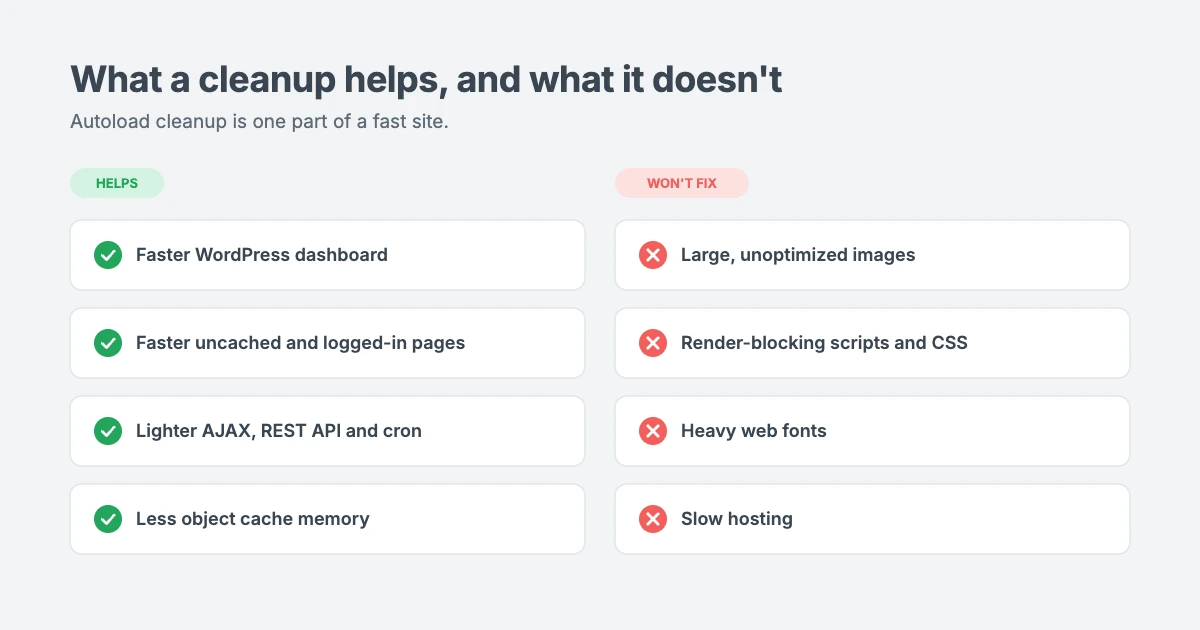
Cleaning up autoloaded options is one part of a fast site. It won’t fix large, unoptimized images, render-blocking JavaScript and CSS, heavy web fonts or slow hosting. For those, you’ll need to look at your theme, images, caching and hosting as well. If your server is also running low on space, our guide on how to free up disk space in WordPress can help.
How to prevent autoloaded options bloat
A few simple habits will keep your wp_options table lean:
- Install only the plugins you need, and choose well-maintained plugins with good reviews.
- Test new plugins on a staging site rather than your live site, so their leftover data never reaches production.
- Check a plugin’s settings before deleting it. Many plugins have a “remove data on uninstall” option.
- Check Site Health regularly, for example once a month.
- Repeat the size check every few months, especially after removing plugins.
- Use a lightweight theme that doesn’t add lots of extra data to your database.
Lightweight WPInterface Pro themes for a lean database
Your theme plays a part in database health too. WPInterface Pro themes keep their design settings in the standard WordPress Customizer, so your choices are saved together in your theme’s theme_mods_ option, just like WordPress intends. There’s no separate options framework adding extra rows to your database, and no need for a heavy page builder to create a great-looking site.
Here are three lightweight themes that are a great fit for speed-focused sites.
SpeedNews Pro
SpeedNews Pro is a fast, lightweight news and magazine theme. It’s built for sites that publish a lot of content and need pages to load quickly, with clean layouts for breaking news, categories and featured stories.

SpeedBlog Pro
SpeedBlog Pro is a minimal blog theme focused on fast loading and easy reading. It’s a great choice for personal blogs, writers and content creators who want a clean design without extra bloat.

BlogAura Pro
BlogAura Pro is a modern blog theme with a bright, clean look. It gives you stylish post layouts while staying light and fast, so your readers can focus on your content.

You can see all our themes on the WordPress themes page, or get every theme with the All-Access Pass.
Let our team clean up and speed up your site
Not comfortable running SQL queries on your live database? The WPInterface team can help:
- WordPress Speed Optimization: we audit your database, autoloaded options, images, caching and scripts, and make your site faster.
- WordPress Care Plans: regular updates, daily backups and ongoing database maintenance, so bloat never builds up again.
- VIP Support: a $29 priority ticket for fast expert help with a single problem.
- WordPress Migration: move your site to faster hosting, with a clean database and no downtime.
You can also see all our professional WordPress services.
Frequently asked questions
What are autoloaded options in WordPress?
Autoloaded options are rows in the wp_options table that WordPress loads automatically on almost every request. They’re meant for settings that are needed on every page, such as your site address and active plugins.
How big should my autoloaded options be?
There’s no fixed number, but under about 300 KB is healthy for most sites. WordPress shows a Site Health critical issue when the total is over 800 KB.
Is it safe to delete autoloaded options?
It’s safe to delete rows that belong to plugins and themes you’ve removed, as long as you’ve made a backup first. Never delete core WordPress options, and don’t delete options from plugins you still use. Turn off their autoload instead.
What’s the difference between turning off autoload and deleting an option?
Turning off autoload keeps the data, but WordPress only loads it when a plugin asks for it. Deleting removes the data completely. Turning off autoload is safer and easy to undo.
Will a caching plugin fix autoloaded options bloat?
Not completely. Page caching hides the problem for logged-out visitors, but the dashboard, logged-in users, AJAX requests and cron jobs still load every autoloaded row. An object cache helps, but very large autoloaded options can still use a lot of memory.
Can I clean up autoloaded options without phpMyAdmin?
Yes. Site Health and the Performance Lab plugin let you review autoloaded rows from your dashboard, and WP-CLI can delete expired transients. To change autoload settings or delete rows, though, you’ll usually need phpMyAdmin or WP-CLI.
How often should I check my autoloaded options?
Check every few months, and always after you remove plugins. A quick look at Site Health once a month will warn you if the total goes over 800 KB.
Conclusion
Autoloaded options are a hidden cause of slow WordPress sites, especially older sites that have used many plugins over the years. The fix is simple: back up your database, measure your total autoload size, find the biggest rows, turn off autoload for admin-only data from active plugins, delete rows left behind by removed plugins, and leave core options alone.
A few minutes of cleanup can make your dashboard and uncached pages noticeably faster. Pair it with a lightweight theme and regular maintenance, and your site will stay fast for years to come.
Reactions
How did this make you feel?
Be the first to react
One reaction per visitor. Tap again to change or remove it.





Leave a reply