Every WordPress site owner wants to know how many people visit, where they come from and which posts they enjoy. The two WordPress analytics tools we’re asked about most are Google Analytics and Jetpack Stats.
Both answer the same basic question, but they’re built for very different people. Google Analytics is a deep, free analytics platform built for marketers. Jetpack Stats is a simple stats dashboard that lives inside WordPress.
In this opinion piece, we’ll compare Google Analytics vs Jetpack Stats on ease of use, features, accuracy, privacy, online stores and cost, and share which one we’d choose for different kinds of WordPress sites.
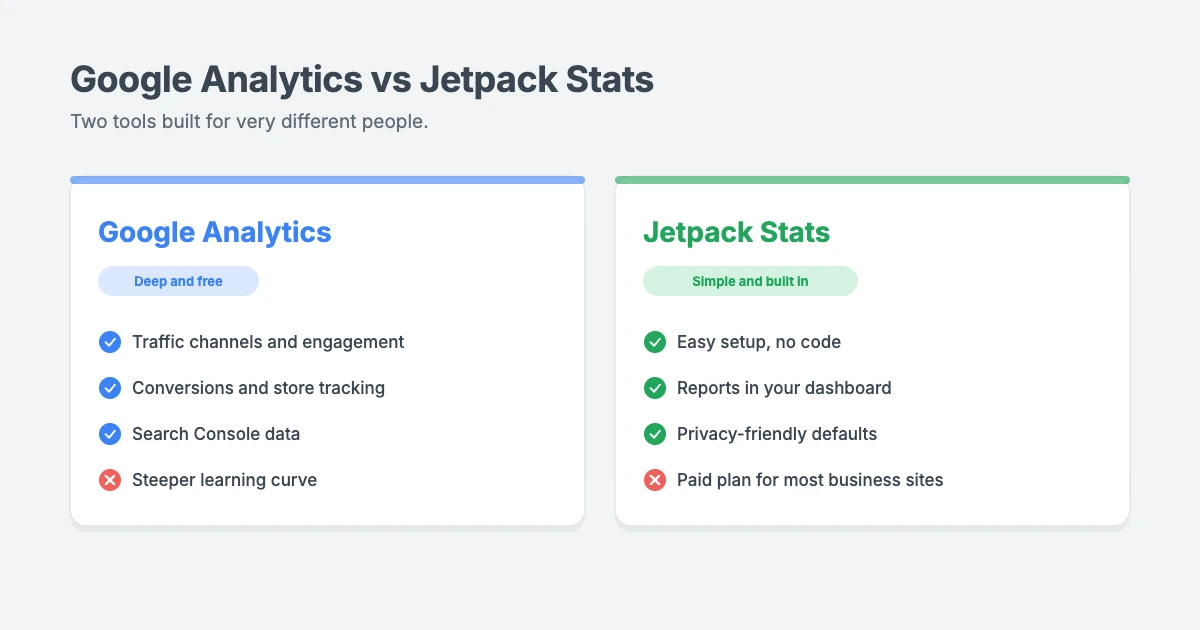
Google Analytics vs Jetpack Stats at a glance
Here’s a quick Google Analytics vs Jetpack Stats comparison before we look at each tool in detail.
| Google Analytics | Jetpack Stats | |
|---|---|---|
| Made by | Automattic, the company behind WordPress.com | |
| Where you see reports | Google Analytics website or app | Your WordPress dashboard |
| Setup | Google account, GA4 property and a tracking tag | Install the plugin and connect a WordPress.com account |
| Depth of reports | Very deep | Basic |
| Conversions and online store tracking | Yes | Limited |
| Privacy setup | You manage consent and settings | Simpler, privacy-friendly defaults |
| Cost | Free for almost every site | Free for personal sites, paid plan for most others |
What is Google Analytics?
Google Analytics is a free analytics platform from Google, and the most popular choice for WordPress analytics. The current version, Google Analytics 4 (GA4), tracks visitors, traffic sources, devices, locations, engagement and conversions across your whole site.
What we like:
- Depth. You can see exactly which channels bring visitors, such as organic search, social media, referrals and email, and how engaged those visitors are.
- Conversions. You can track key events like form submissions, downloads, sign-ups and purchases, so you know what actually grows your business.
- Search Console connection. Linking it to Google Search Console shows which search queries and landing pages bring you organic traffic.
- Free. The standard version is free for almost every website. Only very large businesses need the paid Google Analytics 360.
- Huge learning library. Google’s own help centre, free training courses and countless tutorials make it easy to find answers.
What we don’t:
- The learning curve. GA4 is built for marketers and analysts, and the number of reports can feel overwhelming at first.
- Setup takes a few steps. You need a Google account, a GA4 property and a tracking tag on your site.
- Privacy work is on you. In many regions, you’ll need a cookie consent banner and a clear privacy policy before you can track visitors.
Our view: Google Analytics is the more powerful tool by a long way. If your website earns money, or you want to make decisions based on real data, it’s the one to learn.
What is Jetpack Stats?
Jetpack Stats is a WordPress analytics feature from Automattic. You can use it as part of the Jetpack plugin or as a standalone stats plugin, and your reports appear right inside your WordPress dashboard.
What we like:
- Very easy setup. Install the plugin, connect a WordPress.com account and you’re done. There’s no tracking code to copy.
- Simple, friendly reports. You can see views, visitors, top posts, referrers, countries, link clicks and comments at a glance.
- Made for bloggers. It shows posting trends, popular tags and categories, and subscriber numbers.
- Privacy-conscious. It’s designed to collect less personal data, which makes privacy compliance simpler.
What we don’t:
- Limited depth. There’s no real conversion tracking, and online store reports are basic.
- The pricing changed. At the time of writing, the free and pay-what-you-want options are aimed at personal sites. Commercial sites, which can include blogs with ads or affiliate links, are expected to use the paid plan. That plan starts at $8.33 per month, billed yearly, for up to 10,000 views a month, and the price rises with your traffic. The first-year price is a discount, and renewals cost more.
- It needs a WordPress.com connection to keep working.
Our view: Jetpack Stats is a lovely, simple tool for personal blogs that just want to see what’s popular. For business sites, the paid plan is harder to justify when Google Analytics is free.
Google Analytics vs Jetpack Stats: the key differences
The biggest difference in Google Analytics vs Jetpack Stats is who each tool is built for. Jetpack Stats shows simple WordPress analytics inside your dashboard, so bloggers can check their numbers in seconds. Google Analytics is a full analytics platform that tracks the whole visitor journey, from the first click to a sale.
The second difference is cost. Google Analytics is free for almost every site, while Jetpack Stats is free mainly for personal sites. For a business, that makes the Google Analytics vs Jetpack Stats choice easier than it first looks.
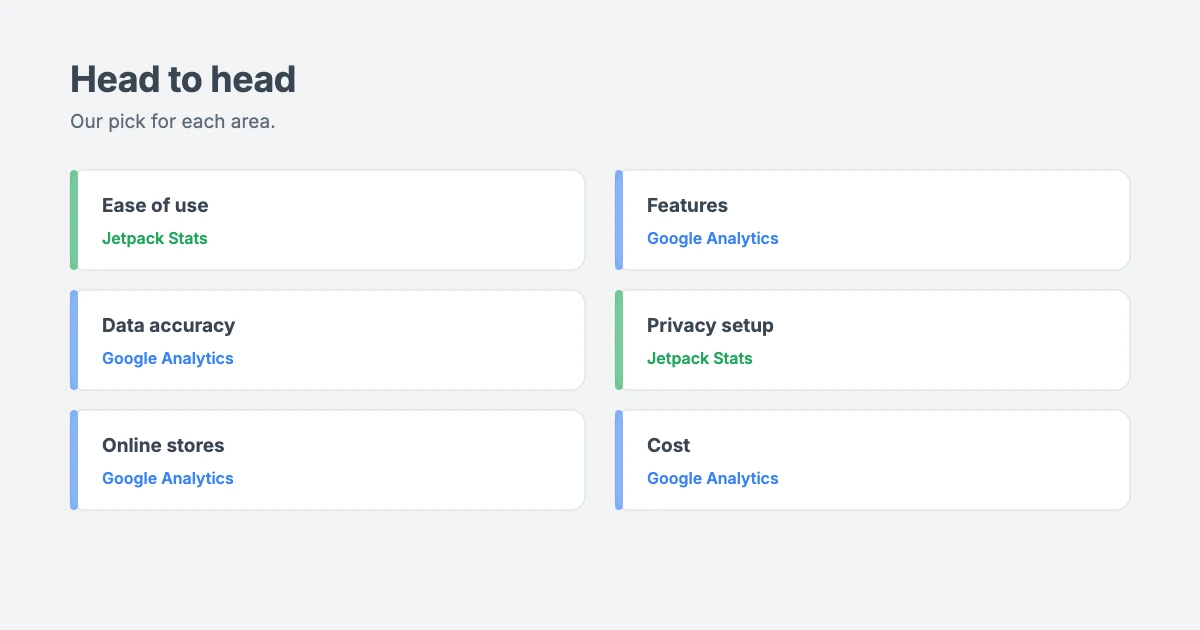
Google Analytics vs Jetpack Stats: head to head
Ease of use
Our pick: Jetpack Stats. It takes a couple of minutes to set up, and the reports use plain language. Google Analytics takes longer to learn, although its built-in guides and Google’s free training help a lot.
Features
Our pick: Google Analytics. Traffic channels, engagement time, conversions, audience details, custom reports and Search Console data put it in a different league. Jetpack Stats covers the basics well, but it stops there.
Data accuracy
Our pick: Google Analytics. GA4 filters out known bots automatically, and you can exclude your own visits by IP address so your reports show real visitors. Jetpack Stats gives a good general picture, but it offers fewer filtering options. Don’t worry if the two tools show different numbers. They count visits in different ways, so small differences are normal.
Privacy
Our pick: Jetpack Stats. Its privacy-friendly defaults make compliance easier with less setup. Google Analytics can also be used responsibly, but you’ll usually need a consent banner, sensible data retention settings and a clear privacy policy. GA4 keeps detailed data for 2 months by default, and you can extend this to 14 months in your settings.
Online stores
Our pick: Google Analytics. It can track product views, add-to-cart actions, checkouts and purchases, so you can see where shoppers drop off. Jetpack Stats shows some store information, but it isn’t real ecommerce tracking.
Cost
Our pick: Google Analytics. It’s free for almost every site. Jetpack Stats is free for personal sites, but most business sites will need its paid plan.
Our verdict: which WordPress analytics tool should you use?
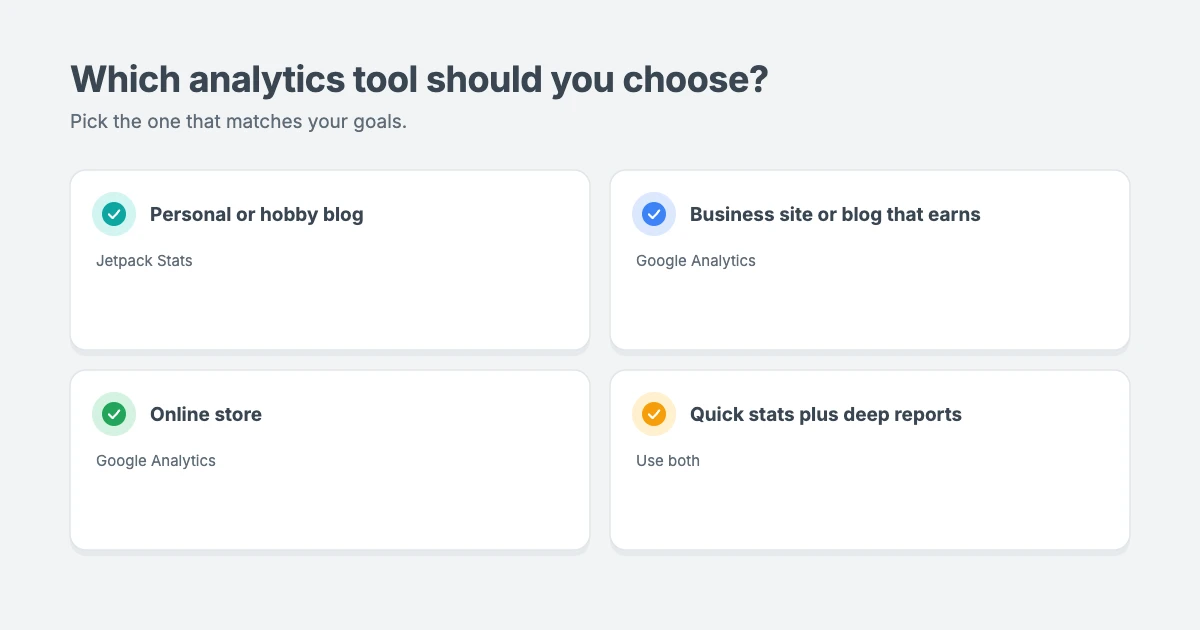
Here’s our honest recommendation in the Google Analytics vs Jetpack Stats debate:
- Running a personal blog or hobby site? Jetpack Stats is perfectly fine. It’s simple, it lives in your dashboard and it shows what readers enjoy.
- Running a business site, a blog that earns money or a client site? Use Google Analytics. It’s free, and it shows which marketing actually brings results.
- Running an online store? Use Google Analytics, so you can track sales and see where customers leave.
- Want both? You can run both tools at the same time. Many site owners like quick stats in WordPress and deep reports in Google Analytics. Just remember that each extra tracking script adds a little weight to your pages.
For most WordPress site owners, our pick is Google Analytics. The learning curve is real, but you don’t need to learn every report. Start with traffic sources, top pages and one or two key events, and build from there.
How to set up Google Analytics for WordPress analytics
There are two common ways to connect Google Analytics to your site:
- Use Google’s official Site Kit plugin. It connects your site to Google Analytics and Search Console without editing code, and shows a summary in your dashboard.
- Add the Google tag manually. Create a GA4 property, copy the Google tag and add it to your site’s header, ideally in a child theme or a code snippets area so it isn’t lost when your theme updates.
Whichever method you choose, check the real-time report in Google Analytics afterwards to confirm visits are being recorded. Then set up a cookie consent banner and update your privacy policy if your visitors’ location requires it.
Keep analytics light on a fast theme
WordPress analytics scripts run in your visitors’ browsers, so too many tracking tools can slow your site down. Using one or two analytics tools on a lightweight theme keeps things fast. Our guide on how to improve INP in WordPress explains how scripts affect speed.
WPInterface Pro themes are lightweight, with design settings in the WordPress Customizer and no page builder required. They work with both Google Analytics and Jetpack Stats.
SpeedBlog Pro
SpeedBlog Pro is a fast blog theme for travel, tech, personal and creative blogs, with a clean layout that keeps readers focused.

BlogNest Pro
BlogNest Pro is a clean, modern blog theme with stylish post layouts that make your writing the star of the page.

MagFusion Pro
MagFusion Pro is a trendy blog and magazine theme for tech, lifestyle, business and travel sites that publish across many categories.

You can see all our themes on the WordPress themes page.
Let our team set up your WordPress analytics
Don’t want to set up tracking yourself? The WPInterface team can help:
- Must-Have Plugins Installation: for $59, we install and set up the essentials your site needs, including analytics and SEO.
- Technical SEO for WordPress: we fix the technical issues that hold back your search rankings.
- WordPress Speed Optimization: we improve your Core Web Vitals, starting with a free speed audit.
- VIP Support: a $29 priority ticket for quick expert help.
Frequently asked questions
Is Google Analytics better than Jetpack Stats?
For most business sites, yes. When you compare Google Analytics vs Jetpack Stats, Google Analytics offers much deeper reports, conversion tracking and online store tracking for free. Jetpack Stats is simpler and easier, which suits personal blogs.
Is Jetpack Stats free?
Jetpack Stats has a free option and a pay-what-you-want option for personal sites. Commercial sites are expected to use the paid plan, which is priced by monthly views.
Can I use Google Analytics and Jetpack Stats together?
Yes. They work independently, so you can use both. Just expect slightly different numbers, because each tool counts visits in its own way.
Why do Google Analytics and Jetpack Stats show different numbers?
They measure visits differently, filter bots differently and handle privacy settings and ad blockers differently. Small differences are normal. Pick one tool as your main source and watch the trends over time.
Do I need a cookie banner for Google Analytics?
In many regions, such as the EU and UK, you need visitors’ consent before using analytics cookies. Check the rules that apply to your visitors and update your privacy policy. We’re not lawyers, so get legal advice if you’re unsure.
Does WordPress analytics slow down my site?
Each tracking script adds a little weight. One or two analytics tools on a lightweight theme usually have very little impact, but stacking many tracking tools can hurt your speed.
Final thoughts
Google Analytics vs Jetpack Stats comes down to what you need from WordPress analytics. Jetpack Stats is simple, friendly and perfect for personal blogs. Google Analytics is free, far more powerful and the better choice for business sites, online stores and anyone serious about growth.
Our advice is simple: if your site earns money, learn Google Analytics. Start with a few key reports, pair it with a fast theme, and let real data guide what you write and build next.
Reactions
How did this make you feel?
Be the first to react
One reaction per visitor. Tap again to change or remove it.






Leave a reply