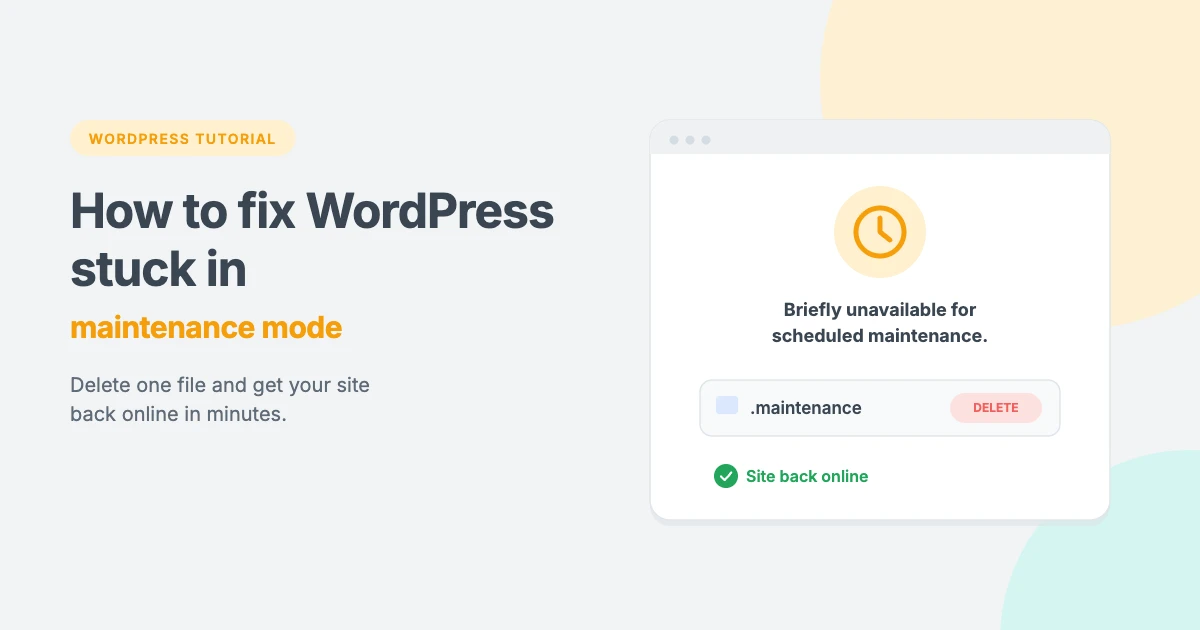
Is WordPress stuck in maintenance mode? You click “Update” on a plugin, theme or WordPress itself, and a few minutes later your whole site shows one line: “Briefly unavailable for scheduled maintenance. Check back in a minute.” Then a minute becomes ten, and the message is still there. When WordPress is stuck in maintenance mode, visitors can’t see your site and you often can’t reach the dashboard either.
The good news is that this is one of the easiest WordPress problems to fix. In most cases, deleting one small file brings your site back in under five minutes. In this tutorial, we’ll explain why WordPress gets stuck in maintenance mode, show you how to fix it step by step, and cover what to do if the message still won’t go away.
What is WordPress maintenance mode?
Every time you update WordPress core, a plugin or a theme, WordPress briefly puts your site into maintenance mode. It does this by creating a small file called .maintenance in your site’s root folder. While that file exists, WordPress shows the “Briefly unavailable for scheduled maintenance” message instead of your site, so visitors don’t see a half-updated page.
When the update finishes, WordPress deletes the .maintenance file and your site comes back. This normally takes a few seconds. You usually won’t even notice it.
The file itself is tiny. It only contains a timestamp of when the update started, like this:
<?php $upgrading = 1791460800; ?>Why does WordPress get stuck in maintenance mode?
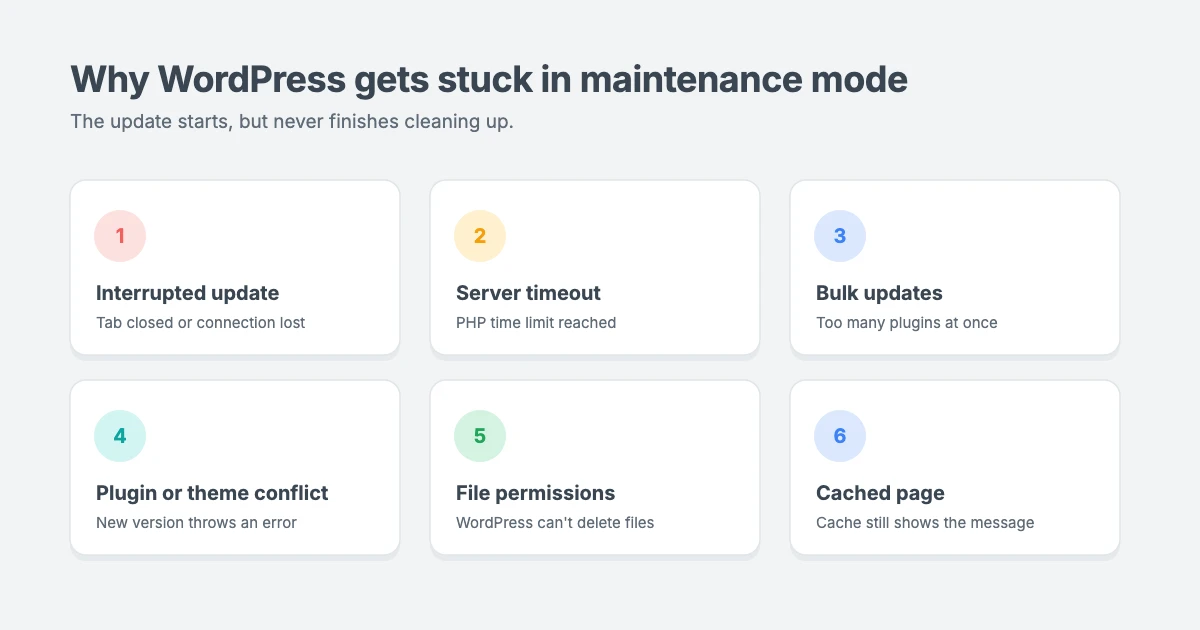
WordPress gets stuck in maintenance mode when an update starts but doesn’t finish properly, so the .maintenance file is never removed. The most common reasons are:
- The update was interrupted. You closed the browser tab, lost your connection or navigated away while updates were running.
- The server timed out. The update took longer than the server’s PHP time limit, often on shared hosting with low resources.
- You updated many plugins at once. Bulk updates put more load on the server and make timeouts and conflicts more likely.
- A plugin or theme conflict. A new version clashed with another plugin, your theme or your PHP version, so the update stopped with an error.
- File permission problems. WordPress couldn’t write or delete files, so it couldn’t finish the update or remove the
.maintenancefile. - Caching. The maintenance page was cached by a caching plugin, your host or a CDN, so you keep seeing it after the update is done.
WordPress is designed to ignore an old .maintenance file after about 10 minutes. But if the update left plugin files half-copied, or a cache is still serving the maintenance page, your site can look stuck long after that.
Before you start: back up your site
The fix below only removes one temporary file, so it’s very safe. Still, if your host offers backups, it’s worth making one before you change anything, especially if an update failed halfway. For a full recovery plan, see our tutorial on what to do when a WordPress update breaks your site.
How to fix WordPress stuck in maintenance mode
To fix WordPress stuck in maintenance mode, you need to delete the .maintenance file from your site’s root folder. This is the same folder that contains wp-config.php, wp-admin and wp-content, usually called public_html or www.
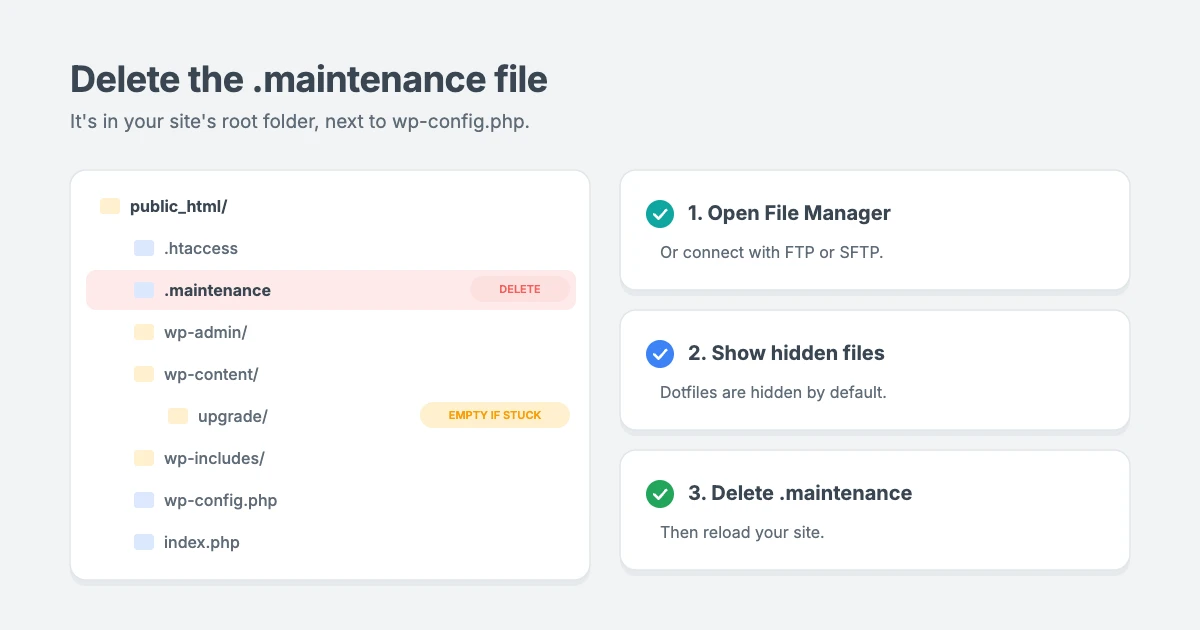
You can delete the file in three ways. Pick whichever is easiest for you.
Method 1: Use your host’s File Manager
This is the easiest method because you don’t need to install anything.
- Log in to your hosting account and open the File Manager. In cPanel, it’s under Files. In Hostinger’s hPanel, go to Websites, click Dashboard for your site and open File Manager.
- Open your site’s root folder, usually
public_html. - Turn on hidden files. In cPanel, click Settings in the top-right corner and tick Show Hidden Files (dotfiles). Files that start with a dot are hidden by default.
- Find the file named
.maintenance. - Right-click it and choose Delete.
Now reload your site. In most cases, it’s back immediately.
Method 2: Use an FTP client
If you prefer FTP, you can use a free client such as FileZilla.
- Connect to your site using the FTP or SFTP details from your hosting account.
- Open your site’s root folder, usually
public_html. - If you can’t see files that start with a dot, go to Server » Force showing hidden files in FileZilla.
- Right-click the
.maintenancefile and choose Delete.
Method 3: Use WP-CLI
If your host gives you SSH access, you can turn off maintenance mode with one WP-CLI command. Connect to your server, go to your site’s folder and run:
wp maintenance-mode status
wp maintenance-mode deactivate
The first command shows whether maintenance mode is active. The second removes the .maintenance file for you.
What to do after you delete the .maintenance file
Your site is back, but the update that caused the problem may not have finished. Check these things next:
- Clear your caches. Clear your caching plugin, your host’s cache and your CDN, if you use one. Then clear your browser cache or open your site in a private window.
- Check for pending updates. Go to Dashboard » Updates. If the plugin, theme or WordPress update that failed is still listed, run it again, one item at a time.
- Test the updated plugin or theme. Visit the pages and features that depend on it. If something looks broken, reinstall the plugin or theme from Plugins » Add New or by uploading a fresh copy.
- Check Site Health. Go to Tools » Site Health and look for new critical issues.
What if WordPress is still stuck in maintenance mode?
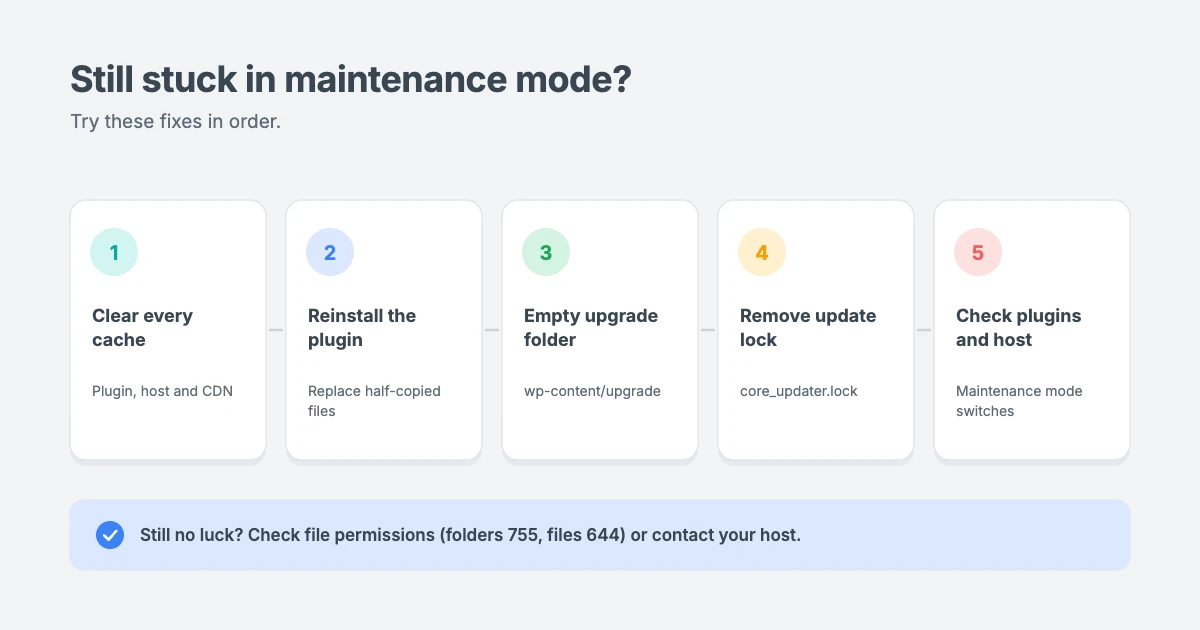
If you deleted the .maintenance file and still see the message, or your site now shows a different error, try these fixes in order.
Clear every layer of cache
Cached pages are the most common reason the message seems to come back. Purge your caching plugin, your host’s server cache and your CDN (such as Cloudflare). Then test in a private browser window or on your phone using mobile data.
Reinstall the plugin or theme that failed
If an update stopped halfway, the plugin’s folder may only contain some of its files. This can cause a white screen or a fatal error once maintenance mode is off.
- In your File Manager or FTP client, go to
wp-content/plugins(orwp-content/themes). - Find the folder of the plugin or theme you were updating. Rename it, for example to
plugin-name-old, to turn it off. - Log in to WordPress, then reinstall a fresh copy of that plugin or theme.
- Once it works, delete the old renamed folder.
If you see a “500 Internal Server Error” or a blank page, follow our guide on how to fix the 500 internal server error in WordPress.
Empty the wp-content/upgrade folder
WordPress unpacks updates in a temporary folder at wp-content/upgrade. If an update failed, leftover files there can block the next one. Open that folder and delete everything inside it, but keep the upgrade folder itself.
Remove a stuck update lock
If WordPress says “Another update is currently in progress”, it has left an update lock in the database. WordPress removes this lock on its own after about 15 minutes, so the simplest fix is to wait and try again. If you can’t wait, you can remove it with WP-CLI:
wp option delete core_updater.lockYou can also delete the core_updater.lock row from the wp_options table in phpMyAdmin. Back up your database before you edit it directly.
Check for a maintenance plugin or host setting
Not every maintenance page comes from an update. A “coming soon” or maintenance mode plugin, or a maintenance mode switch in your hosting dashboard, can also take your site offline. Check your active plugins and your host’s WordPress tools, and turn off any maintenance or coming soon mode you don’t need.
Check file permissions
If WordPress can’t delete files, it can’t finish updates or remove the .maintenance file. Folders should normally be set to 755 and files to 644. You can change permissions in your File Manager by right-clicking a file or folder and choosing Permissions. If you’re not sure, ask your host to reset them for you.
Contact your host
If none of these fixes work, contact your hosting support. They can check server error logs and resource limits, and see if a server problem stopped the update.
How to prevent WordPress getting stuck in maintenance mode
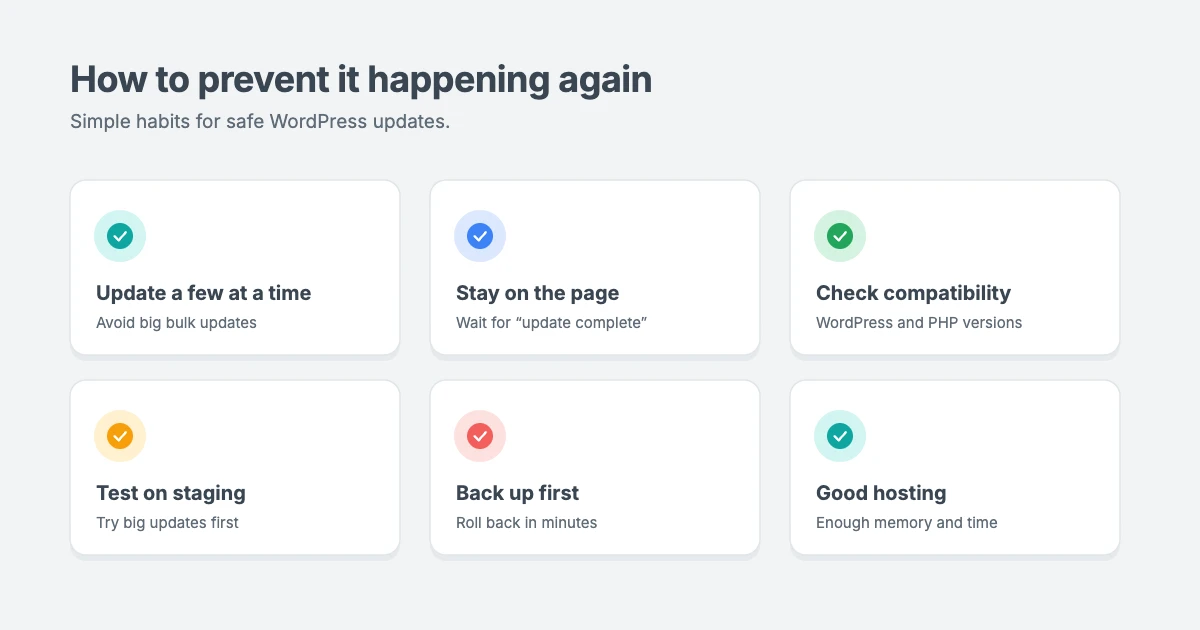
A few simple habits make it much less likely that WordPress gets stuck in maintenance mode again:
- Update one or two plugins at a time instead of selecting everything in bulk, especially on shared hosting.
- Stay on the page until WordPress says the update is complete. Don’t close the tab or click away.
- Check compatibility first. Read the plugin’s changelog and make sure it supports your WordPress and PHP versions.
- Test big updates on a staging site before you run them on your live site.
- Back up before updating, so you can roll back in minutes if something goes wrong.
- Choose hosting with enough resources. Low memory and short time limits are a common cause of failed updates.
- Update during quiet hours, when the fewest visitors will notice a problem.
Bonus: show a friendly maintenance page
During updates, WordPress shows a very plain message. You can replace it with your own branded page. Create a file called maintenance.php inside your wp-content folder, and WordPress will show it instead of the default message whenever the site is in maintenance mode.
A simple example looks like this:
<?php
http_response_code( 503 );
header( 'Retry-After: 600' );
?>
<!DOCTYPE html>
<html>
<head><meta charset="utf-8"><title>We'll be right back</title></head>
<body style="font-family: sans-serif; text-align: center; padding: 80px 20px;">
  <h1>We'll be right back</h1>
  <p>We're updating the site. Please check back in a few minutes.</p>
</body>
</html>
The 503 status code tells search engines the downtime is temporary, so it won’t hurt your rankings.
How to put WordPress in maintenance mode on purpose
Sometimes you want maintenance mode, for example while you redesign your site, move it to a new host or make big changes to a store. In that case, don’t create a .maintenance file by hand. WordPress ignores it after about 10 minutes, and it gives you no control over what visitors see. Use one of these options instead.
Use a maintenance mode or coming soon plugin
A maintenance plugin shows visitors a branded page while you keep working on the site as a logged-in administrator. Look for one that:
- Sends a
503status code, so search engines know the downtime is temporary. - Lets logged-in admins see the real site while visitors see the maintenance page.
- Lets you add your logo, a short message, a countdown and contact details.
- Can be switched off with one click when you’re done.
Remember to turn it off when your work is finished. A forgotten maintenance plugin is one of the most common reasons a site seems stuck long after updates are done.
Use your host’s maintenance switch
Some hosts include a maintenance mode switch in their WordPress tools. It works the same way as a plugin but doesn’t add anything to your site. Check your hosting dashboard’s WordPress section for an option called maintenance mode or coming soon.
Use WP-CLI for short jobs
If you have SSH access, you can turn maintenance mode on and off from the command line. It uses the same .maintenance file as updates, so it’s best for quick tasks of a few minutes, such as a large update or a database change:
wp maintenance-mode activate
wp maintenance-mode deactivate
Maintenance mode or a staging site?
For bigger projects, such as a redesign, a staging site is usually better than maintenance mode. You build and test the changes on a private copy, and your live site stays online the whole time. When everything is ready, you push the changes live in a few minutes. Many hosts include one-click staging, and our WordPress Care Plans include safe, tested updates so your visitors never see a maintenance page.
Let our team handle your WordPress updates
If you’d rather not deal with failed updates and downtime, the WPInterface team can help:
- VIP Support: a $29 priority ticket that goes straight to a senior engineer. It’s the fastest way to get a site that’s stuck in maintenance mode back online.
- WordPress Care Plans: we run your updates safely, with daily off-site backups and uptime monitoring, so you never have to.
- WordPress Migration: if your host keeps timing out during updates, we move your site to faster hosting without downtime.
- Malware Removal and Security Hardening: if unknown files or strange errors keep appearing, we check your site for malware and clean it by hand.
You can also see all our professional WordPress services.
Frequently asked questions
How long should WordPress maintenance mode last?
Usually only a few seconds per update. Even large updates should finish within a minute or two. If you still see the message after five minutes, the update has probably failed and you should delete the .maintenance file.
Is it safe to delete the .maintenance file?
Yes. It’s a temporary file that WordPress creates during updates and normally deletes on its own. Deleting it doesn’t remove any of your content, settings or plugins.
I can’t find the .maintenance file. Where is it?
It’s in your site’s root folder, next to wp-config.php. Because the name starts with a dot, it’s hidden by default. Turn on “show hidden files” in your File Manager or FTP client. If it’s still not there, the message is probably cached or comes from a maintenance plugin.
Can I fix it without FTP or a File Manager?
If your host provides SSH access, you can run wp maintenance-mode deactivate with WP-CLI. Otherwise, you need some way to reach your site’s files, so ask your host’s support team to delete the file for you.
Does being stuck in maintenance mode hurt SEO?
A few minutes won’t hurt. WordPress sends a 503 status during maintenance, which tells search engines the downtime is temporary. If your site stays down for many hours or days, it can start to affect your rankings, so fix it as soon as you notice.
Why does it keep happening every time I update?
Repeated problems usually mean your server is running out of time or memory during updates, or one plugin keeps failing to update. Update plugins one at a time to find the culprit, and ask your host about raising your PHP limits.
Will my visitors see the maintenance message?
Yes. While the .maintenance file is active, everyone who visits your site sees the message, not just you. That’s why it’s worth fixing right away.
Conclusion
When WordPress is stuck in maintenance mode, the cause is almost always a leftover .maintenance file from an update that didn’t finish. Delete that file from your root folder using your File Manager, FTP or WP-CLI, clear your caches, and then run the failed update again. To stop it happening again, update a few plugins at a time, stay on the page until updates finish, and keep backups.
If you’d like experts to manage your updates for you, our WordPress Care Plans keep your site updated, backed up and online.
Reactions
How did this make you feel?
Be the first to react
One reaction per visitor. Tap again to change or remove it.






Leave a reply