Technical SEO is the work that helps search engines crawl, render, index and understand your site. This technical SEO checklist covers 25 checks you can run on any WordPress site, with no paid tools.
WordPress gives you a sound starting point, but sites drift. Plugins pile up, themes change, old URLs get deleted and settings from a staging site slip through to the live one. Small faults add up quietly.
Work through the checks in order, because crawling and indexing problems outrank everything else. Tick off what already passes, note what fails, then fix the failures that affect the most pages first.
Before you start: tools you need
You can do WordPress technical SEO with free tools. Set these up before you begin the technical SEO checklist.
- Google Search Console. It shows how Google crawls and indexes your site. You will use the Page indexing report, Sitemaps report, URL Inspection tool, Core Web Vitals report and HTTPS report.
- PageSpeed Insights. Google’s free speed test reports Core Web Vitals for a single URL and suggests what to fix.
- A free SEO plugin. The free version of Rank Math or Yoast SEO handles sitemaps, canonical tags, noindex settings and basic schema. Install one, not both.
- A free crawler. A desktop crawler follows your links like a search engine does. Several have free tiers that cover a small site.
- Your browser’s view-source. Right-click a page and choose to view the page source. It lets you confirm which tags a page really outputs.
Technical SEO checklist: crawling and indexing
If search engines cannot reach or index a page, nothing else on this list matters for that page. Start here.
- 1. Check the search engine visibility setting. Go to Settings » Reading and find “Discourage search engines from indexing this site”. Make sure it is unticked on a live site. It is often left on after a build or migration.
- 2. Review your robots.txt file. Open yoursite.com/robots.txt in a browser. Check that it does not block CSS or JavaScript files, because Google needs them to render your pages. Add a “Sitemap:” line that points to your XML sitemap. Google’s introduction to robots.txt explains the rules.
- 3. Submit your XML sitemap. WordPress core has generated a basic sitemap at /wp-sitemap.xml since version 5.5. SEO plugins replace it with their own, and Rank Math uses /sitemap_index.xml. Submit the right address in the Sitemaps report in Search Console and confirm it is read without errors.
- 4. Review the Page indexing report. This report lists which pages are indexed and why others are not. Look for important pages that are excluded, such as those marked as not found, redirected or blocked. Some exclusions are expected, so focus on pages you want in search.
- 5. Noindex thin pages. Tag archives, internal search results and attachment pages rarely help searchers. Set them to noindex in your SEO plugin. Remember that robots.txt controls crawling, not indexing. To keep a page out of search results, use a noindex meta tag and let the page be crawled.
- 6. Check canonical tags. A canonical tag tells search engines the preferred URL when pages are duplicates or very similar. SEO plugins add a self-referencing canonical to each page. View the source of a few posts and confirm the canonical points to the correct, HTTPS address.
- 7. Find orphan pages. An orphan page has no internal links pointing to it, so crawlers and visitors struggle to find it. Compare your sitemap with your crawl results. Link to any page that appears in the sitemap but not in the crawl, or remove it if it is no longer needed.
Site structure and URLs
A clear structure helps search engines understand how your pages relate to each other. It helps visitors too.
- 8. Use readable permalinks. Go to Settings » Permalinks and choose a readable structure such as “Post name”. If your site is already established, do not change the structure without planning redirects for every existing URL.
- 9. Keep categories logical. Use a small set of categories that reflect your main topics. Avoid categories with one or two posts, and avoid a tag and a category with the same name. Shop owners should also read our WooCommerce SEO guide for product category advice.
- 10. Link internally to key pages. Your most important pages should be reachable in a few clicks from the homepage. Link to them from your menu, from related posts and from within your content. Use descriptive anchor text, not “click here”.
- 11. Add breadcrumbs. Breadcrumbs show where a page sits in your site and add useful internal links. Many themes include them, and free SEO plugins can add them with the matching schema.
- 12. Fix broken links and redirect chains. Use a 301 redirect whenever a URL changes. Avoid chains, where one redirect leads to another before reaching the final page. Then update internal links that point to redirects or 404 pages so they go straight to the live URL.
Speed and Core Web Vitals
Core Web Vitals are Google’s three measures of real-world page experience. Google assesses them at the 75th percentile of page loads, so most of your visits need to pass. The Web Vitals documentation sets these “good” thresholds.
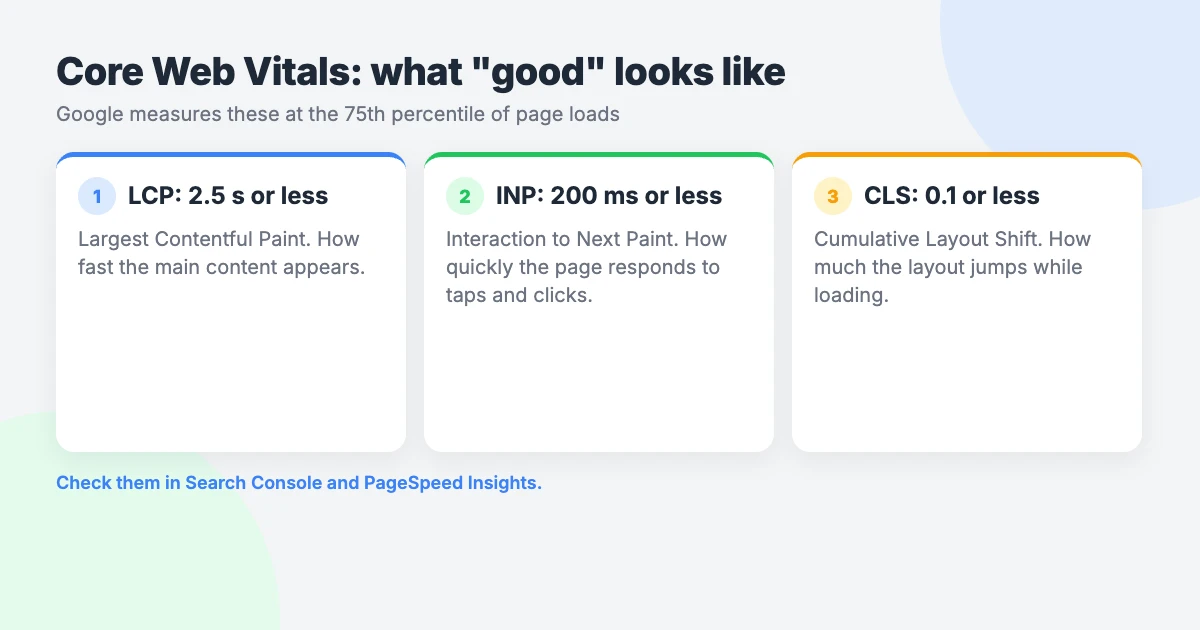
| Metric | Good | What it measures |
|---|---|---|
| Largest Contentful Paint (LCP) | 2.5 seconds or less | How quickly the main content loads |
| Interaction to Next Paint (INP) | 200 milliseconds or less | How quickly the page responds to clicks, taps and key presses |
| Cumulative Layout Shift (CLS) | 0.1 or less | How much the layout moves unexpectedly while loading |
INP replaced First Input Delay as a Core Web Vital in March 2024. If that metric is your weak spot, see our guide on how to improve INP in WordPress.
- 13. Use a lightweight theme. Your theme loads on every page, so heavy scripts and styles slow the whole site. Choose a theme that loads only what it needs. Our lightweight, minimal themes are a good place to start.
- 14. Turn on caching. Page caching serves a saved copy of each page, so the server does less work. Many hosts include caching in their plans. If yours does not, use a free caching plugin, and run only one.
- 15. Optimise images. Serve images in a modern format such as WebP and upload them at sensible dimensions. Keep width and height attributes so the browser can reserve space. Lazy-load images below the fold, but never the LCP image, which is usually your hero or featured image.
- 16. Limit plugins and third-party scripts. Each plugin, tracking tag, chat widget and embed can add code that delays loading and interaction. Remove what you no longer use. Load the rest only on the pages that need it where you can.
- 17. Run a supported PHP version. Newer PHP versions are faster and still receive security fixes. Check your version under Tools » Site Health, then follow our tutorial to update the PHP version in WordPress.
Mobile, HTTPS and security
Google uses mobile-first indexing. That means it mainly uses the mobile version of your content for indexing, so the mobile view is the one that counts.
- 18. Match mobile and desktop content. Check that headings, text, images and internal links appear on mobile as well as desktop. Content that is hidden or removed on small screens may not be indexed.
- 19. Test mobile usability. Open key pages on a real phone. Text should be readable without zooming, buttons should be easy to tap and nothing should scroll sideways. Check menus, forms and pop-ups in particular.
- 20. Use HTTPS everywhere. Every page should load over HTTPS, and the HTTP version should 301 redirect to it. Fix mixed content, where a secure page loads images or scripts over HTTP. The HTTPS report in Search Console lists pages with problems.
- 21. Keep WordPress updated. A hacked site can be filled with spam pages or flagged in search results. Update core, themes and plugins, and delete anything inactive. Our WordPress maintenance checklist covers the routine.
Structured data and on-page technical checks
These last checks help search engines understand what each page is about. They complete this technical SEO checklist.
- 22. Add and test structured data. Structured data, also called schema, describes your content in a format search engines can read. It can make pages eligible for rich results, though it does not guarantee them. Free SEO plugins add common types. Test key pages with Google’s Rich Results Test.
- 23. Use one H1 per page. The H1 should be the page title, with H2 and H3 headings in order beneath it. Do not pick heading levels for their font size. Check your theme does not also wrap the site name in an H1 on posts.
- 24. Write unique titles and meta descriptions. Every indexable page needs its own title tag and meta description. Your crawler will list duplicates and missing ones. Fix your most visited pages first.
- 25. Add alt text to images. Alt text describes an image for people who use screen readers, and it helps search engines understand the image. Write it for people first and leave decorative images empty. Clear headings and alt text serve both audiences, as our WCAG 2.2 checklist explains.
How to run a technical SEO audit on WordPress
The 25 checks tell you what to look for. This workflow tells you what order to work in. It is a technical SEO audit WordPress site owners can run in an afternoon on a small site.
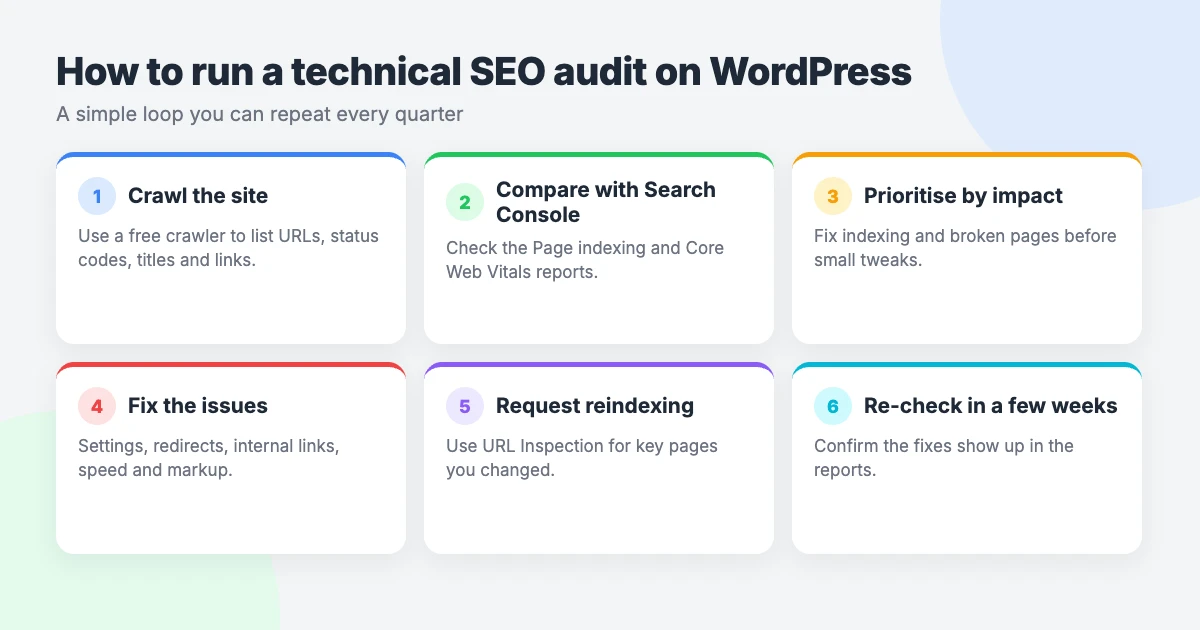
- Crawl your site. Run your crawler from the homepage. Export the list of URLs with their status codes, titles, canonicals and indexability.
- Compare with Search Console. Set the crawl beside the Page indexing and Core Web Vitals reports. Note pages that Google excludes but you want indexed, and the reverse.
- Prioritise by impact. Put site-wide faults first, such as a blocked directory or a slow template. A problem on one old post can wait.
- Fix in small batches. Take a backup, make one group of changes, then test. If something breaks, you will know which change caused it.
- Request reindexing. For important pages, paste the address into the URL Inspection tool and request indexing. For larger changes, resubmit your sitemap.
- Re-check in a few weeks. Search Console data updates gradually. Return to the same reports, confirm the errors have cleared and record what changed.
Keep a simple spreadsheet of each issue, the fix and the date. It turns this technical SEO checklist into a record you can reuse.
How often to repeat this technical SEO checklist
Technical SEO for WordPress is not a one-off job. Updates, new content and new plugins all change how your site behaves.
- Monthly quick checks. Look at the Page indexing, Core Web Vitals and HTTPS reports in Search Console. Scan for new errors and for sudden drops in indexed pages.
- Quarterly full audit. Run a fresh crawl and work through all 25 checks. Treat it as your regular WordPress SEO checklist review.
- After redesigns and migrations. Repeat the full list after a theme change, a domain move, a host move or a permalink change. Start with check 1, because the visibility setting is the most common casualty.
Want help?
If you would rather hand the audit over, our technical SEO for WordPress service can take it off your hands.
Stuck on a single issue, such as a redirect loop or a sitemap error? Open a VIP Support ticket for $29 and we will look at it for you.
Frequently asked questions
What is technical SEO in WordPress?
It is the work that helps search engines crawl, render, index and understand your WordPress site. It covers settings, sitemaps, URLs, speed, mobile display, HTTPS and structured data. It sits alongside content and links, and it does not replace them.
Does WordPress need an SEO plugin?
WordPress works without one, and core already creates a basic sitemap. A free SEO plugin makes the job easier, though. It gives you control over titles, meta descriptions, canonical tags, noindex settings and schema without editing code.
Should I noindex tag pages?
Often, yes. Tag archives tend to be thin and to repeat your category pages. If a tag page is useful, has its own introduction and attracts visits, you can keep it indexed. Do not block tag pages in robots.txt, or search engines will not see the noindex tag.
How do I check Core Web Vitals?
Open the Core Web Vitals report in Google Search Console to see how groups of your pages perform for real visitors. Then test individual URLs in PageSpeed Insights. Aim for an LCP of 2.5 seconds or less, an INP of 200 milliseconds or less and a CLS of 0.1 or less.
How long does it take to see results from technical SEO fixes?
It depends on how often search engines crawl your site, and nobody can promise a timescale or a ranking. Changes are only counted once pages are crawled again. That often takes weeks, and reports such as Core Web Vitals update gradually. Fixes also remove obstacles; they do not guarantee higher positions.
Reactions
How did this make you feel?
Be the first to react
One reaction per visitor. Tap again to change or remove it.



Leave a reply