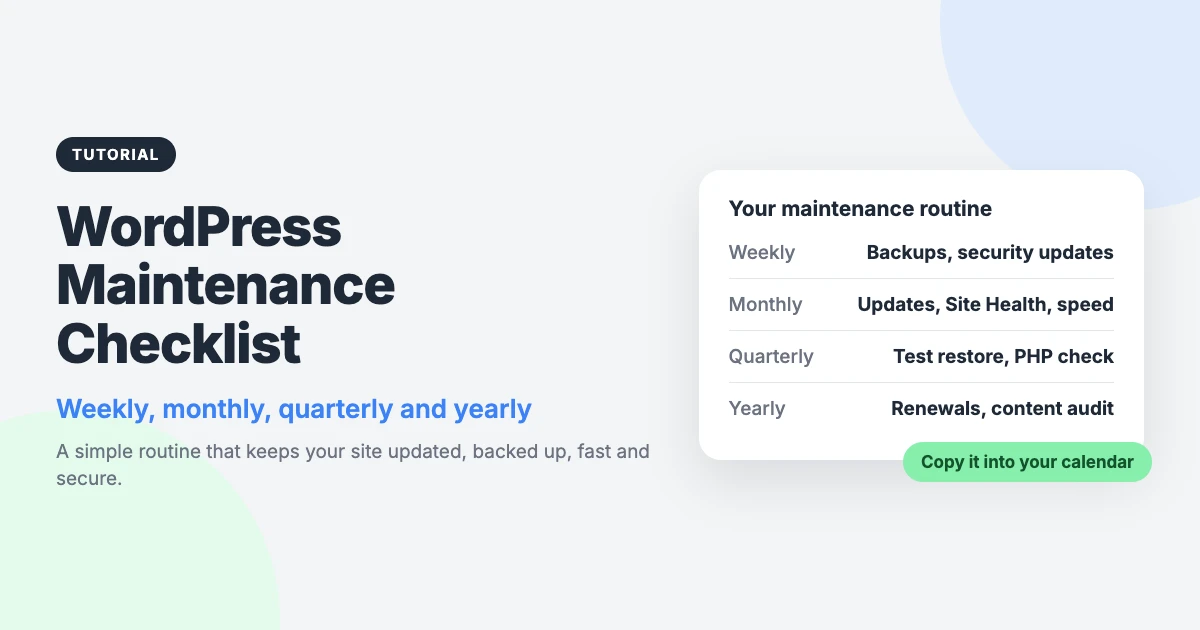
Most WordPress problems are cheaper to prevent than to fix. A short routine catches a failed backup or an outdated plugin before it turns into an emergency. This WordPress maintenance checklist gives you that routine.
It covers the WordPress maintenance tasks to do weekly, monthly, quarterly and yearly. It also explains what to do when an update goes wrong. You don’t need to be a developer to follow it.
If you’ve wondered how to maintain a WordPress site without it taking over your week, start here. Emergency fixes happen at the worst time, under pressure, often with visitors watching. Routine checks happen when you choose.
Tip: copy the checklist into your calendar or task list as recurring reminders. A task with a date on it gets done. A task you plan to remember usually doesn’t.
Before you start: set up these basics once
Every task below is easier and safer with a few things in place. Set these up once and the routine mostly looks after itself.
- Off-site backups on a schedule. Use a free backup plugin that can send copies to off-site storage. WordPress’s own backup guidance says to keep several recent backups in different locations, not only on your hosting server.
- An uptime monitor. A free uptime monitor checks your site every few minutes and emails you if it goes down. You hear about it before your visitors tell you.
- A staging site, if your host offers one. Staging is a private copy of your site where you can test updates. Many hosts include it, so check your host’s documentation.
- Secure admin accounts. Give every administrator a strong, unique password and turn on two-factor authentication.
- A simple change log. Keep a document or spreadsheet with the date, what you changed and anything odd you noticed. When something breaks, this log tells you where to look first.
At a glance
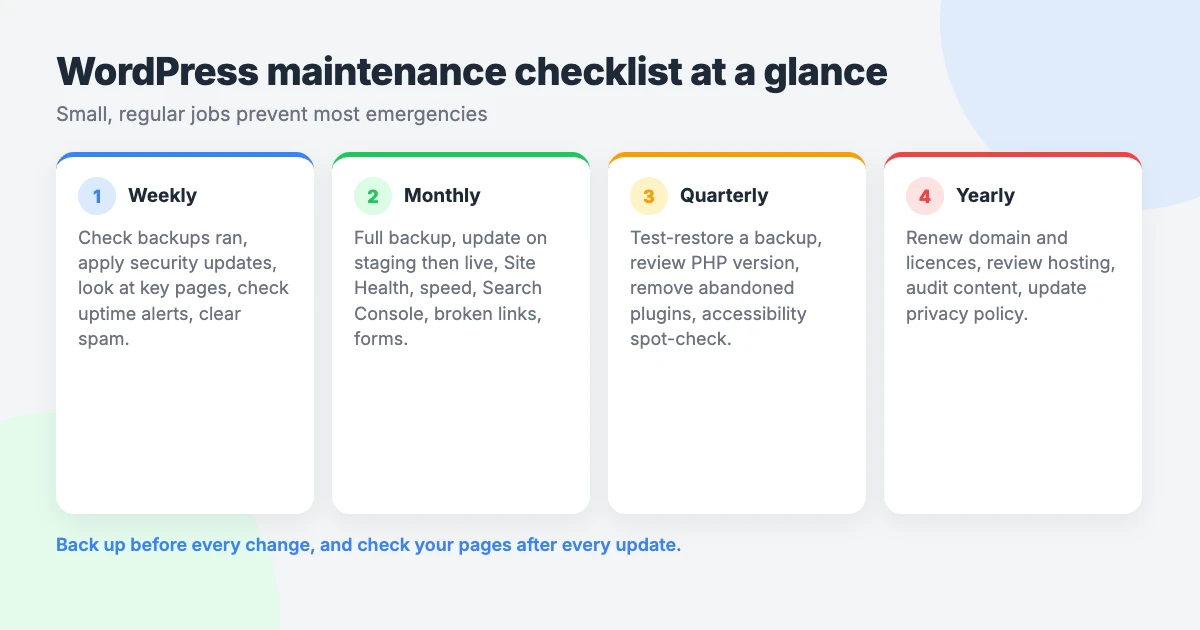
Here’s the whole WordPress maintenance checklist in one table. Each row is explained in detail below.
| Frequency | Tasks |
|---|---|
| Weekly | Check backups ran, apply security updates, look over key pages and forms, check uptime alerts, moderate comments |
| Monthly | Full backup, update core, themes and plugins, remove unused plugins and themes, Site Health, speed, Search Console, broken links, user accounts, forms and checkout |
| Quarterly | Test-restore a backup, review PHP version, review plugin list, accessibility spot-check, database clean-up, outdated content |
| Yearly | Renew domain and licences, review hosting, full content audit, privacy policy and cookie notice, passwords, theme review |
Weekly WordPress maintenance checklist
The weekly round is a quick check that nothing has quietly failed. Do it on the same day each week so it becomes a habit.
- Check that backups ran. Open your backup plugin and look at the date of the latest backup. Confirm a copy reached your off-site storage too.
- Apply security updates. Go to Dashboard » Updates. If a plugin’s changelog mentions a security fix, don’t leave it for the monthly round.
- Look over key pages and forms. Visit your home page, a recent post and your contact page, on desktop and on your phone. Send one test message through your main form.
- Check uptime alerts. Read any alerts from your uptime monitor. Repeated short outages are worth raising with your host.
- Moderate comments and spam. Approve or reply to real comments, then empty the spam folder. If you don’t use comments, consider turning them off under Settings » Discussion.
Monthly WordPress maintenance checklist
Monthly WordPress maintenance is where most of the real work happens. Pick a quiet time for your site, and work through the list in this order.
- Take a full backup. Run a manual backup of your files and database before you change anything. Wait for it to finish.
- Update core, themes and plugins. If you have a staging site, update there first. Then update the live site and check your key pages straight afterwards.
- Remove unused plugins and themes. Delete anything inactive that you don’t plan to use. Keep one default WordPress theme as a fallback.
- Review Site Health. Go to Tools » Site Health in your dashboard. Read the recommendations and deal with anything marked critical.
- Check your speed. Run your home page and one important inner page through PageSpeed Insights. Note the results in your log so you can spot a slowdown next month.
- Check Google Search Console. Look at the page indexing report and any messages about errors. Fix pages that Google reports as not found or blocked by mistake.
- Check for broken links. Run a free broken-link checker over your site. Update or remove links that no longer work.
- Review user accounts. Go to Users and remove accounts for people who no longer need access. Lower the role of anyone who doesn’t need to be an administrator.
- Test forms and checkout end to end. Submit each form and confirm the email arrives. If you run a shop, place a test order from basket to confirmation email.
Write down what you updated in your change log. If a problem appears a few days later, you’ll know which update to suspect.
Quarterly maintenance tasks
These tasks take longer, but they don’t change quickly. Once every three months is enough for most sites.
- Test-restore a backup. Restore a recent backup to your staging site or a local copy. WordPress’s guidance is to verify that backups are usable, and this is the only real proof.
- Review your PHP version. Site Health shows which version you’re on. According to the PHP supported versions page, PHP 8.2 stops getting security fixes on 31 December 2026. PHP 8.1 and older get none. See our guide on how to update PHP in WordPress.
- Review your plugin list. Check each plugin’s page on WordPress.org for when it was last updated. Plan a replacement for any plugin that looks abandoned.
- Do an accessibility spot-check. Move through a few pages using only your keyboard, and check new images for alt text. Our WCAG 2.2 checklist lists what to look for.
- Clean up the database. Take a backup first. Then use a free database clean-up plugin to remove old post revisions, spam comments and expired transients.
- Review out-of-date content. Reread your most visited pages. Correct old prices, opening hours, staff names, screenshots and anything else that has changed.
Yearly maintenance tasks
Once a year, step back and look at the whole site. These checks are about the things around WordPress as much as WordPress itself.
- Renew your domain and licences. Check the renewal dates for your domain, hosting and any theme or plugin licences. Make sure the payment details and contact email are current.
- Review your hosting plan. Compare your storage and traffic with what the plan allows. Ask your host whether a different plan suits you better now.
- Run a full content audit. List every page and post, then decide whether to keep, update, merge or remove each one. Redirect any URL you remove to a relevant page.
- Review your privacy policy and cookie notice. Check they still match the plugins, analytics and forms you use. Ask a legal adviser if you’re unsure what applies to you.
- Change important passwords if needed. Update any password that has been shared, reused elsewhere or known to someone who has left. Cover hosting, domain registrar and FTP accounts as well as WordPress.
- Review whether your theme still fits. Check that it’s still being updated and still suits your content. If you rely on lots of workarounds, it may be time for a change.
What to do if an update breaks your site
Sooner or later an update will cause a problem. If you took a backup first, it’s almost always recoverable. Work through these steps in order.
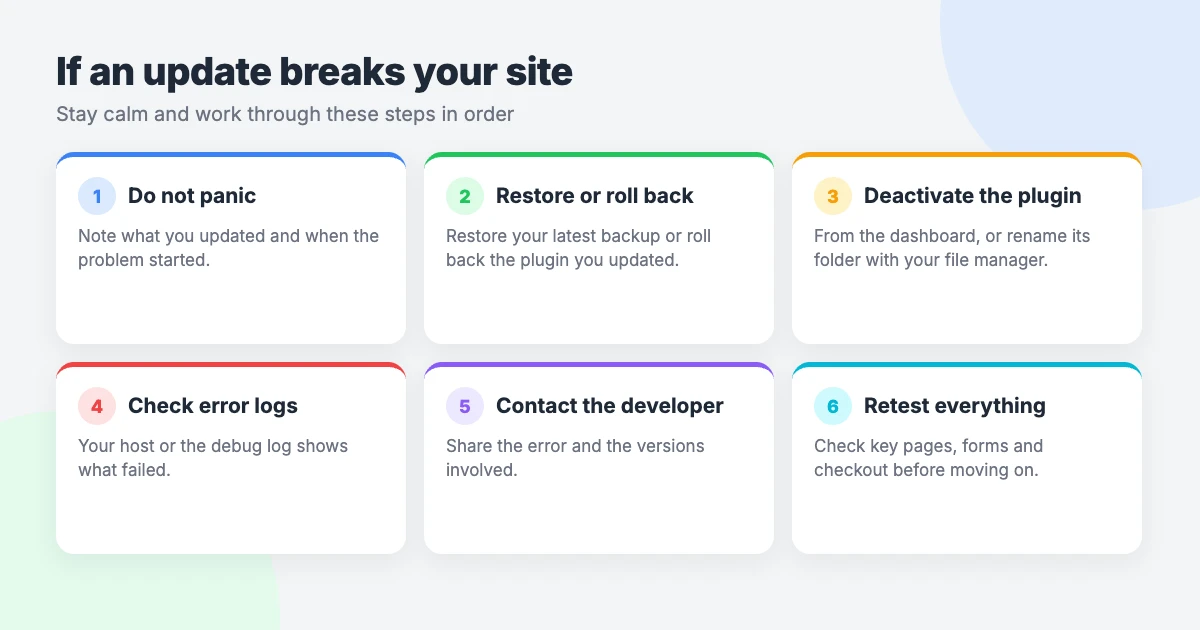
- Don’t panic. Note what you updated and what the error says. Avoid making several more changes at once, because that makes the cause harder to find.
- Restore the backup or roll back the plugin. Restoring the backup you took before updating is the quickest route back. If you know which plugin caused it, you can reinstall its previous version instead.
- Deactivate the plugin. If you can log in, deactivate it on the Plugins screen. If you can’t, connect by FTP or your host’s file manager and rename the plugin’s folder inside wp-content/plugins. WordPress then deactivates it.
- Check the error logs. Most hosts show PHP error logs in their control panel. The log usually names the file that caused the error, which points to the plugin or theme responsible.
- Contact the developer. Report the problem on the plugin’s support forum. Include the error message, your WordPress version and your PHP version.
- Retest. Once a fix is released, try it on staging first. Then update the live site and check your key pages and forms again.
Should you use auto-updates?
Since WordPress 5.5, you can enable auto-updates for individual plugins and themes. They run through WP-Cron twice a day, so fixes arrive without you logging in.
That speed is the main benefit. A security fix is installed quickly, even while you’re on holiday.
There are two drawbacks. WordPress doesn’t take a backup first, and nobody checks your pages afterwards. A bad update could sit on your live site until you or a visitor notices.
A sensible middle ground is to switch auto-updates on for simple, well-supported plugins. Update manually anything that handles payments, bookings, memberships or your page layout. Either way, keep scheduled backups and your weekly check in place.
How long does WordPress maintenance take?
It depends on your site, so we won’t give you a made-up number. A small blog with a handful of plugins is quick to check. A shop or membership site takes longer, because there are more plugins to update and more to test.
The best way to find out is to time yourself. Run through this WordPress maintenance checklist for a month with a timer and note how long each round takes. Expect the first round to be the slowest.
Once you know the hours, you can decide whether to keep doing it yourself. Our article on WordPress maintenance cost compares the options.
Want us to handle it?
If you’d rather not run a WordPress website maintenance checklist yourself, we can do it for you. Read what a WordPress care plan includes, or go straight to our WordPress care plans. For a one-off problem, VIP Support gives you a $29 priority ticket.
Frequently asked questions
How often should I update WordPress plugins?
Check for updates weekly and apply security fixes as soon as you can. Routine feature updates can wait for your monthly round, when you take a full backup first and test afterwards.
How often should I back up my WordPress site?
It depends on how often your site changes. WordPress’s backup guidance suggests weekly may suit a small, quiet site, while a busy site needs daily backups. Keep several recent copies in different locations, and always take an extra one before updating.
Is it safe to update WordPress plugins all at once?
It usually works, but it makes problems harder to trace. If something breaks, you won’t know which plugin caused it. Updating one at a time, or in small groups, and checking the site in between is safer. That matters most on shops and other complex sites.
Do I need a staging site?
You don’t need one for a simple blog, as long as you have a backup you’ve tested. It’s well worth having if your site takes payments or bookings, or if downtime would cost you money. Many hosts include staging, so check your plan.
What is the most important WordPress maintenance task?
Backups you have tested. Every other item on a WordPress maintenance checklist carries some risk, and a working off-site backup is what lets you undo a mistake. If you only do one thing this week, check that yours ran and can be restored.
Reactions
How did this make you feel?
Be the first to react
One reaction per visitor. Tap again to change or remove it.



Leave a reply