Finding out you have a hacked WordPress site is stressful. Maybe Google is showing a red “Deceptive site ahead” warning, your host has suspended your account, or visitors are being sent to spam pages. Your first instinct might be to start deleting things straight away.
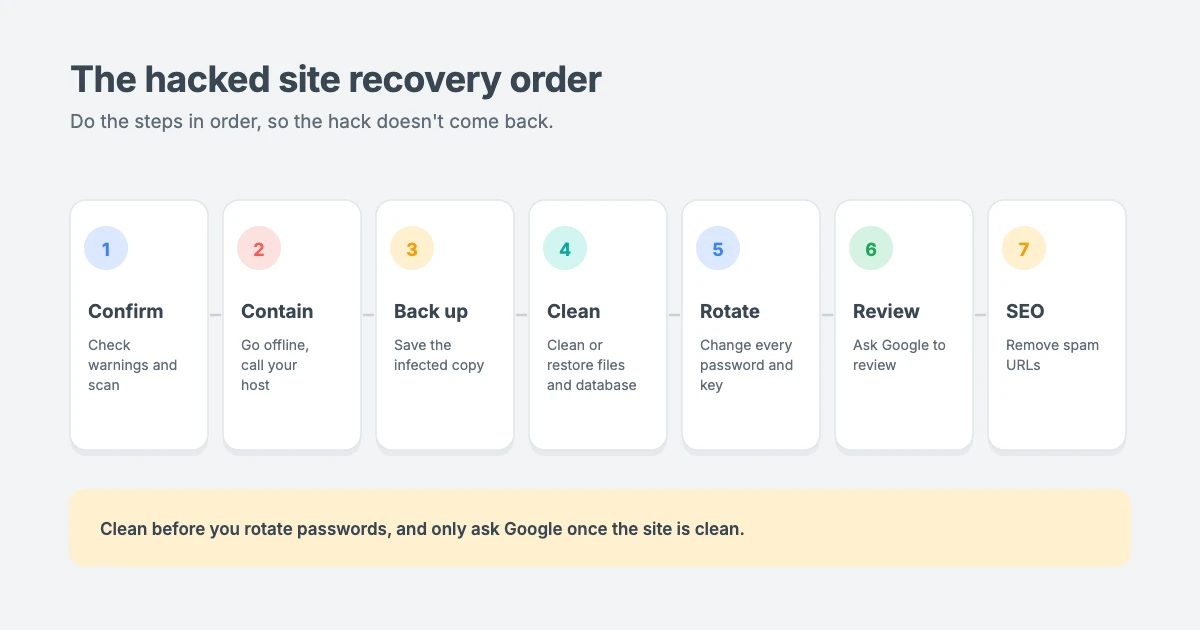
Take a breath. The order you do things in matters more than how fast you do them. If you clean the site before you contain it, the malware can reinstall itself. If you change your passwords before you remove the backdoor, the attacker can simply log back in. And if you ask Google for a review too early, the warning can stay up for even longer.
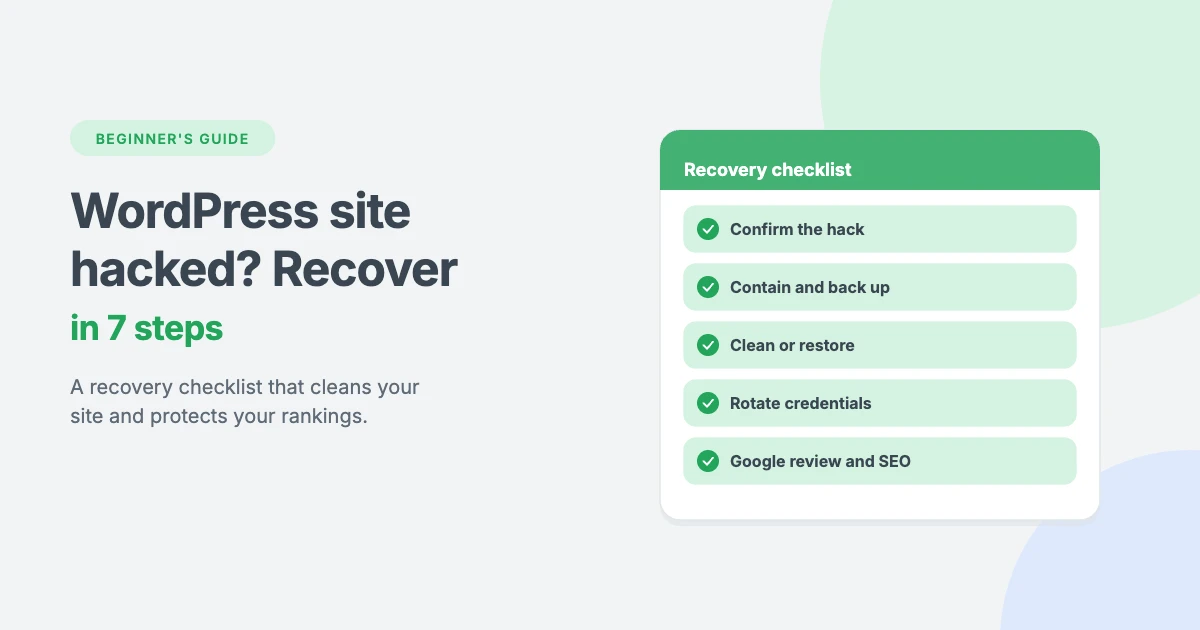
In this beginner’s guide, we’ll walk you through a 7-step recovery checklist for a hacked WordPress site, in the right order, so you can clean up your site, lock out the attacker and protect your search rankings.
Step 1: Confirm your WordPress site has been hacked
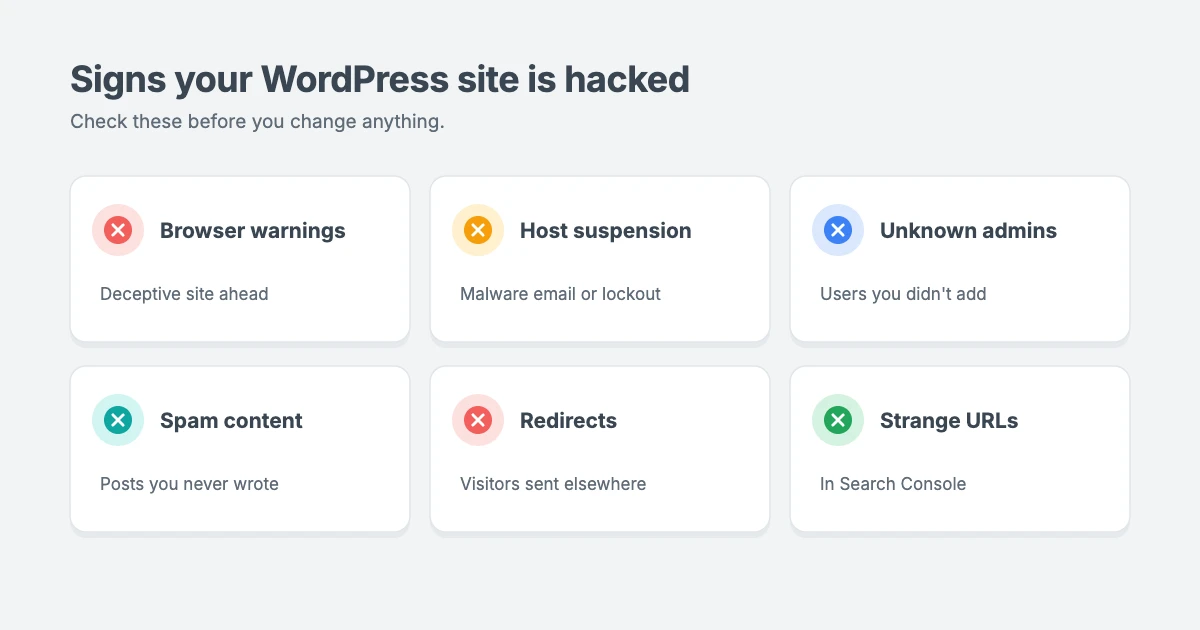
Before you change anything, make sure you’re really dealing with a hacked WordPress site and not another problem. These are the most common signs:
- Browser or search warnings, such as “Deceptive site ahead” or “This site may be hacked” in Google results.
- A message from your host saying your account has been suspended or that malware was found.
- Admin users you don’t recognise under Users » All Users.
- Posts or pages you never published, often full of spam links or in another language.
- Redirects to spam sites, sometimes only for visitors coming from Google or using a phone.
- Traffic to strange URLs in your analytics or Search Console.
- A sudden slowdown or spike in server usage that you can’t explain.
Where to check
- Google Safe Browsing: enter your domain in Google’s Safe Browsing site status tool to see if Google has flagged it.
- Google Search Console: go to Security & Manual Actions » Security issues. Google lists any problems it has found here, often with example URLs.
- A malware scan: run a full scan with a reputable security scanner, or ask your host to scan your account.
Tip: if you see a browser warning but every scan comes back clean, the problem may be an expired SSL certificate or mixed content, not a hack. Check your SSL certificate before you go further.
Step 2: Contain the damage
Once you’ve confirmed you have a hacked WordPress site, stop the infection from spreading and hurting your visitors.
- Take the site offline or turn on maintenance mode. Many hosts can do this for you. If your site gets stuck afterwards, see our guide on how to fix WordPress stuck in maintenance mode.
- Contact your host. Tell them what you’ve found, ask them to confirm the infection, and ask for your server access logs. On shared hosting, the infection can sometimes come from another account on the same server.
- Scan your own computers. Run a full antivirus scan on every device you use to log in to your site. Malware on your computer can steal your new passwords.
- Start an incident note. Write down what you noticed, when you noticed it, and any recent changes, such as new plugins, theme edits or new users. This helps you and anyone who helps you find the cause.
Step 3: Back up the infected site
It sounds strange, but you should back up your hacked WordPress site before you clean it. Make a full copy of your files and database exactly as they are now.
- Label it clearly, for example
pre-cleanup-INFECTED, so nobody restores it by mistake. - Store it separately from your normal backups.
- Keep it as evidence and as a safety net in case the cleanup removes something you need, such as recent orders or posts.
Never use this backup as a restore point, because it contains the malware.
Step 4: Clean your files and database
Now it’s time to remove the malware from your hacked WordPress site. You have three options: let an expert clean it, clean it yourself, or restore a clean backup.
Option A: Get expert or host cleanup (recommended)
Malware is designed to hide, and missing a single backdoor file means the hack comes back. That’s why we recommend professional WordPress malware removal for most site owners. Some managed hosts clean infected sites for free, so ask your host first. You can also use our WordPress Malware Removal service, where we clean your site by hand and harden it against future attacks.
Option B: Clean the site yourself
If you’re comfortable working with files and the database, here’s how to clean a hacked WordPress site manually.
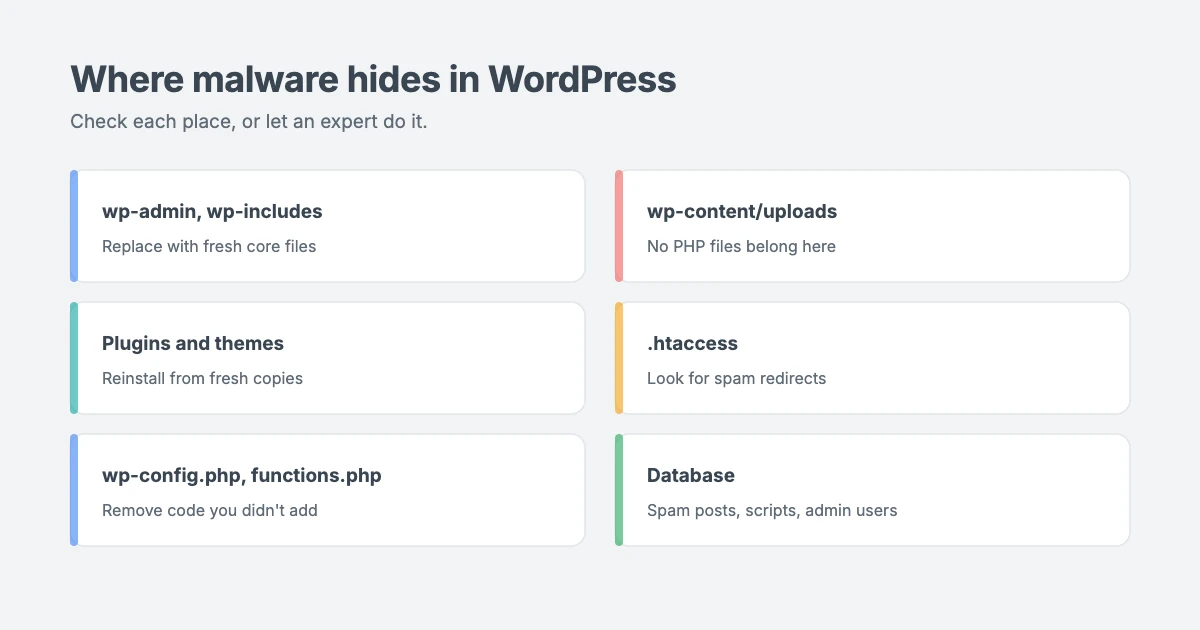
1. Replace WordPress core files. Download a fresh copy of your exact WordPress version from WordPress.org and replace the wp-admin and wp-includes folders, plus the files in your site’s root folder except wp-config.php and the wp-content folder. If you have WP-CLI access, you can check which core files have been changed first:
wp core verify-checksums
wp plugin verify-checksums --all
Any file listed as changed or unexpected needs a closer look.
2. Reinstall plugins and themes from fresh copies. Delete every plugin and theme folder and upload fresh copies from the official source. Delete anything you don’t recognise or no longer use. If you use a WPInterface Pro theme, download a fresh copy from your WPInterface account, not from a backup.
3. Look for PHP files where they shouldn’t be. The wp-content/uploads folder should only hold images and other media, never PHP files. If you have SSH access, this command lists them:
find wp-content/uploads -name "*.php"You can also list PHP files changed in the last 7 days:
find . -name "*.php" -mtime -74. Check the files hackers target most. Open these files and look for code you didn’t add, such as long blocks of random-looking text or functions like eval, base64_decode or gzinflate:
.htaccessin your root folder, which hackers use for redirectswp-config.phpindex.php- Your theme’s
functions.php,header.phpandfooter.php
5. Remove unknown users. Go to Users » All Users, filter by Administrator and delete any account you didn’t create. When asked, attribute their content to your own account.
6. Clean the database. Look for spam posts and pages, and for hidden scripts or links injected into your content. In phpMyAdmin, this read-only query finds posts that contain a script tag:
SELECT ID, post_title, post_status
FROM wp_posts
WHERE post_content LIKE '%<script%';
Also check the wp_options table for the siteurl and home values, which hackers sometimes change to redirect your site.
Option C: Restore a clean backup
Sometimes restoring a backup is the fastest WordPress hack recovery option, and safer than cleaning. This works well if:
- You have a backup from before the infection started. Check the date carefully, because attackers are often inside a site for weeks before anyone notices.
- Your site hasn’t changed much since the backup was made.
Remember that restoring old files also restores the old security hole. You still need to find and fix the way the attacker got in, usually an outdated plugin, theme or weak password. Test the restore on a staging site first if you can. Our guide on what to do when a WordPress update breaks your site explains how to restore a backup safely.
Step 5: Change every password and security key
Now that the malware is gone, lock the attacker out of your hacked WordPress site for good. Change every login connected to your site, because the attacker may have copied them.
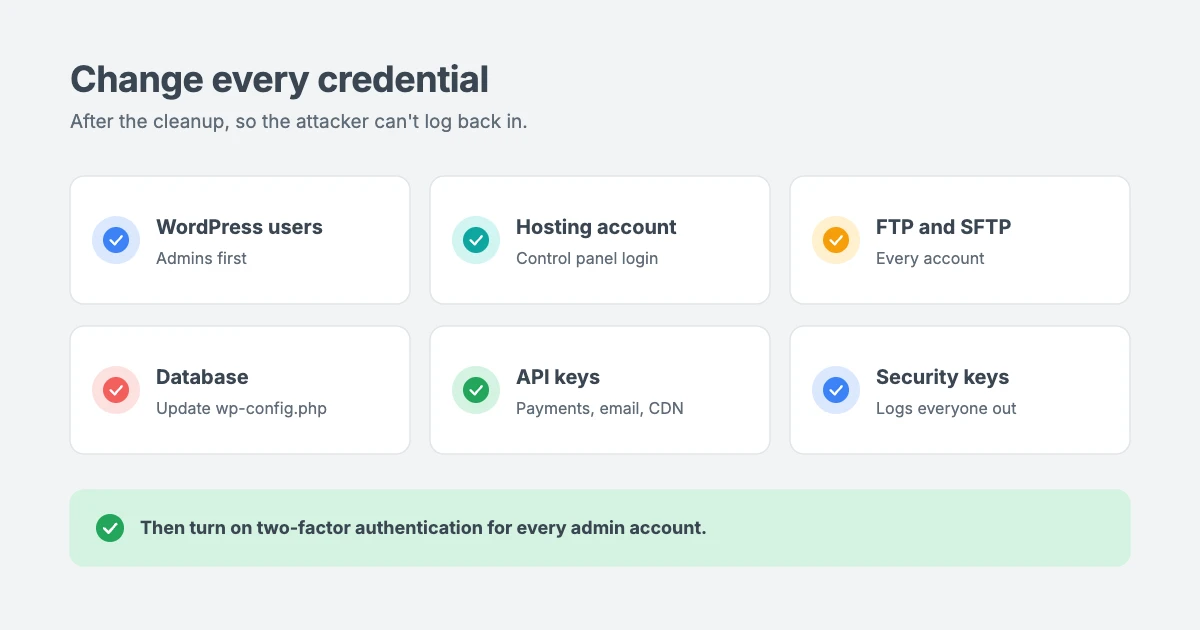
- All WordPress user passwords, starting with administrators.
- Your hosting account and control panel login.
- FTP and SFTP accounts.
- Your database password. After you change it in your hosting panel, update
DB_PASSWORDinwp-config.phpto match, or your site will show a database connection error. - API keys for connected services, such as payment gateways, email services and CDNs.
- WordPress security keys. Replace the keys in
wp-config.phpwith new ones from the official WordPress.org secret key generator. This logs everyone out, including the attacker. With WP-CLI, you can runwp config shuffle-saltsinstead.
If you already changed some passwords before cleaning, change them again now. Malware may have captured them.
Finally, turn on two-factor authentication for every administrator account, so a stolen password alone isn’t enough to get in. Our guide on how to change the WordPress login URL covers more ways to protect your login page.
Step 6: Ask Google to review your site
If Google flagged your hacked WordPress site, the warning won’t disappear on its own. Once your site is completely clean:
- Open Google Search Console and go to Security & Manual Actions » Security issues.
- Click Request Review.
- Explain what was infected, what you removed and what you changed to stop it happening again.
Google usually replies within a few days, and the warning stays until your review is approved. Only request a review when you’re sure the site is clean. If Google finds malware again, the request is rejected and you’ll have to wait longer.
Step 7: Repair the SEO damage
A hacked WordPress site often leaves behind thousands of spam pages in Google’s index. Here’s how to clean them up and help your rankings recover.
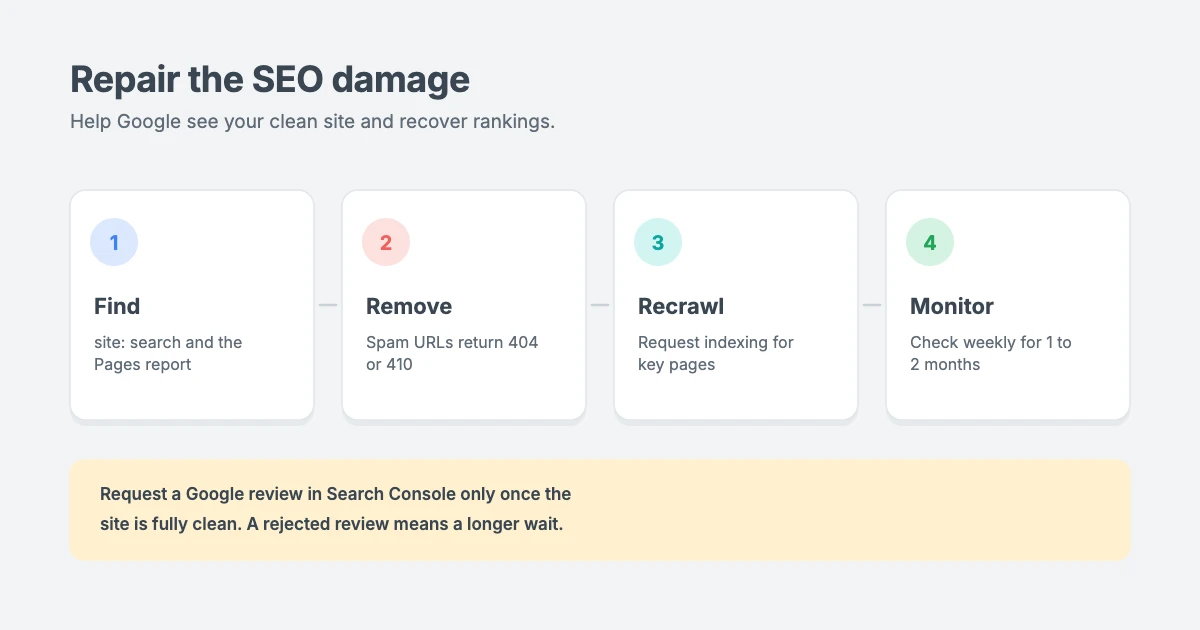
- Find injected URLs. Search Google for
site:yourdomain.comand look past the first page for pages you don’t recognise. Check the Pages report in Search Console for unfamiliar URLs too. - Remove the spam. Delete spam content so those URLs return a 404 or 410 error. Clean up any real pages that had spam links or keywords added.
- Ask Google to recrawl. Use the URL Inspection tool in Search Console and click Request Indexing for your homepage and most important pages. There’s a daily limit, so for large sites, resubmit your XML sitemap instead.
- Keep watching. Check the Security issues report and repeat your
site:search every week for one to two months. Rankings usually recover gradually once Google sees the site is clean.
What to tell your visitors and customers
If your hacked WordPress site collects personal data, takes orders or has user accounts, think about who needs to know. Being open early builds more trust than staying silent.
- Customers and members: if accounts or personal details may have been exposed, let people know what happened, what you’ve done about it, and ask them to change their passwords.
- Payment providers: if your checkout pages were changed, contact your payment provider so they can check for fraud.
- Your team: tell everyone with a login to the site that their password has changed and that two-factor authentication is now required.
- Legal duties: depending on where you and your customers are, data protection laws may require you to report a breach within a set time. If personal data was involved, check the rules that apply to you or ask a qualified adviser.
Keep your incident note from Step 2 up to date. It makes these conversations much easier, and it’s useful evidence if you ever need it.
When to get professional help with a hacked WordPress site
Some hacks are too much to handle alone. Get expert help with your hacked WordPress site if:
- The malware keeps coming back after you clean it.
- You can’t find how the attacker got in.
- Your site handles customer data, orders or payments.
- You’re not comfortable editing files or the database.
Our WordPress Malware Removal service handles the full WordPress hack recovery for you: hand cleaning, security hardening and help with Google’s review.
How to stop your WordPress site from being hacked again
Once your site is clean, these habits will make sure you never have to deal with a hacked WordPress site again:
- Keep WordPress, plugins and themes updated. Most hacks use known security holes that have already been fixed. Keeping PHP up to date helps too. See our guide on how to update your PHP version.
- Only install plugins and themes from trusted sources. Never use “nulled” or pirated premium themes and plugins, which often contain hidden malware. WPInterface Pro themes are always available as fresh, safe downloads from your account.
- Remove plugins and themes you don’t use. Even deactivated code can be attacked.
- Use strong, unique passwords and two-factor authentication for every admin account.
- Give users only the access they need. Not everyone needs to be an administrator.
- Keep regular off-site backups, and test that you can restore them.
- Use a firewall and malware scanning, either from a security plugin or your host.
Let our team clean and protect your site
The WPInterface team can help you recover from a hack and stay safe afterwards:
- WordPress Malware Removal: we clean infected sites by hand, find the entry point and harden your site so it doesn’t happen again.
- WordPress Care Plans: weekly updates, daily off-site backups and security monitoring, so problems are caught early.
- VIP Support: a $29 priority ticket for fast expert help with a single problem.
- WordPress Migration: move to safer, faster hosting with a clean copy of your site.
You can also see all our professional WordPress services.
Frequently asked questions
How do I know if my WordPress site has been hacked?
Common signs of a hacked WordPress site include Google or browser warnings, a message from your host, admin users you don’t recognise, spam posts, and redirects to other sites. Check Google Safe Browsing, the Security issues report in Search Console and a malware scan to confirm.
Should I delete my hacked WordPress site and start again?
Usually not. Cleaning the hacked WordPress site or restoring a backup from before the infection is faster and keeps your content and rankings. Starting from scratch only makes sense if the site is small and you have no clean backup.
Can I just restore a backup?
Yes, if the backup was made before the hack started. But restoring old files also restores the original security hole, so you still need to update everything and change all your passwords afterwards.
Why does the malware keep coming back?
On a hacked WordPress site, malware usually comes back because a backdoor file was missed, the original security hole wasn’t fixed, or the attacker still has a working password. Follow every step in order, and get professional help if it keeps happening.
How long does it take Google to remove the hacked warning?
After you request a review in Search Console, Google usually responds within a few days. The warning stays until the review is approved.
Will a hack hurt my search rankings?
A hacked WordPress site can lose rankings, especially if spam pages were indexed or Google showed a warning. Removing spam URLs, requesting a review and asking Google to recrawl your key pages helps your rankings recover over the following weeks.
Can a theme get my site hacked?
Yes, if it’s outdated or comes from an untrusted source. Nulled themes often contain malware. Always download themes from the developer and keep them updated.
Conclusion
A hacked WordPress site can be fixed, and in most cases your rankings will recover. The key is to follow the steps in the right order: confirm the hack, contain it, back up the infected site, clean or restore, change every password and security key, ask Google to review your site, and clean up the SEO damage.
Once your site is clean, keep it that way with regular updates, strong passwords, two-factor authentication and tested backups. And if you’d rather not deal with it alone, our WordPress Malware Removal team is here to help.
Reactions
How did this make you feel?
Be the first to react
One reaction per visitor. Tap again to change or remove it.



Leave a reply