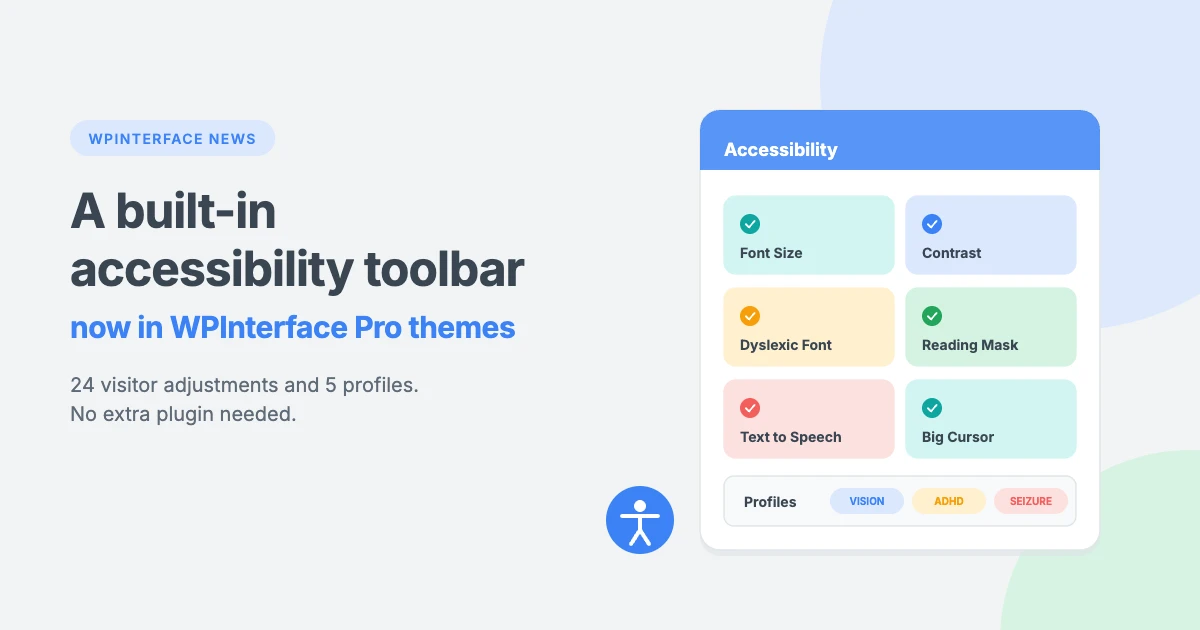
WPInterface Pro themes now come with a built-in accessibility toolbar. Your visitors can open it from a floating button and adjust your site to suit them, with 24 adjustments for text, color and navigation, plus 5 one-click profiles for common needs. There’s no extra plugin to install, update or pay for. You switch it on from the Customizer, and it adds almost nothing to your page weight.
Built into your theme, not bolted on
Until now, adding visitor accessibility tools to a WordPress site usually meant installing and maintaining a separate plugin. The new toolbar is part of the theme itself. It stays off by default, so nothing changes on your site until you turn it on. When you do, it picks up your theme’s own brand color, so it looks like it belongs on your site.
The accessibility toolbar is a way for visitors to personalize how your site looks and works. It helps people with low vision, dyslexia, attention difficulties, motion sensitivity and other needs read and navigate your content more comfortably.
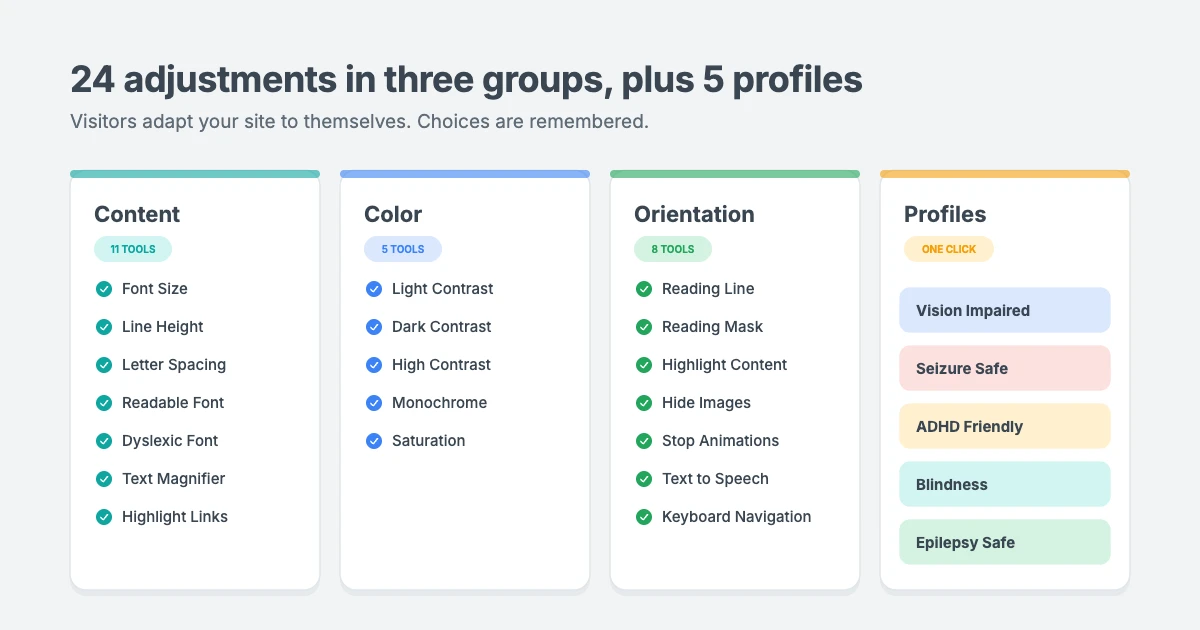
24 adjustments, in three groups
Visitors get the tools in three clear groups. Every choice is remembered on their next visit, and one Reset button undoes everything.
Content
- Font Size: enlarges all text in 4 steps, from 115% to 175%.
- Line Height and Letter Spacing: add space between lines, letters and words.
- Font Weight: makes all text bold.
- Readable Font: switches to a plain, easy-to-read typeface.
- Dyslexic Font: switches to OpenDyslexic, a font designed for readers with dyslexia.
- Text Align: aligns text left, center or right.
- Text Magnifier: shows hovered text enlarged in a bubble.
- Highlight Links and Highlight Titles: mark every link and outline every heading.
- Big Cursor: replaces the pointer with a large cursor.
Color
- Light Contrast: black text on white backgrounds.
- Dark Contrast: light text on black backgrounds.
- High Contrast: increases contrast across the page.
- Monochrome: shows the site in grayscale.
- Saturation: lowers or raises color intensity.
Orientation
- Reading Line and Reading Mask: a guide line that follows the pointer, or a strip that dims everything else.
- Highlight Content: outlines the block under the pointer or keyboard focus.
- Hide Images: hides images to cut visual noise.
- Stop Animations: freezes animations, sliders, autoplaying video and GIFs.
- Text to Speech: reads clicked text aloud using the browser’s built-in voices.
- Keyboard Navigation: strong focus outlines, plus single-key jumps between headings, links, forms and buttons.
- Mute Sounds: silences audio and video on the page.
5 one-click profiles
Profiles combine several adjustments into one click, so visitors don’t have to set each tool by hand.
| Profile | What it does |
|---|---|
| Vision Impaired Mode | Larger, clearer text, stronger contrast, highlighted links and titles, and a big cursor |
| Seizure Safe Profile | Stops animations and tones down color |
| ADHD Friendly Mode | Reading mask, no animations and highlighted content for focus |
| Blindness Mode | Text to speech and keyboard navigation, with animations stopped |
| Epilepsy Safe Mode | Stops animations, mutes sound and removes color |
The accessibility toolbar opens with Alt + A and closes with Escape. Visitors can also hide it for a session, a day or a week. It’s translated into several languages, including Arabic with a full right-to-left layout.
One switch to turn it on
Everything is set from one new panel in your dashboard: Appearance » Customize » Accessibility. Tick Enable, and the accessibility toolbar appears on your site. From the same panel, you can fine-tune every detail.
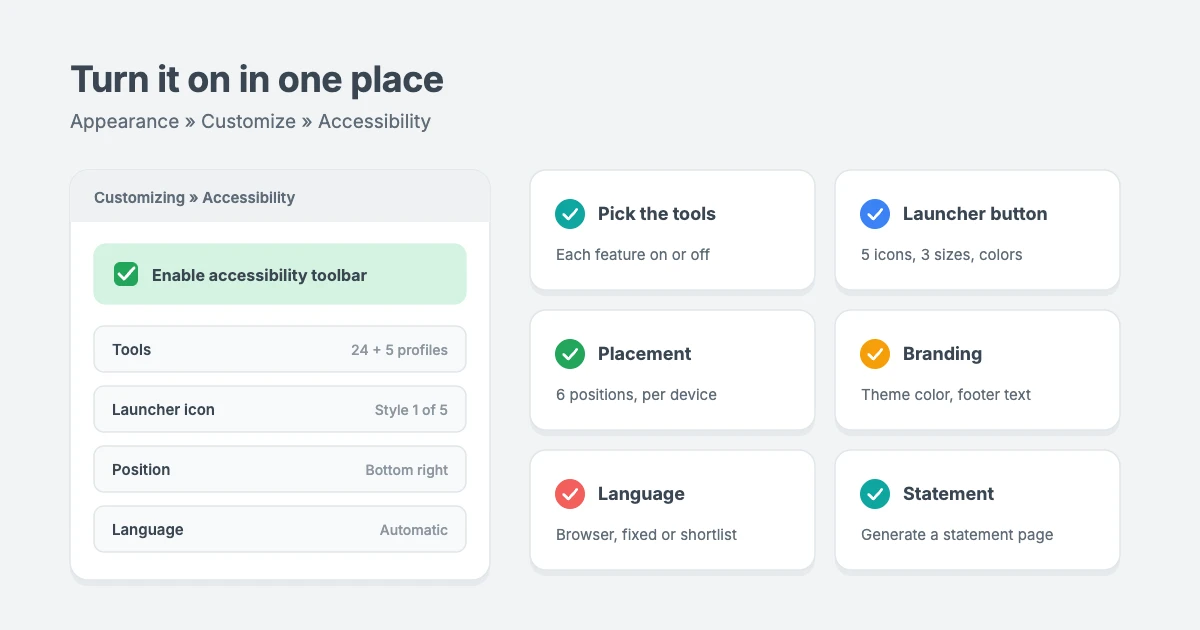
- Pick the tools: turn each of the 24 features and 5 profiles on or off.
- Launcher button: choose from 5 icon styles and 3 sizes, add an optional border ring, and set your own colors.
- Placement: pick one of 6 positions, at the corners or the middle of either side. Set it separately for desktop, tablet and mobile, with pixel offsets, or hide it on any device.
- Branding: the toolbar uses your theme’s color by default, and you can add custom footer text.
- Language: set it to follow the visitor’s browser and then your site language, use one fixed language, or offer a shortlist visitors can switch between.
- Accessibility statement generator: fill in your organization, contact details, WCAG version and level, and any known limitations. One click creates a statement page, linked from the toolbar.
- Open it from anywhere: use the
[wpia_toolbar_button]shortcode, a link to#wpia-open, or any element you choose in the Customizer. - Extras: an optional skip-to-content link, and the toolbar is hidden automatically when a page is printed.
Fast and private
We built the accessibility toolbar so it never slows your site down.
| Toolbar off | Toolbar on | |
|---|---|---|
| Files loaded | 0 | 1 stylesheet (about 2 KB gzipped) and 1 deferred script (about 12 KB gzipped) |
| Third-party requests | 0 | 0, because fonts and languages are served from the theme |
| Cookies | 0 | 0, because choices are saved in the visitor’s own browser |
- No layout flash: saved choices are applied before the page first appears, so visitors never see the page jump.
- No jQuery or other libraries: the script loads deferred, so it never blocks your page from rendering.
- Extras load only when needed: the dyslexic font, other languages and the toolbar’s styles download only when a visitor uses them.
- Always readable: text on the toolbar automatically switches between white and black to keep at least 4.5:1 contrast with your theme’s color.
Which themes include it
The accessibility toolbar is now built into these Pro themes, with the rest of the Pro range to follow. If you already own one, you’ll get it through a normal theme update.
| Category | Pro themes |
|---|---|
| News and magazine | ColorVibe, MagFusion, MagLink, MagNine, NewsArc, NewsBerry, NewsCastle, NewsCurve, NewsMachine, NewsMarks, NewsMass, NewsMaster, NewsNation, NewsPanda, NextZenMag, NotoMag, SpeedNews, SportsX, TrendingNews, TruthMag, TruthNews |
| Blog | Advance Blog, BlogAura, BlogBull, BlogLex, BlogMarks, BlogNest, BlogSky, FitNote, Minimal Blog, Retro Blog, SpeedBlog, TruthBlog, Vintuna |
| Portfolio | Portfolico, RePortfolio |
Want every theme, including future updates like this one? The All-Access Pass gives you all current and future WPInterface themes for one price.
If you’re still choosing a theme, see our list of the best accessible WordPress themes, and find out how built-in accessibility tools help reduce legal risk.
Accessible content still matters
The accessibility toolbar helps visitors adjust your site to their needs, and it supports your wider accessibility efforts. Your content still does a lot of the work, as the W3C’s introduction to web accessibility explains. Add alt text to your images, use clear headings in the right order and choose readable colors. Our tutorial on how to properly use heading tags in WordPress is a good place to start.
If you’d like help reviewing your site or setting the accessibility toolbar up, our VIP Support and WordPress Theme Customization teams can help.
Reactions
How did this make you feel?
1 reaction
One reaction per visitor. Tap again to change or remove it.




Leave a reply