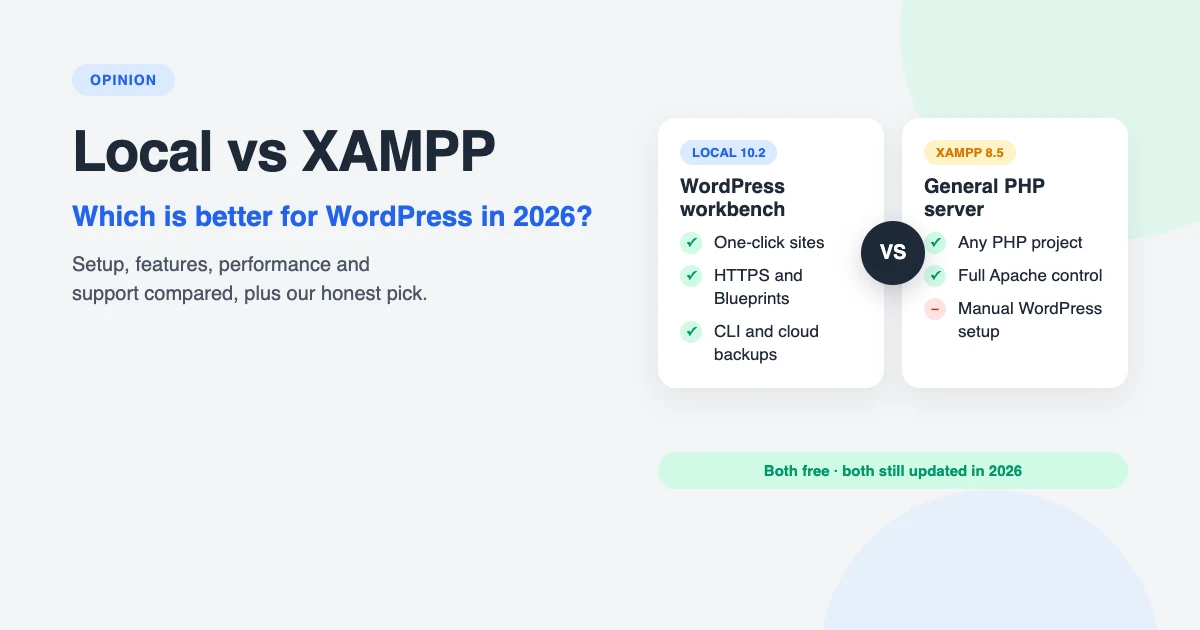
Every WordPress site deserves a safe place to be built and tested before it goes live. For years, that place has been one of two free tools on your own computer: Local, the WordPress-focused app from WP Engine, or XAMPP, the classic Apache, MariaDB and PHP bundle from Apache Friends.
Both still work well in 2026, but they have moved in very different directions. Local 10 added a command line interface, built-in cloud backups and modern databases. XAMPP has stayed what it always was: a general-purpose PHP server you configure yourself.
In this opinion piece, we’ll compare Local vs XAMPP on setup, creating and importing WordPress sites, day-to-day features, performance, support and what’s changed recently, and share which one we’d choose for different kinds of WordPress work.
Why you need a local WordPress environment
A local environment runs WordPress on your laptop instead of a web server. Nobody else can see it, it works without an internet connection, and if you break something, you simply delete the site and start again.
That makes it the right place to build a new site before launch, test a theme or plugin update before applying it to a live site, learn WordPress without paying for hosting, or develop a custom theme. Our guide on what to do when a WordPress update breaks your site shows exactly why testing locally first saves so much stress. That’s the real reason the Local vs XAMPP choice matters.
Local vs XAMPP at a glance
| Local | XAMPP | |
|---|---|---|
| Price | Free | Free |
| Made by | WP Engine | Apache Friends (non-profit) |
| Current version | 10.2 (October 2026) | 8.5 / PHP 8.5 (Windows) |
| Built for | WordPress only | Any PHP project |
| Operating systems | macOS (Intel and Apple Silicon), Windows, Linux | Windows, plus a browser-based edition; macOS and Linux builds lag behind |
| Installing WordPress | One click, about 30 seconds | Manual: database, download, installer |
| Web server | nginx or Apache, switchable per site | Apache |
| Database | MySQL 8.4 or MariaDB, per site | MariaDB 10.11 |
| PHP versions | Several, switchable per site | One per installation |
| HTTPS | One-click trusted certificate | Manual configuration |
| Email testing | Mailpit built in | Mercury Mail, manual setup |
| Sharing a site | Live Links | Not built in |
| Command line | localwp CLI and WP-CLI per site | Shell access to PHP and MySQL |
| Best for | WordPress users, designers, agencies | Developers working across PHP projects |
How Local works
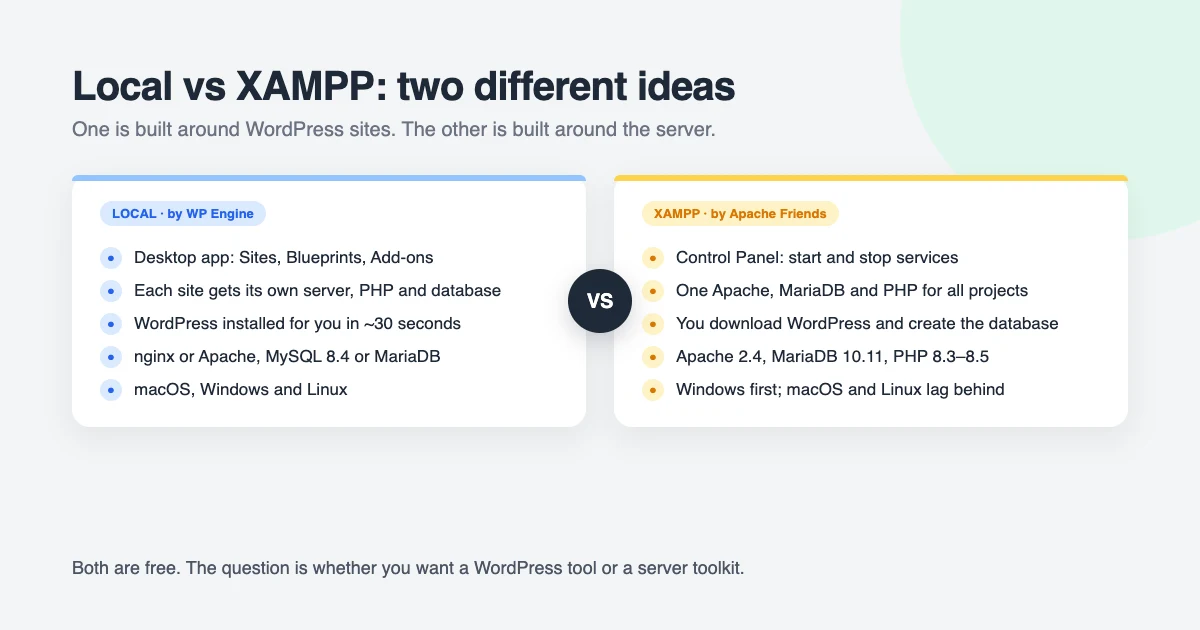
Local is a desktop app that does one thing: run WordPress sites on your computer. Each site gets its own isolated web server, database and PHP version, and the app manages all of it behind a simple interface with a Sites list, Blueprints for reusable site templates and Add-ons.
Since the original Local vs XAMPP debates, Local has had several major releases. Version 10, released in March 2026, built cloud backups to Google Drive and Dropbox directly into the app, with no add-on or Local Hub account required. Version 10.1 made MySQL 8.4 the default database for new sites, and version 10.2, released in October 2026, added the localwp command line interface, so you can create, start and stop sites or run WP-CLI commands from a terminal or an AI coding agent.
Local is free. You only need a free account for Live Links and for pushing and pulling sites to WP Engine or Flywheel hosting.
How XAMPP works
XAMPP is a bundle of open source server software: Apache 2.4, MariaDB 10.11, PHP, Perl, phpMyAdmin and a few extras such as Tomcat, FileZilla FTP Server and the Mercury mail server. It installs them all in one folder and gives you a small Control Panel to start and stop each service.
It has no idea what WordPress is. You put any PHP project into the htdocs folder, create a database in phpMyAdmin and visit localhost in your browser. That generality is the point: the same XAMPP install can run WordPress, Laravel, Joomla or a plain PHP script.
In 2026, the Windows builds are current, with separate installers for PHP 8.3, 8.4 and 8.5. There’s also an experimental XAMPP for Browsers that runs an entire Linux server inside Chrome. The macOS and Linux installers have historically been updated less often, so check the download page before you rely on XAMPP on those systems.
Local vs XAMPP: head to head
Setup and installation
The first stop in any Local vs XAMPP comparison is installation.
Local: download the installer for your operating system, run it, and you’re done. There’s nothing to configure before you create your first site.
XAMPP: download the installer for the PHP version you want, choose which components to install, then open the Control Panel and start Apache and MySQL. On Windows, you may need to deal with port 80 being used by Skype, IIS or another app, and with Windows Defender prompts for Apache.
Winner: Local. Both take a few minutes, but XAMPP’s extra decisions and port conflicts are where beginners usually get stuck.
Creating a WordPress site
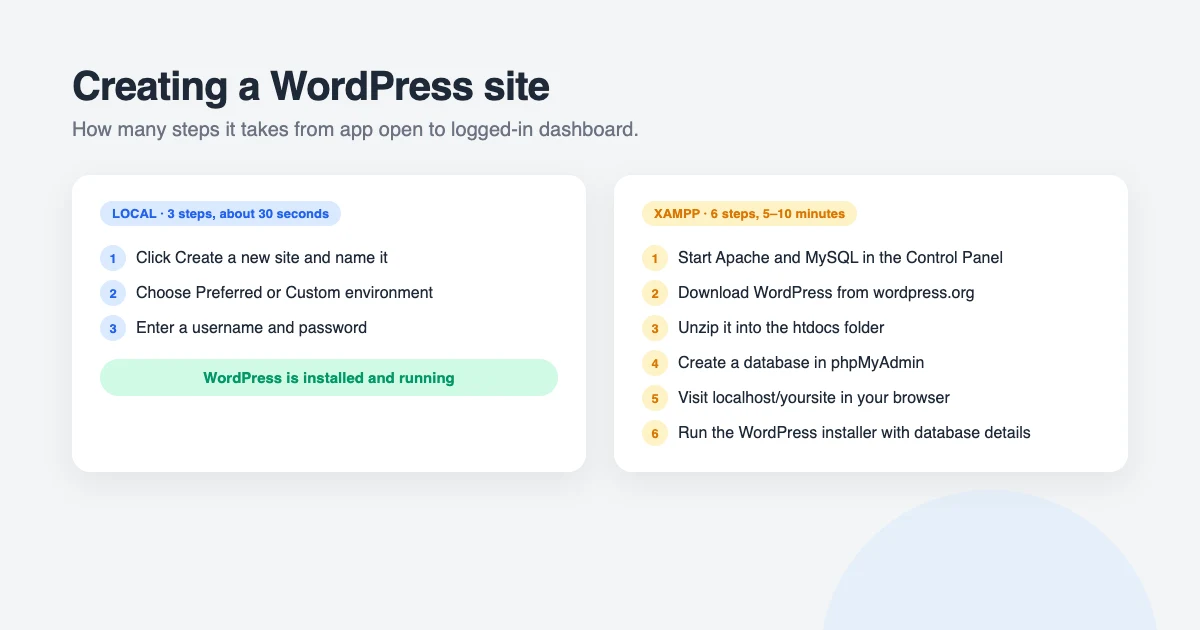
Local: click Create a new site, give it a name, choose Preferred (the recommended nginx, PHP and MySQL versions) or Custom, enter a username and password, and WordPress is installed and running in about half a minute. You can also create a site from a Blueprint, so every new project starts with your favourite theme, plugins and settings already in place.
XAMPP: start Apache and MySQL, download WordPress from wordpress.org, unzip it into htdocs, open phpMyAdmin and create a database, then visit localhost/yoursite and run the WordPress installer with the database details. It takes five to ten minutes, and you repeat it for every site.
Winner: Local. This is the biggest practical difference in the Local vs XAMPP comparison. If you create sites regularly, Local saves hours.
Importing an existing site
Local: drag a zip file containing your wp-content folder and a database export onto the app, and Local builds the site and rewrites the URLs for you. If your site is hosted on WP Engine or Flywheel, you can pull it down with the Connect feature instead, and push changes back when you’re done. Since version 10, cloud backups also let you move a site between two computers through Google Drive or Dropbox.
XAMPP: copy the site files into htdocs, import the SQL file in phpMyAdmin, edit wp-config.php with the local database details, then update the site URL in the database or with WP-CLI. A free migration plugin such as Duplicator or All-in-One WP Migration can do most of this for you.
Winner: Local, especially if you work with WP Engine or Flywheel. With a migration plugin, XAMPP is manageable, just slower.
Features for WordPress work
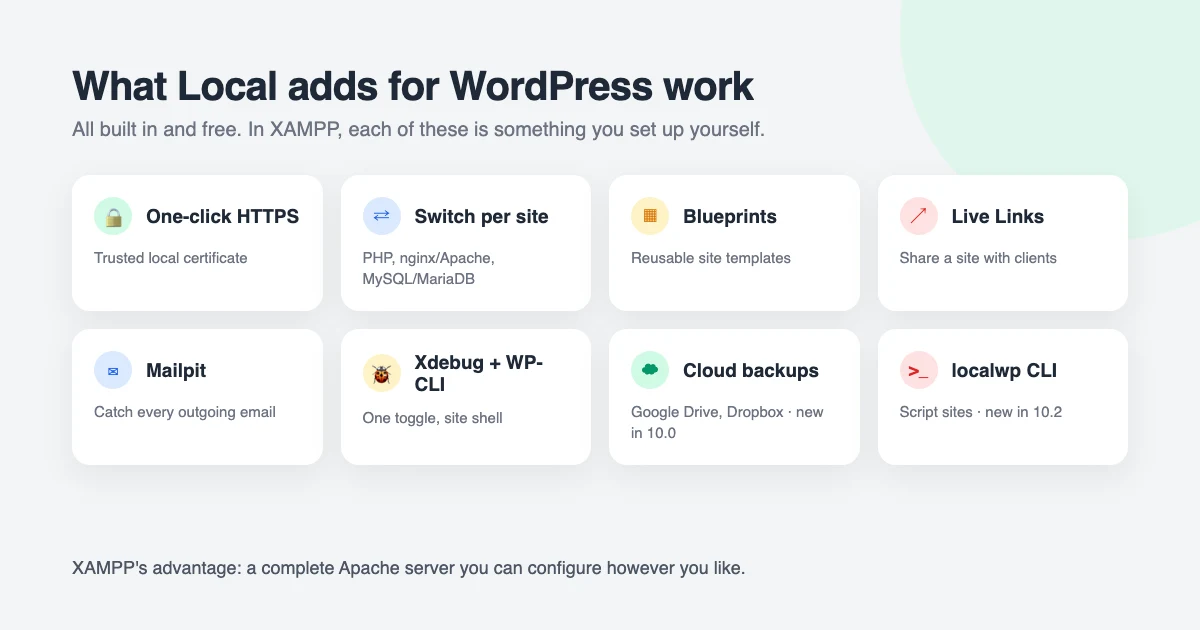
This is where the Local vs XAMPP gap is widest. Out of the box, Local gives you:
- One-click HTTPS with a certificate your browser trusts, so you can test anything that needs a secure connection.
- PHP, web server and database switching per site, so you can check a theme on PHP 8.2 and 8.4 side by side, or match your host’s exact setup.
- Blueprints to turn any site into a template.
- Live Links to share a working site with a client or test it on your phone, without deploying anywhere.
- Mailpit, which catches every email WordPress sends so you can check order confirmations and password resets without spamming anyone.
- Xdebug with one toggle, one-click admin login, a site shell with WP-CLI, and the AdminNeo database tool.
- Cloud backups and the localwp CLI, both new in 2026.
XAMPP gives you a complete server and the freedom to configure it. That’s valuable if you need Apache modules, custom virtual hosts, Perl or Tomcat, or want to understand how a web server actually works. But every WordPress-specific convenience above is something you set up yourself, and switching PHP versions means installing a second copy of XAMPP.
Winner: Local for WordPress. XAMPP if your projects go beyond WordPress.
Performance and resource use
Performance is the one area where Local vs XAMPP goes the other way. XAMPP is lighter. It runs a single Apache and MariaDB process for every site, and the Control Panel uses almost no memory. Local runs a separate server and database for each running site, plus the Electron app itself, so it uses more RAM and disk space, especially with several sites running at once.
In practice, on any laptop from the last five years, both are fast enough. Local’s Apple Silicon build is quick, and stopping sites you’re not using keeps it lean.
Winner: XAMPP, by a small margin that most people won’t notice.
Matching your live server
A local site is most useful when it behaves like your live one, and this is another real Local vs XAMPP difference. Local lets you pick nginx or Apache, the PHP version and MySQL or MariaDB per site, so it can mirror most hosts closely. XAMPP is Apache and MariaDB only, which matches many shared hosts but not nginx or LiteSpeed servers. Our comparison of Apache vs Nginx vs LiteSpeed explains why that matters.
Winner: Local.
Support and community
Local has detailed help docs, an active community forum and support links inside the app, and it’s updated every month or two. XAMPP has a long-running Apache Friends forum and FAQ pages, plus two decades of Stack Overflow answers for almost any error you’ll meet. Neither offers official one-to-one support, which is fair for free software.
Winner: tie. Local’s docs are better organised; XAMPP’s problems are better documented across the web.
Our verdict: Local vs XAMPP, which one should you use?
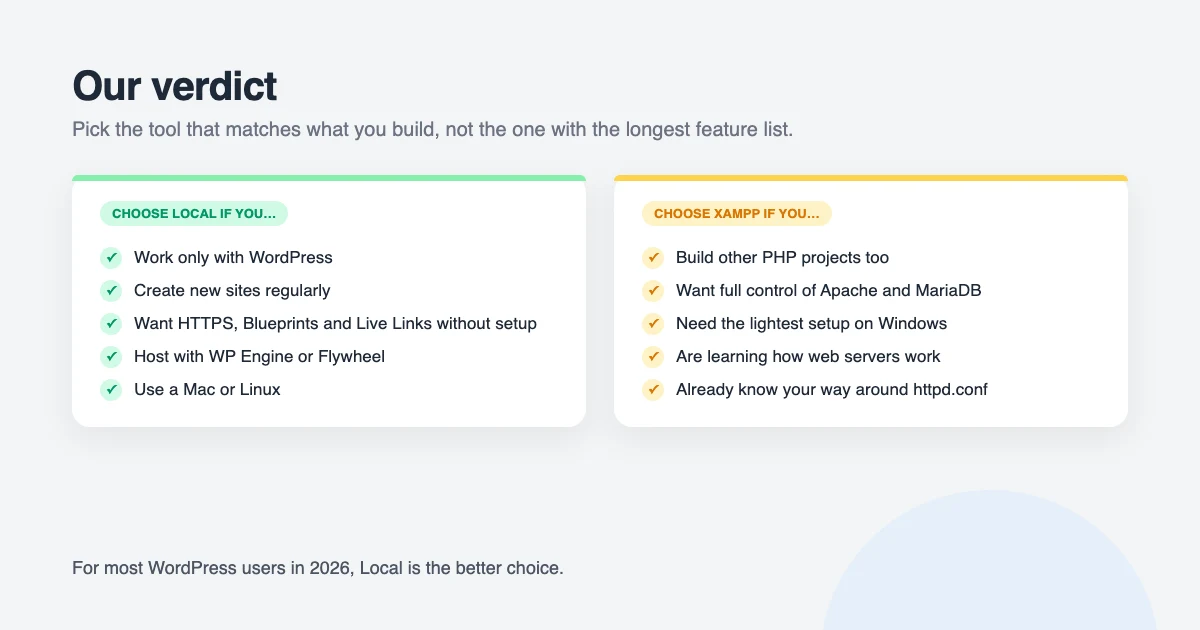
Choose Local if you work only with WordPress. That covers site owners testing updates, designers building client sites, theme and plugin developers, and agencies that create new sites every week. One-click installs, Blueprints, HTTPS and Live Links remove most of the friction from local development, and the 2026 additions make it a serious developer tool as well as a beginner-friendly one.
Choose XAMPP if you build things other than WordPress, want to learn how Apache, PHP and MySQL fit together, need the lightest possible setup on an older Windows machine, or already know your way around httpd.conf and prefer that control.
For most WPInterface readers, that means Local. We use it ourselves to test every theme release on several PHP versions before it ships.
Other local WordPress tools worth knowing in 2026
Local vs XAMPP isn’t the only choice any more. These free tools are also worth a look:
- Studio by WordPress.com is a free, lightweight app for macOS and Windows built on WordPress Playground. It creates sites in seconds and needs no database server, which makes it great for quick experiments, though it’s less configurable than Local.
- WordPress Playground runs WordPress entirely in your browser at playground.wordpress.net. Nothing to install, ideal for trying a plugin for five minutes.
- DevKinsta is Kinsta’s free Docker-based app, similar in spirit to Local and best if you host with Kinsta.
- Laragon is a fast, portable Windows alternative to XAMPP with quick app installers and automatic virtual hosts.
- wp-env is the WordPress core team’s Docker-based command line tool, popular with plugin and block developers.
Tips for any local WordPress setup
Whichever side of the Local vs XAMPP debate you land on, these habits make local WordPress development safer:
- Match your host’s PHP version. Check it in Site Health on your live site, then use the same version locally. Our guide on updating the PHP version in WordPress explains how.
- Test updates locally first. Import a copy of your live site, run the plugin, theme and core updates, click around, then update the live site.
- Use a staging site for the final check. Local testing catches most problems, but a staging copy on your real host catches server-specific ones.
- Keep local sites out of search engines. They’re on your computer, so they’re invisible, but if you share a site with Live Links or a tunnel, make sure Discourage search engines is ticked under Settings → Reading.
- Back up before migrating. Whether you’re moving a site to or from your computer, take a full backup first.
Themes that behave the same locally and live
A lightweight theme makes local development faster and avoids the surprises that come from heavy page builders behaving differently on different servers. WPInterface Pro themes are built with lean code, tested on current PHP versions, and work the same in Local, XAMPP and on your live host.
Business Interface Pro
Business Interface Pro is a lightweight multipurpose business theme with 12 starter sites, so you can prototype a client site locally in an afternoon.

SpeedNews Pro
SpeedNews Pro is a fast news and magazine theme with a trending ticker, mosaic headlines and three-column layouts, built for publishers who post every day.

SpeedBlog Pro
SpeedBlog Pro is a fast blog theme for travel, tech, personal and creative blogs, with a clean layout that keeps readers focused.

You can see all our themes on the WordPress themes page.
Rather have it built for you?
If you’d prefer to skip local development altogether, the WPInterface team can build, migrate and maintain your site at a fixed price:
- WordPress Installation and Theme Setup: for $99, we install WordPress and set up your WPInterface theme.
- WordPress Migration: we move your site from your computer or old host to its new home.
- WordPress Care Plans: updates tested on staging, backups and monitoring, every month.
- VIP Support: a $29 priority ticket for quick expert help with any WordPress problem.
Frequently asked questions
Is Local better than XAMPP for WordPress?
For WordPress-only work, yes. Local installs WordPress in one click and adds HTTPS, PHP switching, email testing and site sharing that XAMPP leaves to you.
Is Local still free in 2026?
Yes. Local 10 is free for everyone. A free account is only needed for Live Links and for connecting to WP Engine or Flywheel hosting.
Can I run Local and XAMPP on the same computer?
Yes, as long as you don’t run both at the same time on the same ports. Local uses its own ports by default, so conflicts are rare, but stop XAMPP’s Apache if a Local site won’t start.
Does XAMPP work on macOS and Linux?
Installers exist for both, but they are updated less often than the Windows version. On a Mac, Local or Studio by WordPress.com are usually the smoother choice.
How do I move a Local site to a live server?
Export the site from Local as a zip, then use a migration plugin such as Duplicator on the live server, or push directly if you host with WP Engine or Flywheel. Our migration service can also do it for you.
Local vs XAMPP: which is better for learning web development?
XAMPP. Setting up the database and installer by hand teaches you how WordPress, PHP and MySQL fit together, which Local deliberately hides.
Final thoughts
The Local vs XAMPP question has a clearer answer in 2026 than it did a few years ago. XAMPP remains a solid, lightweight PHP server, and nothing beats it for understanding how the pieces fit together. But Local has grown into a complete WordPress workbench, with one-click sites, HTTPS, Blueprints, cloud backups and now a command line interface, all still free.
If WordPress is what you build, install Local, create a site from a Blueprint, and spend the time you save on the site itself.
Reactions
How did this make you feel?
Be the first to react
One reaction per visitor. Tap again to change or remove it.



Leave a reply