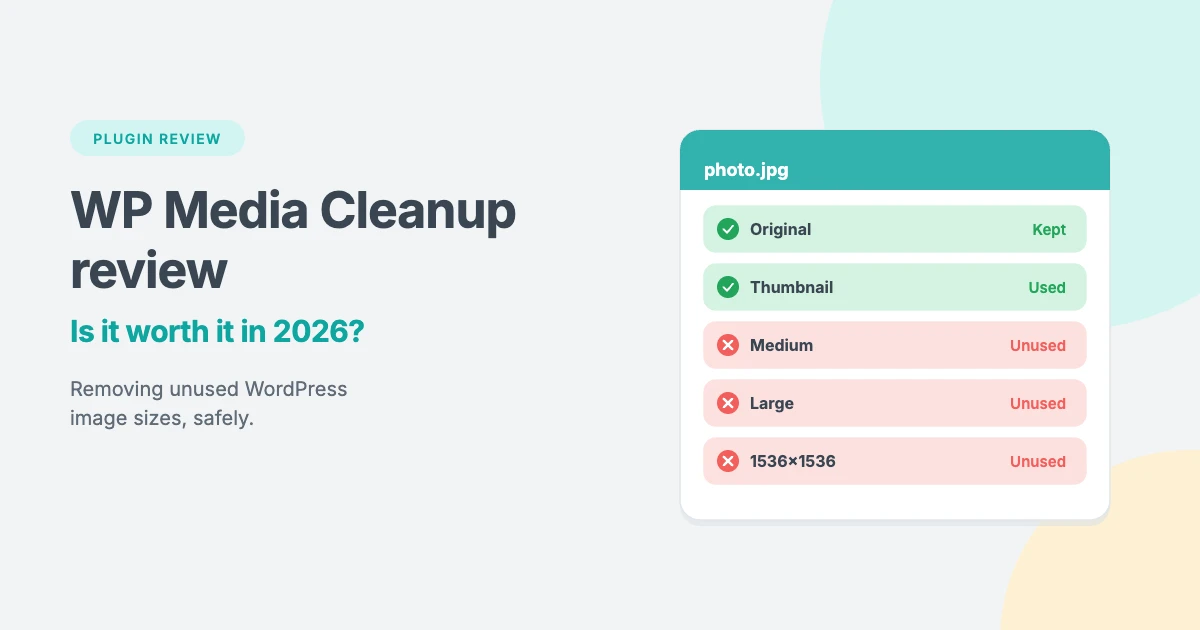
If your WordPress media library has grown for years, there’s a good chance much of your storage is taken up by image sizes you never see. WordPress creates several resized copies of every image you upload, and your theme and plugins can add even more.
WP Media Cleanup is a premium plugin from the team behind Duplicator that promises to find those unused image sizes and remove them safely. In this WP Media Cleanup review, we’ll look at what it does, how it works, what it costs, its limitations and whether it’s worth it for your site.
A quick note on how we wrote this review: we haven’t run WP Media Cleanup on our own sites yet. This review is based on the developer’s product page and published walkthroughs of the plugin, and we’ve been careful not to claim hands-on results. Prices and features were checked in October 2026.
Why WordPress media libraries get so big
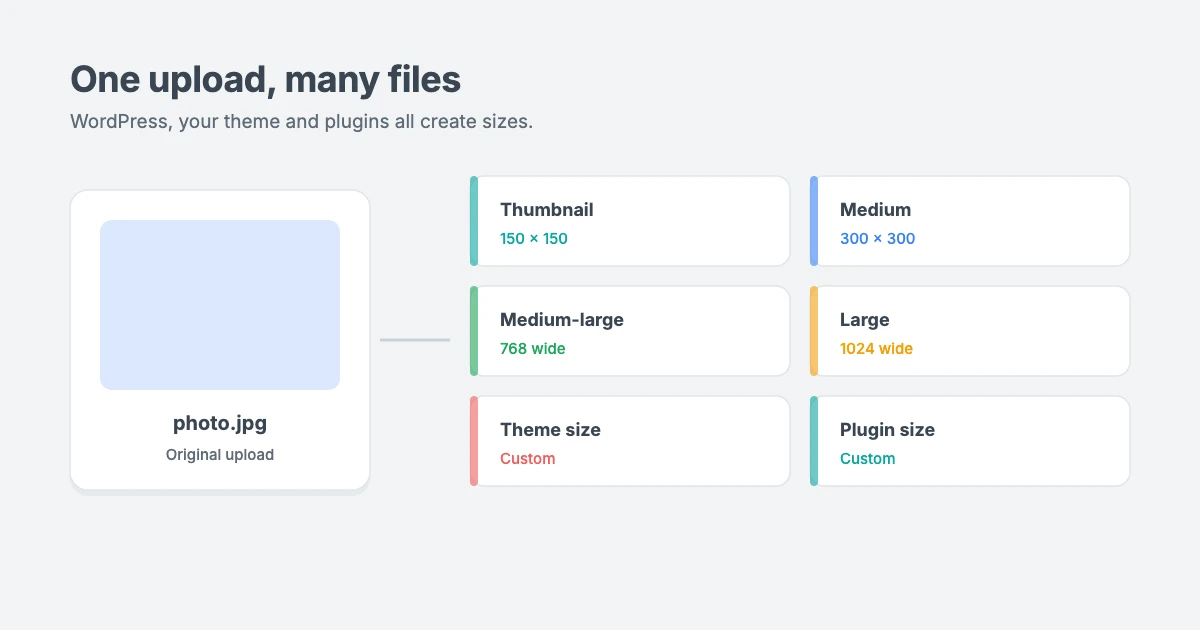
Every time you upload an image, WordPress keeps the original and creates extra sizes, such as thumbnail, medium, medium-large and large. Many themes and plugins register their own sizes too, so one upload can easily become five to ten files on your server.
Those extra files are useful when they’re used, but unused image sizes are pure clutter. But if you’ve changed themes, removed plugins or uploaded thousands of photos over the years, many of those sizes are no longer used anywhere. These unused image sizes still:
- Use disk space (unused image sizes can add up to gigabytes), which can push you towards your hosting plan’s limits
- Count towards inode limits, the maximum number of files many hosts allow
- Make backups bigger and slower, because every file has to be copied
- Slow down migrations when you move to a new host
Our guide on how to free up disk space and reduce inode usage in WordPress covers the wider picture. WP Media Cleanup focuses on one part of it: unused image sizes.
What is WP Media Cleanup?
WP Media Cleanup is a premium WordPress plugin made by Duplicator, the company behind the well-known backup and migration plugin. Its job is to scan your media library, find image size variations that aren’t being used on your site and let you delete them in bulk, while keeping your original images.
Key features
Here’s what we found while researching this WP Media Cleanup review.
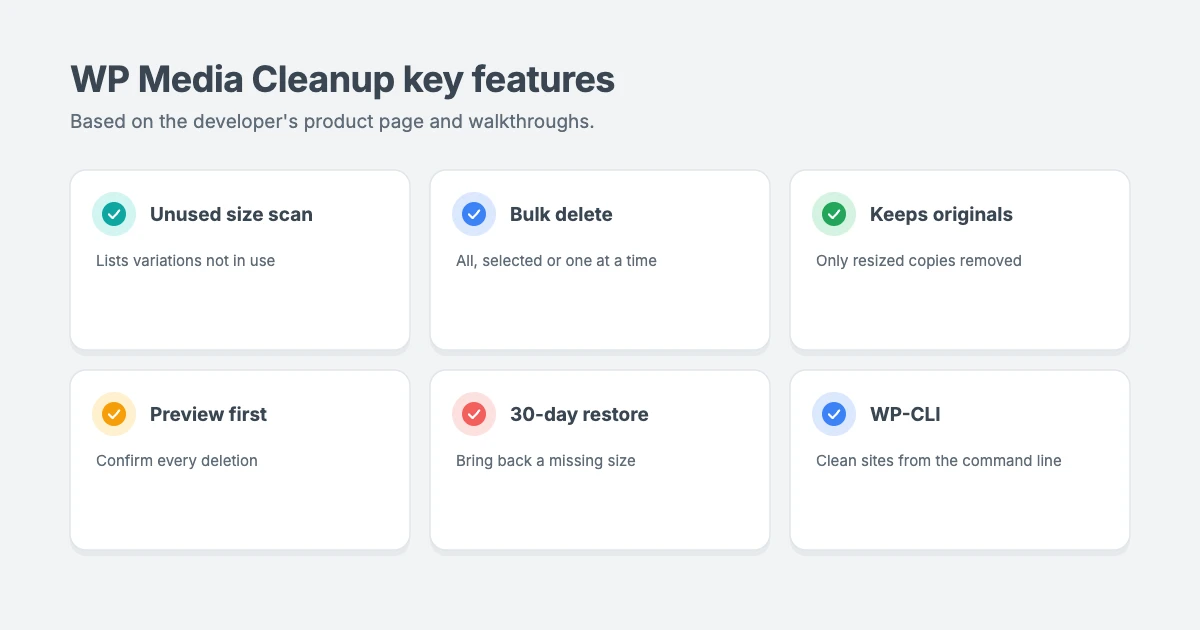
According to the developer and published walkthroughs, WP Media Cleanup includes:
- Unused variation scanning. It scans your media library and lists images that have unused size variations, with a preview, the file name, the number of unused variations and the space they take up.
- Bulk or selective deletion. You can delete everything it finds at once, choose specific images, or clean up one image at a time.
- Original images are kept. The plugin targets the resized copies, not the files you uploaded.
- Preview before deleting. You can see which sizes will be removed, and every deletion asks for confirmation.
- A restore option. Published walkthroughs describe a restore page where deleted variations are kept for 30 days, so you can bring back a size if a layout breaks.
- Awareness of theme settings. It’s described as checking images used in places such as widgets and Customizer settings, so files like your site logo aren’t removed by mistake.
- Storage reports that show how much space you’re using and could save.
- WP-CLI commands for developers who want to scan and clean sites from the command line.
How WP Media Cleanup works
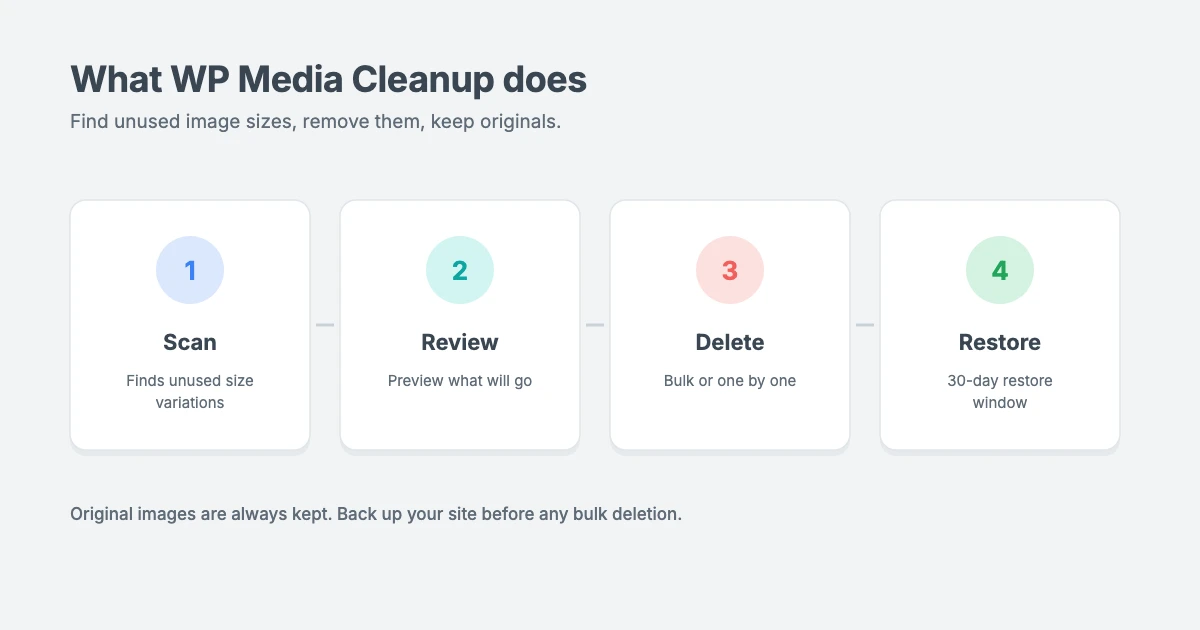
Removing unused image sizes with the plugin follows a simple scan, review and delete process.
Based on the published walkthroughs, the process looks like this:
- Back up your site first. This is our advice for any bulk deletion, whatever tool you use.
- Install the plugin and activate your licence from the Media Cleanup page in your WordPress dashboard.
- Clear your cache, so the scan sees your latest content.
- Run the scan. The plugin checks your media library for unused image variations. Large libraries can take a few minutes.
- Review the results. Check the list and the sizes that will be removed.
- Delete the unused variations, either all at once or selectively.
- Check your key pages. Browse your most important posts and pages. If an image is missing, find its file name and restore it from the plugin’s restore page within the 30-day window.
If you change themes later and your new theme needs different sizes, you can regenerate thumbnails to create them again.
Pricing
Price is a big part of any WP Media Cleanup review, because it’s a yearly licence rather than a one-off purchase.
WP Media Cleanup is sold as a yearly licence. At the time of writing, the prices on the product page are:
| Plan | First-year price | Regular price | Sites |
|---|---|---|---|
| Basic | $29 a year | $59 a year | 1 site |
| Plus | $49 a year | $99 a year | 3 sites |
| Pro | $79 a year | $129 a year | 10 sites |
| Elite Bundle | $299.50 a year | $599 a year | 100 sites, plus Duplicator Pro, DB Optimizer and Activity Log |
The first-year prices are introductory, and renewals are at the regular price. All plans include a 14-day money-back guarantee.
WP Media Cleanup review: pros and cons
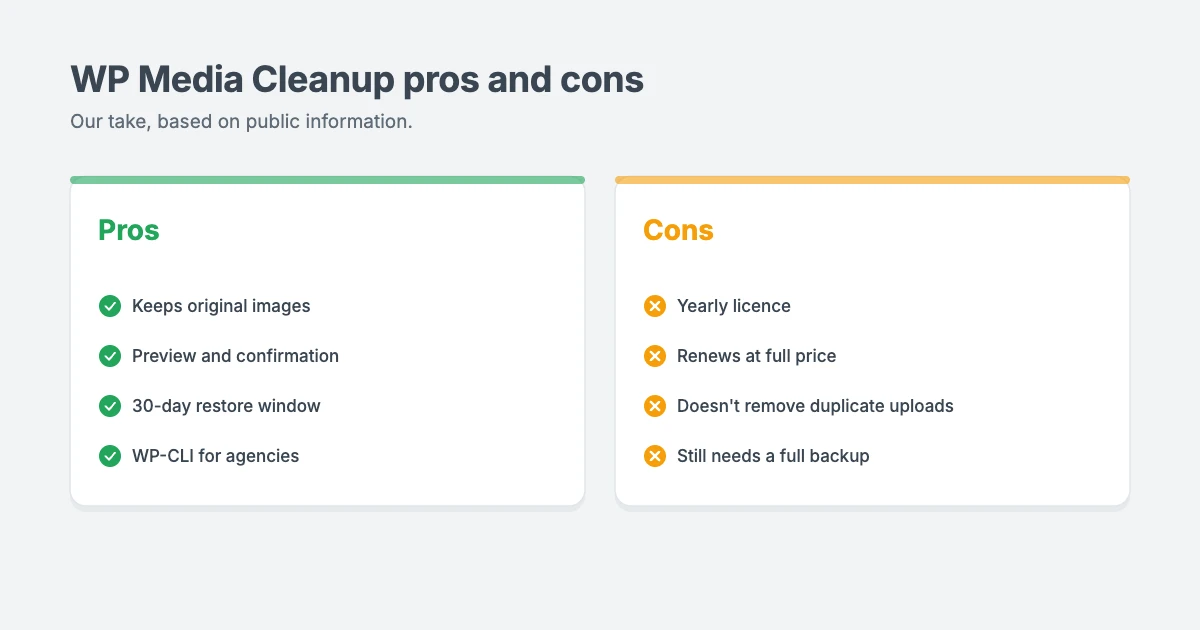
What we like:
- Focused on a real problem. Unused image sizes are one of the most common causes of storage bloat on older WordPress sites.
- Originals are kept. Removing only resized copies is a safer approach than deleting whole media items.
- A safety net. Previews, confirmations and a 30-day restore window lower the risk of mistakes.
- WP-CLI support, which makes it practical for agencies managing many sites.
- From an established developer with a long-running backup plugin.
What to keep in mind:
- It’s a yearly subscription, and the price roughly doubles at renewal.
- It doesn’t remove duplicate uploads. Published walkthroughs note that it won’t delete the same photo uploaded twice, so it’s about unused sizes rather than true duplicates.
- Scanners can miss unusual setups. Images added by custom code, page builders or external services may not be detected, which is why a full backup still matters.
- WP-CLI needs SSH access, which many shared hosting plans don’t include.
- You may only need it once or twice a year. For a small site, a one-off clean-up may not justify an ongoing licence.
Who is WP Media Cleanup for?
Not every site has enough unused image sizes to justify a premium tool. This part of our WP Media Cleanup review helps you decide.
It’s a good fit if you:
- Run an image-heavy site, such as a photography, travel, news or magazine site
- Have changed themes several times and suspect lots of old image sizes are left behind
- Are close to your host’s disk space or inode limits
- Have slow or failing backups because of a huge uploads folder
- Manage many client sites and want a repeatable clean-up process
You may not need it if you:
- Run a newer or smaller site with a modest media library
- Have plenty of storage and fast backups
- Are comfortable cleaning up manually or with your host’s tools
Tips to keep your media library lean
Whether or not you use a clean-up plugin, these habits help prevent unused image sizes and other bloat in the first place:
- Resize images before uploading. There’s rarely a reason to upload a 6,000-pixel photo for a blog post.
- Compress images and use modern formats such as WebP.
- Delete media you no longer use, including images from old drafts and abandoned pages.
- Choose a lightweight theme and avoid stacking plugins that each add their own image sizes.
- Review your storage every 6 to 12 months, and always take a backup before bulk changes.
Lightweight WPInterface themes for image-led sites
If your site leads with images, a fast theme helps keep pages quick even with large galleries. WPInterface Pro themes are lightweight, block editor ready, translation ready and RTL compliant.
SpeedBlog Pro
SpeedBlog Pro is a fast blog theme for travel, tech, personal and creative blogs, ideal for travel and photography blogs that lead with big images.

Portfolico Pro
Portfolico Pro is a fast personal portfolio and resume theme for designers, photographers and freelancers, with a fixed side panel and photo grids.

MagFusion Pro
MagFusion Pro is a trendy blog and magazine theme with a tall card carousel and featured grid, a great fit for image-rich lifestyle and travel magazines.

You can see all our themes on the WordPress themes page.
Want us to clean up your site for you?
If you’d rather not remove unused image sizes yourself, the WPInterface team can help:
- WordPress Care Plans: updates, backups and monitoring, so your site stays lean and safe.
- WordPress Speed Optimization: we optimise your images, plugins and scripts, starting with a free speed audit.
- WordPress Migration: move a large site to better hosting without losing your rankings.
- VIP Support: a $29 priority ticket for quick expert help.
Frequently asked questions
Is WP Media Cleanup free?
No. WP Media Cleanup is a premium plugin with yearly plans starting at $29 for the first year on one site, renewing at $59 a year, at the time of writing.
Does WP Media Cleanup delete my original images?
No. According to the developer, original images are always preserved. The plugin removes unused resized copies.
Will WP Media Cleanup remove duplicate images I uploaded twice?
Based on published walkthroughs, no. It focuses on unused image size variations, not duplicate uploads of the same photo.
Can I undo a clean-up?
Published walkthroughs describe a restore page where deleted variations are kept for 30 days. You should still take a full backup before any bulk deletion.
How much space can I save?
The developer says most sites can free up 30% to 50% of their media storage, but your results depend on your theme, plugins and how many images you have.
Is it safe to delete unused image sizes?
Usually, yes, as long as you back up first, review what will be removed and check your key pages afterwards. If you switch themes later, you can regenerate the sizes you need.
Our WP Media Cleanup review verdict
Based on what the developer and published walkthroughs show, WP Media Cleanup looks like a sensible, focused tool for a real problem. Keeping original images, previewing deletions and offering a 30-day restore window make it safer than most manual clean-ups.
In our WP Media Cleanup review, the main drawbacks are the yearly licence that renews at full price and the fact that it doesn’t handle true duplicate uploads. For image-heavy sites, agencies and anyone bumping into storage limits, it’s worth considering. For small, newer sites, a one-off manual clean-up and good image habits may be all you need.
Reactions
How did this make you feel?
1 reaction
One reaction per visitor. Tap again to change or remove it.






Leave a reply