
Website accessibility used to be seen as a nice extra. Today it’s increasingly a legal expectation. In the United States, businesses receive thousands of website accessibility demand letters and lawsuits every year, and in Europe the European Accessibility Act now applies to many online shops and services. If your site is hard to use for people with disabilities, you could face complaints, legal costs and damage to your reputation.
The good news is that you can lower that risk with the right foundations. In this article, we’ll explain the main website accessibility laws, what a visitor accessibility toolbar can and can’t do, and how the built-in accessibility toolbar in WPInterface Pro themes fits into a practical plan to make your site easier for everyone to use.
This article is general information, not legal advice. For advice about your own situation, speak to a qualified lawyer.
Why website accessibility is a legal issue
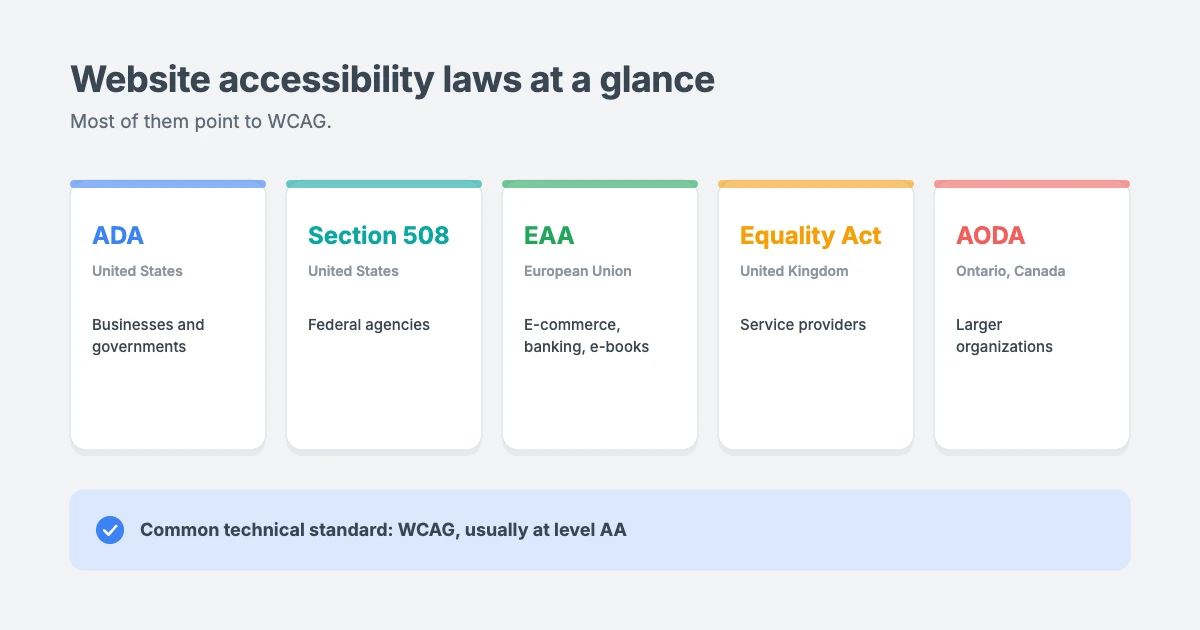
Many countries have laws that protect people with disabilities from discrimination, and regulators and courts increasingly apply them to websites. The most widely used technical standard behind these laws is the W3C’s Web Content Accessibility Guidelines (WCAG). The latest version is WCAG 2.2, and level AA is the target most organizations aim for.
| Law or rule | Where | Who it affects online |
|---|---|---|
| Americans with Disabilities Act (ADA) | United States | Businesses open to the public, and state and local governments |
| Section 508 | United States | Federal agencies and their suppliers |
| European Accessibility Act (EAA) | European Union | E-commerce, banking, e-books, transport and other services, from 28 June 2025 |
| Equality Act 2010 | United Kingdom | Service providers, including websites |
| Accessibility for Ontarians with Disabilities Act (AODA) | Ontario, Canada | Larger private organizations and public bodies |
In the US, the Department of Justice’s guidance on web accessibility says businesses and governments must make sure the goods, services and programs they offer online are accessible to people with disabilities. In 2024, it also published a rule that sets WCAG 2.1 AA as the technical standard for state and local government websites.
What a visitor accessibility toolbar can and can’t do
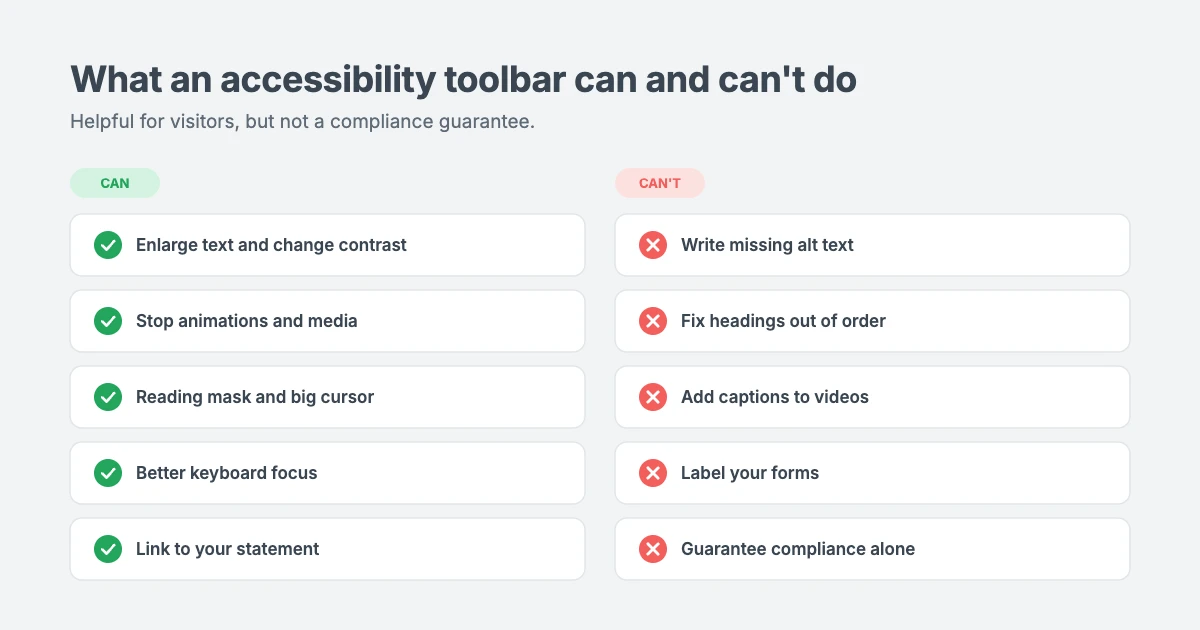
An accessibility toolbar lets visitors change how your site looks and behaves, such as making text bigger, increasing contrast or stopping animations. That’s genuinely helpful, but it’s important to be clear about its limits.
| A toolbar can | A toolbar can’t |
|---|---|
| Let visitors enlarge text, change contrast and switch fonts | Write missing alt text for your images |
| Stop animations, sliders and autoplaying media | Fix a heading structure that’s out of order |
| Add a reading mask, reading line and big cursor | Add captions or transcripts to your videos |
| Improve keyboard focus and navigation | Repair forms that have no labels |
| Read text aloud with the browser’s own voices | Guarantee legal compliance on its own |
| Link to your accessibility statement | Replace testing with real users |
Regulators have taken action against companies that claimed a single tool could make any website fully compliant. No toolbar, plugin or theme can do that on its own. Website accessibility depends on your content, your design choices and the way you maintain your site.
What a toolbar can do is show that you take accessibility seriously, help many visitors use your site more comfortably, and support a wider accessibility plan.
How the built-in accessibility toolbar in WPInterface Pro themes helps
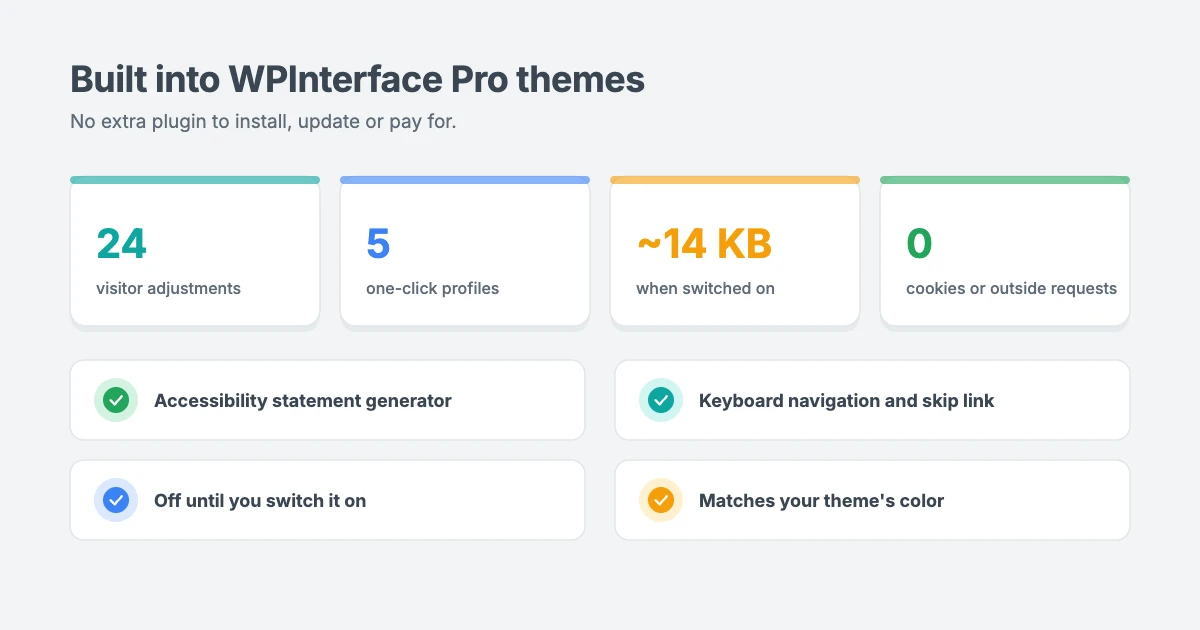
WPInterface Pro themes now include an accessibility toolbar built into the theme itself. There’s nothing extra to install, update or pay for, and it’s designed to support your website accessibility work without slowing your site down or tracking your visitors.
Tools that let visitors adapt your site
Visitors open the toolbar from a floating button, or with Alt + A on the keyboard, and get 24 adjustments:
- Content: font size in 4 steps (115% to 175%), line height, letter spacing, bold text, a readable font, a dyslexia-friendly font (OpenDyslexic), text alignment, a text magnifier, highlighted links and titles, and a big cursor.
- Color: light, dark and high contrast, monochrome and saturation.
- Orientation: reading line, reading mask, highlighted content, hide images, stop animations, text to speech, keyboard navigation and mute sounds.
There are also 5 one-click profiles: Vision Impaired, Seizure Safe, ADHD Friendly, Blindness and Epilepsy Safe. Every choice is remembered on the visitor’s next visit and can be undone with one Reset button.
An accessibility statement generator
An accessibility statement explains your commitment, the standard you’re working towards, any known limitations and how people can contact you if something doesn’t work. It’s expected under many laws and policies, and it shows visitors you’re listening.
The theme includes a statement generator. You fill in your organization, contact email or phone, WCAG version and level, and any known limitations, and one click creates a statement page that’s linked from the toolbar. Review and update it whenever your site changes.
Better keyboard support
Many people can’t use a mouse. The toolbar’s Keyboard Navigation tool adds strong focus outlines and single-key jumps between headings, links, forms and buttons. You can also turn on an optional skip-to-content link, so keyboard users can jump straight past the menu.
Private and fast by design
Accessibility shouldn’t come at the cost of privacy or speed:
- Off by default. Nothing loads until you switch it on under Appearance » Customize » Accessibility.
- About 14 KB when on, with a deferred script that never blocks your page from rendering.
- No third-party requests. Fonts and languages are served from your own site.
- No cookies. Visitors’ choices are saved only in their own browser.
- Always readable. Text on the toolbar automatically switches between white and black to keep at least 4.5:1 contrast with your theme’s color.
What else you need to do to reduce legal risk
The toolbar is a strong start, but most website accessibility problems live in your content. These are the issues that come up most often in accessibility complaints, and they’re all in your hands:
- Add alt text to images that describes what each meaningful image shows. Leave decorative images empty.
- Use headings in order. One H1 per page, then H2 and H3. See our tutorial on how to properly use heading tags in WordPress.
- Check color contrast for text, links and buttons. WCAG AA asks for at least 4.5:1 for normal text.
- Write descriptive link text, such as “view our pricing” rather than “click here”.
- Label every form field and make error messages clear.
- Caption your videos and provide transcripts for audio.
- Make PDFs and documents accessible, or offer the same information as a web page.
- Don’t rely on color alone to show meaning, for example in charts or required fields.
- Test with a keyboard. Press Tab through every page. You should always see where you are, and every menu and button should work.
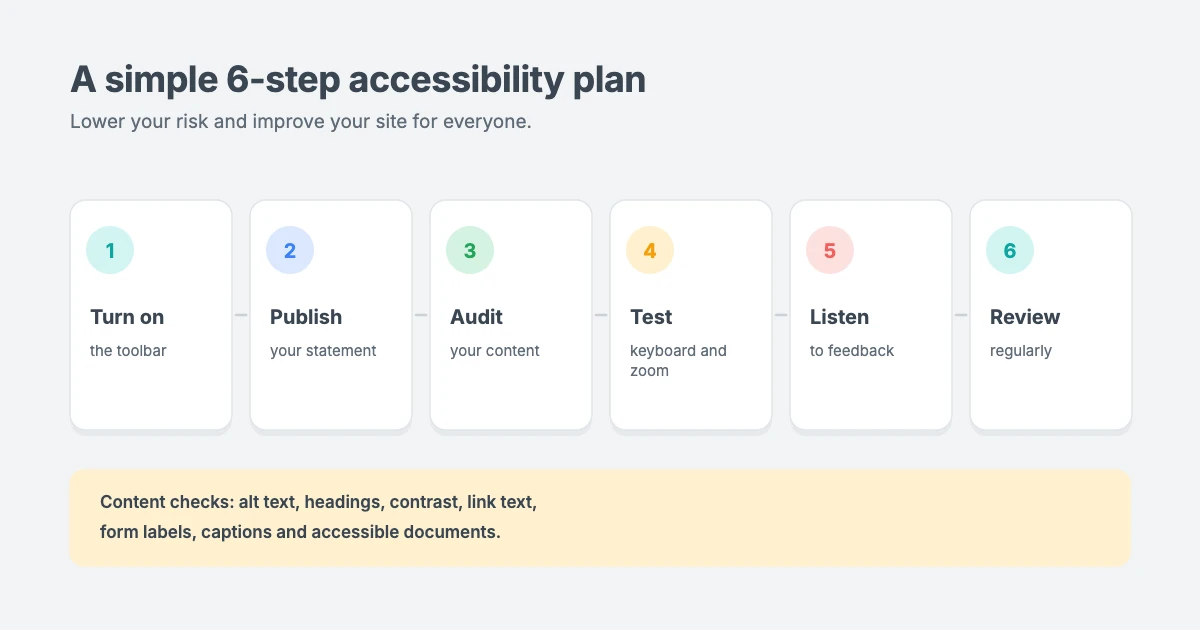
A simple 6-step website accessibility plan
Here’s a practical plan you can follow to lower your risk and make your site better for everyone.
- Turn on the toolbar. Go to Appearance » Customize » Accessibility, tick Enable and choose which tools to show.
- Publish your accessibility statement. Use the built-in generator and link it from your footer as well as the toolbar.
- Audit your content. Check your most visited pages first: homepage, contact page, checkout and top posts. Fix alt text, headings, contrast, links and forms.
- Test it yourself. Navigate with only a keyboard, zoom to 200% and try a screen reader such as the one built into your phone or computer.
- Make it easy to report problems. Give a clear email address or form in your statement, and reply quickly when someone gets in touch.
- Review regularly. Check new pages, plugins and design changes as you add them, and update your statement at least once a year.
WPInterface Pro themes with the built-in accessibility toolbar
The accessibility toolbar is built into our Pro themes for news, magazines, blogs and portfolios. Here are four examples.
TruthNews Pro

TruthNews Pro looks and reads like a newspaper, with a classic masthead, a category menu for every desk and large lead stories in a clutter-free layout. Clear structure like this makes long news pages easier to follow for every reader.
MagNine Pro

MagNine Pro combines a bold header with elegant serif headlines and mobile-first layouts. Readers who prefer a plainer typeface can switch to a readable or dyslexia-friendly font from the toolbar.
BlogNest Pro

BlogNest Pro gives bloggers a polished home for their stories, with soft color blocks and generous images. Visitors can adjust line height and letter spacing to make long posts more comfortable to read.
Portfolico Pro

Portfolico Pro is a personal portfolio theme with a fixed side panel for your name, photo and contact links. With keyboard navigation and a skip link, clients can explore your work without a mouse.
Want every theme, including future updates? The All-Access Pass gives you all current and future WPInterface themes for one price. For a wider list, see our guide to the best accessible WordPress themes.
Common website accessibility problems and how to fix them
Most website accessibility complaints come from the same handful of problems. The good news is that almost all of them are quick to fix once you know what to look for. Here are the issues we see most often on WordPress sites, and what to do about each one.
Images without alt text
Screen readers read out the alt text of an image. If it’s missing, a blind visitor hears nothing, or just a file name like “IMG_2041.jpg”. Open your Media Library, select each image and fill in the Alternative Text field with a short description of what the image shows. Leave it empty only for purely decorative images.
Low colour contrast
Light grey text on a white background may look stylish, but many visitors can’t read it. WCAG asks for a contrast ratio of at least 4.5:1 for normal text and 3:1 for large text. Check your theme colours in the Customizer and pick darker text or lighter backgrounds where needed.
Skipped or missing headings
Screen reader users jump between headings to find what they need. Use one H1 per page, then H2 for main sections and H3 for sub-sections, without skipping levels. Our guide to heading tags in WordPress explains how.
Vague link text
Links that only say “click here” or “read more” make no sense when a screen reader lists all the links on a page. Write link text that describes where the link goes, such as “download the price list” or “read our refund policy”.
Forms without labels
Contact, search and checkout forms need a visible label for every field, clear error messages and a way to submit with the keyboard. Placeholder text alone isn’t enough, because it disappears as soon as someone starts typing.
Videos without captions
Add captions to every video and a transcript for audio content such as podcasts. Captions help deaf and hard-of-hearing visitors, and they also help anyone watching with the sound off.
Content that only works with a mouse
Some sliders, menus and pop-ups can’t be reached or closed with the keyboard. Test your site by pressing Tab to move through each page. You should always see where the focus is, and you should be able to open menus, play media and close pop-ups without a mouse.
Fixing these common problems makes a real difference to website accessibility. Combined with the accessibility toolbar and an honest accessibility statement, it shows visitors and regulators that you take accessibility seriously.
Want to see what a built-in toolbar includes? Read our announcement of the 24 accessibility tools built into WPInterface Pro themes.
Need help making your site more accessible?
If you’d like an expert to review your site and fix issues, the WPInterface team can help:
- WordPress Theme Customization: we improve contrast, fonts, focus styles and layouts, and set up the accessibility toolbar and statement for you.
- Custom Theme Development: a custom theme built with accessible markup and a clean heading structure from day one.
- WordPress Care Plans: ongoing updates, backups and monitoring, with help keeping new content accessible.
- VIP Support: a $29 priority ticket for fast, expert help with a specific problem.
You can also see all our professional WordPress services.
Frequently asked questions
Will an accessibility toolbar make my website ADA compliant?
No tool can make a website compliant on its own. A toolbar helps visitors adjust your site to their needs and supports your accessibility efforts, but compliance also depends on your content, such as alt text, headings, captions, form labels and link text, and on testing.
Can a small business be sued over website accessibility?
Yes. In the US, small and medium businesses receive many of the website accessibility demand letters and lawsuits. Under the European Accessibility Act, microenterprises that provide services are exempt from most requirements, but rules vary by country, so check what applies to you.
What is an accessibility statement and do I need one?
It’s a page that explains your commitment to accessibility, the standard you follow, any known issues and how to contact you. Many laws and public sector rules expect one, and it’s good practice for every site. WPInterface Pro themes include a generator to help you create it.
Which standard should my website follow?
Most laws and guidelines point to WCAG. Aim for WCAG 2.2 level AA, which covers the most common barriers for people with disabilities.
Does the accessibility toolbar slow down my site?
Barely. When it’s switched off, it adds nothing to your pages. When it’s on, it adds about 14 KB, loads without blocking your page, makes no outside requests and sets no cookies.
Is the toolbar available in my theme?
The toolbar is built into WPInterface Pro themes, with the rest of the Pro range to follow. If you already own a Pro theme, you’ll get it through a normal theme update.
Do I still need to test my website?
Yes. Automated tools and toolbars can’t catch everything. Test with a keyboard, zoom and a screen reader, and listen to feedback from people with disabilities.
How often should I check my website accessibility?
Check your site whenever you make a big change, such as a redesign, a new theme, a new form or a new section of the site. On top of that, a quick review every three to six months is a good habit. Test a few important pages with the keyboard, check that new images have alt text and new videos have captions, and read your accessibility statement to make sure it still describes your site accurately. Small, regular checks are much easier than fixing years of problems at once, and they show that you take website accessibility seriously over time, not just once.
Who is responsible for accessibility on my site?
In most cases, the website owner is responsible, even if a developer, agency or theme provider built parts of the site. A well-built theme gives you a strong starting point, but the content you add, such as images, documents, videos and forms, is up to you. Make accessibility part of your publishing routine so everyone who edits the site follows the same simple rules.
Conclusion
Website accessibility is now a legal expectation in many places, and the best way to reduce your risk is to make your site genuinely easier to use. The built-in accessibility toolbar in WPInterface Pro themes gives visitors 24 ways to adapt your site, helps you publish an accessibility statement and does it without slowing your pages or tracking anyone. Pair it with accessible content, regular testing and a clear way for people to report problems, and you’ll be in a far stronger position.
Ready to get started? Browse our WordPress Pro themes, or talk to our team about WordPress Theme Customization.

Leave a reply