You publish a post, a reader leaves a thoughtful comment, and you approve it a few hours later. But the reader never finds out. They don’t come back, they never see your reply, and the conversation fades away.
By default, WordPress doesn’t tell commenters when their comment has been approved. Adding a simple comment approval notification fixes that. Each time you approve a comment, the commenter gets a friendly email with a link straight back to the conversation.
In this tutorial, we’ll show you how to notify users when their comment is approved in WordPress, using a short code snippet, and how to make sure those emails actually arrive.
Why send a comment approval notification?
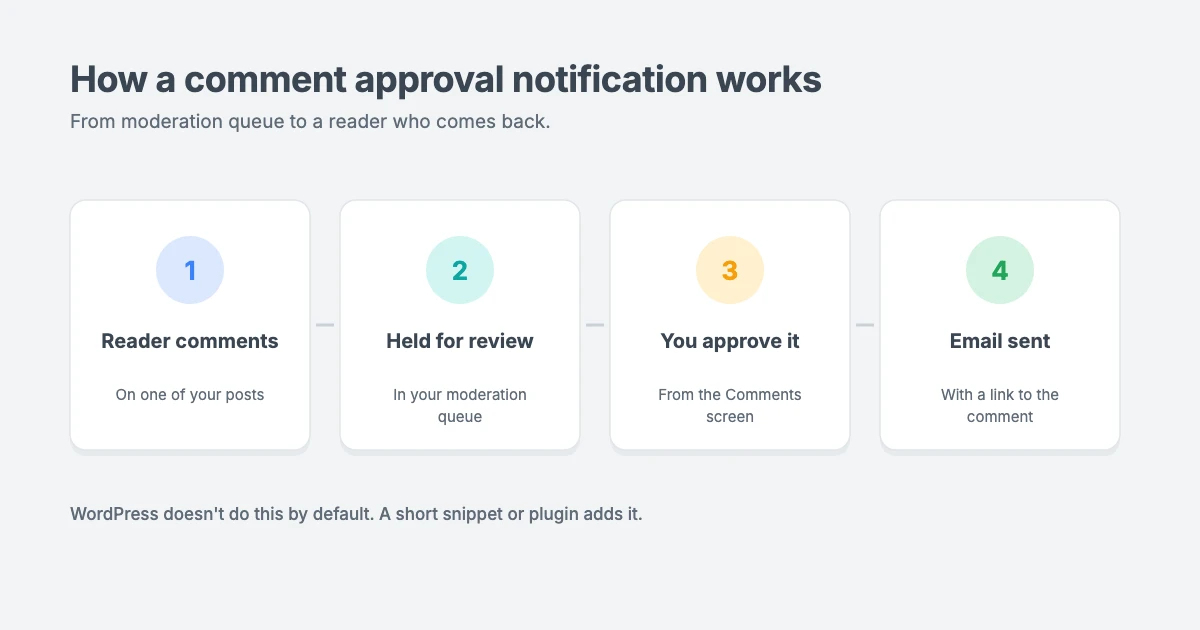
When you moderate comments, there can be hours or even days between a reader posting a comment and it appearing on your site. Without a notification, most readers never check back. Some may even think you deleted their comment.
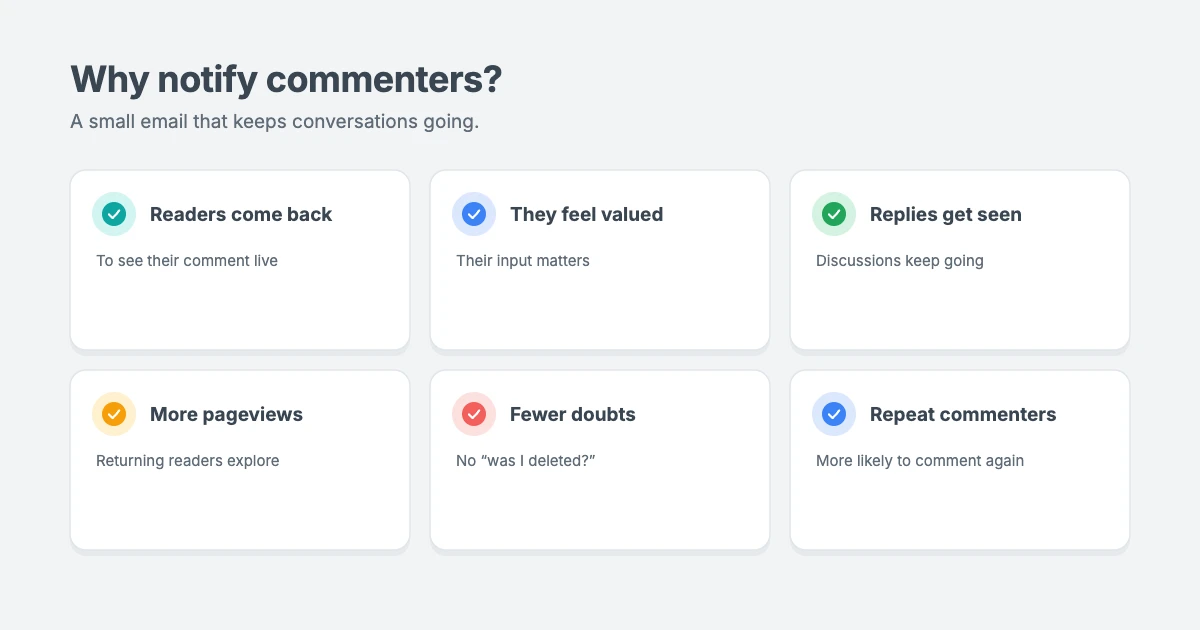
A comment approval notification helps you:
- Bring readers back to your site to see their comment and any replies.
- Show readers their input matters, which encourages them to comment again.
- Keep discussions going, because people who return are more likely to reply to others.
- Increase pageviews, as returning readers often explore other posts too.
How WordPress handles comments by default
Before adding notifications, check your comment settings. Go to Settings » Discussion in your WordPress dashboard. The most important options are:
- Comment must be manually approved: every comment waits for you to approve it.
- Comment author must have a previously approved comment: returning commenters skip the queue once you’ve approved one of their comments.
- Email me whenever a comment is held for moderation: WordPress emails you, the site owner, about new comments.
WordPress can email you about new comments, but it has no built-in option to email the commenter when you approve their comment. That’s what we’ll add next.
Method 1: Send a comment approval notification with a code snippet
This snippet sends a comment approval notification to the commenter as soon as you approve their comment. It uses WordPress’s own comment_unapproved_to_approved hook, fired by wp_transition_comment_status(), which runs whenever a comment moves from the moderation queue to approved.
Add the code with a code snippets plugin, which is the safest option for beginners, or in your child theme’s functions.php file. Avoid editing a parent theme, because your changes would be lost when it updates.
// Email commenters when their comment is approved.
add_action( 'comment_unapproved_to_approved', function ( $comment ) {
    // Only regular comments with a valid email address.
    if ( ! in_array( $comment->comment_type, array( '', 'comment' ), true ) ) {
        return;
    }
    if ( ! is_email( $comment->comment_author_email ) ) {
        return;
    }

    $post = get_post( $comment->comment_post_ID );
    if ( ! $post ) {
        return;
    }

    // Don't email the post author about their own comment.
    if ( (int) $comment->user_id && (int) $comment->user_id === (int) $post->post_author ) {
        return;
    }

    $site_name  = wp_specialchars_decode( get_bloginfo( 'name' ), ENT_QUOTES );
    $post_title = wp_specialchars_decode( get_the_title( $post ), ENT_QUOTES );

    $subject = sprintf( 'Your comment on "%s" is now live', $post_title );

    $message  = sprintf( "Hi %s,\n\n", $comment->comment_author );
    $message .= sprintf( "Thanks for your comment on \"%s\". It has been approved and is now live on %s.\n\n", $post_title, $site_name );
    $message .= "See your comment and join the conversation here:\n";
    $message .= get_comment_link( $comment ) . "\n\n";
    $message .= sprintf( "Thanks,\nThe %s team\n", $site_name );

    wp_mail( $comment->comment_author_email, $subject, $message );
} );
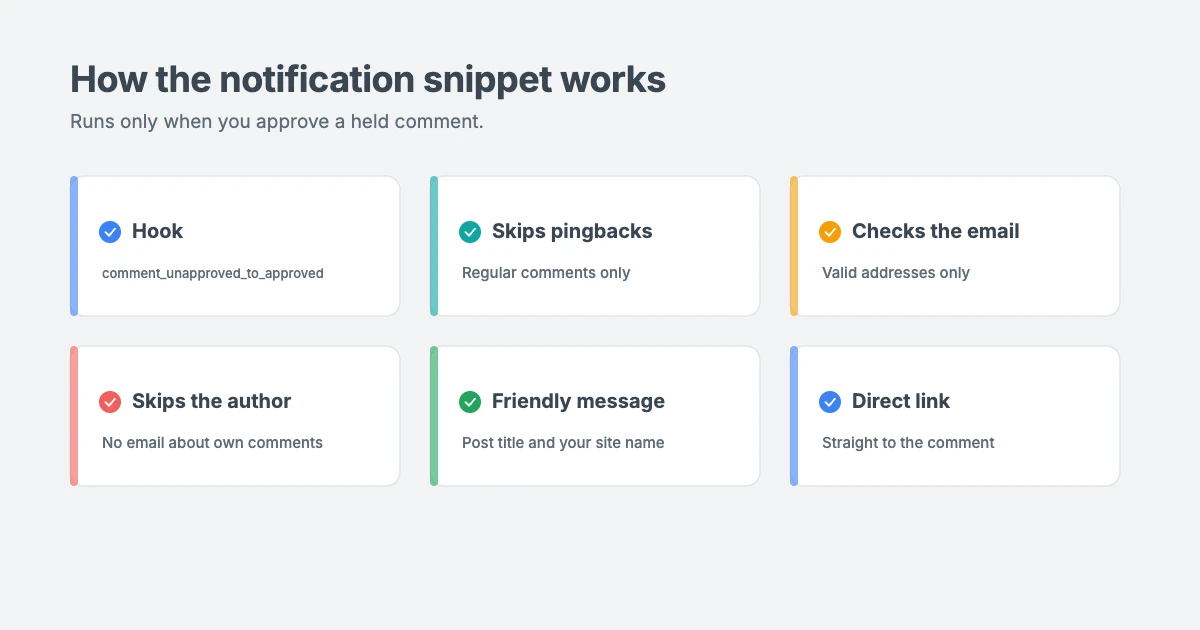
Here’s what the code does:
- It only runs when you approve a comment that was waiting in moderation. Comments that are approved automatically, such as those from returning commenters, don’t trigger an email.
- It skips pingbacks and trackbacks, and comments without a valid email address.
- It doesn’t email the post author about their own comments.
- It sends a plain, friendly email using WordPress’s
wp_mail()function, with the post title and a direct link to the comment.
You can change the wording of the subject and message to match your brand. Keep the %s placeholders, because they’re replaced with the commenter’s name, the post title and your site name.
Want to email returning commenters too?
If you use the “previously approved comment” setting, returning commenters’ comments are approved straight away, so they skip the moderation step and don’t get an email. That’s usually fine, because their comment appears instantly and they can see it.
If you approve every comment manually, every commenter will get a comment approval notification.
Method 2: Use a comment notification plugin
If you’d rather not add code, you can send a comment approval notification with a plugin instead. Go to Plugins » Add New and search for “comment approved notification”. Choose a plugin that’s well reviewed and updated regularly.
Look for a plugin that lets you:
- Edit the email subject and message, ideally with placeholders for the commenter’s name, the post title and the comment link.
- Skip pingbacks and trackbacks.
- Send emails only when you approve a comment, not for every new comment.
Use either the snippet or a plugin, not both, or commenters will receive two emails.
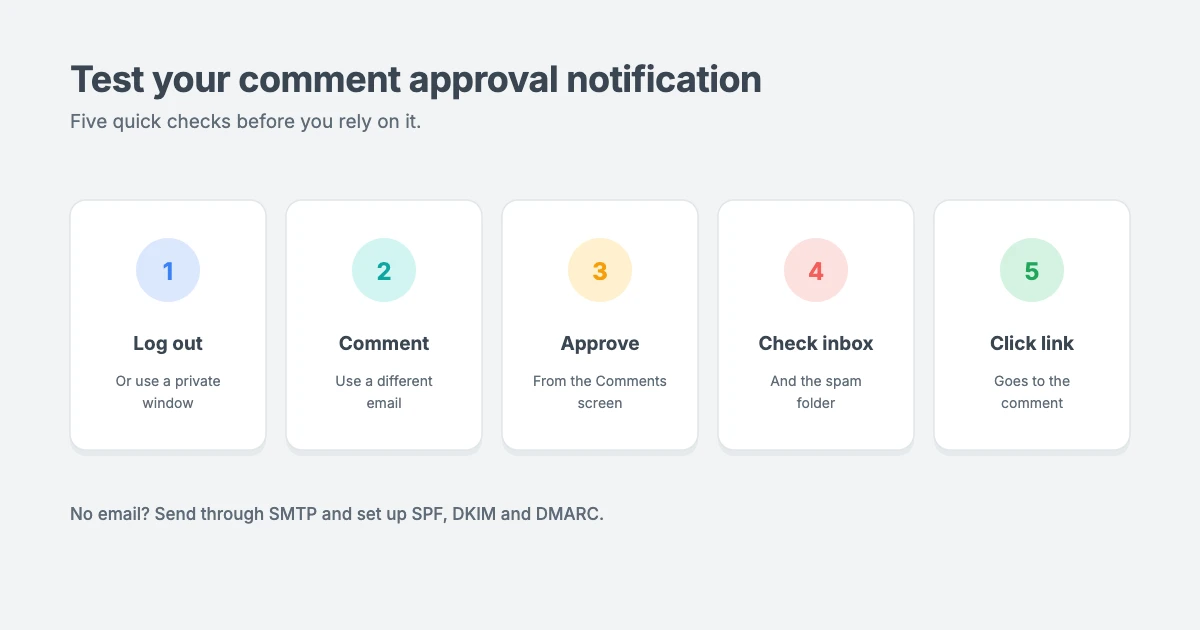
Step 3: Test your comment approval notification
Always test your comment approval notification before you rely on it:
- Log out, or open your site in a private browser window.
- Leave a test comment on one of your posts, using an email address you can check, different from your admin email.
- Approve the comment from Comments in your WordPress dashboard.
- Check the inbox for that email address, including the spam folder.
- Click the link in the email to make sure it goes to the right comment.
If the email doesn’t arrive, your site may have an email delivery problem, which is very common on WordPress sites.
Make sure your emails reach the inbox
By default, WordPress sends email through your web server. Many email providers treat these messages as suspicious, so they may land in spam or never arrive at all. To improve delivery:
- Send email through SMTP or a dedicated email delivery service, using an SMTP plugin or your host’s email tools.
- Use an email address on your own domain, such as hello@yourdomain.com, as the sender.
- Set up SPF, DKIM and DMARC records for your domain. Your host or email provider can help with this.
- Keep messages simple, with a clear subject, a short message and one link.
Comment moderation tips
A comment approval notification works best alongside good moderation habits:
- Never approve spam. If you approve a spam comment by mistake, the spammer receives a notification too. Mark spam as spam instead.
- Protect your comment form from bots with a free CAPTCHA alternative. Our guide to adding Cloudflare Turnstile to WordPress shows you how.
- Reply to comments, so readers who return find an answer waiting for them.
- Moderate regularly, so readers don’t wait days for their comment to appear.
Respect your commenters’ privacy
A comment approval notification is a one-off, expected email about something the reader just did, so most people welcome it. Even so:
- Mention it in your privacy policy, explaining that you may email commenters when their comment is approved.
- Don’t add commenters to your newsletter or marketing lists unless they’ve clearly agreed to it.
- Only use commenters’ email addresses for the purpose they expect.
Please note: privacy laws vary by country. This isn’t legal advice, so check the rules that apply to your website.
Grow your blog’s community
Comment approval notifications are one small part of building an engaged audience. For more ideas, read our guide on how to promote your blog.
WPInterface themes built for conversation
A clean, readable comment section encourages readers to join in. WPInterface Pro themes are lightweight, translation ready and RTL compliant.
SpeedBlog Pro
SpeedBlog Pro is a fast blog theme for travel, tech, personal and creative blogs, with a clean layout that keeps readers focused.

BlogNest Pro
BlogNest Pro is a modern, elegant blog theme for bloggers and content creators, with a post slider, Featured Categories and spotlight blocks.

TruthBlog Pro
TruthBlog Pro is a clean lifestyle blog theme with a full-width hero, story cards, category filter tabs and a post grid.

You can see all our themes on the WordPress themes page.
Need a hand?
If you’d like help with comments, email or other WordPress tweaks, the WPInterface team can help:
- Must-Have Plugins Installation: for $59, we install and configure the essential plugins every site needs.
- WordPress Care Plans: updates, backups and monitoring, so your site keeps running smoothly.
- VIP Support: a $29 priority ticket for quick expert help, including email delivery problems.
Frequently asked questions
Does WordPress notify users when their comment is approved?
No. WordPress can email you about new comments, but it doesn’t email commenters when you approve their comment. You need a code snippet or a plugin to add a comment approval notification.
Can I customise the notification email?
Yes. With the snippet in this guide, you can change the subject and message text. Most notification plugins also let you edit the email.
Why aren’t my comment notification emails arriving?
The most common cause is WordPress sending email through your web server. Use SMTP or an email delivery service, and set up SPF, DKIM and DMARC records for your domain.
Will spammers get a notification?
Only if you approve their comment. Mark spam comments as spam instead of approving them, and protect your comment form from bots.
Can I add commenters to my email list?
Only if they’ve clearly agreed to join it. Leaving a comment doesn’t mean someone wants to receive your newsletter.
Final thoughts
A comment approval notification is a small touch that makes a big difference. Readers find out their comment is live, come back to your site and are more likely to keep the conversation going.
Add the code snippet or a simple plugin, send a test comment, and make sure your emails reach the inbox. Then reply to your commenters, and watch your community grow.
Reactions
How did this make you feel?
Be the first to react
One reaction per visitor. Tap again to change or remove it.





Leave a reply