
Spam bots love WordPress forms. Contact forms, login pages, registration forms, comments and checkout pages are all easy targets, and a flood of fake submissions wastes your time and can put your site at risk.
Traditional CAPTCHAs help, but they frustrate real visitors with blurry text and “click every traffic light” puzzles, especially on phones. Cloudflare Turnstile is a friendlier alternative. Most of the time, your visitors won’t have to do anything at all.
In this tutorial, we’ll show you how to add Cloudflare Turnstile to WordPress step by step, including your forms, login page, comments and WooCommerce checkout, and how to test that it’s working properly.
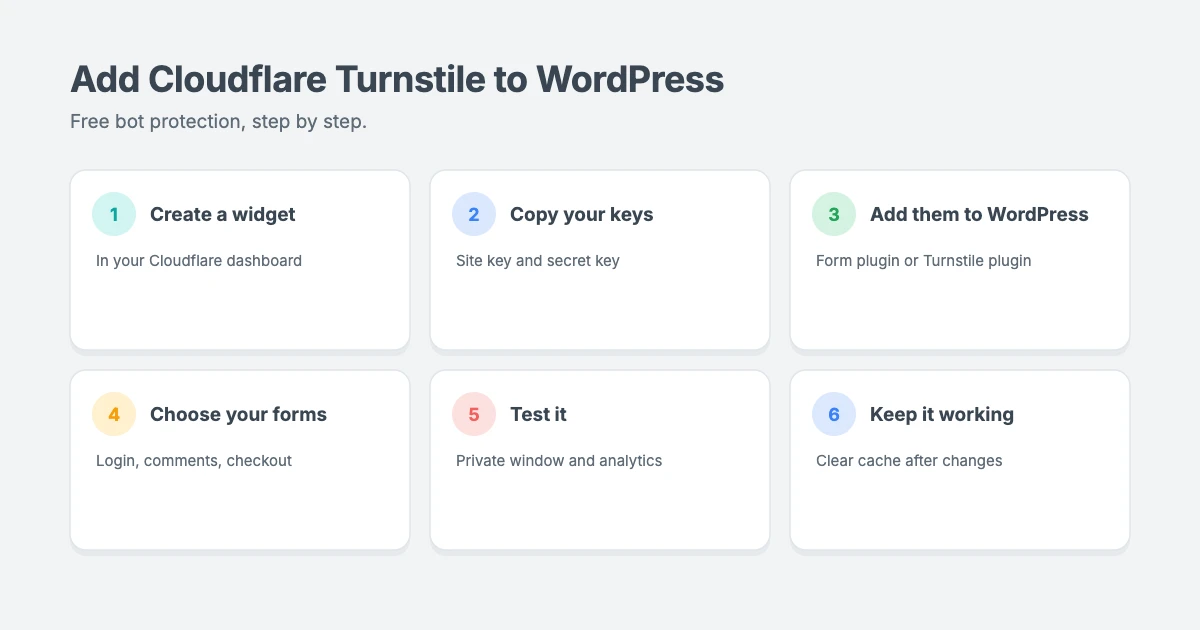
What is Cloudflare Turnstile?
Cloudflare Turnstile is a free CAPTCHA alternative from Cloudflare. Instead of asking visitors to solve a puzzle, it runs a series of small, non-interactive checks in the browser to tell humans and bots apart.
Here’s what makes it a good fit for WordPress sites:
- It’s free. The free plan includes up to 20 widgets, all widget types and unlimited challenges.
- You don’t need to use Cloudflare’s CDN. According to Cloudflare, Turnstile works on any website, whether or not your traffic goes through Cloudflare.
- It’s friendly to visitors. Most people just see a short loading animation and a success message.
- It’s accessible. Cloudflare says Turnstile meets WCAG 2.2 AA accessibility guidelines.
- It’s privacy-focused. Cloudflare says Turnstile only processes the data it needs for this security check, and doesn’t access or store your form entries.
How Cloudflare Turnstile works
Each Turnstile setup is called a widget, and every widget has two keys:
- A site key, which is public and tells Turnstile which widget to show on your page.
- A secret key, which is private and lets your website check each visitor’s result with Cloudflare.
When a visitor fills in a protected form, Turnstile runs its checks in their browser and creates a token. When they submit the form, your website sends that token to Cloudflare to confirm it’s genuine. If it isn’t valid, the submission is blocked.
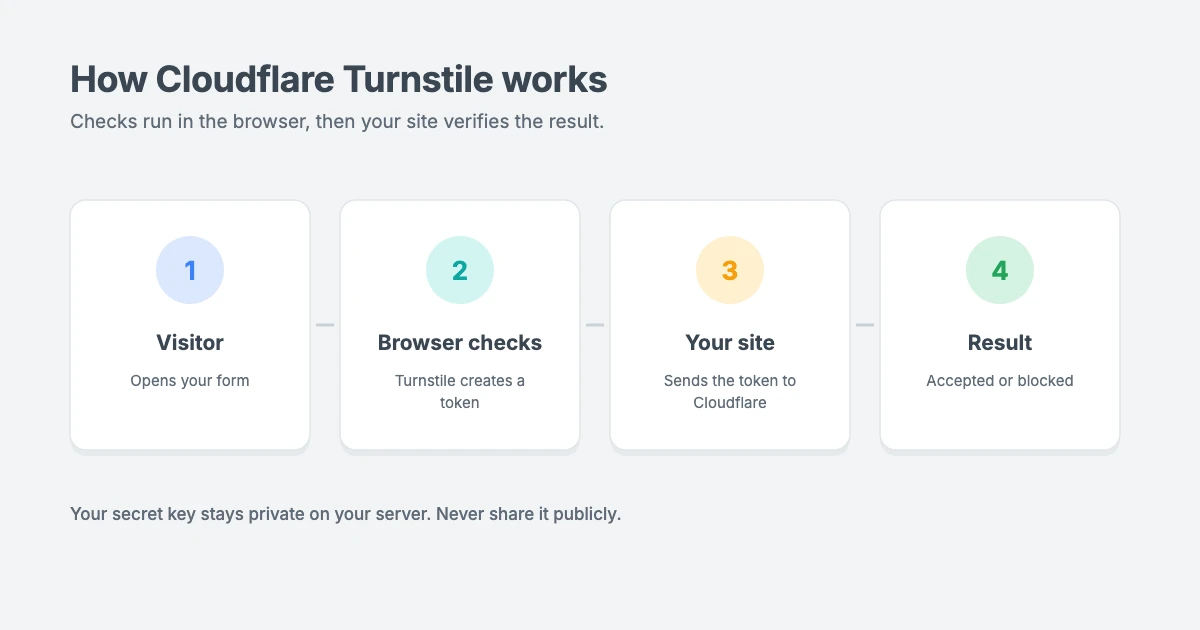
Step 1: Create a Cloudflare Turnstile widget
First, you need to create a widget in your Cloudflare account to get your keys.
- Sign up for a free Cloudflare account, or log in if you already have one.
- In the Cloudflare dashboard, go to the Turnstile page.
- Click Add widget.
- Give your widget a descriptive name, such as “My website forms”. This is just for your reference.
- Under Hostname management, add your website’s domain, such as yourdomain.com.
- Choose a widget mode (see below).
- Click Create.
- Copy your site key and secret key.
Keep your secret key private. Never paste it into a page, a post or any public code. If you think it has been exposed, you can rotate it from your widget’s settings in the Cloudflare dashboard.
Which widget mode should you choose?
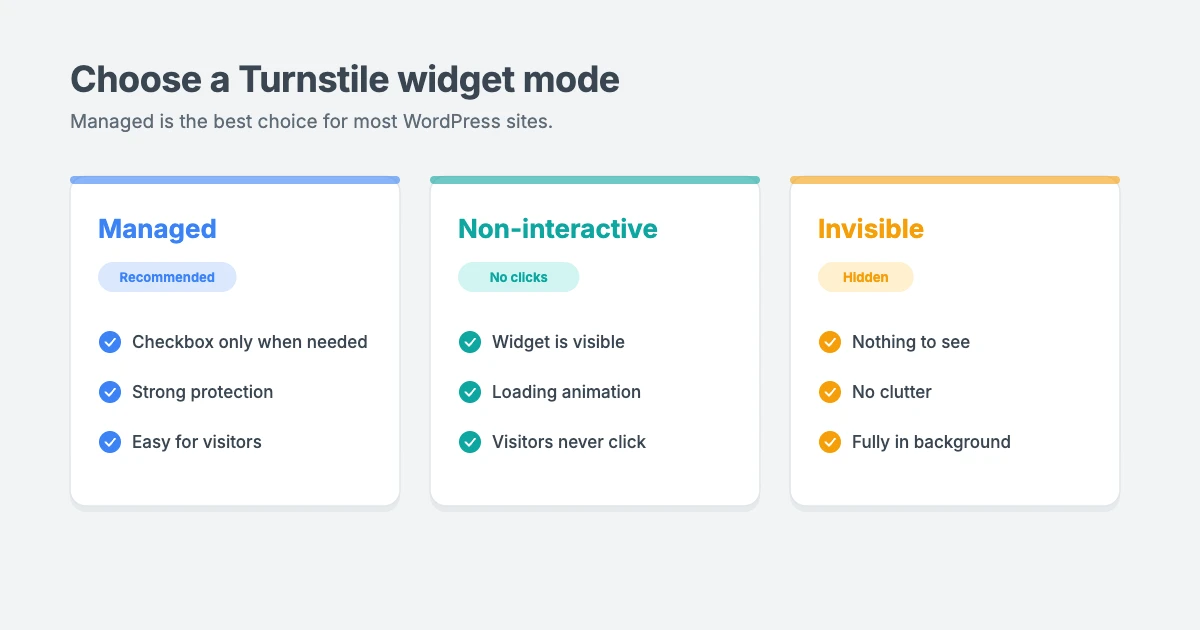
Cloudflare offers three widget modes:
- Managed (recommended): Cloudflare decides whether to show a simple checkbox based on how risky the visitor looks. Most visitors won’t need to click anything.
- Non-interactive: visitors see the widget and a loading animation, but never need to click it.
- Invisible: the widget is completely hidden from visitors.
We recommend Managed for most WordPress sites, because it gives strong protection while keeping things easy for real visitors.
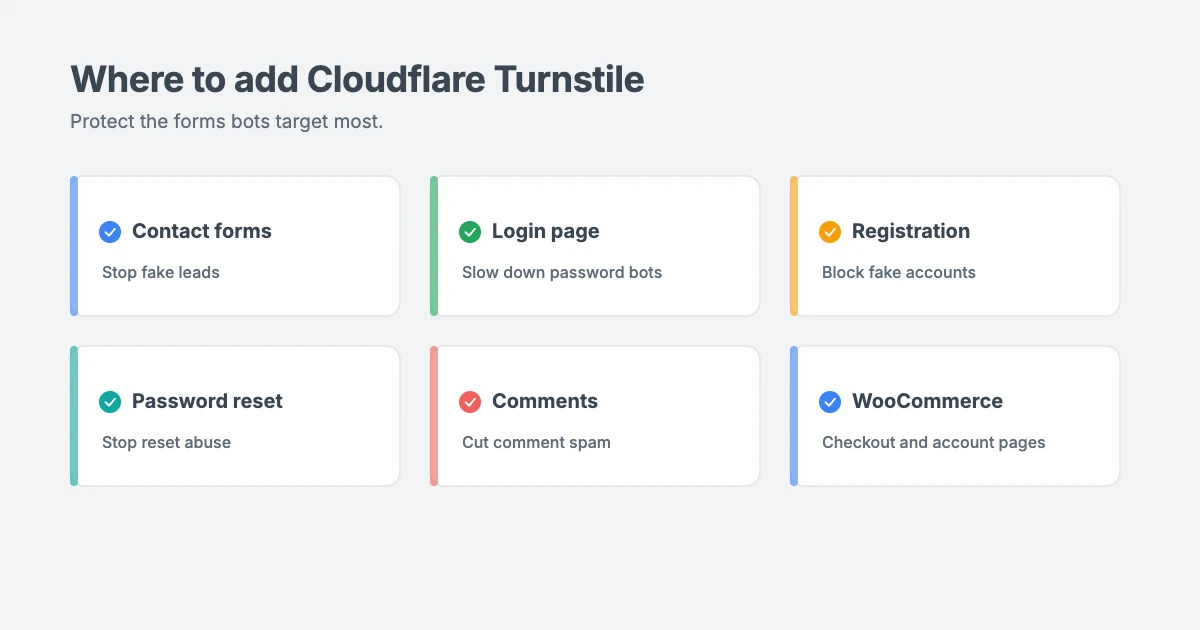
Step 2: Choose where to add Cloudflare Turnstile
Think about which parts of your site get spam or bot traffic. The most common places to protect are:
- Contact forms and other lead forms
- The WordPress login page, to slow down password-guessing bots
- User registration and password reset forms
- Comment forms, to cut down on comment spam
- WooCommerce pages, such as checkout, login and account registration, to help stop fake orders and fake accounts
How you add Cloudflare Turnstile depends on which of these you want to protect.
Step 3: Add Turnstile to your WordPress forms
Many popular WordPress form builder plugins now support Cloudflare Turnstile out of the box. Before installing anything new, check your form plugin first.
The setup usually looks like this:
- Open your form plugin’s Settings and look for a CAPTCHA or Spam protection tab.
- Choose Turnstile as your CAPTCHA type.
- Paste in your site key and secret key.
- Choose the widget theme, usually light, dark or auto, to match your site.
- Save your settings.
- Open each form you want to protect and turn on Turnstile, or add the Turnstile field, then save the form.
If your form plugin doesn’t support Turnstile, you can use a dedicated Turnstile plugin instead, as shown in the next step.
Step 4: Add Turnstile to login, comments and WooCommerce
To protect WordPress’s built-in forms, such as the login page, registration, password reset and comments, you’ll need a Turnstile integration plugin.
In your dashboard, go to Plugins » Add New and search for “Cloudflare Turnstile”. Choose a plugin that’s well reviewed, updated regularly and lists the forms you want to protect. Many also support WooCommerce and popular form plugins.
After you install and activate it:
- Open the plugin’s settings page.
- Paste in your site key and secret key.
- Choose your widget theme and language. If your visitors come from different countries, choose automatic language detection if it’s available.
- Tick the forms you want to protect, such as login, registration, password reset, comments and, if you run a store, WooCommerce checkout and account forms.
- Save your changes.
Some plugins also let you skip Turnstile for logged-in users or for trusted IP addresses. These options are handy, but use them carefully. Only allow IP addresses you fully trust.
Tip: use one CAPTCHA per form. Don’t add Turnstile to a form that already uses another CAPTCHA, and don’t enable Turnstile for the same form in two different plugins. This can stop the form from submitting.
Step 5: Test Cloudflare Turnstile
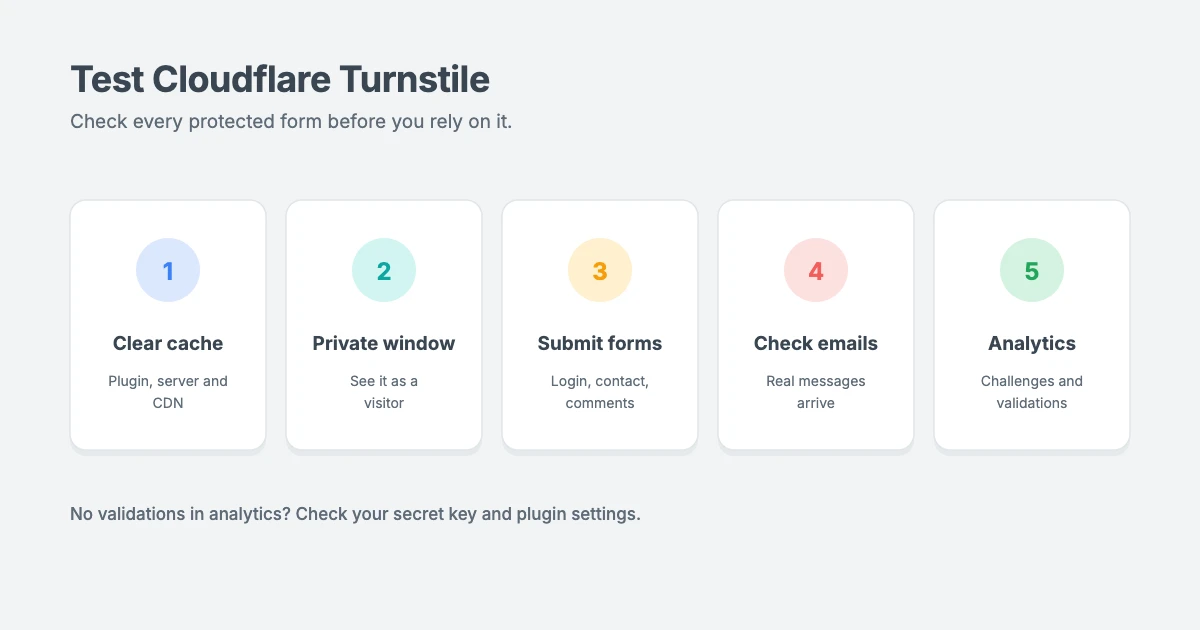
Before you rely on Turnstile, test every form you’ve protected:
- Clear your cache, including your caching plugin, server cache and CDN.
- Open your site in a private browser window, so you see it as a logged-out visitor.
- Submit each protected form, such as your contact form, login, registration and a test comment.
- Check that real submissions arrive, for example that your contact form emails reach your inbox.
- Check Turnstile Analytics in your Cloudflare dashboard to see how many challenges were issued and solved.
If your analytics show challenges but no validations, your site may not be verifying tokens with Cloudflare. Cloudflare says this server-side check is essential, so make sure your plugin is set up correctly and your secret key is correct.
Troubleshooting Cloudflare Turnstile in WordPress
If something isn’t working, these are the most common causes:
- The widget doesn’t appear. Check that you added the right site key and that your domain is listed in the widget’s hostname settings. If you’re testing on a staging site, add its hostname or create a separate widget for it.
- The widget is broken or keeps loading. Script optimisation settings, such as combining, delaying or deferring JavaScript, can break Turnstile. Exclude the Turnstile script from these optimisations in your caching plugin, then clear your cache.
- Forms won’t submit. Make sure you aren’t running two CAPTCHAs on the same form, and that your secret key matches your site key.
- You’re locked out of your login page. If Turnstile stops you logging in, connect to your site with your hosting file manager or FTP and temporarily rename the Turnstile plugin’s folder in
wp-content/pluginsto deactivate it. - Spam still gets through. Turnstile blocks automated bots, but it can’t stop humans sending spam by hand. Combine it with your form plugin’s other spam protection, comment moderation and a strong security setup.
Cloudflare Turnstile is one layer of security
Cloudflare Turnstile makes life harder for bots, but it’s only one part of a secure website. For stronger protection, also:
- Use strong, unique passwords and turn on two-factor authentication for every admin account.
- Keep WordPress, your theme and your plugins up to date.
- Consider changing your WordPress login URL to cut down on bot traffic.
- Follow our guide on how to harden WordPress security.
- Take regular off-site backups, so you can recover quickly. Our tutorial on how to back up WordPress to Dropbox shows you how.
If your site has already been attacked, follow our hacked WordPress site recovery checklist.
WPInterface themes for business websites
Contact forms and lead forms are at the heart of every business website. WPInterface Pro themes are lightweight, translation ready and RTL compliant, so your forms load quickly for every visitor.
Business Interface Pro
Business Interface Pro is a lightweight multipurpose business theme with 12 starter sites, ideal for company websites that need to be fast and professional.

Corporate Interface Pro
Corporate Interface Pro is a modern corporate theme for companies, agencies and consultants, with services, client stories, results and a booking button.

Portfolico Pro
Portfolico Pro is a fast personal portfolio and resume theme for designers, photographers and freelancers, with a fixed side panel and photo grids.

You can see all our themes on the WordPress themes page.
Let us secure your site for you
If you’d rather have an expert set up spam and bot protection, the WPInterface team can help:
- Malware Removal and Security Hardening: we start work within 4 hours, with a 30-day reinfection guarantee.
- Must-Have Plugins Installation: for $59, we install and configure the essential plugins every site needs.
- WordPress Care Plans: updates, backups and monitoring, so your protection keeps working.
- VIP Support: a $29 priority ticket for quick expert help.
Frequently asked questions
Is Cloudflare Turnstile free?
Yes. Cloudflare’s free plan includes up to 20 widgets, all widget types and unlimited challenges. An Enterprise plan is available for larger organisations.
Do I need to use Cloudflare’s CDN to use Turnstile?
No. Cloudflare says Turnstile works on any website, whether or not your traffic goes through Cloudflare. You only need a free Cloudflare account to create a widget.
Is Cloudflare Turnstile better than reCAPTCHA?
Turnstile is often easier for visitors, because most people never have to solve a puzzle. Which one suits you best depends on your forms, your plugins and your audience, but Turnstile is a strong choice for most WordPress sites.
Will Cloudflare Turnstile slow down my website?
Turnstile loads a small script from Cloudflare on pages with protected forms. Some plugins let you load it only where it’s needed or defer it, which keeps the impact small.
Can I use Cloudflare Turnstile on WooCommerce?
Yes. Many Turnstile plugins can protect WooCommerce checkout, login and registration forms, which helps stop fake orders and fake accounts.
What happens if a visitor fails the challenge?
The form won’t submit, and the visitor sees an error message asking them to try again. Most plugins let you customise this message.
Final thoughts
Cloudflare Turnstile is one of the easiest ways to stop bots without annoying your visitors. Create a free widget, add your keys to WordPress, protect your most important forms and test everything in a private window.
Pair it with strong passwords, two-factor authentication, regular updates and backups, and your WordPress site will be much better protected against spam and automated attacks.
Reactions
How did this make you feel?
Be the first to react
One reaction per visitor. Tap again to change or remove it.









Leave a reply