Seeing a “500 Internal Server Error” on your WordPress site is alarming. One minute your site works, the next every visitor sees a blank page or a short error message, and sometimes you’re locked out of the dashboard too. The good news is that the internal server error in WordPress is almost always fixable in a few minutes once you know where to look.
In this tutorial, we’ll explain what the 500 internal server error means, what usually causes it in WordPress, and how to fix it step by step. Each fix works even if you can’t log in to WordPress, using your host’s File Manager or an FTP client. We’ve ordered the fixes from the quickest and most common to the more involved, so work through them in order and stop as soon as your site is back.
What is the 500 internal server error?
The 500 internal server error is a general message that means something went wrong on the server, but the server can’t say exactly what. It isn’t specific to WordPress. Any website can show it, and the problem is on the server side, not with the visitor’s browser or internet connection.
You might see it in different ways depending on your server and browser:
- “500 Internal Server Error”
- “HTTP Error 500”
- “This page isn’t working. example.com is currently unable to handle this request.”
- A completely blank white page
- “There has been a critical error on this website” (WordPress’s own message for fatal PHP errors, which often appears alongside a 500 status)
Because the message is so vague, fixing the internal server error in WordPress is really about finding the cause. The steps below help you narrow it down quickly.
What causes the internal server error in WordPress?
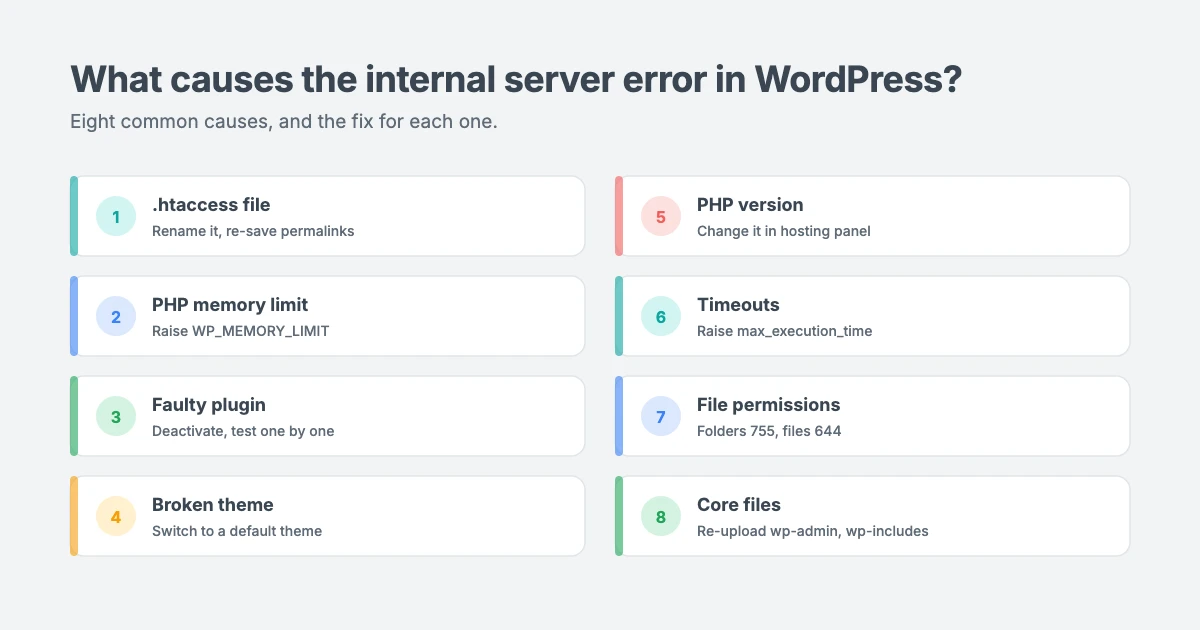
In our experience supporting WordPress sites, the 500 error almost always comes from one of these:
| Cause | What happens | Fix |
|---|---|---|
| Corrupt .htaccess file | Broken rewrite rules stop the server processing requests | Rename it and generate a fresh one |
| PHP memory limit reached | A plugin or theme needs more memory than allowed | Increase the PHP memory limit |
| Faulty plugin | A plugin update or conflict causes a fatal PHP error | Deactivate plugins and test one by one |
| Broken theme | Theme code fails after an update or edit | Switch to a default theme |
| Incompatible PHP version | Your host upgrades PHP and old code breaks | Change the PHP version in your hosting panel |
| Timeouts | A long task exceeds the maximum execution time | Increase limits or fix the slow task |
| Wrong file permissions | The server can’t read or run files | Reset permissions to 644 and 755 |
| Corrupted core files | A failed update damages WordPress files | Re-upload fresh core files |
Before you start: back up your site
Some of these fixes involve editing or replacing files, so take a backup first if you can.
- If you can log in to WordPress, run a full backup with your backup plugin, or create a backup from your hosting control panel.
- If you can’t log in, use your host’s backup tool, or download your files with your host’s File Manager or an FTP client, and export your database with phpMyAdmin.
If your host keeps daily backups, check when the latest one was made. If the internal server error started after a recent change, restoring yesterday’s backup can be the fastest fix of all. For a step-by-step recovery plan, see our tutorial on what to do when a WordPress update breaks your site.
How to connect to your site files
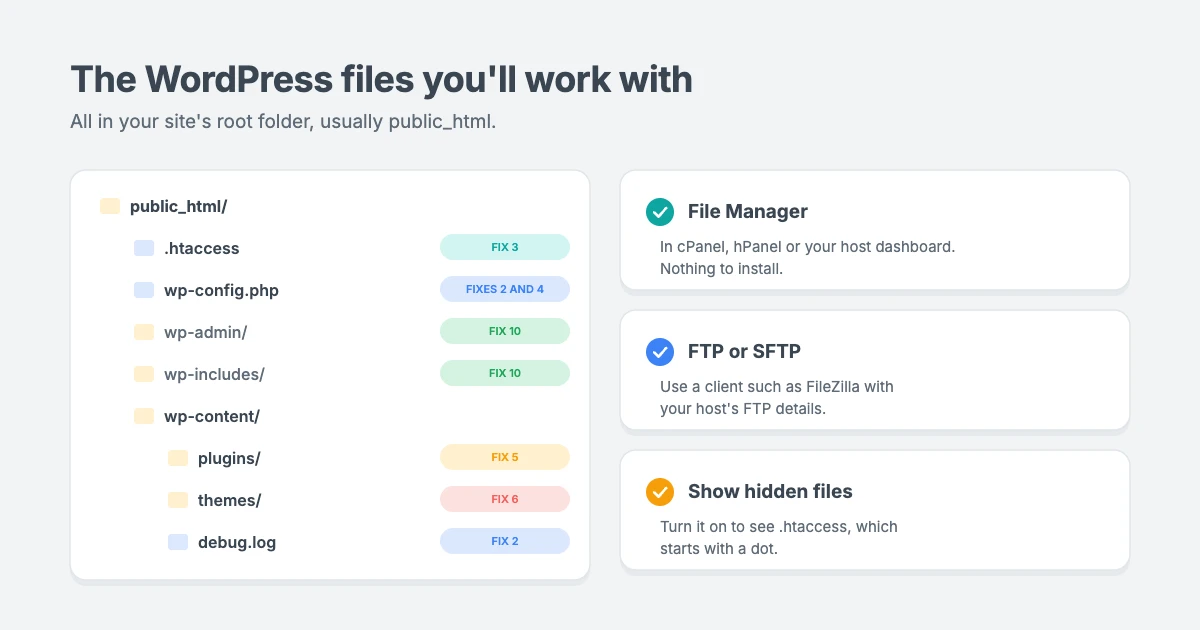
Most fixes below need access to your WordPress files. You can use either:
- Your host’s File Manager, found in cPanel, hPanel or your host’s dashboard. This works in your browser with nothing to install.
- An FTP or SFTP client such as FileZilla, using the FTP details from your hosting account.
Your WordPress files live in your site’s root folder, usually called public_html. It’s the folder that contains wp-admin, wp-content, wp-includes and wp-config.php.
How to fix the internal server error in WordPress
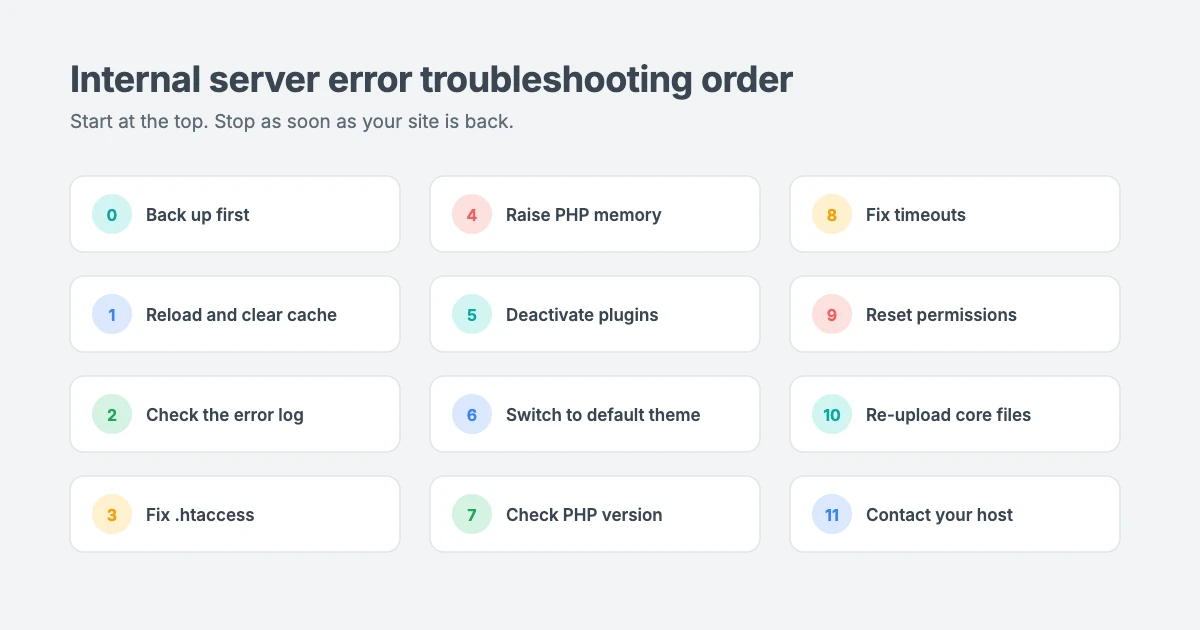
Work through these fixes in order. After each one, reload your site to see if the internal server error is gone.
Fix 1: Reload the page and clear your cache
Sometimes an internal server error is temporary, caused by a short server overload or a process that was restarting. Wait a minute, then reload the page.
If the internal server error persists, clear your caches so you’re not seeing an old copy of the internal server error:
- Browser cache: hard-reload the page with Ctrl+Shift+R on Windows or Cmd+Shift+R on Mac, or try a private window.
- WordPress caching plugin: clear the cache from the plugin’s settings if you can reach the dashboard.
- Server or CDN cache: clear the cache in your hosting panel or CDN, such as Cloudflare.
Fix 2: Check the error log to find the cause
Instead of guessing, look for the exact cause of the internal server error. It can save you trying every fix below.
Check your server error log. Most hosts show error logs in the hosting panel, often under “Logs” or “Error log”. Look for entries with a timestamp matching when the internal server error started. A line mentioning a specific plugin or theme folder tells you exactly where the problem is.
Turn on WordPress debug logging. Open wp-config.php in your File Manager and add these lines above the line that says /* That's all, stop editing! */:
define( 'WP_DEBUG', true );
define( 'WP_DEBUG_LOG', true );
define( 'WP_DEBUG_DISPLAY', false );
Reload your site, then open wp-content/debug.log. Look for lines starting with “PHP Fatal error”. They name the file causing the problem. The WordPress debugging documentation explains these settings in more detail.
Important: when you’ve fixed the internal server error, set WP_DEBUG back to false and delete debug.log, because the log can reveal information about your site.
Check your email too. WordPress’s recovery mode often emails the site administrator a link to log in safely, along with the name of the plugin or theme that caused the fatal error.
Fix 3: Fix a corrupt .htaccess file
On Apache and LiteSpeed servers, a broken .htaccess file is one of the most common causes of the internal server error in WordPress. It can be damaged by a plugin, a manual edit or a failed update.
- In your File Manager, open your site’s root folder. If you can’t see
.htaccess, turn on “Show hidden files”, because it starts with a dot. - Rename
.htaccessto.htaccess_old. This keeps a copy while stopping the server using it. - Reload your site. If it loads, the
.htaccessfile was the problem. - Log in to WordPress, go to Settings » Permalinks and click Save Changes without changing anything. WordPress creates a fresh, clean
.htaccessfile.
If you can’t reach the dashboard, create a new file called .htaccess in the root folder and add WordPress’s default rules:
# BEGIN WordPress
<IfModule mod_rewrite.c>
RewriteEngine On
RewriteBase /
RewriteRule ^index\.php$ - [L]
RewriteCond %{REQUEST_FILENAME} !-f
RewriteCond %{REQUEST_FILENAME} !-d
RewriteRule . /index.php [L]
</IfModule>
# END WordPress
If your old .htaccess file contained rules from security or caching plugins, you can re-save those plugins’ settings later to add their rules back. Also check for extra .htaccess files in folders such as wp-content or wp-content/uploads, which some security plugins add.
Fix 4: Increase the PHP memory limit
If a plugin or theme needs more memory than your server allows, PHP stops and the server returns an internal server error. This often shows up when uploading images, running an import or using the dashboard.
Open wp-config.php and add this line above /* That's all, stop editing! */:
define( 'WP_MEMORY_LIMIT', '256M' );If the internal server error only happens in the dashboard, you can also add a higher limit for the admin area:
define( 'WP_MAX_MEMORY_LIMIT', '512M' );Save the file and reload your site. Note that WordPress can’t go above the maximum your hosting plan allows. If you still see memory errors, raise the PHP memory_limit in your hosting panel’s PHP settings, or ask your host to increase it.
Increasing memory fixes the symptom. If the internal server error came back after a plugin update or a new plugin, it’s worth finding which one is using so much memory, using the next fix.
Fix 5: Deactivate all plugins
A faulty plugin, or a conflict between two plugins, is one of the top causes of the WordPress internal server error, especially straight after an update.
If you can log in, go to Plugins » Installed Plugins, select all plugins, choose Deactivate from the bulk actions menu and click Apply. If the internal server error disappears, reactivate plugins one at a time, reloading your site after each, until the error returns. The last plugin you activated is the cause.
If you can’t log in:
- In your File Manager, open
wp-content. - Rename the
pluginsfolder toplugins_off. WordPress can’t find your plugins, so it deactivates them all. - Reload your site. If it loads, a plugin was the cause.
- Rename
plugins_offback toplugins. Your plugins are still installed but inactive. - Log in and reactivate plugins one by one to find the faulty one.
To test a single plugin you suspect, rename just that plugin’s folder inside wp-content/plugins instead. Once you find the faulty plugin, keep it deactivated, update it, roll back to the previous version, or contact its developer.
Fix 6: Switch to a default theme
If plugins aren’t behind the internal server error, your theme might be, particularly after a theme update or a code edit in functions.php.
If you can log in, go to Appearance » Themes and activate a default WordPress theme such as Twenty Twenty-Five.
If you can’t log in, open wp-content/themes and rename your active theme’s folder, for example from mytheme to mytheme_off. WordPress falls back to a default theme if one is installed. If no default theme is installed, upload one from WordPress.org into the themes folder.
If the error goes away, the theme is the cause. Undo any recent code changes, update the theme, or contact the theme developer. If you use a WPInterface theme, our support team will help you find the problem.
Fix 7: Check your PHP version
When a host upgrades the server’s PHP version, older plugins or themes that haven’t been updated can break and cause an internal server error. Very old PHP versions can also stop newer plugins working.
- Open the PHP settings in your hosting panel, often called “PHP Configuration” or “Select PHP version”.
- Note the current version, then switch to the version WordPress recommends, or temporarily back to the previous version if the error started right after a PHP change.
- Reload your site.
Long term, it’s best to update any plugin or theme that doesn’t support current PHP versions, rather than staying on an old, unsupported version. You can see WordPress’s current PHP recommendations on WordPress.org.
Fix 8: Fix timeouts and execution limits
If the internal server error appears only during long tasks, such as importing content, running a backup or processing a large upload, the server may be stopping the process because it ran too long.
- Increase
max_execution_timein your hosting panel’s PHP settings, for example to 300 seconds. - Split big imports into smaller batches.
- Schedule heavy tasks such as backups for quiet times of day.
If timeouts happen often, your hosting plan may not have enough resources for your site.
Fix 9: Reset file and folder permissions
If files can’t be read or run by the server, WordPress can’t load. Wrong permissions sometimes happen after a migration or a manual upload.
The standard WordPress permissions are:
- Folders: 755
- Files: 644
- wp-config.php: 640 or 600 on many hosts, for extra security
Most File Managers let you change permissions by right-clicking a file or folder and choosing “Permissions” or “Change permissions”. If many files are wrong, ask your host to reset them for you, which is quicker and safer than changing them one by one.
Fix 10: Re-upload WordPress core files
If a WordPress update was interrupted, core files can be damaged. Replacing them with fresh copies doesn’t touch your content, themes, plugins or uploads.
- Download the latest version of WordPress from WordPress.org and unzip it on your computer.
- Delete the
wp-contentfolder from the unzipped files, so you don’t overwrite your own content. - Upload the
wp-adminandwp-includesfolders and the remaining root files to your site’s root folder, choosing to overwrite existing files. - Don’t replace your existing
wp-config.phpfile.
Reload your site. If a damaged core file was the cause, the internal server error will be gone.
Fix 11: Contact your hosting provider
If none of these fixes work, the problem may be on the server itself, such as a misconfiguration, a resource limit or a server outage. Contact your host’s support team and tell them:
- When the error started.
- What you changed just before, such as an update, a new plugin or a PHP change.
- Which fixes you’ve already tried.
Hosts can see detailed server logs that explain an internal server error, which you might not have access to, and they can often spot the cause straight away.
How to prevent the internal server error
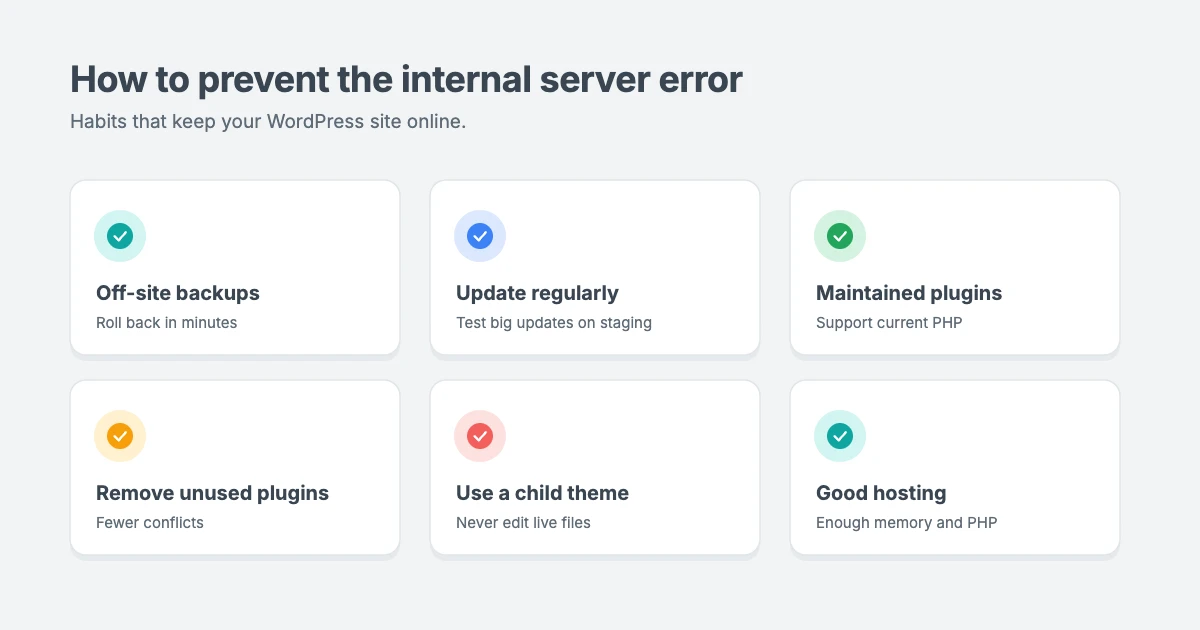
Once your site is back, a few habits make the internal server error in WordPress far less likely to return:
- Keep automatic backups stored off-site, so you can roll back quickly.
- Update plugins and themes regularly, and test big updates on a staging site first.
- Use well-maintained plugins and themes that support current PHP versions.
- Remove plugins you don’t use, which reduces the chance of conflicts.
- Avoid editing live theme files. Use a child theme or a code snippets plugin instead.
- Choose good hosting with enough memory and support for current PHP. See our guide to the best WordPress hosting.
- Monitor your site so you know as soon as it goes down.
Need help fixing the error right now?
If your site is down and you’d rather have an expert fix it, the WPInterface team can help:
- VIP Support: one priority ticket for $29 that skips the queue and goes straight to a senior engineer. It’s the fastest way to get a 500 error fixed.
- Malware Removal and Security Hardening: if a hack or injected code is causing the error, we clean your site by hand and close the security hole.
- WordPress Care Plans: weekly updates, daily off-site backups and monitoring, so problems are caught before visitors see them.
- WordPress Migration: if your host can’t give your site the resources it needs, we move it to a better one without downtime.
Frequently asked questions
What is the most common cause of the internal server error in WordPress?
The most common causes are a corrupt .htaccess file, a faulty plugin and an exhausted PHP memory limit. Checking your error log first usually tells you which one it is.
Will fixing the 500 error delete my content?
No. None of the fixes in this tutorial delete your posts, pages or media. Renaming files and folders is reversible, and re-uploading core files doesn’t touch wp-content. Taking a backup first keeps you completely safe.
Can a plugin cause a 500 internal server error?
Yes. A plugin update, a bug or a conflict between two plugins can cause a fatal PHP error that the server reports as a 500 error. Deactivating all plugins, then reactivating them one by one, finds the cause.
Why do I only see the error in the WordPress dashboard?
When the error only appears in the admin area, it’s often caused by the PHP memory limit, because the dashboard usually needs more memory than the front end. Try increasing the memory limit with WP_MAX_MEMORY_LIMIT.
How do I fix the error if I can’t log in to WordPress?
Use your host’s File Manager or an FTP client. You can rename .htaccess, rename the plugins folder or your theme folder, and edit wp-config.php without logging in to WordPress.
Is the 500 error bad for SEO?
A short outage won’t hurt your rankings, but if search engines repeatedly see an internal server error over several days, they may crawl your site less often and eventually drop pages. Fixing the error quickly protects your traffic.
Can a hacked site cause a 500 error?
Yes. Malicious code injected into .htaccess, theme or plugin files can break your site. If you find unfamiliar code or files, get your site cleaned properly rather than just deleting the error.
Conclusion
The internal server error in WordPress looks serious, but it usually has a simple cause. Start by checking your error log, then fix the .htaccess file, increase the PHP memory limit, and test your plugins and theme. Most sites are back online within a few minutes. If you’re stuck or your site is critical to your business, our VIP Support team can fix it for you.
Reactions
How did this make you feel?
Be the first to react
One reaction per visitor. Tap again to change or remove it.



Leave a reply