You’ve probably tapped through stories on social media apps: full-screen slides with photos, short videos and a few words of text. Google Web Stories bring that same format to your own website.
Unlike social media stories, Google Web Stories are ordinary web pages that you own. They don’t disappear after 24 hours, you can link to them from anywhere, and they can appear in Google Search and Google Discover.
In this tutorial, we’ll show you how to add Google Web Stories to your WordPress site, how to create and publish your first story, how to display stories on your site and how to give them the best chance of appearing on Google.
What are Google Web Stories?
Google Web Stories are a free, open format for visual storytelling on the web. Each story is a series of full-screen pages that visitors tap or swipe through, combining images, video, audio, animation and text.
Under the hood, a Web Story is a web page built with AMP, a framework designed for fast-loading pages. That means each story has its own URL, can be shared and embedded anywhere, and can be indexed by search engines like any other page.
Why use Google Web Stories?
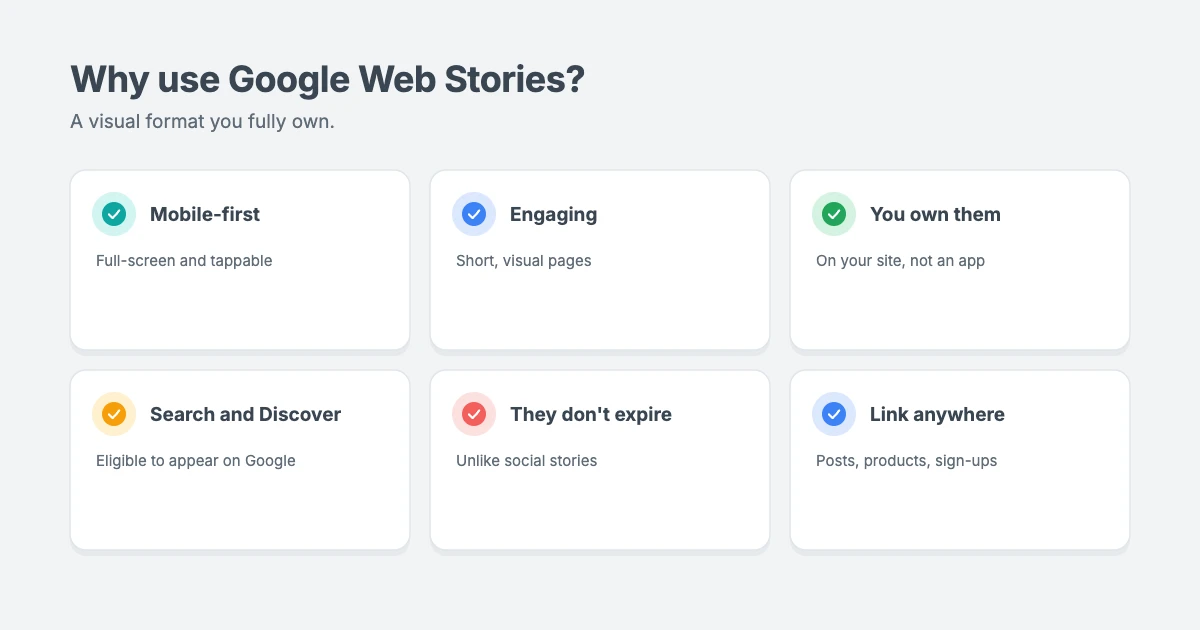
- They’re made for mobile. Stories fill the screen and are easy to tap through on a phone.
- They’re engaging. Short, visual pages are a quick way to share tips, product highlights, recipes, travel guides or news.
- You own them. Your stories live on your website, not on a social media platform that controls who sees them.
- They can appear on Google. According to Google, Web Stories can appear as results in Google Search and as cards in the Discover feed.
- They work with your existing content. You can link from a story to your blog posts, products or sign-up pages.
Before you begin
The easiest way to create Google Web Stories in WordPress is with the free Web Stories plugin, which is developed by Google.
An important note: at the time of writing (October 2026), the Web Stories plugin page on WordPress.org says the plugin was last updated about a year ago and hasn’t been tested with the latest three major WordPress releases. It may still work well, but we recommend:
- Taking a full backup before you install it.
- Testing it on a staging site first, so you can check it works with your version of WordPress, your theme and your plugins.
- Checking the plugin page for updates and support replies before you rely on it.
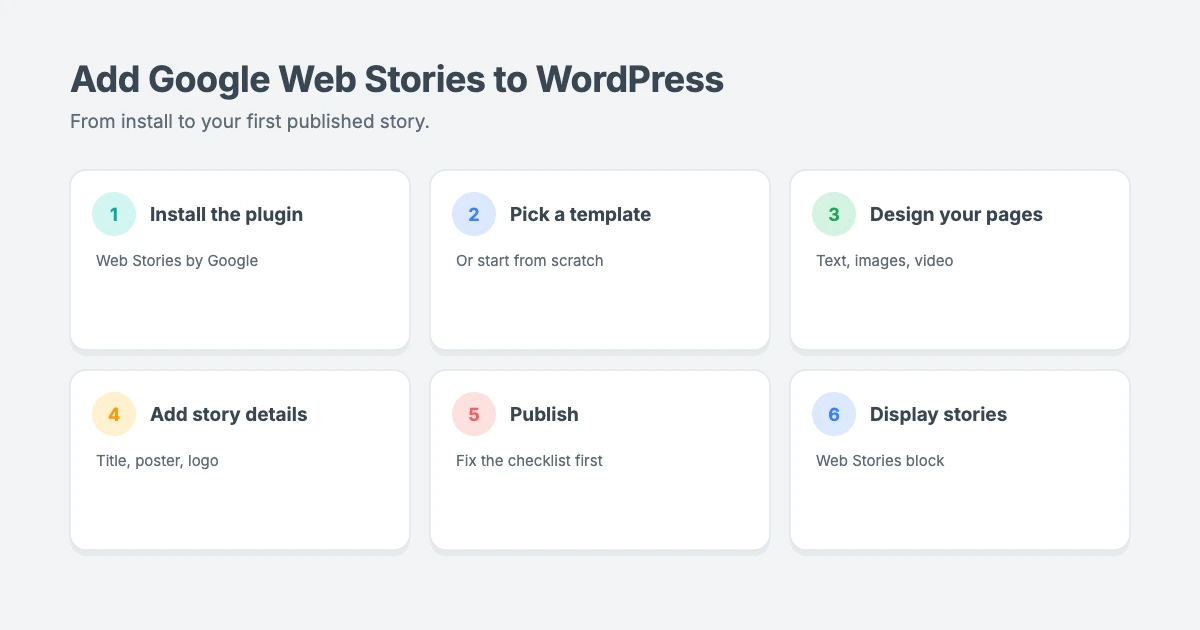
Step 1: Install the Web Stories plugin
- In your WordPress dashboard, go to Plugins » Add New.
- Search for Web Stories.
- Find the plugin by Google, then click Install Now and Activate.
After activation, you’ll see a new Stories menu in your dashboard.
Step 2: Create your first story
- Go to Stories » Dashboard.
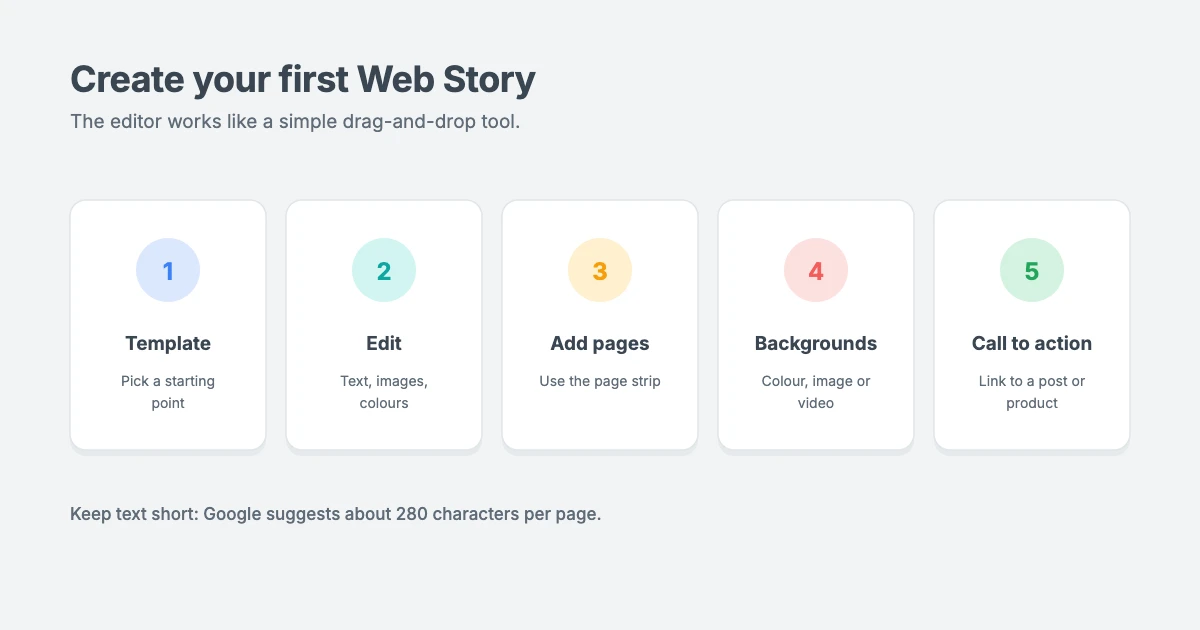
- Choose a template to get started quickly, or click Create New Story to start from scratch. If you’re new to Web Stories, a template is the easiest place to begin.
- The story editor opens. It works like a simple drag-and-drop design tool.
Here’s how to build your story:
- Edit any element by clicking on it. You can change text, swap images and adjust colours.
- Add new elements from the left-hand panel, including text, images, video, audio, shapes and stickers.
- Use the page strip at the bottom of the screen to move between pages, add new pages, reorder them or delete them.
- Set a page background by clicking an empty part of the page and choosing a colour, image or video.
- Add a call to action on a page, so readers can tap through to a blog post, product or sign-up page.
Tips for great Google Web Stories
- Keep text short. Google suggests keeping text to roughly 280 characters per page, about the length of a tweet.
- Use high-quality, vertical images and video. Stories are designed for portrait screens.
- Tell a story. Give your story a clear beginning, middle and end, rather than a random set of slides.
- Link stories from your site, such as your home page or related category pages, as Google recommends.
- Make text readable. Use high contrast between text and backgrounds, and avoid placing text over busy parts of images.
- Add alt text to your images, so the story is accessible to everyone.
Step 3: Add your story details
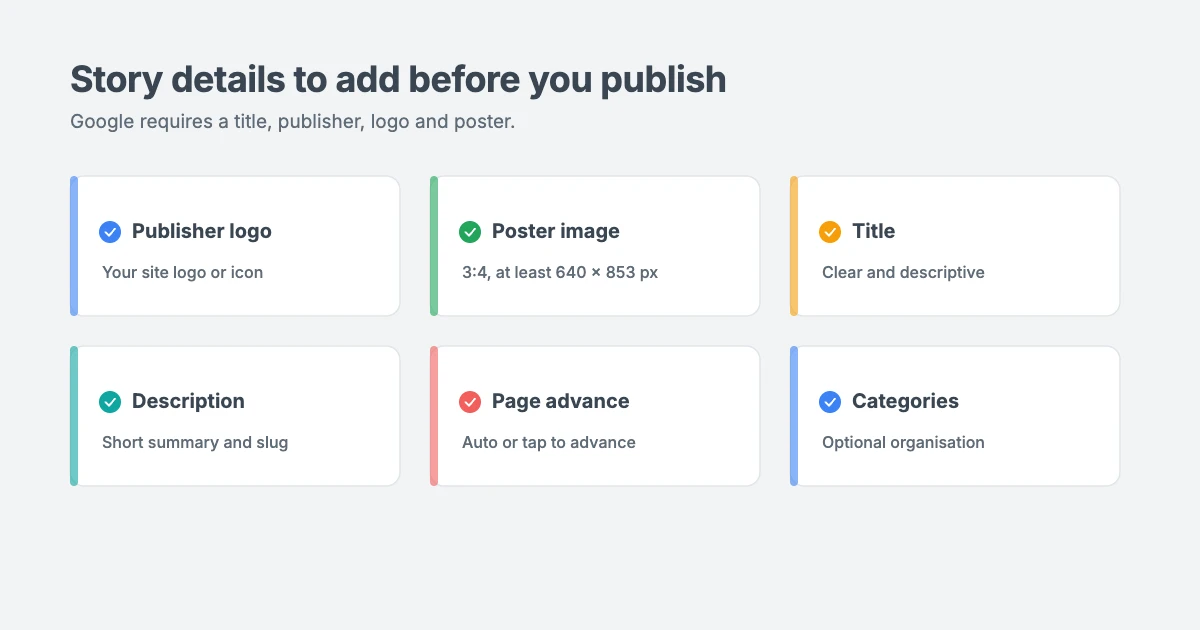
Before you publish, click the Document tab in the editor’s side panel and fill in the details that help your story display properly on your site and on Google:
- Publisher logo: upload your site logo or site icon.
- Poster image: this is the cover image shown in previews. Google recommends a portrait image in a 3:4 ratio, at least 640 × 853 pixels, without text in the image.
- Title: write a clear, descriptive title.
- Description and URL slug: add a short summary and a readable slug.
- Page advancement: choose whether pages advance automatically after a set time or only when the reader taps.
- Categories and tags: optionally organise your stories, just like posts.
Google says a title, publisher name, publisher logo and portrait poster image are required for a Web Story to be eligible for Google Search and Discover, so don’t skip these.
Step 4: Publish your story
When you’re happy with your story, click Publish in the top right corner of the editor. The plugin shows a checklist of any issues to fix, such as missing alt text or a poster image that’s too small. Review the list, fix what you can, then publish.
Each story gets its own URL on your site, so you can share it on social media, in emails or anywhere else.
Step 5: Display Google Web Stories on your site
Web Stories are stored as their own content type in WordPress, so they don’t automatically appear in your blog feed. To show them to visitors:
- Edit the post or page where you want to show your stories.
- Click the + block inserter and add the Web Stories block.
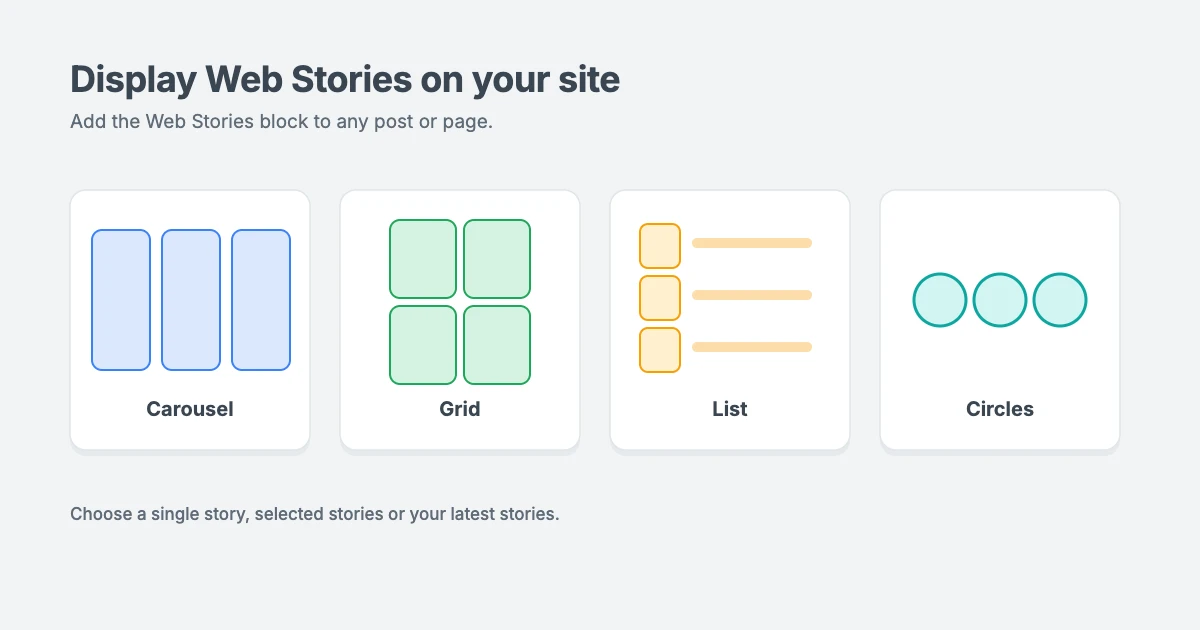
- In the block settings, choose whether to show a single story, selected stories or your latest stories.
- For multiple stories, choose a layout, such as a carousel, grid, list or circles.
- Update or publish the page.
You can also link to individual stories from your menus, blog posts or sidebar, and stories have their own archive page.
Step 6: Connect analytics and other settings
Go to Stories » Settings to review the options for your Google Web Stories:
- Google Analytics: add your Google Analytics measurement ID to track story views. You’ll find it in Google Analytics under Admin » Data Streams, after you select your website stream.
- Monetisation: the plugin includes options for showing ads in your stories.
- Integrations: if you run an online store, check the shopping options to feature products in your stories.
Not sure which analytics tool to use? Our opinion piece on Google Analytics vs Jetpack Stats compares the options.
How to help your stories appear on Google
Google lists a few steps to make Web Stories eligible for Search and Discover:
- Make sure your story is valid AMP. Use Google’s Web Stories test tool or the URL Inspection tool in Google Search Console.
- Add the required metadata, including the title, publisher, publisher logo and poster image.
- Help Google find your stories. Link to them from your site and include them in your XML sitemap.
- Don’t block them. Check that your stories aren’t blocked by your robots.txt file or a noindex setting in your SEO plugin.
- Follow Google’s Web Story content policies.
You can read Google’s full guide on how to enable Web Stories on Google.
Appearing on Google isn’t guaranteed. Like any other page, your stories need to be useful, original and well made.
Ideas for Google Web Stories
Not sure what to create? Here are some ideas for Google Web Stories:
- Quick tutorials that summarise a longer blog post in a few steps
- Product highlights and new arrivals for online stores
- Travel guides, such as “5 things to do in a city”
- Recipes with one step per page
- Event recaps and behind-the-scenes looks at your business
- News roundups for publishers
WPInterface themes for visual storytelling
Google Web Stories work best alongside a fast, visual website. WPInterface Pro themes are lightweight, translation ready and RTL compliant.
SpeedNews Pro
SpeedNews Pro is a fast news and magazine theme with a trending ticker, mosaic headlines and three-column layouts, built for publishers who post every day.

MagFusion Pro
MagFusion Pro is a trendy blog and magazine theme with a tall card carousel and featured grid, a great fit for image-rich lifestyle and travel magazines.

SpeedBlog Pro
SpeedBlog Pro is a fast blog theme for travel, tech, personal and creative blogs, ideal for bloggers who love visual content.

You can see all our themes on the WordPress themes page.
Need a hand?
The WPInterface team can help you set up your site for visual content:
- News and Blog Website Setup: we set up your news or blog website, ready to publish.
- Technical SEO for WordPress: we fix indexing, sitemaps and structured data so Google can find your content.
- WordPress Speed Optimization: faster pages for better Core Web Vitals, starting with a free speed audit.
- VIP Support: a $29 priority ticket for quick expert help.
Frequently asked questions
Are Google Web Stories free?
Yes. Web Stories are a free, open format, and the Web Stories plugin for WordPress is free.
Do Google Web Stories help SEO?
They can. Web Stories are indexable web pages and can appear in Google Search and Discover. However, they need to be valid, include the required metadata and offer useful content, just like any other page.
Do Web Stories disappear after 24 hours?
No. Unlike social media stories, Google Web Stories stay on your website until you remove them.
Can I add links to my Web Stories?
Yes. You can add call-to-action links that send readers to your blog posts, products or other pages.
How much text should each page have?
Google suggests about 280 characters per page at most, roughly the length of a tweet. Let images and video do most of the storytelling.
Is the Web Stories plugin still maintained?
At the time of writing, the plugin hasn’t been updated for about a year. Test it on a staging site with your version of WordPress before using it on your live site, and check the plugin page for updates.
Final thoughts
Google Web Stories are a fun, visual way to share your content, and they can help you reach new readers through Google Search and Discover.
Install the Web Stories plugin, start with a template, add a strong title, poster and logo, then display your stories on your site with the Web Stories block. Just remember to test the plugin on a staging site first, and keep an eye on updates.
Reactions
How did this make you feel?
Be the first to react
One reaction per visitor. Tap again to change or remove it.




Leave a reply