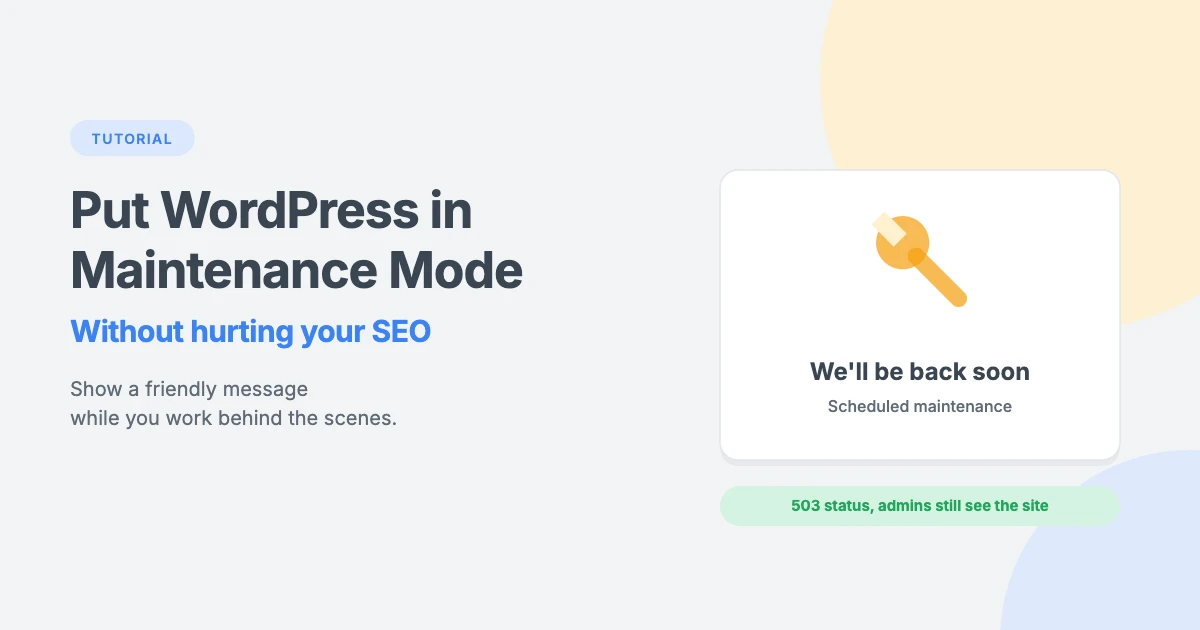
Sometimes you need to make big changes to your website, such as a redesign, a theme switch or a major store update. While you work, your site may look broken, and visitors who arrive at the wrong moment could leave with a bad impression.
WordPress maintenance mode solves this. It shows visitors a friendly “we’ll be back soon” message while you and your team keep working on the site behind the scenes.
In this tutorial, we’ll show you how to put your WordPress site in maintenance mode step by step, using a simple code snippet, a plugin or your hosting tools, and how to do it without hurting your SEO.
When should you use WordPress maintenance mode?
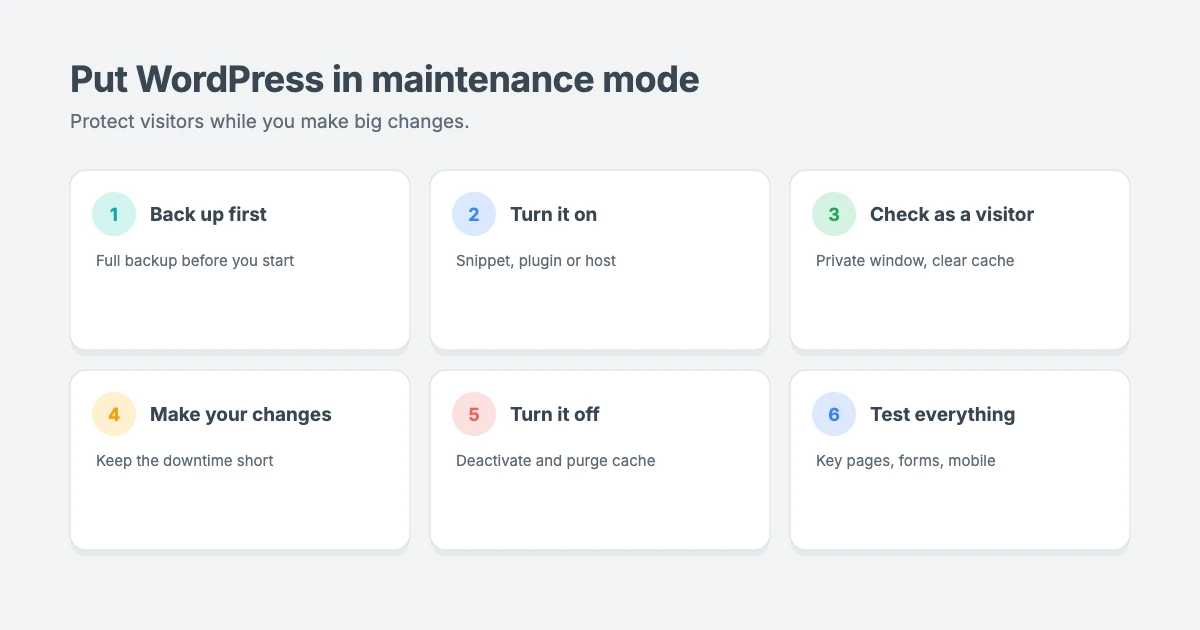
You don’t need WordPress maintenance mode for everyday tasks. Publishing posts, updating plugins one at a time or changing a menu usually takes seconds and won’t break your site.
WordPress maintenance mode is useful when:
- You’re redesigning your site or switching to a new theme.
- You’re making big changes to an online store, where customers could place orders during the work.
- You’re moving or restructuring content, such as changing permalinks or merging categories.
- You’re fixing a serious problem, such as cleaning up after a hack.
- You’re testing a major new feature that changes how your site works.
Use a staging site when you can
The best way to make big changes is on a staging site, which is a private copy of your website. You can work there without visitors seeing anything, then push your changes live when they’re ready. Many hosts offer one-click staging.
WordPress maintenance mode is the next best option when staging isn’t available, or for the short time you need to push changes live.
WordPress has its own short maintenance mode
When you update WordPress, a theme or a plugin, WordPress briefly puts your site into maintenance mode by itself. Visitors see a “Briefly unavailable for scheduled maintenance” message for a few seconds, and it disappears when the update finishes.
If that message doesn’t go away, follow our guide on how to fix WordPress stuck in maintenance mode.
Before you begin
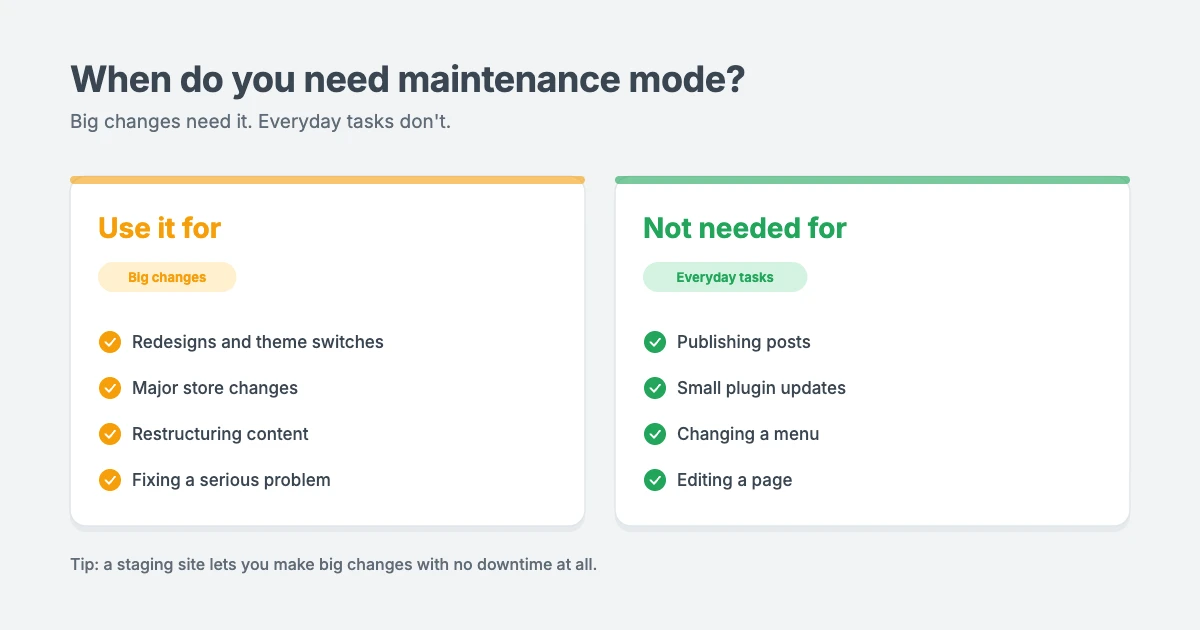
- Take a full backup of your site, so you can restore it if something goes wrong.
- Choose a quiet time, when your site gets the fewest visitors.
- Let regular visitors know in advance if the work will take a while, for example by email or on social media.
- Keep it short. Plan the work so your site is in maintenance mode for as little time as possible.
Method 1: Put WordPress in maintenance mode with a code snippet
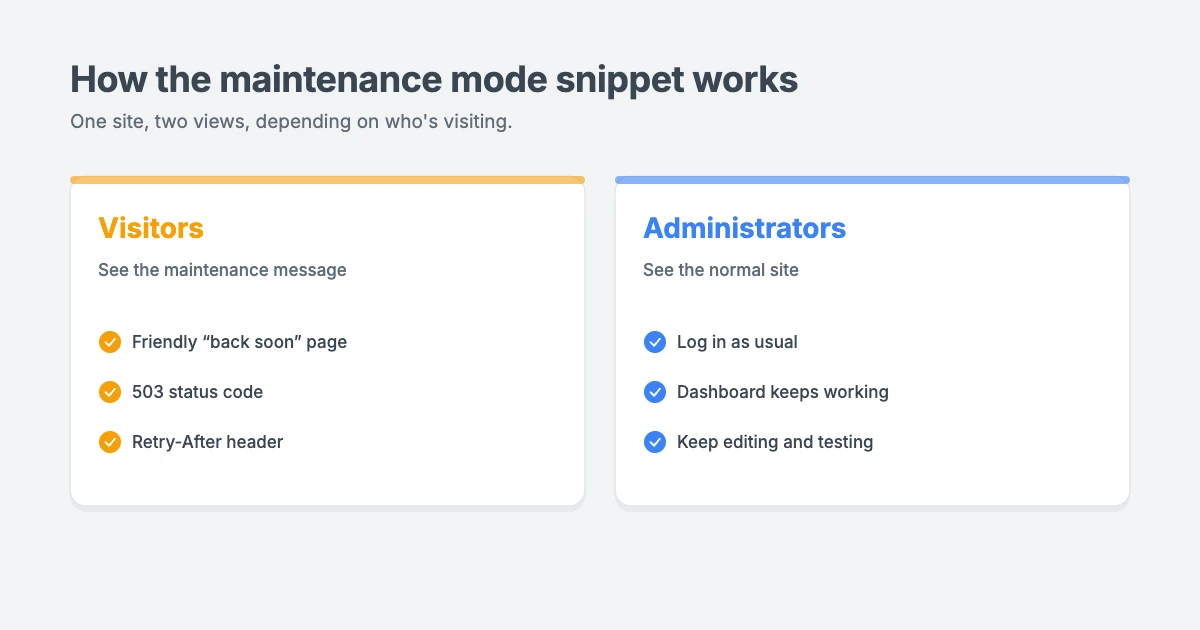
This is a lightweight way to turn on WordPress maintenance mode without a dedicated plugin. Visitors see a simple WordPress maintenance mode message, while you can still see and work on your site when you’re logged in as an administrator.
Add the code using a code snippets plugin, which is the safest option for beginners, or your child theme’s functions.php file. Avoid editing the parent theme, because your changes would be lost when it updates.
// Put the site in maintenance mode for everyone except administrators.
add_action( 'template_redirect', function () {
if ( current_user_can( 'manage_options' ) ) {
return;
}
header( 'Retry-After: 3600' );
wp_die(
'<h1>We’ll be back soon</h1><p>We’re doing some scheduled maintenance. Please check back shortly.</p>',
'Under maintenance',
array( 'response' => 503 )
);
} );Here’s what the code does:
- It uses WordPress’s built-in
wp_die()function and only affects the front of your site. Your login page and dashboard keep working, so you won’t lock yourself out. - Administrators see the normal site. Everyone else, including logged-out visitors and other user roles, sees the maintenance message.
- It sends a 503 Service Unavailable status code. This tells search engines the site is temporarily unavailable, rather than gone for good.
- It adds a Retry-After header of 3,600 seconds, suggesting that search engines check back in about an hour.
You can change the heading and message to suit your site, for example by adding your email address or social media links.
To turn WordPress maintenance mode off, deactivate the snippet, or remove the code from your functions.php file. Then clear your cache, so visitors stop seeing the WordPress maintenance mode page.
Tip: if you use a code snippets plugin, give the snippet a clear name such as “Maintenance mode”, so you can find it quickly and switch it on or off whenever you need it.
Method 2: Use a maintenance mode plugin
If you want a branded maintenance page with your logo, colours, a countdown timer or an email signup form, a maintenance mode plugin is the easier option.
Go to Plugins » Add New in your dashboard and search for “maintenance mode” or “coming soon”. Choose a well-reviewed WordPress maintenance mode plugin that’s updated regularly, then look for these features:
- A 503 status code, so search engines know the downtime is temporary.
- Access controls, so you can choose which user roles can still see the site, such as editors or a client.
- Page exclusions, so important pages such as your login, account or contact pages stay available.
- A design editor or templates, so your maintenance page matches your brand.
- Scheduling, so maintenance mode can switch off automatically at a set time.
Once you’ve installed and activated your chosen plugin, design your maintenance page, choose who can access the site and turn maintenance mode on. When you’re finished, turn it off from the same settings page.
Method 3: Use your hosting control panel
Some hosting companies include a maintenance mode or “coming soon” switch in their control panel, as well as one-click staging sites. Check your hosting dashboard or ask your host’s support team what’s available on your plan.
This way of enabling WordPress maintenance mode is handy if you can’t log in to WordPress, or if you want maintenance mode to work at server level.
Check that maintenance mode is working
After you turn on WordPress maintenance mode, test it:
- Clear your cache, including your caching plugin, server cache and CDN. Otherwise, visitors may still see cached copies of your pages.
- Open your site in a private browser window, so you see it as a logged-out visitor.
- Check a few different pages, not just the homepage.
- Check that you can still log in and that your dashboard works.
If you use LiteSpeed Cache, as we do here at WPInterface, use the Purge All option from the LiteSpeed Cache menu after turning maintenance mode on and again after turning it off.
Maintenance mode and SEO
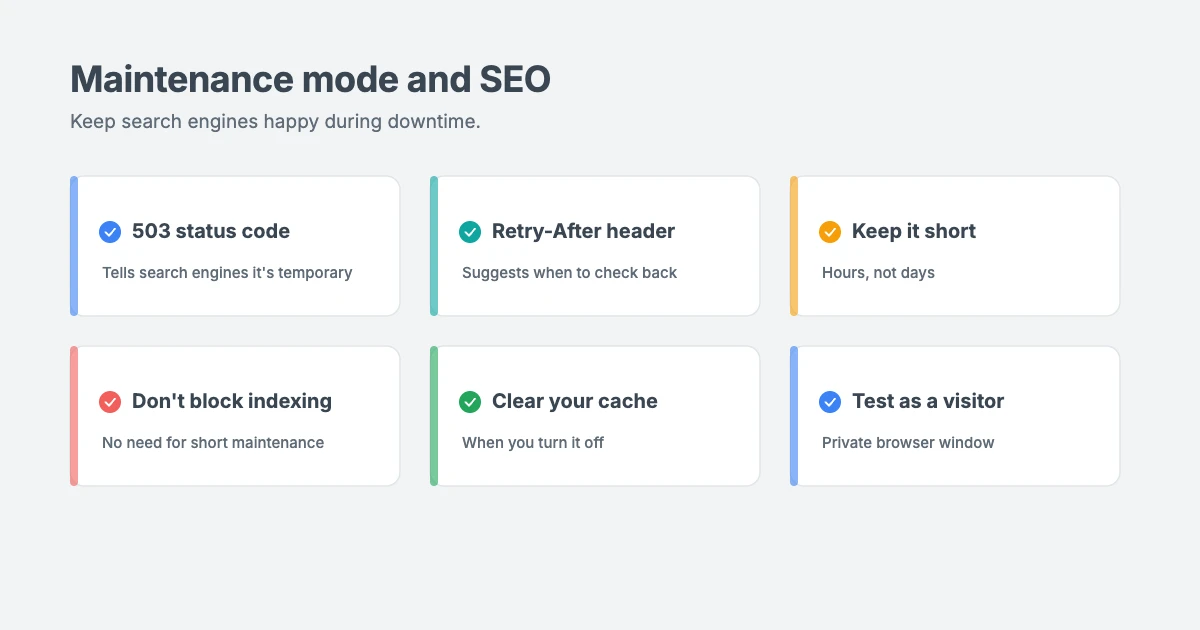
Short periods of WordPress maintenance mode won’t harm your search rankings, as long as you do it properly:
- Use a 503 status code. This tells search engines the downtime is temporary. Both the snippet above and good maintenance plugins do this.
- Keep it short. A few hours is fine. If your site stays unavailable for days, search engines may start dropping pages from their results.
- Don’t block search engines in your settings. There’s no need to tick “Discourage search engines from indexing this site” for short maintenance.
- Clear your cache when you finish, so search engines and visitors get your live pages again straight away.
What to put on your maintenance page
A good WordPress maintenance mode page reassures visitors and keeps them connected:
- A clear message that the site is being improved and will be back soon.
- An expected return time, if you know it.
- Your logo, so visitors know they’re in the right place.
- A way to contact you, such as an email address or phone number.
- Links to your social media, or an email signup form, so visitors can follow along.
After maintenance: your checklist
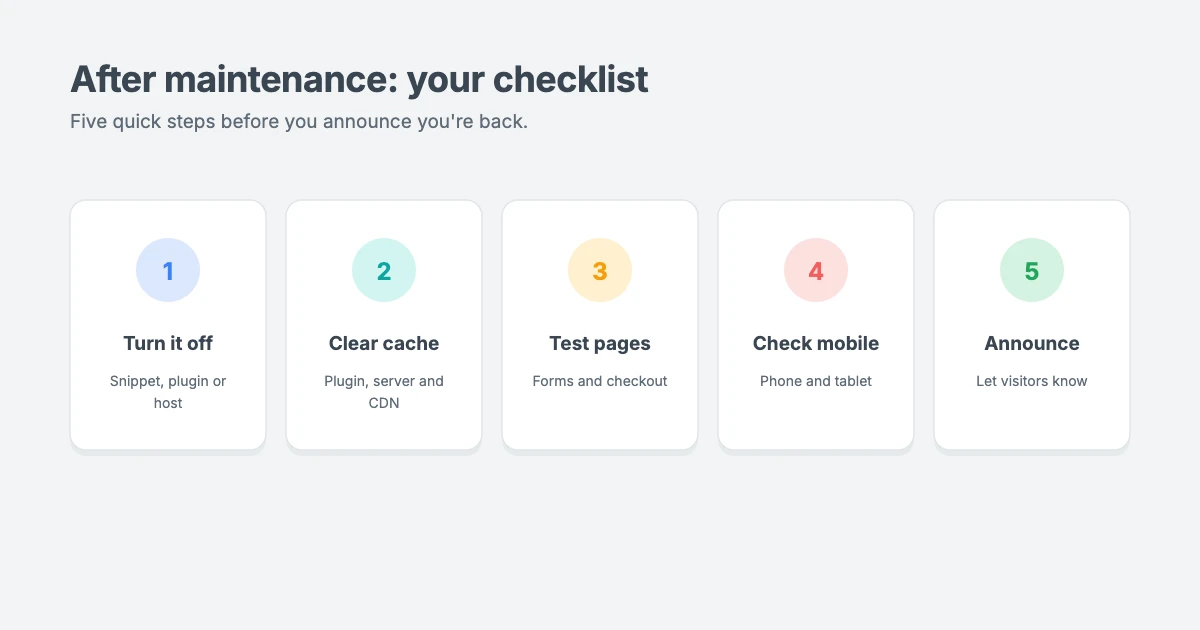
When your changes are finished:
- Turn off WordPress maintenance mode.
- Clear every cache layer, including your caching plugin, server cache and CDN.
- Test your key pages in a private window, including forms and checkout.
- Check your site on a phone as well as on a computer.
- Let visitors know you’re back, if you announced the maintenance.
Fast, reliable WPInterface themes
A redesign is the perfect time to switch to a faster theme. WPInterface Pro themes are lightweight, translation ready and RTL compliant, with design settings in the WordPress Customizer.
Business Interface Pro
Business Interface Pro is a lightweight multipurpose business theme with 12 starter sites, ideal for company websites that need to be fast and professional.

Corporate Interface Pro
Corporate Interface Pro is a modern corporate theme for companies, agencies and consultants, with services, client stories, results and a booking button.

SpeedBlog Pro
SpeedBlog Pro is a fast blog theme for travel, tech, personal and creative blogs, with a clean layout that keeps readers focused.

You can see all our themes on the WordPress themes page.
Let us handle maintenance for you
Rather not risk downtime? The WPInterface team can help:
- WordPress Care Plans: updates, backups and monitoring, handled carefully so your site stays online.
- WordPress Theme Customization: we tailor your theme to your brand, without breaking your live site.
- WordPress Migration: move your site to a new host safely, with no downtime.
- VIP Support: a $29 priority ticket for quick expert help.
Frequently asked questions
Does maintenance mode hurt SEO?
Not if it’s short and your site sends a 503 status code. Search engines understand that the downtime is temporary. Long periods of downtime can cause problems, so keep maintenance as brief as possible.
Can I see my site while it’s in maintenance mode?
Yes. With the code snippet in this guide, administrators see the normal site when logged in. Most maintenance plugins work the same way and let you choose other roles that can see the site too.
What’s the difference between maintenance mode and a coming soon page?
Maintenance mode is for existing sites that are temporarily unavailable. A coming soon page is for new sites that haven’t launched yet. Many plugins offer both.
How do I turn off WordPress maintenance mode?
Deactivate the code snippet or plugin you used, or turn off the setting in your hosting panel. Then clear your cache. If your site is stuck showing “Briefly unavailable for scheduled maintenance”, see our guide on how to fix WordPress stuck in maintenance mode.
Should I use a staging site instead?
If your host offers staging, it’s usually the better choice for big changes, because visitors never see any downtime. Use maintenance mode for the short time you need to push your changes live.
Final thoughts
Using WordPress maintenance mode is a simple way to protect your visitors’ experience while you make big changes. Use the code snippet for a lightweight solution, a plugin for a branded page, or your hosting tools if you can’t reach your dashboard.
Back up first, keep the downtime short, send a 503 status, clear your cache and test everything before you announce that you’re back.
Reactions
How did this make you feel?
Be the first to react
One reaction per visitor. Tap again to change or remove it.









Leave a reply