You take a great photo on your iPhone, try to upload it to WordPress, and notice the file ends in .heic. Will it work on your website?
Good news: since WordPress 6.7, WordPress can automatically convert HEIC images to JPG when you upload them, so they display in every browser. But it only works if your server has the right image tools.
In this tutorial, we’ll show you how HEIC to JPG conversion works in WordPress, how to check that your site supports it, what to do if it doesn’t, and how to turn it off if you’d rather handle images yourself.
What is a HEIC image?
HEIC (High Efficiency Image Container) is the image format Apple devices use by default to save photos. It’s based on the HEIF format and uses modern compression, so photos take up less storage space than JPGs of similar quality.
That’s great for your phone, but HEIC images in WordPress can cause problems on the web. Many web browsers can’t display HEIC images, so if you put a HEIC file on a web page, lots of visitors would see a broken image. JPG, on the other hand, works everywhere.
How WordPress converts HEIC to JPG automatically
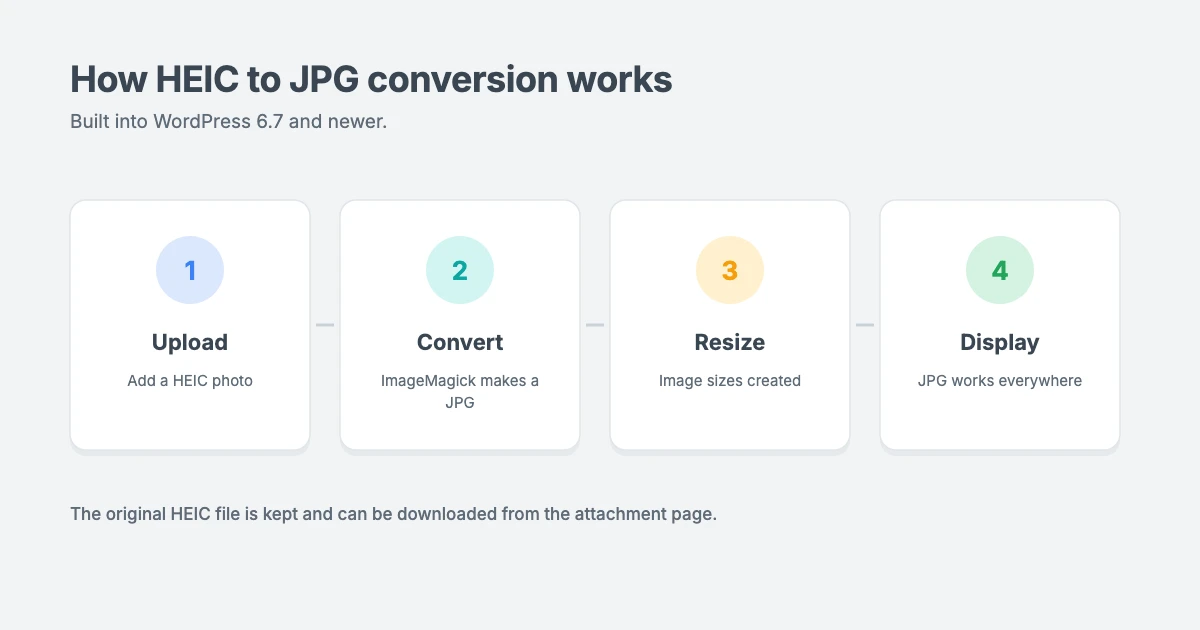
Starting with WordPress 6.7, HEIC uploads are automatically converted to JPEG on the server, when the server supports it. Here’s what happens:
- You upload a HEIC photo to the Media Library, or drag it into the block editor.
- WordPress uses your server’s ImageMagick library, through the PHP Imagick extension, to convert it to JPG.
- WordPress creates the usual image sizes from the JPG version.
- Your posts and pages use the JPG version, so it displays in every browser.
- The original HEIC file is kept, and you can download it from the image’s attachment page.
You don’t need a plugin for HEIC to JPG conversion. It’s built into WordPress, as explained in the official WordPress 6.7 developer note.
If conversion isn’t possible, WordPress shows a warning asking you to convert the image to JPG yourself, just as it did before version 6.7.
Step 1: Make sure you’re running WordPress 6.7 or newer
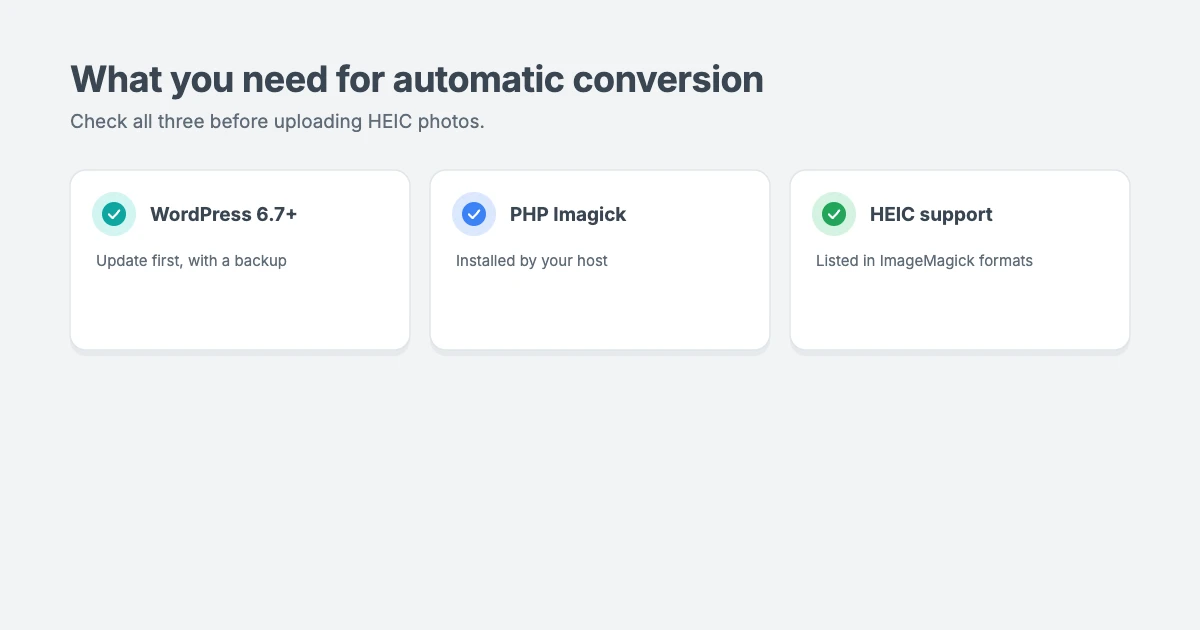
Go to Dashboard » Updates in your WordPress admin and check which version you’re running. If it’s older than 6.7, update WordPress first.
Before any major update, take a full backup. If something goes wrong, our guide to rolling back a WordPress update shows you how to recover quickly.
Step 2: Check whether your server supports HEIC
WordPress makes this easy to check:
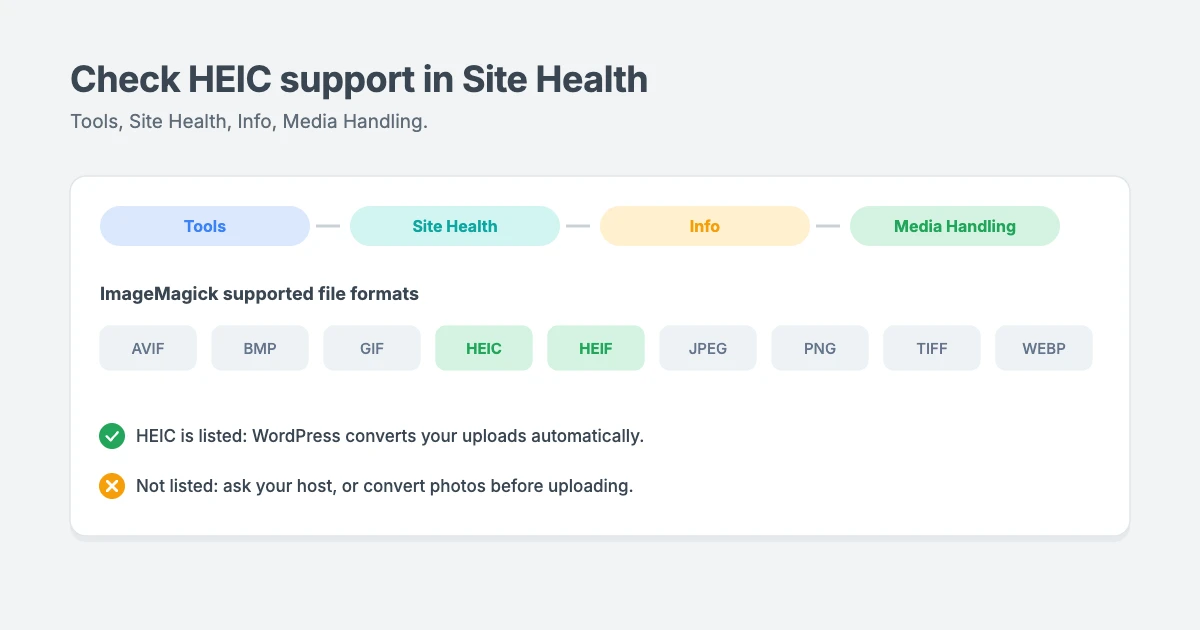
- Go to Tools » Site Health in your dashboard.
- Click the Info tab.
- Open the Media Handling section.
- Look at ImageMagick supported file formats.
If you see HEIC in that list, you’re all set for HEIC to JPG conversion. WordPress will convert HEIC uploads automatically.
If HEIC isn’t listed, or you don’t see an ImageMagick section at all, your server either doesn’t have Imagick installed or has an older ImageMagick build without HEIC support. Many hosts point to ImageMagick 7.0.8-26 or newer as the version that supports HEIC, but the Site Health list is the most reliable check.
Step 3: Upload a HEIC image and check the result
Now it’s time to test HEIC images in WordPress with a real upload.
Now test it with a real photo:
- Go to Media » Add New and upload a HEIC photo from your phone or computer.
- Wait a moment. Conversion happens on the server, so the thumbnail may take a second or two longer to appear than a normal JPG.
- Click the image to open its details. The file name should now end in .jpg.
- On the attachment page, you’ll also find a link to download the original HEIC image.
Tip: always insert images into posts using the block editor’s Image block or the Media Library. If you copy a file URL by hand, you might grab the link to the original HEIC file, which won’t display in many browsers.
What to do if your server doesn’t support HEIC
Without server support, HEIC images in WordPress won’t be converted, but you can still use your photos.
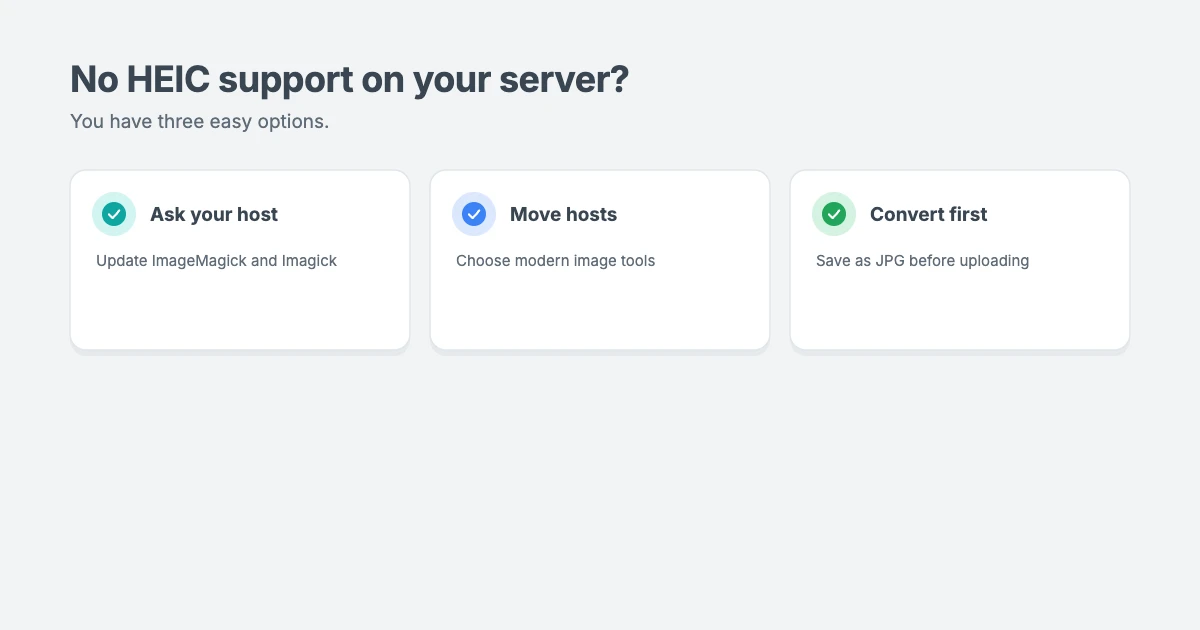
If Site Health doesn’t list HEIC, you have three options.
Option 1: Ask your host to update ImageMagick
Contact your hosting provider and ask them to install or update the PHP Imagick extension with an ImageMagick build that supports HEIC. Mention that you need HEIC support for automatic conversion in WordPress 6.7 and newer.
Many good hosts can do this quickly. If yours can’t, it may be a sign that your hosting is out of date in other ways too.
Option 2: Move to a host that supports it
If HEIC support matters to you, for example if you or your writers upload lots of iPhone photos, it may be worth moving to a host with modern image tools. Our WordPress Migration service can move your site with no downtime.
Option 3: Convert HEIC to JPG before uploading
You can always convert photos yourself before uploading:
- On a Mac: open the photo in Preview and choose File » Export, then pick JPEG. Dragging a photo out of the Photos app also usually saves it as a JPG.
- On Windows: open the photo in the Photos app and use Save as to save a JPG copy. You may need Microsoft’s HEIF and HEVC extensions installed.
- On an iPhone: go to Settings » Camera » Formats and choose Most Compatible. New photos will then be saved as JPG instead of HEIC.
How to turn off automatic HEIC conversion
Most site owners should leave automatic HEIC to JPG conversion on. But if you want to keep HEIC files as they are, for example because you process images another way, you can disable conversion with a small code snippet from the WordPress developer note.
Add this to a code snippets plugin or your child theme’s functions.php file:
add_filter( 'image_editor_output_format', function( $output_format ) {
    unset( $output_format['image/heic'] );
    return $output_format;
} );
Always test code changes on a staging site first, and take a backup before editing theme files.
Tips for using phone photos in WordPress
Automatic HEIC to JPG conversion makes uploading easy, but large phone photos can still slow your site down. Keep these tips in mind:
- Resize before uploading. Phone photos are often 4,000 pixels wide or more. Most blog layouts don’t need anything near that size.
- Compress your images and consider modern formats such as WebP for faster pages.
- Write alt text for every image, describing what it shows, for accessibility and SEO.
- Clean up unused media from time to time. Our guide on how to free up disk space in WordPress and our WP Media Cleanup review cover your options.
- Check for private information. Phone photos can include location data, so check your camera or export settings if that matters to you.
WPInterface themes for photo-led sites
Once HEIC to JPG conversion is working, a fast theme helps your photos shine.
If your site shares lots of photos, a fast theme keeps image-heavy pages quick. WPInterface Pro themes are lightweight, block editor ready, translation ready and RTL compliant.
SpeedBlog Pro
SpeedBlog Pro is a fast blog theme for travel, tech, personal and creative blogs, ideal for travel and photography blogs that lead with big images.

TruthBlog Pro
TruthBlog Pro is a clean lifestyle blog theme with a full-width hero, story cards, category filter tabs and a post grid that shows off your photos.

Portfolico Pro
Portfolico Pro is a fast personal portfolio and resume theme for designers, photographers and freelancers, with a fixed side panel and photo grids.

You can see all our themes on the WordPress themes page.
Need a hand?
If HEIC images in WordPress or other uploads aren’t working on your site, the WPInterface team can help:
- VIP Support: a $29 priority ticket for quick expert help with upload and image problems.
- WordPress Speed Optimization: we optimise your images and pages for Core Web Vitals, starting with a free speed audit.
- WordPress Care Plans: updates, backups and monitoring, so your site stays on a current version of WordPress.
Frequently asked questions
Can I upload HEIC images to WordPress?
Yes. WordPress 6.7 and newer automatically converts HEIC uploads to JPG, as long as your server’s ImageMagick supports HEIC.
Do I need a plugin for HEIC to JPG conversion?
No. Conversion is built into WordPress 6.7 and newer. You only need your server to support it.
Why does WordPress convert HEIC to JPG?
Many browsers can’t display HEIC images. Converting them to JPG makes sure every visitor can see your photos.
Is the original HEIC file deleted?
No. WordPress keeps the original HEIC file and links to it from the image’s attachment page, while your site displays the JPG version.
Will I lose image quality?
Converting between formats always changes the file slightly, but for web use the JPG version should look the same to your visitors. Note that the JPG may be larger than the original HEIC file.
How do I know if my host supports HEIC?
Go to Tools » Site Health » Info » Media Handling and check whether HEIC appears in ImageMagick’s supported file formats.
Final thoughts
HEIC to JPG conversion in WordPress is one of those small features that removes a real headache. If you’re on WordPress 6.7 or newer and your server lists HEIC in Site Health, you can upload iPhone photos straight to your site.
If it doesn’t, ask your host to update ImageMagick, or convert your photos to JPG before uploading. Either way, resize and compress your images so your pages stay fast.
Reactions
How did this make you feel?
Be the first to react
One reaction per visitor. Tap again to change or remove it.





Leave a reply