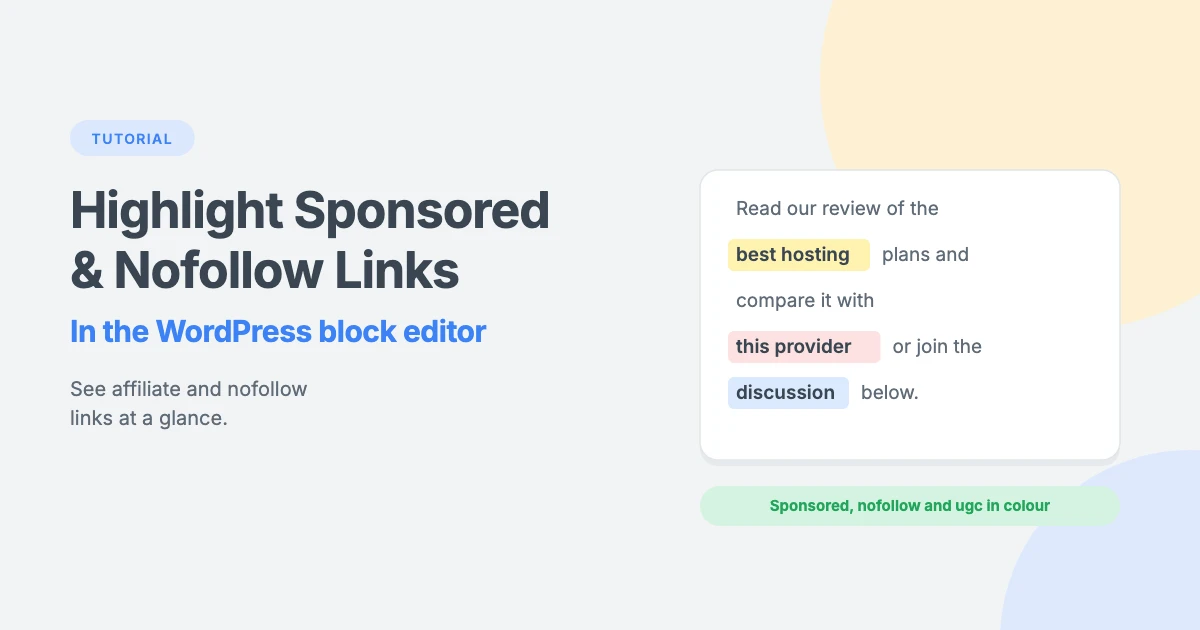
If your site uses affiliate links, sponsored content or links you don’t want to vouch for, you probably mark them with rel="sponsored" or rel="nofollow". The problem is that these attributes are invisible. In the block editor, a sponsored link looks exactly the same as any other link.
That makes it hard to review old posts, check that every affiliate link is marked properly or spot links that are missing a rel value.
In this tutorial, we’ll show you how to highlight sponsored and nofollow links in the WordPress block editor with a few lines of CSS, so you can see them at a glance. We’ll also explain which rel value to use and how to add it.
Sponsored, nofollow and ugc links explained
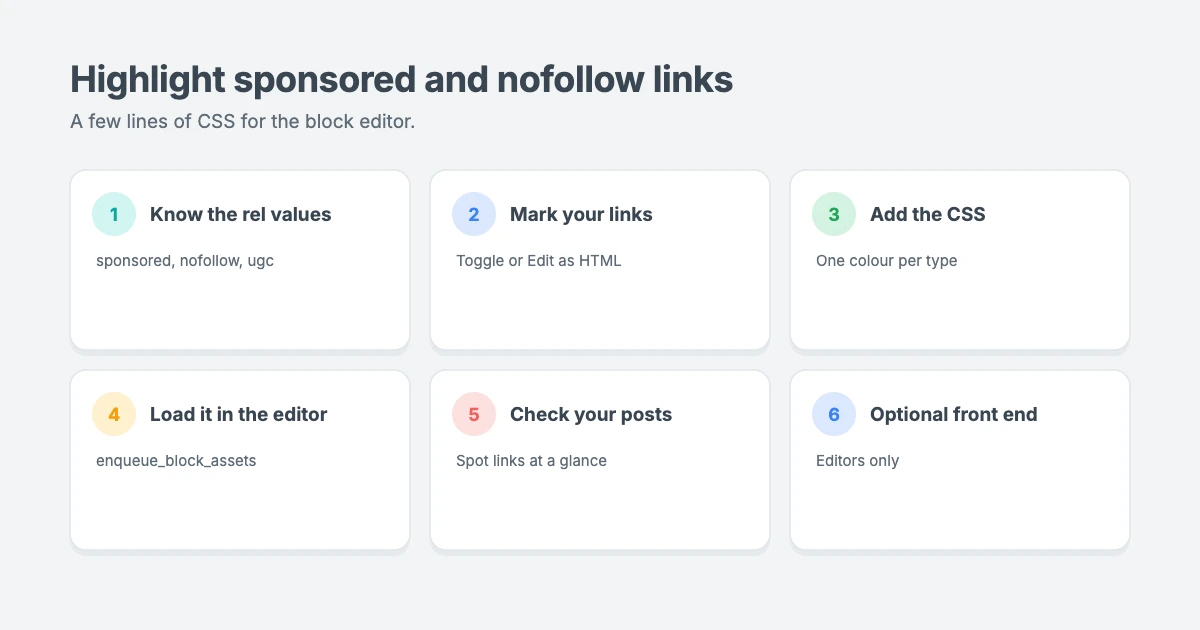
The rel attribute tells search engines about your relationship with the page you’re linking to. According to Google’s guidance on qualifying outbound links, there are three main values:
rel="sponsored"is for advertisements, paid placements and affiliate links. Google says it’s the preferred value for paid links, althoughnofollowis still acceptable.rel="ugc"is for user-generated content, such as links in comments and forum posts. WordPress addsugcandnofollowto links in comments automatically.rel="nofollow"is for other links you don’t want Google to associate with your site.
You can combine values, such as rel="sponsored nofollow". Normal links you trust don’t need a rel value at all.
Why highlight sponsored and nofollow links?
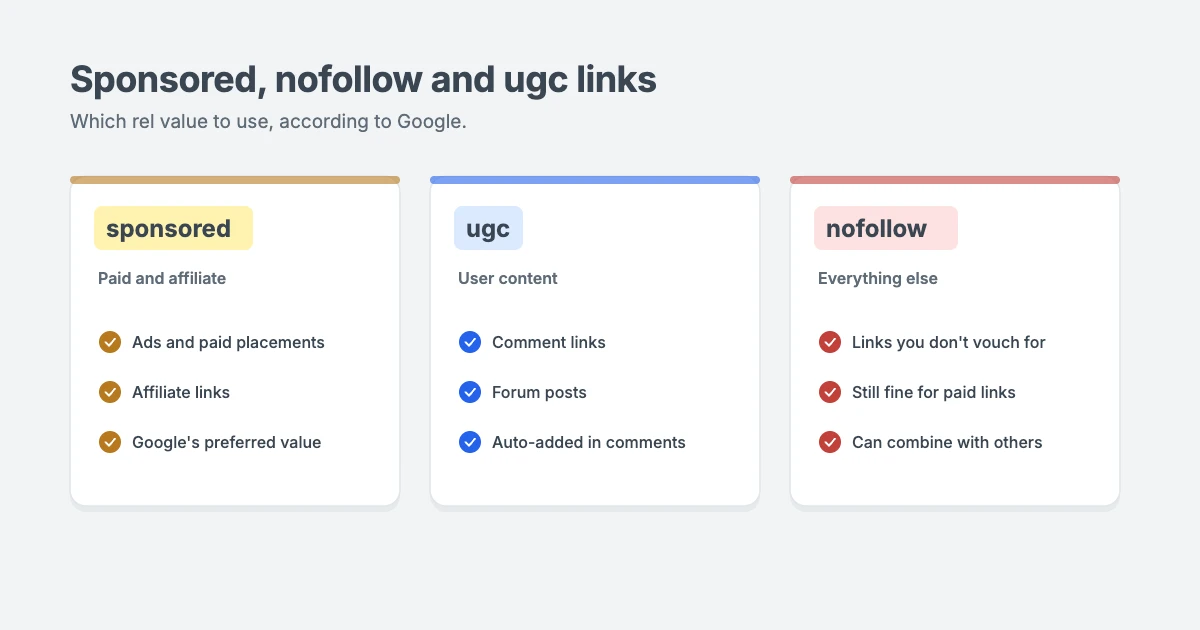
Highlighting sponsored and nofollow links in the editor makes it easy to:
- Check affiliate links have the right
relvalue before you publish. - Review old posts quickly when you update your linking policy, for example switching paid links from
nofollowtosponsored. - Spot unmarked links that should be sponsored but aren’t.
- See whether a post has too many paid links, which can hurt trust with readers.
- Check disclosures are next to every affiliate link.
How to add sponsored and nofollow links in WordPress
Before you can highlight sponsored and nofollow links, you need to add these values to your links. In the block editor:
- For nofollow links, select the link, click the edit (pencil) icon in the link popover, open the link settings and turn on Mark as nofollow.
- For sponsored or ugc links, WordPress doesn’t include a toggle at the time of writing. Many SEO plugins add one to the link popover. Otherwise, click the block’s Options menu (three dots), choose Edit as HTML and add the value to the link, for example
rel="sponsored nofollow". Then switch back to Edit visually.
Step 1: Add the highlight CSS
The CSS itself is very simple. It uses an attribute selector to find links whose rel value contains sponsored, nofollow or ugc, then gives each type its own soft background colour:
.editor-styles-wrapper a[rel~="sponsored"] {
    background: #fff3b0;
    color: #1f2937;
}
.editor-styles-wrapper a[rel~="nofollow"]:not([rel~="sponsored"]) {
    background: #fde2e1;
    color: #1f2937;
}
.editor-styles-wrapper a[rel~="ugc"]:not([rel~="sponsored"]) {
    background: #dbeafe;
    color: #1f2937;
}
Here’s what it does:
[rel~="sponsored"]matches any link whoserelattribute includes the wordsponsored, even if it has other values too.- Sponsored links are yellow, nofollow links are light red and ugc links are light blue.
:not([rel~="sponsored"])makes sure a link markedsponsored nofollowshows as sponsored, not nofollow..editor-styles-wrapperlimits the styles to the content area of the block editor, so the rest of the WordPress dashboard isn’t affected.
Feel free to change the colours to suit you.
Step 2: Load the CSS in the block editor
Now you need to load the CSS in the editor. The easiest way is a short PHP snippet, which you can add with a code snippets plugin or your child theme’s functions.php file:
add_action( 'enqueue_block_assets', function () {
    if ( ! is_admin() ) {
        return;
    }

    $css = '
        .editor-styles-wrapper a[rel~="sponsored"]{background:#fff3b0;color:#1f2937;}
        .editor-styles-wrapper a[rel~="nofollow"]:not([rel~="sponsored"]){background:#fde2e1;color:#1f2937;}
        .editor-styles-wrapper a[rel~="ugc"]:not([rel~="sponsored"]){background:#dbeafe;color:#1f2937;}
    ';

    wp_register_style( 'wpi-highlight-rel-links', false );
    wp_add_inline_style( 'wpi-highlight-rel-links', $css );
    wp_enqueue_style( 'wpi-highlight-rel-links' );
} );
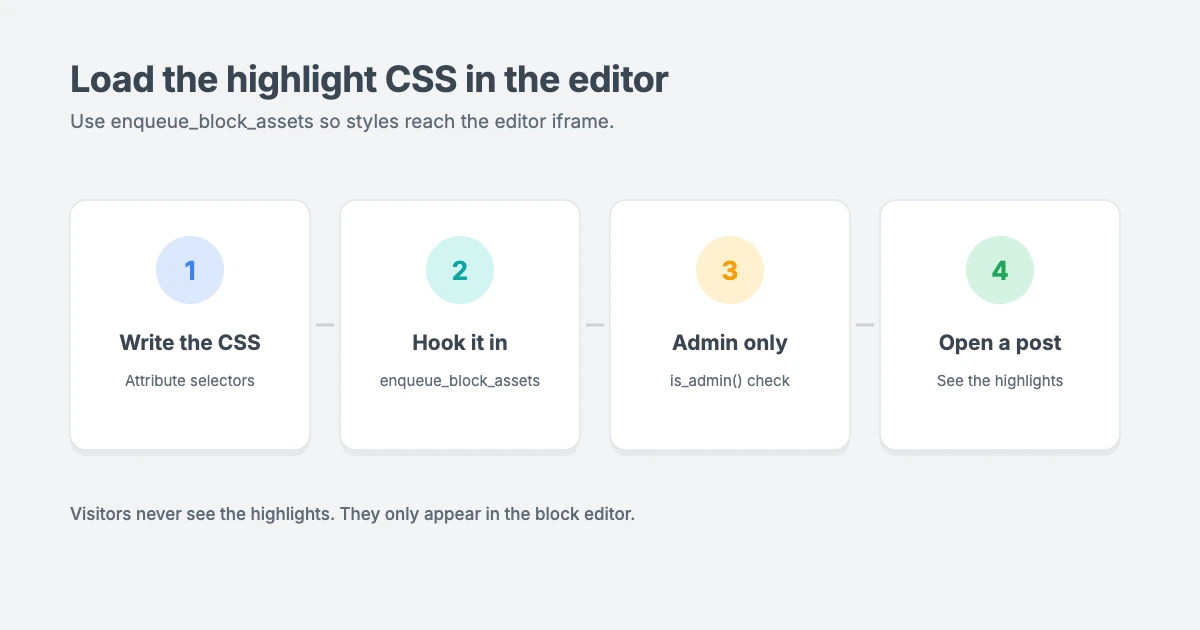
Why enqueue_block_assets? Modern versions of WordPress load the block editor’s content inside an iframe. Styles added with the enqueue_block_assets hook are loaded inside that iframe, so they apply to your post content. The is_admin() check keeps the styles out of the front of your site, so visitors never see the highlights.
Using a child theme? You can also put the CSS in an editor stylesheet. Add the CSS to a file such as style-editor.css in your child theme, then load it with add_theme_support( 'editor-styles' ) and add_editor_style( 'style-editor.css' ) in the after_setup_theme hook.
Step 3: Check your posts
Open any post with sponsored and nofollow links in the block editor. You should now see:
- Sponsored links with a yellow background
- Nofollow links with a light red background
- ugc links with a light blue background
- Normal links looking exactly as before
If nothing is highlighted, clear your browser cache and reload the editor. Then check the links really have a rel value, using Edit as HTML on the block.
Optional: highlight links on the front end for editors
Sometimes it’s easier to review sponsored and nofollow links as they appear on your site. This snippet adds the same highlights to the front end, but only for logged-in users who can edit posts, so visitors never see them:
add_action( 'wp_enqueue_scripts', function () {
    if ( ! current_user_can( 'edit_posts' ) ) {
        return;
    }

    $css = '
        .entry-content a[rel~="sponsored"]{background:#fff3b0;color:#1f2937;}
        .entry-content a[rel~="nofollow"]:not([rel~="sponsored"]){background:#fde2e1;color:#1f2937;}
    ';

    wp_register_style( 'wpi-highlight-rel-links-front', false );
    wp_add_inline_style( 'wpi-highlight-rel-links-front', $css );
    wp_enqueue_style( 'wpi-highlight-rel-links-front' );
} );
Many themes wrap post content in an .entry-content element. If yours uses a different class, inspect your post content in your browser and change the selector.
A note on caching: if you use page caching, make sure logged-in users aren’t served cached pages, or the highlights may not appear. Most caching plugins skip caching for logged-in users by default.
Tips for managing affiliate and sponsored links
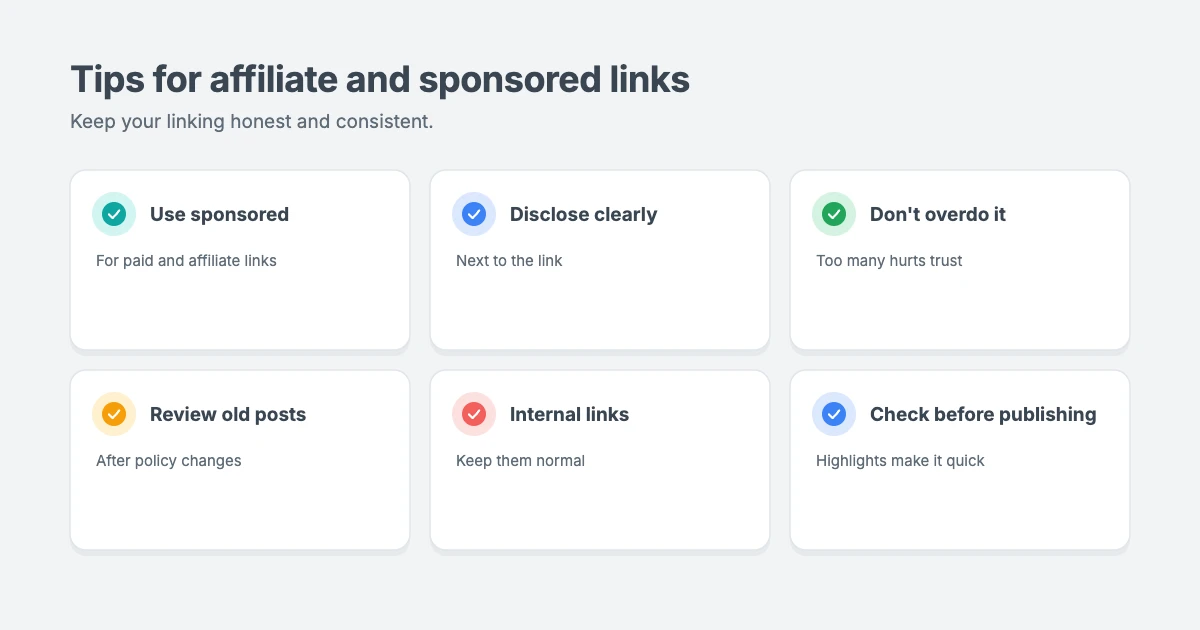
- Use
sponsoredfor paid and affiliate links, as Google recommends. - Add a clear disclosure near affiliate links, such as “(affiliate link)”, and on a disclosure page.
- Don’t overdo it. Too many paid links can make readers trust your content less.
- Review old posts regularly, especially after changing your linking policy.
- Keep internal links normal. Links to your own pages don’t need
nofollow.
Fast, SEO-friendly WPInterface themes
Clean code and readable typography make content and links easy to scan for both readers and editors. WPInterface Pro themes are lightweight, block editor ready, translation ready and RTL compliant.
SpeedBlog Pro
SpeedBlog Pro is a fast blog theme for travel, tech, personal and creative blogs, ideal for affiliate and review blogs that publish regularly.

MagNine Pro
MagNine Pro is a bold magazine and newspaper theme with a tag strip, headline row and strong lead stories, built for busy publishers.

SpeedNews Pro
SpeedNews Pro is a fast news and magazine theme with a trending ticker, mosaic headlines and three-column layouts, built for publishers who post every day.

You can see all our themes on the WordPress themes page.
Need a hand?
The WPInterface team can help with sponsored and nofollow links, SEO and editor tweaks:
- Technical SEO for WordPress: we audit and fix your site’s links, structured data and indexing.
- Custom WordPress Development: custom editor features built for your workflow.
- VIP Support: a $29 priority ticket for quick expert help.
Frequently asked questions
Should affiliate links be sponsored or nofollow?
Google prefers rel="sponsored" for paid and affiliate links, but says nofollow is still acceptable. Many sites use both, as rel="sponsored nofollow".
Will visitors see the highlighted links?
No. The main snippet only loads the CSS in the block editor. The optional front-end snippet only applies to logged-in users who can edit posts.
Does WordPress add nofollow to comment links automatically?
Yes. WordPress adds rel="nofollow ugc" to links in comments.
How do I add rel=”sponsored” in the block editor?
WordPress has a Mark as nofollow toggle in the link settings, but not a sponsored one at the time of writing. Use Edit as HTML on the block to add rel="sponsored", or use an SEO plugin that adds a sponsored option.
Do internal links need nofollow?
No. Internal links to your own pages should normally be regular links, so search engines can follow them.
Final thoughts
Highlighting sponsored and nofollow links in the block editor is a small change that saves a lot of time. With a few lines of CSS, you can review posts at a glance, catch unmarked affiliate links and keep your linking policy consistent.
Add the snippet, choose colours you like and make it part of your editing routine.
Reactions
How did this make you feel?
Be the first to react
One reaction per visitor. Tap again to change or remove it.



Leave a reply