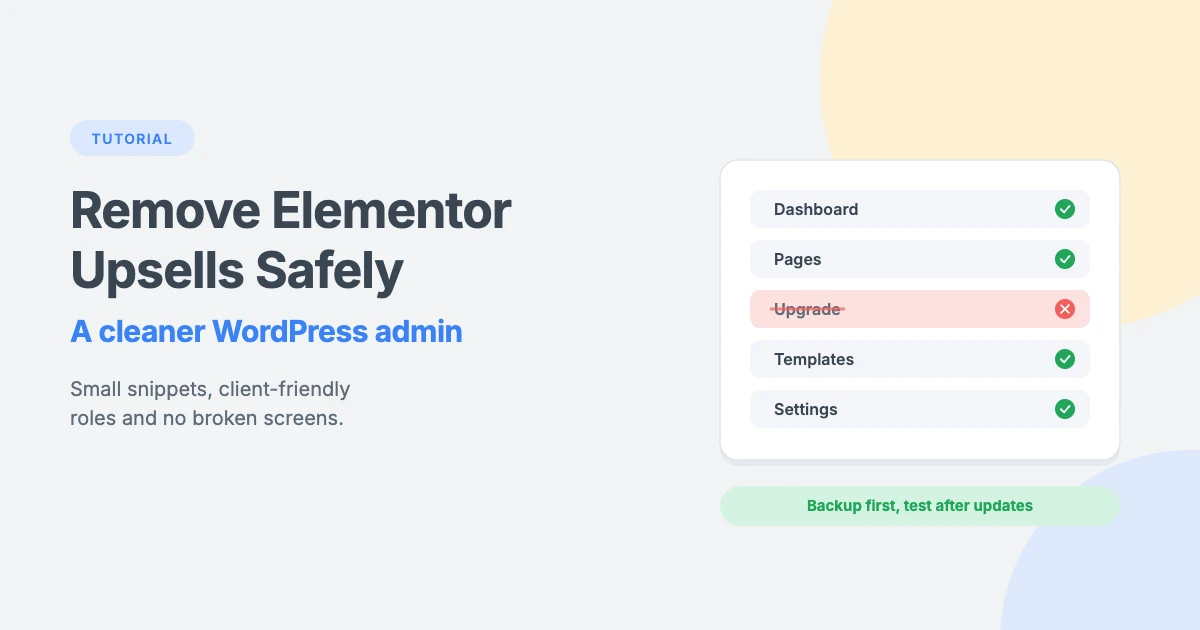
Elementor is one of the most popular page builders for WordPress, and its free version is surprisingly capable. But if you use it without Elementor Pro, you’ll notice reminders to upgrade almost everywhere: in the admin menu, on your dashboard and inside the editor.
That’s understandable, because upsells help fund a free plugin. But they can also clutter your dashboard, distract your clients and make the interface harder to use.
In this tutorial, we’ll look at whether you should remove Elementor upsells, the simplest and safest ways to do it, and a few code snippets to tidy up your WordPress admin, without breaking anything.
What are Elementor upsells?
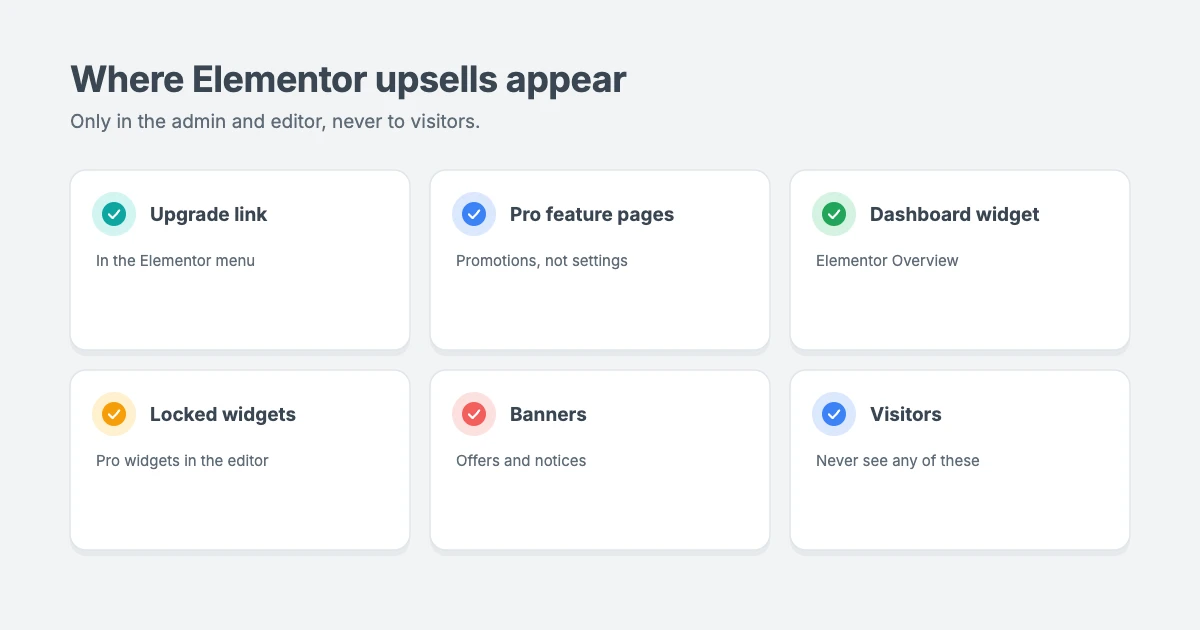
When you use the free version of Elementor, you’ll see prompts for Elementor Pro in several places, including:
- An “Upgrade” link in the Elementor admin menu.
- Admin pages for Pro features, such as custom fonts or form submissions, which show a promotion instead of a working feature.
- The Elementor Overview widget on your WordPress dashboard.
- Pro widgets in the editor, shown with a lock icon in the widget panel.
- Banners and notices that promote upgrades or special offers.
Elementor upsells are only shown in the WordPress admin and the Elementor editor. Your visitors never see them.
Should you remove Elementor upsells?
There’s no single right answer, so here’s a balanced view.
Reasons to keep them:
- They fund development. Elementor is free because Pro sales pay for it.
- They show what’s possible. If you’re growing a site, the prompts help you discover features you may need later.
- They’re easy to ignore. Most are small and only appear in the admin.
Reasons to remove them:
- A cleaner dashboard that’s easier to work in every day.
- Fewer distractions for clients, who may click “Upgrade” without understanding what they’re buying.
- Easier searching in the widget panel, without locked Pro widgets in the results.
Elementor is released under the GPL licence, so you’re free to modify how it works on your own site. WordPress’s own plugin guidelines also say upgrade prompts should be “limited in scope and used sparingly”. Even so, if Elementor saves you time and money, consider buying Pro to support its development.
Option 1: Upgrade to Elementor Pro
The simplest way to remove Elementor upsells is to buy Elementor Pro. Once Pro is active, the upgrade prompts are replaced by the real features, such as the theme builder, forms and custom fonts. You also get support from the developers.
If you only need one or two Pro features, compare the cost of Pro with the time you’d spend on workarounds before you decide.
Option 2: Give clients a role that hides upsells
If you build sites for clients, you may not need code at all. Elementor’s “Upgrade” admin menu item, for example, is only shown to users who can manage site options, which in WordPress means administrators.
So instead of giving clients an Administrator account, consider giving them the Editor role. Editors can still create and edit content, but they won’t see many admin-only screens and prompts. Go to Users » All Users, edit the user and change their Role.
Before you switch, check that the client can still do everything they need, such as editing pages with Elementor.
Option 3: Remove Elementor upsells with code
If you want to remove Elementor upsells for administrators too, you can use small code snippets. Add them with a code snippets plugin or your child theme’s functions.php file.
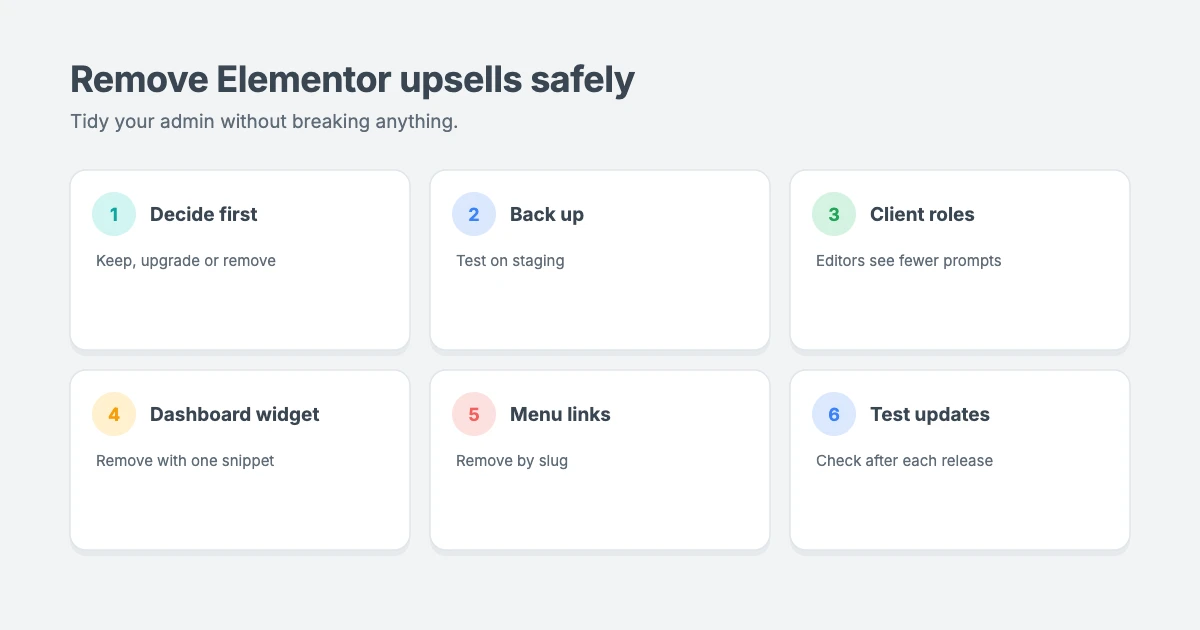
Before you remove Elementor upsells with code:
- Take a full backup and test on a staging site first.
- Expect changes. Elementor updates its admin screens often. Snippets that rely on menu names can stop working after an update, so check your admin after every Elementor update.
- Only remove what you’re sure about. Removing the wrong menu item can hide a screen you need.
Each snippet below checks whether Elementor Pro is active first, so nothing is removed if you upgrade later.
Remove the Elementor dashboard widget
This snippet removes the “Elementor Overview” box from your WordPress dashboard:
add_action( 'wp_dashboard_setup', function () {
    if ( class_exists( '\Elementor\Utils' ) && \Elementor\Utils::has_pro() ) {
        return;
    }
    remove_meta_box( 'e-dashboard-overview', 'dashboard', 'normal' );
}, 100 );
You can also hide it without code: click Screen Options at the top of your dashboard and untick Elementor Overview. This only hides it for your own user account.
Remove the “Upgrade” link from the Elementor menu
This snippet removes the upgrade link from the Elementor admin menu. It runs late, after Elementor has added its menu items:
add_action( 'admin_menu', function () {
    if ( class_exists( '\Elementor\Utils' ) && \Elementor\Utils::has_pro() ) {
        return;
    }
    remove_submenu_page( 'elementor', 'go_elementor_pro' );
}, PHP_INT_MAX );
Remove other promotional menu items
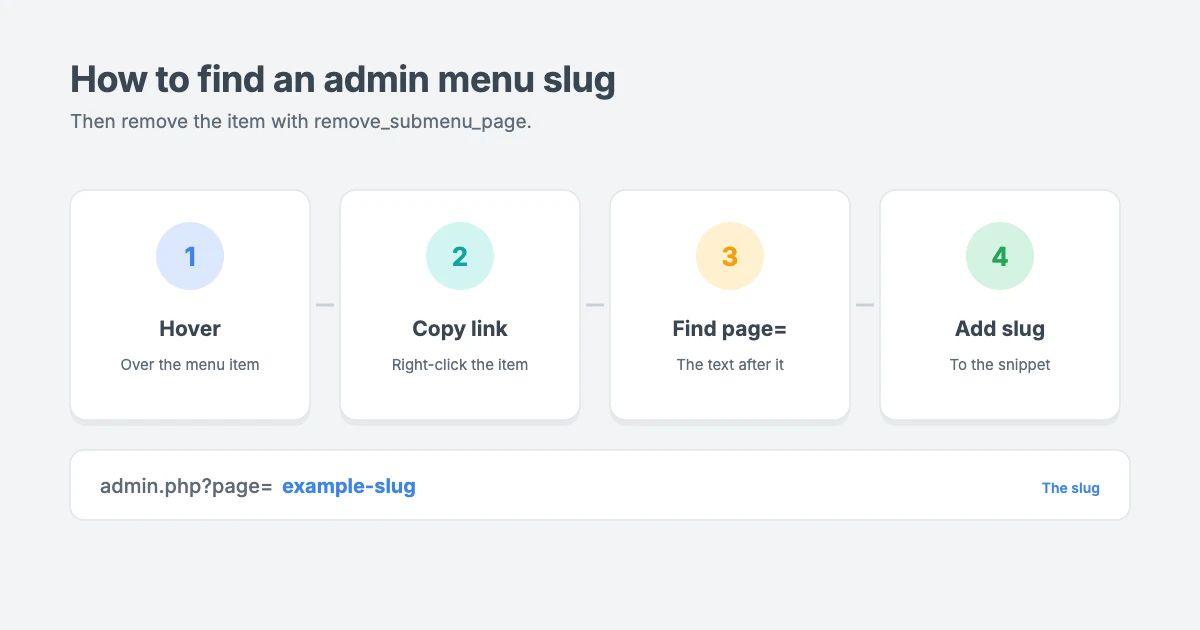
Elementor may add other menu items that only promote Pro features. You can remove these the same way, but you’ll need each item’s slug. Here’s how to find it:
- In your dashboard, hover over the menu item you want to remove.
- Look at the link in your browser’s status bar, or right-click and copy the link.
- The slug is the part after
page=. For example, inadmin.php?page=example-slug, the slug isexample-slug.
Then add it to the snippet:
add_action( 'admin_menu', function () {
    if ( class_exists( '\Elementor\Utils' ) && \Elementor\Utils::has_pro() ) {
        return;
    }
    $slugs = array(
        'go_elementor_pro',
        // 'example-slug', // Add more slugs here.
    );
    foreach ( $slugs as $slug ) {
        remove_submenu_page( 'elementor', $slug );
    }
}, PHP_INT_MAX );
Only remove pages that show a promotion and don’t contain any settings you use. If a menu item still appears, it may belong to a different parent menu, so check the parent’s slug in the same way.
What about the editor?
The locked Pro widgets and banners inside the Elementor editor are built with JavaScript and change between versions. Hiding them usually means adding custom CSS that targets Elementor’s internal class names, which can break with any update.
Our advice is to leave the editor alone unless the prompts really get in your way. If you do hide them, keep your CSS in one place, test it after every update and remove it if anything looks wrong.
Test after every Elementor update
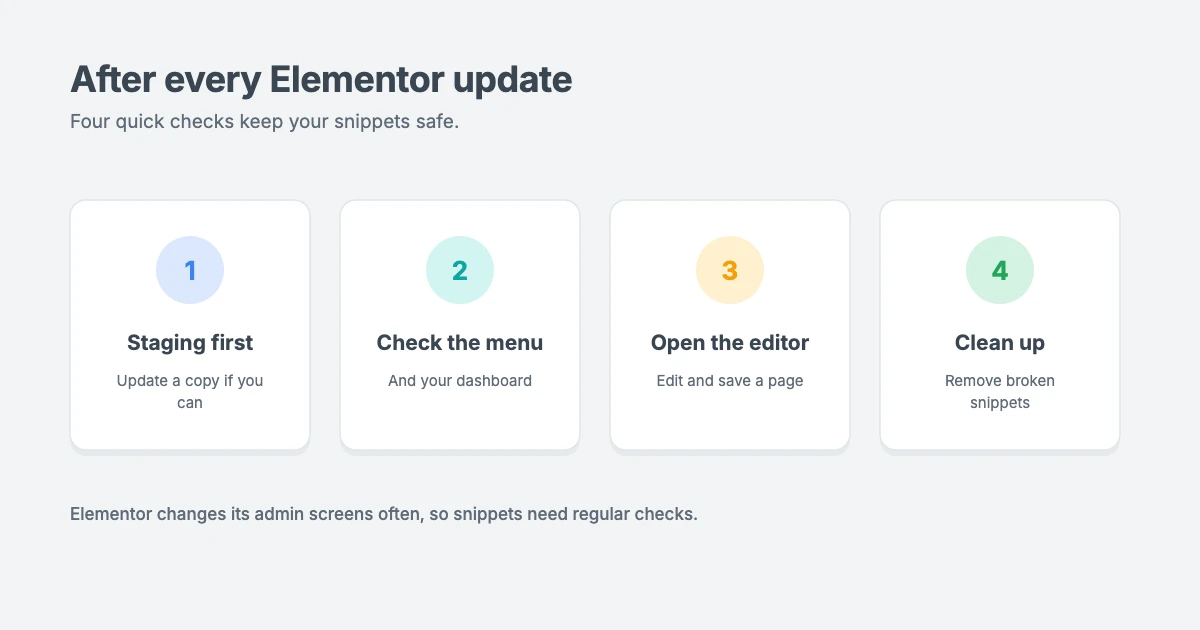
Because Elementor changes often, add a quick check to your update routine whenever you remove Elementor upsells with code:
- Update on a staging site first, if you can.
- Check the Elementor admin menu and your dashboard for any errors or missing screens.
- Open the editor and make sure you can edit and save a page.
- Remove any snippet that no longer works, rather than leaving broken code behind.
Consider a lighter setup
If Elementor upsells are a big part of your frustration, it may be worth rethinking your setup. Many sites don’t need a page builder at all. A well-designed theme with a block editor and Customizer settings can give you a professional site with fewer plugins, fewer prompts and faster pages.
Our guide on whether WordPress is outdated explains how far the block editor has come.
WPInterface themes for Elementor and the block editor
Whether you build with Elementor or the block editor, WPInterface Pro themes are lightweight, translation ready and RTL compliant.
Corporate Interface Pro
Corporate Interface Pro is a modern corporate theme for companies, agencies and consultants, built for Elementor, with services, client stories, results and a booking button.

Business Interface Pro
Business Interface Pro is a lightweight multipurpose business theme with 12 starter sites, ideal for company websites that need to be fast and professional.

Coworking Interface Pro
Coworking Interface Pro is a fast coworking space theme built for Elementor, with workspace, pricing, testimonial and booking sections.

You can see all our themes on the WordPress themes page.
Need a hand?
If you’d like help to remove Elementor upsells, clean up your admin or building client-friendly sites, the WPInterface team can help:
- WordPress Theme Customization: we tailor your theme to your brand.
- Custom WordPress Development: custom features and admin tweaks, built to last.
- WordPress Care Plans: updates, backups and monitoring, so snippets and plugins keep working after updates.
- VIP Support: a $29 priority ticket for quick expert help.
Frequently asked questions
Is it legal to remove Elementor upsells?
Elementor is released under the GPL licence, which allows you to modify the software you use on your own site. This isn’t legal advice, but changing how the plugin’s admin screens look on your own site is a normal part of customising WordPress.
Will removing upsells break Elementor?
Removing a dashboard widget or menu link shouldn’t affect how Elementor works. Problems usually come from hiding the wrong screen or from code that no longer matches a newer version of Elementor, so test after every update.
Do visitors see Elementor upsells?
No. Upsells only appear in the WordPress admin and the Elementor editor, for logged-in users.
Will the snippets still work if I buy Elementor Pro?
Yes. Each snippet checks whether Elementor Pro is active and does nothing if it is.
What’s the easiest way to hide upsells from clients?
Give clients the Editor role instead of Administrator, if that gives them everything they need. Many admin-only prompts are then hidden automatically.
Final thoughts
Elementor’s upsells pay for a free tool that millions of people use, but they can still clutter your dashboard. Decide what matters most to you: supporting the developers with Elementor Pro, giving clients a simpler role, or tidying up your admin with a few careful snippets.
Whichever you choose, back up first, change as little as possible and check your admin after every Elementor update.
Reactions
How did this make you feel?
Be the first to react
One reaction per visitor. Tap again to change or remove it.




Leave a reply