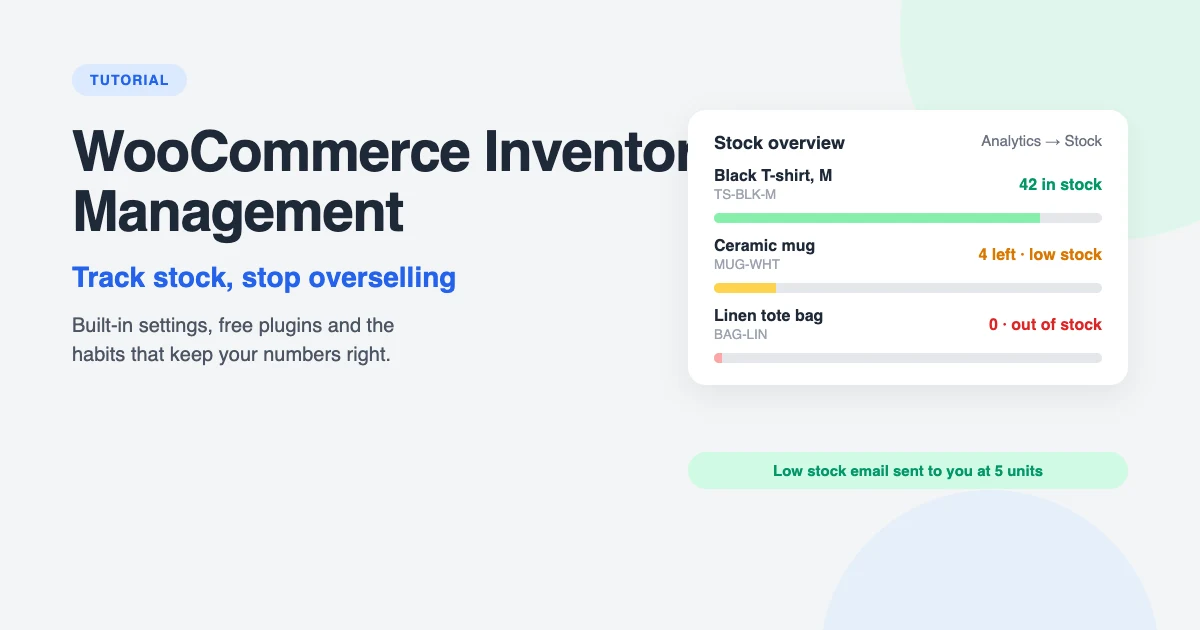
Few things damage a small online store faster than selling something you don’t have. The customer waits, you send an awkward apology email, and the refund costs you the sale and a little trust. The opposite problem, shelves full of products nobody is buying, quietly ties up your cash.
Good WooCommerce inventory management stops both. WooCommerce already includes everything a small or medium-sized store needs to track stock, warn you when products run low and hide items that have sold out. You just have to switch it on and use it well.
In this tutorial, we’ll show you how to set up stock management in WooCommerce step by step, how to handle variations, backorders and returns, which free plugins are worth adding, and the habits that keep your stock numbers accurate.
How WooCommerce inventory management works
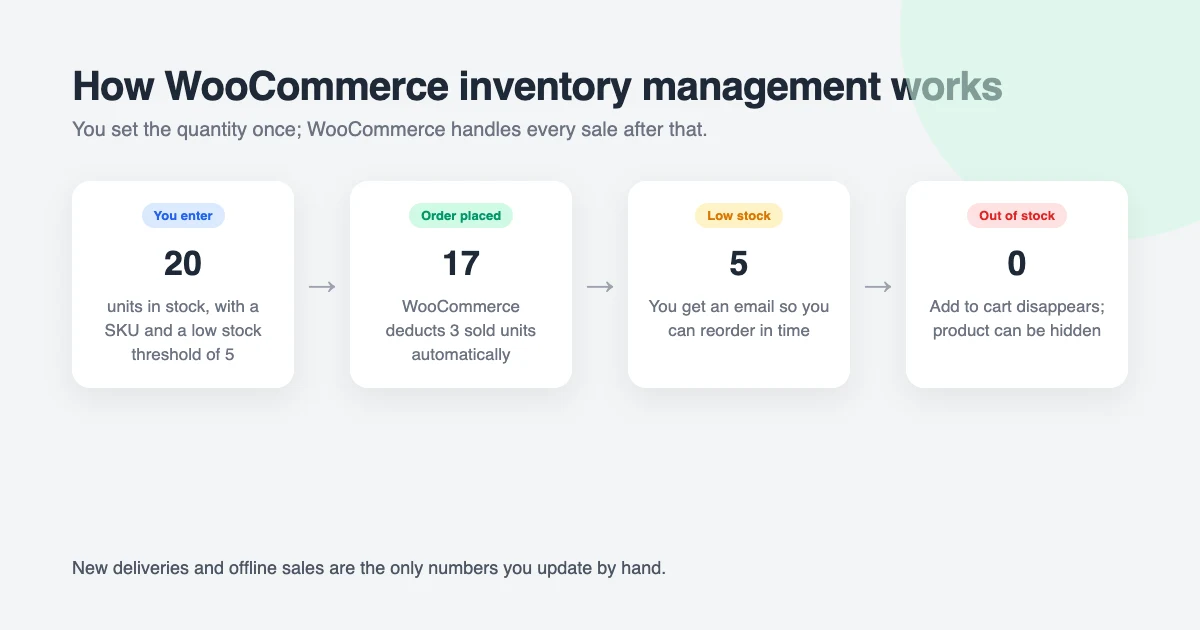
WooCommerce tracks stock per product. You tell it how many units you have, and every completed order reduces that number. If you have 20 T-shirts and someone buys 3, WooCommerce updates the quantity to 17 without you doing anything.
Two thresholds control what happens next. When the quantity drops to your low stock threshold, WooCommerce emails you so you can reorder. When it reaches the out of stock threshold, usually zero, the product is marked out of stock, the Add to cart button disappears and, if you choose, the product is hidden from your shop.
What WooCommerce can’t know is when new stock arrives, or when you sell something in person or on another marketplace. Those changes you add yourself, which is why the habits at the end of this guide matter as much as the settings.
Step 1: Turn on stock management
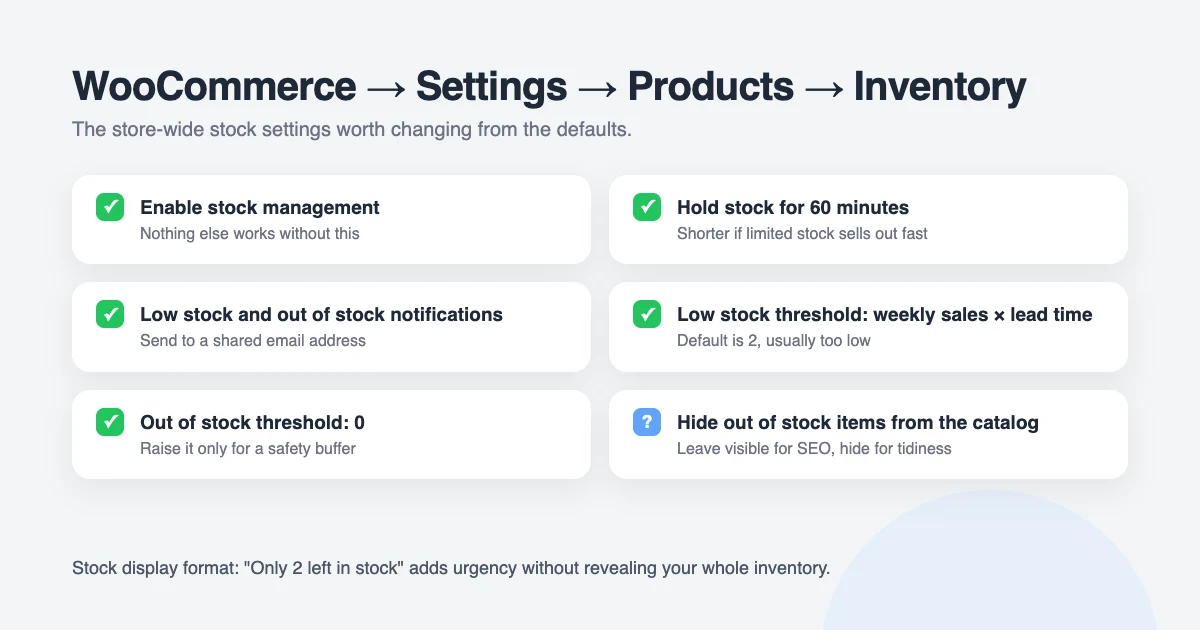
Go to WooCommerce → Settings → Products → Inventory. This screen holds the store-wide WooCommerce stock management settings.
Work through the options in order:
- Manage stock. Tick Enable stock management. Without this, none of the other options work and WooCommerce won’t reduce quantities when orders come in.
- Hold stock (minutes). When a customer starts checkout but doesn’t pay, WooCommerce reserves the items for this long before releasing them. The default is 60 minutes, which is right for most stores. Shorten it if you sell limited stock that sells out fast.
- Notifications. Tick both Enable low stock notifications and Enable out of stock notifications, and enter the email address that should receive them. If more than one person handles stock, use a shared address.
- Low stock threshold. The default is 2. Set it to the number of units that gives you enough time to reorder. If your supplier takes two weeks and you sell five a week, set it to 10 or more.
- Out of stock threshold. Leave this at 0 unless you keep a safety buffer, for example units reserved for a physical shop.
- Out of stock visibility. Tick Hide out of stock items from the catalog if you’d rather customers never see sold-out products. Leave it unticked if you want them to find the product and come back later, which is usually better for SEO.
- Stock display format. Choose whether product pages show the exact quantity (“12 in stock”), only a low stock warning (“Only 2 left in stock”) or nothing at all. Showing low stock creates a little urgency without revealing your whole inventory.
Click Save changes. For a full description of every option, see the official WooCommerce documentation on managing products.
Step 2: Set stock on each product
Store-wide settings turn WooCommerce stock management on, but you still need to tell WooCommerce how many of each product you have. Edit a product, scroll down to Product data and open the Inventory tab.
- SKU. Enter a unique code for the product, such as
TS-BLK-Mfor a black medium T-shirt. SKUs make stock counts, CSV imports and supplier orders much easier, so give every product one from the start. - Track stock quantity for this product. Tick this box. The quantity field and backorder options appear.
- Quantity. Enter how many units you have right now.
- Allow backorders? Choose Do not allow unless you can restock quickly. Allow, but notify customer shows “Available on backorder” on the product page, which is the honest option if you do accept them.
- Low stock threshold. Leave it blank to use the store-wide number, or enter a different value for this product. A product that sells ten a day needs a higher threshold than one that sells ten a month.
- Sold individually. Tick this to limit customers to one unit per order, useful for limited editions or tickets.
Click Update or Publish. If you don’t want to track a quantity for a product, for example a digital download or a made-to-order item, leave the tracking box unticked and set the Stock status to In stock, Out of stock or On backorder by hand.
Step 3: Choose the right product type
The product type you pick in the Product data dropdown changes how WooCommerce inventory management works for that item.
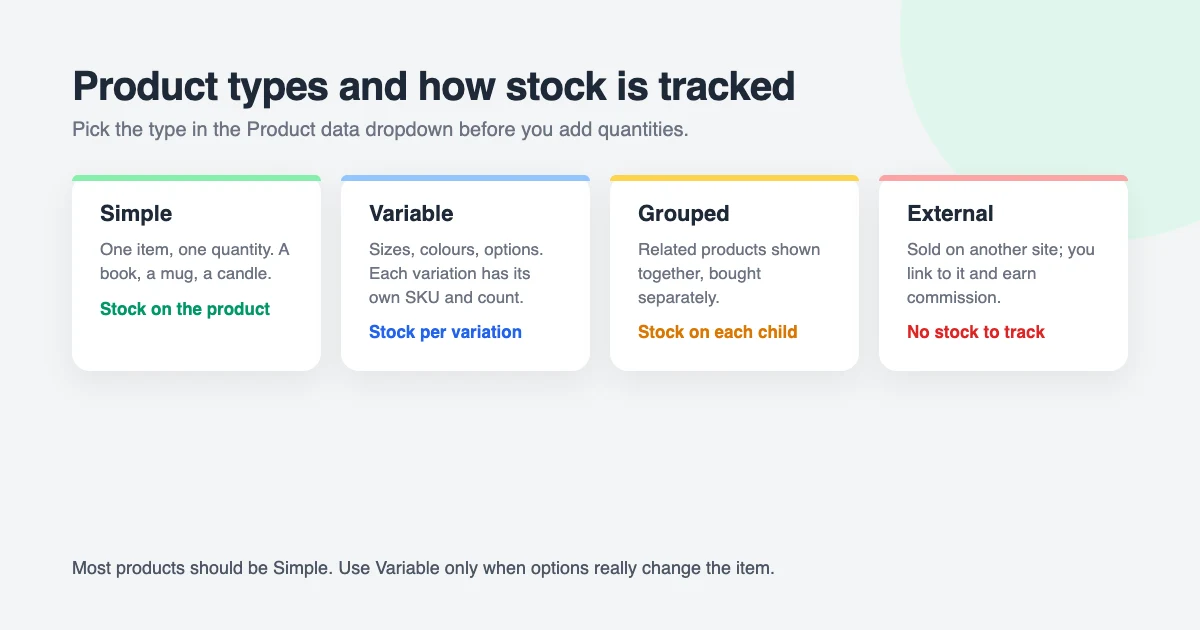
- Simple product. One item, one quantity. A book, a mug or a single-size candle. This is the type most products should be.
- Variable product. One product with options, such as a T-shirt in three sizes and four colours. Each variation can have its own SKU, quantity and low stock threshold, so you know you have plenty of medium but only one small left. You can also tick Manage stock at the parent level to share one quantity across all variations.
- Grouped product. A collection of simple products shown on one page, such as a camera, tripod and memory card. Stock is tracked on each child product, not on the group.
- External/affiliate product. A product sold on another website. There is no stock to track, because the other store handles it.
Step 4: Keep stock levels up to date
WooCommerce reduces stock for every order, but only you can increase it. When a delivery arrives, or when you sell something offline, you have three ways to update the numbers.
Edit the product
For one or two products, open the product, go to Inventory, change the quantity and click Update. Enter the new total, not the amount you received: if you had 17 and 10 arrive, enter 27.
Use Quick Edit on the product list
Go to Products → All Products, hover over a product and click Quick Edit. You can change the SKU, stock status, quantity and backorder setting without opening the full editor. The Stock column on this screen also shows every product’s status and quantity at a glance, and you can filter the list by In stock, Out of stock or On backorder.
Import a CSV for bulk updates
For a big delivery or a full stock count, use the built-in importer. Go to Products → All Products, click Export and export your products to CSV. Open the file in a spreadsheet, update the Stock column, then click Import, upload the file and tick Update existing products. WooCommerce matches products by ID or SKU, which is another reason to give every product a SKU.
Step 5: Watch your stock reports
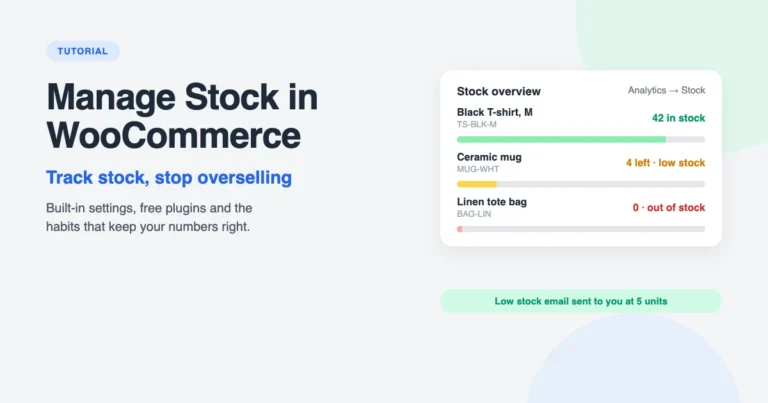
Go to Analytics → Stock to see every product and variation with its current status and quantity. Use the dropdown at the top to show only Low stock or Out of stock items, sort by quantity, and download the report as a CSV for your supplier or accountant.
Pair it with Analytics → Products, which shows items sold and revenue per product over any date range. Together they answer the two questions that drive good WooCommerce stock management: what is about to run out, and what isn’t selling.
The WooCommerce Status widget on your WordPress dashboard also lists products that are low or out of stock, so you’ll see problems every time you log in.
Step 6: Add a free inventory plugin (optional)
The built-in WooCommerce inventory management tools are enough for a store with a few dozen products. Once you have hundreds, editing products one at a time becomes slow. Two free plugins add bulk editing and better reporting without replacing WooCommerce’s own stock system.
ATUM Inventory Management
ATUM replaces the product list with a spreadsheet-style Stock Central screen, where you can edit quantities, prices, SKUs and suppliers for hundreds of products and variations in one go. It also adds purchase orders, supplier records, inbound stock tracking and a stock-value dashboard. The core plugin is free; paid add-ons exist, but you don’t need them for day-to-day stock management.
Stock Manager for WooCommerce
Stock Manager for WooCommerce is a simpler, lighter option. It gives you one screen to edit stock, SKU, price and backorder settings for all products and variations, filters for low and out-of-stock items, CSV import and export, and a dashboard widget. If ATUM feels like too much, start here.
Whichever you choose, install one, not both, and take a full backup before you run any bulk edit. A typo in a bulk update can change the stock of every product at once.
Step 7: Handle returns, backorders and offline sales
These three situations cause most stock errors, because WooCommerce doesn’t handle them automatically.
- Returns and refunds. When you refund an order from WooCommerce → Orders, tick Restock refunded items before you click the refund button. WooCommerce then adds the units back. If the returned item is damaged, leave the box unticked.
- Cancelled and failed orders. WooCommerce restores stock automatically when an order is cancelled or a pending order expires after the hold stock time. It does not restore stock if you delete an order, so cancel first, then delete.
- Backorders. If you allow them, WooCommerce lets the quantity go negative, for example -3. When the delivery arrives, add the new units to that negative number. If 20 arrive, 17 are available.
- Offline and marketplace sales. Stock sold in a physical shop, on Etsy or on eBay isn’t deducted. Update the quantity the same day, or create a manual order in WooCommerce for the sale so stock is reduced and the sale appears in your reports.
Step 8: Build habits that keep stock accurate
Settings and plugins only work if the numbers going in are right. These habits keep WooCommerce inventory management reliable as your store grows.
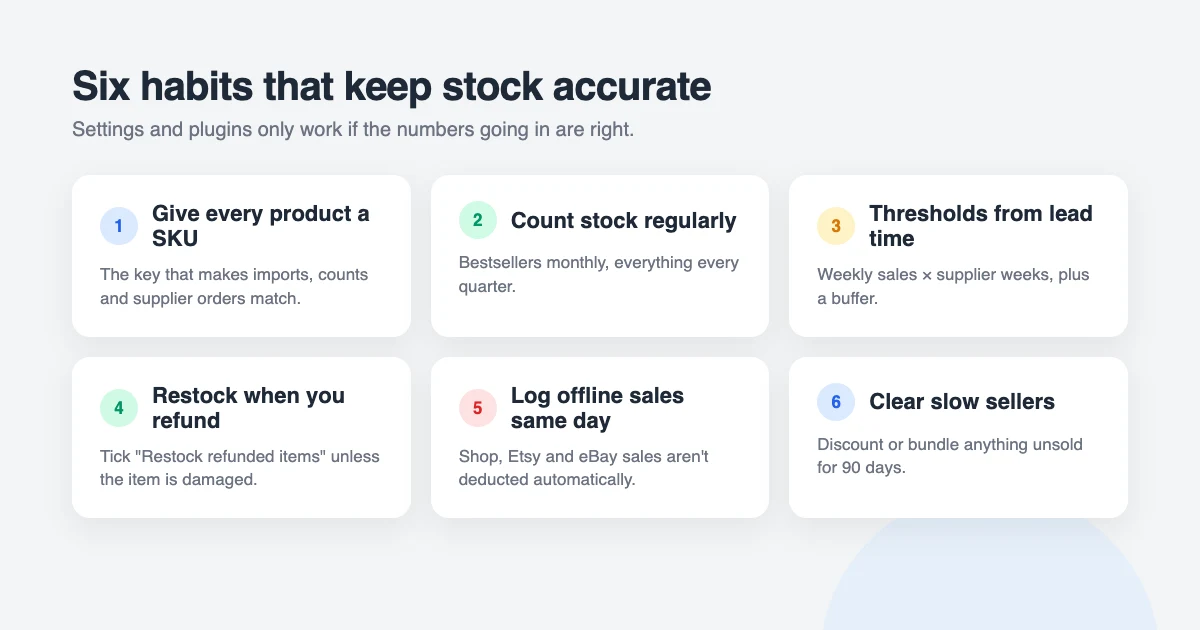
- Give every product and variation a SKU. It’s the key that makes imports, counts and supplier orders match up.
- Count your stock regularly. A monthly count of your bestsellers and a full count every quarter catches breakages, miscounts and theft before they cause overselling.
- Set thresholds from your lead time. Low stock threshold = weekly sales × weeks your supplier takes to deliver, plus a small buffer.
- Plan for seasons. Raise thresholds before your busy period and lower them after, so you’re not left with a warehouse of winter stock in March.
- Clear slow sellers. Use Analytics → Products to find items that haven’t sold in 90 days, then discount or bundle them. Stock sitting on a shelf is cash you can’t use.
- Keep your store healthy. Stock updates happen through your WordPress database, so keep WooCommerce updated, back up before big changes and monitor your uptime so an outage never hides a sold-out product from you.
Common WooCommerce stock management problems and fixes
- The quantity field is missing. Stock management is turned off store-wide. Enable it under WooCommerce → Settings → Products → Inventory, then tick Track stock quantity on the product.
- A product shows out of stock but you have units. Check the variation level. A variable product shows out of stock when every variation is at zero, even if the parent has a quantity.
- Stock isn’t reducing when orders come in. Stock is reduced when an order reaches Processing or Completed. If payments stay Pending, check your payment gateway settings.
- You oversold during a sale. Lower the hold stock time so abandoned checkouts release stock faster, and make sure your caching plugin excludes cart, checkout and product pages. Our guide on WooCommerce costs covers hosting that copes with traffic spikes.
- Out of stock pages are losing rankings. Keep them visible with a “notify me” message rather than hiding them, as explained in our WooCommerce SEO guide.
WPInterface themes for WooCommerce stores
Accurate stock is only useful if your product pages show it clearly. All WPInterface Pro themes are lightweight, RTL ready and tested with WooCommerce, so stock labels, variation selectors and backorder notices display exactly as WooCommerce intends.
Business Interface Pro
Business Interface Pro is a lightweight multipurpose business theme with 12 starter sites and WooCommerce support, ideal if you want a professional company site with a shop.

Corporate Interface Pro
Corporate Interface Pro is a clean corporate theme that integrates with WooCommerce, so established businesses can sell products and services online.

Coworking Interface Pro
Coworking Interface Pro is designed for coworking spaces and shared offices, and its WooCommerce integration makes it easy to sell memberships, passes or products.

You can see all our themes on the WordPress themes page.
Let our team set up your store
Want WooCommerce inventory management configured properly from day one, without the trial and error? The WPInterface team offers fixed-price help:
- WordPress Installation and Theme Setup: for $99, we install WordPress and set up your WPInterface theme.
- Must-Have Plugins Installation: for $59, we install and set up the essentials, including SEO and analytics.
- WordPress Care Plans: updates, backups and monitoring, so you can focus on selling.
- VIP Support: a $29 priority ticket for quick expert help with any WooCommerce problem.
Frequently asked questions
Does WooCommerce have built-in inventory management?
Yes. WooCommerce inventory management is included for free. It tracks quantities per product and variation, reduces stock on every order, sends low stock emails and marks products out of stock automatically.
How do I enable stock management in WooCommerce?
Go to WooCommerce → Settings → Products → Inventory, tick Enable stock management and save. Then tick Track stock quantity on each product and enter the quantity.
How do I manage stock for variable products?
Open the Variations tab, expand a variation, tick Manage stock and enter its quantity. Each size or colour then has its own stock level and low stock threshold.
Does WooCommerce restock items when I refund an order?
Only if you tick Restock refunded items when you process the refund. Cancelled orders restore stock automatically; deleted orders don’t.
What is a SKU and do I need one?
A SKU, or stock keeping unit, is a unique code for each product or variation. WooCommerce works without them, but SKUs make CSV imports, stock counts and supplier orders far easier, so it’s worth adding them.
What is the best free WooCommerce inventory management plugin?
ATUM Inventory Management is the most complete free option, with bulk editing, purchase orders and supplier tracking. Stock Manager for WooCommerce is a lighter choice if you only need bulk stock editing.
Final thoughts
WooCommerce inventory management doesn’t need expensive software. Turn on stock management, give every product a SKU and a quantity, set thresholds that match your supplier’s lead time, and check the Stock report once a week.
Add a free plugin like ATUM when your catalogue outgrows the product list, and keep the habits above. Your customers will always see accurate stock, and you’ll never have to send that apology email again.
Reactions
How did this make you feel?
Be the first to react
One reaction per visitor. Tap again to change or remove it.







Leave a reply