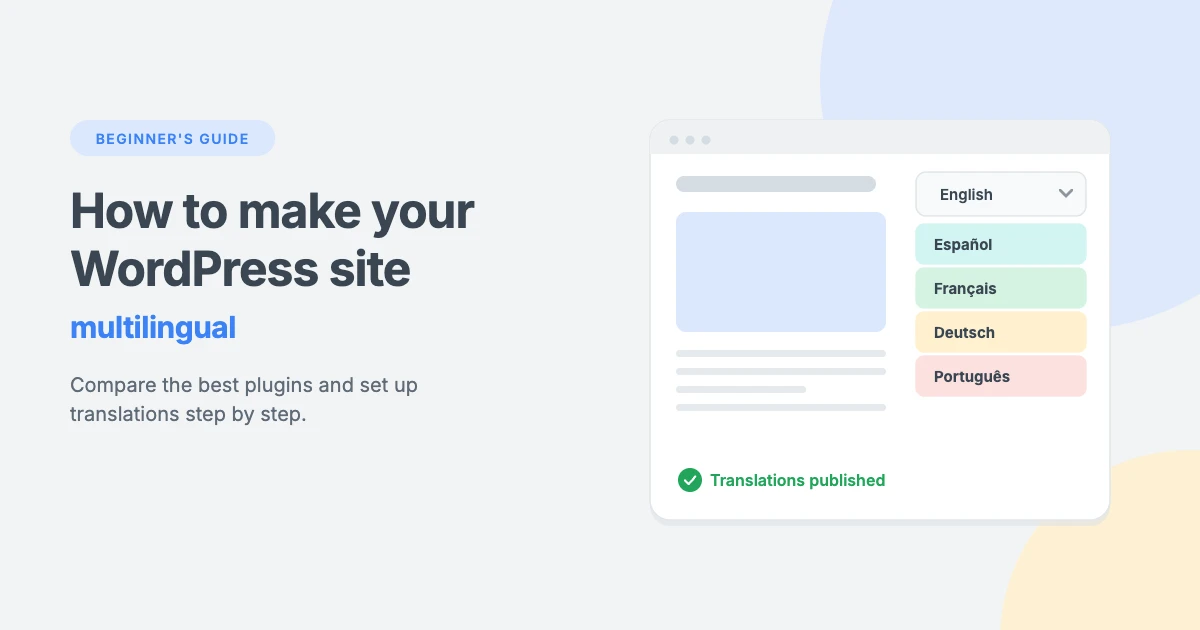
Most people on the internet don’t speak English as their first language, and many prefer to read and buy in their own. A multilingual WordPress site lets you welcome those visitors in the language they’re most comfortable with, whether you run a blog, a business site, an online store or a news magazine.
WordPress doesn’t include multilingual features out of the box, but a plugin can add them in minutes. In this beginner’s guide, we’ll show you how to make your WordPress site multilingual step by step. We’ll compare the most popular translation plugins, walk you through setting up the two most common free options, and share the SEO basics that help your translated pages rank in search results.
Why make your WordPress site multilingual?
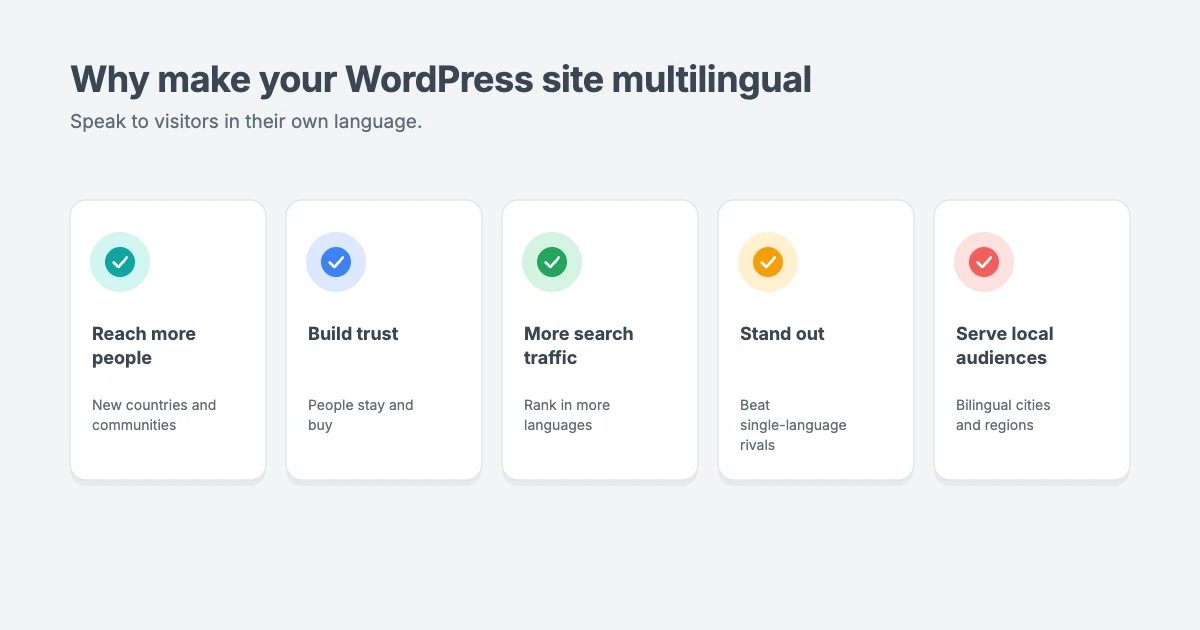
Making your WordPress site multilingual has clear benefits:
- Reach more people. You can attract visitors from countries and communities your current site doesn’t speak to.
- Build trust. People are far more likely to stay, subscribe and buy when a site speaks their language.
- Get more search traffic. Translated pages can rank in search results for searches in other languages, where there’s often less competition.
- Stand out from competitors. Many sites in your niche are probably still single-language.
- Serve local audiences. In bilingual countries and cities, offering both languages is simply good service.
Before you start: two ways to translate a WordPress site
Every multilingual plugin uses one of two approaches, and it helps to know which one you want.
- Automatic (machine) translation. A service such as Google Translate, DeepL or an AI model translates your pages for you. It’s fast and works for many languages, but the quality varies and important pages should be checked by a person.
- Manual (human) translation. You or a translator write each translated version yourself. It takes longer, but the result reads naturally and is fully under your control.
Most plugins now combine both: they machine-translate a first draft, and let you edit it by hand. For a beginner, that’s usually the best of both worlds.
How to choose a multilingual plugin
When you compare plugins for a multilingual WordPress site, check these things:
- How it translates: manual, automatic or both.
- What it translates: posts and pages are standard, but you also want menus, categories, tags, widgets, your theme’s text and, for stores, products.
- SEO support: separate URLs for each language (such as
example.com/fr/), translated SEO titles and descriptions, and hreflang tags. - Language switcher: an easy way for visitors to change language, in your menu, a block or a floating button.
- Cost: free version limits, yearly fees and any per-word charges for automatic translation.
- Compatibility: support for your theme, page builder, SEO plugin and WooCommerce if you sell online.
Best multilingual WordPress plugins compared
Here’s how the five most popular options compare. Prices are from each plugin’s site at the time of writing and may change.
| Plugin | Translation method | Free version | Paid plans from | Best for |
|---|---|---|---|---|
| Polylang | Manual (DeepL in Pro) | Yes, full multilingual features | Pro, yearly license | Blogs and sites that want full control for free |
| TranslatePress | Visual, manual and automatic | Yes, one extra language | Premium, yearly license | Beginners who want to translate on the page |
| WPML | Manual and automatic | No | €39 per year | Large business sites and WooCommerce stores |
| Weglot | Automatic with manual edits | Yes, 2,000 words and 1 language | $17 per month | Fast setup with hosted, SEO-friendly translations |
| GTranslate | Automatic | Yes, browser translation only | $12 per month | Instant language switcher for many languages |
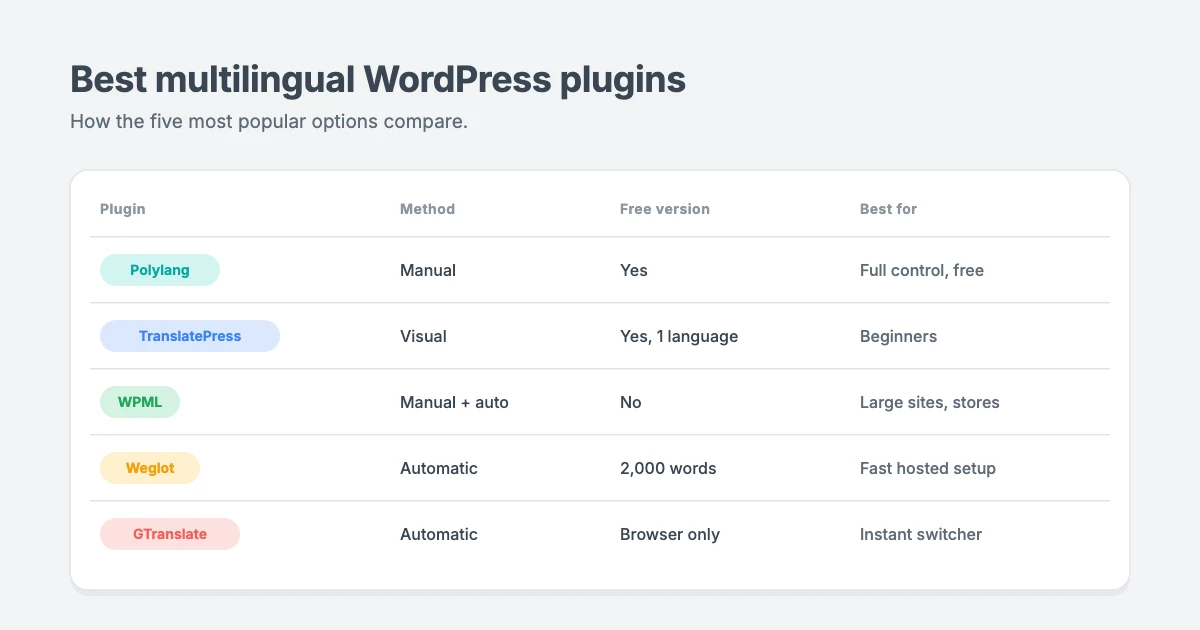
If you’re just starting out and want a free option, we recommend Polylang if you’ll write the translations yourself, or TranslatePress if you’d rather translate visually on the page. Below, we’ll show you how to set up both, followed by quick setups for WPML, Weglot and GTranslate.
Step 1: Choose a translation-ready theme
Before you make your WordPress site multilingual, make sure your theme is ready. A translation-ready theme lets every piece of text in the theme, such as “Read more”, “Search” and “Leave a comment”, be translated. If you plan to add Arabic, Hebrew, Persian or Urdu, your theme also needs RTL (right-to-left) support so the layout mirrors correctly.
Every WPInterface theme is translation ready and RTL compliant, and our themes are tested with WPML. Here are some picks for different kinds of multilingual sites.
Business Interface Pro

Business Interface Pro is one theme for many kinds of business, with 12 ready-made starter sites from consulting and healthcare to bakeries and car dealers. It works with Elementor and WooCommerce, so you can serve customers in their own language.
Corporate Interface Pro

Corporate Interface Pro is a modern corporate theme for companies, agencies and consultants, with sections for services, client stories and results. It’s a great fit for international firms that need the same message in several languages.
SpeedBlog Pro

SpeedBlog Pro gives your blog a clean, magazine-style front page that loads fast, with a 95 PageSpeed score on its demo. It’s ideal for travel and lifestyle bloggers writing for readers in more than one country.
NewsPanda Pro

NewsPanda Pro gives a news or magazine site a bold front page, with an image masthead, a mailing list button and a Breaking News list. For a deeper look at news sites in several languages, see our guide to building a multilingual news website.
RePortfolio Pro

RePortfolio Pro combines a personal portfolio with a blog, with an author card, a contact form and a masonry grid. It suits freelancers and creatives who work with clients around the world.
Step 2: Set your site’s main language
Your site’s main language is the one you write in first. Go to Settings » General, check the Site Language dropdown, and click Save Changes. Your multilingual plugin will use this as the default language, and all other languages will be translations of it.
Method 1: Make your WordPress site multilingual with Polylang (free)
Polylang is one of the most popular multilingual plugins, with over 900,000 active installs. The free version lets you translate posts, pages, media, categories, tags, menus and widgets by hand, and add a language switcher. It also supports RTL languages and works with Yoast SEO.
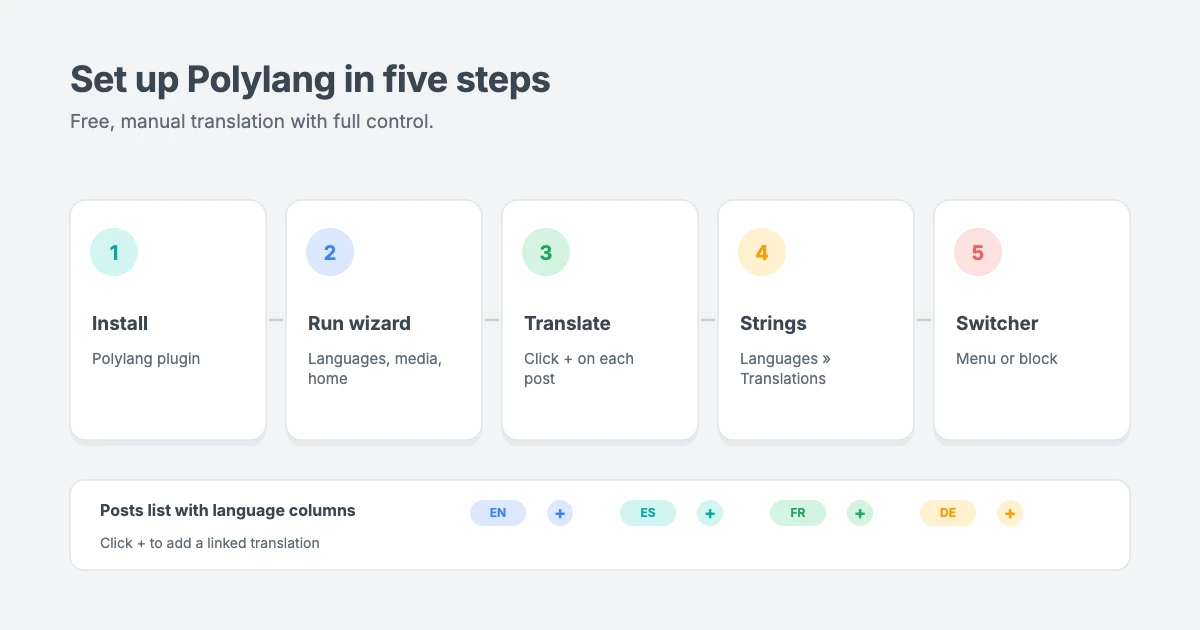
Install and set up Polylang
- Go to Plugins » Add New Plugin, search for Polylang, then click Install Now and Activate.
- The setup wizard opens. On the Languages step, add your main language first, then each language you want to offer.
- On the Media step, choose whether to translate image titles, captions and alt text. Turn it on if you write alt text, which is good for accessibility and SEO.
- On the Content step, Polylang assigns your existing posts and pages to your main language.
- On the Home page step, Polylang creates a translated version of your homepage for each language.
- Click Return to the dashboard.
Translate your posts and pages
- Go to Posts » All Posts. You’ll see a column with a flag for each language.
- Click the + icon in a language’s column next to the post you want to translate.
- WordPress opens a new post linked to the original. Write or paste the translation, including the title, then click Publish.
Repeat this for your pages. Polylang copies the categories and tags across for you, as long as those terms have been translated too.
Translate categories, tags and site text
- Go to Posts » Categories and Posts » Tags, and use the + icon to add a translation for each term.
- Go to Languages » Translations to translate your site title, tagline, widget titles and other text.
- To translate your theme’s own text, such as buttons and labels, use our tutorial on how to translate your theme with Loco Translate.
Add a language switcher
- Classic themes: go to Appearance » Menus, find Language switcher in the left panel, add it to your menu and click Save Menu. Create a separate menu for each language, and assign each one to the right menu location.
- Block themes: add the Language switcher block in your header using the Site Editor.
Finally, go to Languages » Settings and open URL modifications to choose how language URLs look. The language code in the URL, such as example.com/fr/, is the simplest option for most sites.
Method 2: Make your WordPress site multilingual visually with TranslatePress (free)
TranslatePress lets you translate your site from the front end, clicking on any text and typing the translation while you see the page. The free version supports one extra language, which is perfect for a bilingual site, and includes a small free quota of AI translation.
Set up TranslatePress
- Install and activate TranslatePress from Plugins » Add New Plugin.
- Go to Settings » TranslatePress. In the General tab, check your Default Language and add your second language under All Languages.
- Choose how the language switcher appears: as a floating button, in your menu or with a shortcode.
- Click Save Changes.
Translate your pages
- Visit any page on your site while logged in and click Translate Page in the top admin bar.
- The translation editor opens. Click any text on the page, or pick it from the list on the left.
- Type your translation, or use automatic translation if you’ve turned it on, and click Save translation.
The visual editor is great for beginners, because you can see exactly how the translated page will look. To translate SEO titles, descriptions and URL slugs, you’ll need TranslatePress’s premium SEO Pack.
Method 3: Make your WordPress site multilingual with WPML (premium)
WPML is a premium plugin built for bigger sites, agencies and WooCommerce stores. Plans start at €39 per year for a blog, and the Multilingual CMS plan, which you’ll need for WooCommerce and page builders, costs €99 per year and includes AI translation credits.
- Buy a plan, then download the OTGS Installer plugin from your WPML account.
- Upload and activate it under Plugins » Add New Plugin » Upload Plugin.
- Register your site with the site key from your account, then install the WPML plugins you need.
- Follow the setup wizard: choose your languages, URL format and translation mode (automatic or manual).
- Translate posts, pages, menus, categories, products and strings from the WPML » Translation Management screen.
All WPInterface themes are tested with WPML, so you can use it with confidence on any of our themes.
Method 4: Make your WordPress site multilingual with Weglot
Weglot automatically translates your whole site and hosts the translations on its own servers, with SEO-friendly language URLs. It’s very fast to set up, but it’s a monthly subscription based on the number of words and languages.
- Install and activate the Weglot plugin.
- Create a free Weglot account and copy your API key into the plugin settings.
- Choose your original language and your translated languages, then save.
- Edit any machine translations you want to improve from your Weglot dashboard.
Weglot’s free plan covers 2,000 words and one extra language, which is only enough for a very small site. Paid plans start at $17 per month.
Method 5: Make your WordPress site multilingual instantly with GTranslate
GTranslate adds a language switcher that machine-translates your pages into more than 100 languages. The free version translates pages in the visitor’s browser, so translations don’t get their own URLs and aren’t indexed by search engines. Free use is also limited to non-commercial sites. Paid plans, from $12 per month, add search engine indexing and editable translations.
To set it up, install the plugin, go to Settings » GTranslate, choose your languages and widget style, and save. We cover GTranslate in more detail, including RTL languages, in our guide to building a multilingual news website.
Multilingual SEO tips
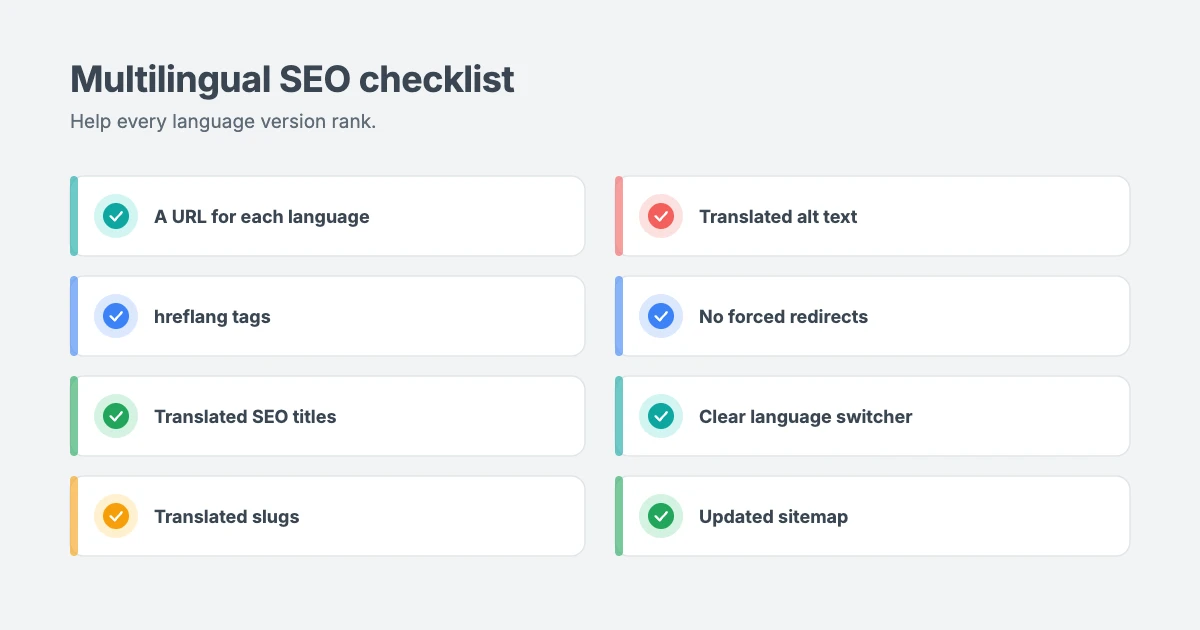
Translating your content is only half the job. To help your translated pages rank, follow these basics:
- Give each language its own URL, such as
example.com/es/ores.example.com. Search engines can’t index translations that share one URL. - Use hreflang tags. They tell Google which language each page is in, so the right version shows in the right country. Most multilingual plugins add them automatically. Google’s guide to managing multilingual sites explains how they work.
- Translate your SEO titles and meta descriptions, not just the content.
- Translate URL slugs where your plugin supports it, so
/about-us/becomes/sobre-nosotros/. - Translate image alt text for accessibility and image search.
- Don’t force-redirect visitors by location. Suggest a language, but let them choose.
- Submit your sitemap in Google Search Console, so new language pages are found quickly.
Common mistakes to avoid
- Mixing languages on one page, such as a translated post with an English menu and sidebar. Translate menus, widgets and your theme’s text too.
- Publishing raw machine translations of important pages without a review.
- Forgetting your forms, emails and checkout, which are often missed on stores.
- Hiding the language switcher. Put it in the header, and label each language in its own name, such as “Deutsch” rather than “German”.
- Using flags for languages. A flag represents a country, not a language. Spanish is spoken in more than 20 countries, so language names are clearer.
- Not testing RTL languages if you add Arabic, Hebrew, Persian or Urdu.
Need help building your multilingual site?
If you’d rather have experts make your WordPress site multilingual, the WPInterface team can help:
- Custom WordPress Development: we set up your multilingual plugin, language switcher, translated menus and SEO for every language.
- WordPress Theme Customization: we translate your theme’s text and fine-tune layouts and fonts for each language, including RTL.
- WordPress Migration: we move your site to hosting that can handle extra languages and traffic.
- WordPress Care Plans: ongoing updates, backups and monitoring for your multilingual site.
You can also see all our professional WordPress services.
Frequently asked questions
Can WordPress be multilingual without a plugin?
Not easily. WordPress can switch its own interface language, but it can’t manage several versions of your content on its own. You could run a WordPress Multisite with one site per language, but for most people, a multilingual plugin is far simpler.
What is the best free multilingual plugin for WordPress?
For most beginners, Polylang is the best free option if you want to translate content yourself, because the free version has no limit on languages. TranslatePress is the easiest choice for a bilingual site, thanks to its visual editor.
Is Google Translate good enough for my website?
It’s good for helping visitors understand your content, but not for pages that need to be accurate or persuasive, such as product pages, legal terms and key landing pages. Use machine translation as a first draft, then review the most important pages.
Will a multilingual plugin slow down my site?
A well-built plugin has only a small impact. Plugins that store translations in your database, like Polylang, WPML and TranslatePress, work with your normal caching. A fast, lightweight theme also helps keep every language quick.
Do multilingual sites rank better on Google?
They can rank in more places. Each translated page can appear in search results for its language, as long as it has its own URL, hreflang tags and translated SEO titles. Translated pages that share one URL, like GTranslate’s free version, won’t be indexed.
Can I make my WooCommerce store multilingual?
Yes. WPML’s Multilingual CMS plan, Polylang Pro with its WooCommerce add-on, TranslatePress and Weglot all support WooCommerce. Make sure you translate products, categories, checkout text and customer emails.
Do I need a translation-ready theme?
Yes. Without one, your theme’s own text, such as buttons and headings in the header and footer, may stay in English. Every WPInterface theme is translation ready and RTL compliant.
Conclusion
Making your WordPress site multilingual is easier than it looks. Start with a translation-ready theme, set your main language, and pick a plugin that fits how you want to work: Polylang for free manual translation, TranslatePress for visual editing, WPML for large sites and stores, Weglot for hosted automatic translation, or GTranslate for an instant language switcher. Then give each language its own URL and translate your SEO details so every version can rank.
Ready to reach a global audience? Browse our translation-ready WordPress themes, or get every theme with the All-Access Pass.
Reactions
How did this make you feel?
Be the first to react
One reaction per visitor. Tap again to change or remove it.




Leave a reply