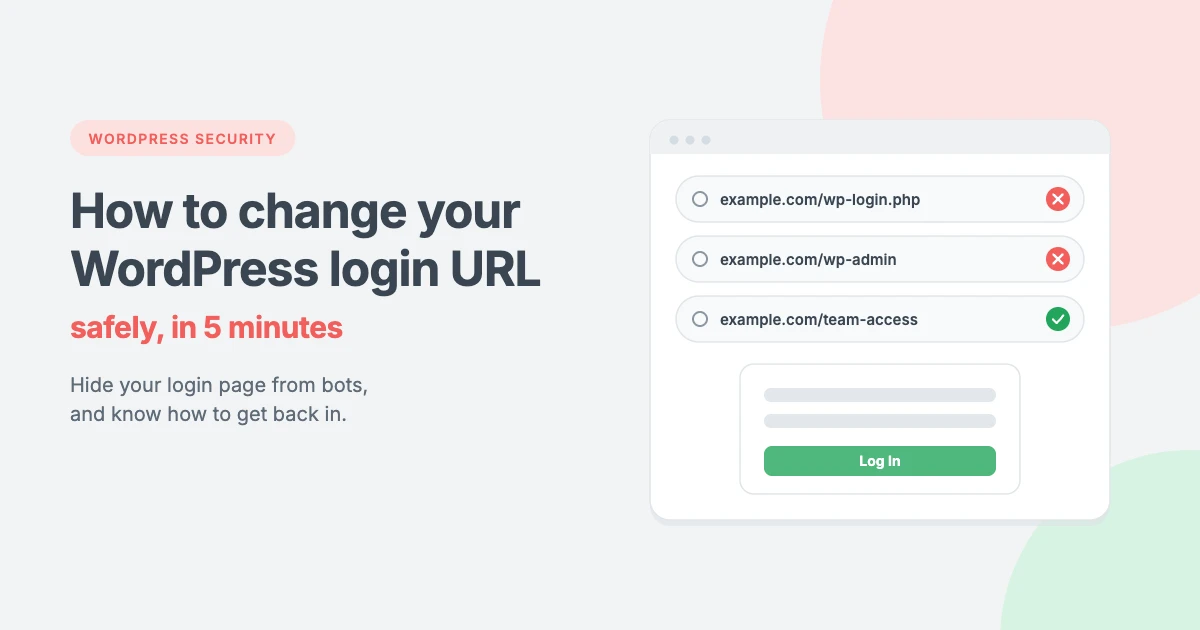
Every WordPress site uses the same login address by default: /wp-admin or /wp-login.php added to the end of the domain. That makes the login page easy for you to remember, but it’s just as easy for bots and attackers to find. Automated scripts try thousands of username and password combinations on these pages every day, slowing sites down and putting weak accounts at risk.
Changing your WordPress login URL is a quick way to hide the login page from most of these attacks. In this tutorial, we’ll show you how to change the WordPress login URL safely with a free plugin, explain the other options and why you shouldn’t edit core files, and show you how to get back in if you ever forget your new login address or get locked out.
Why change the WordPress login URL?
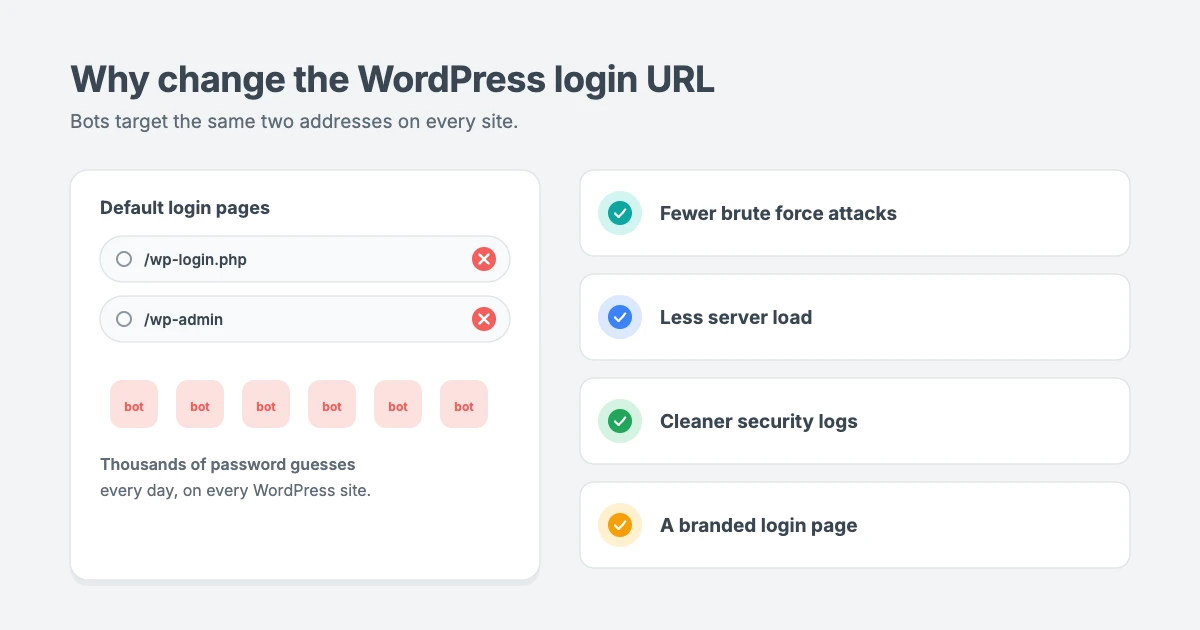
The default WordPress login page sits at the same place on every site. Anyone can visit example.com/wp-login.php and start guessing passwords. Changing that address has real benefits:
- Fewer brute force attacks. Most bots only try the default login URLs. If the page isn’t there, they give up and move on.
- Less server load. Thousands of failed login attempts use server resources. Blocking them can make your site faster, especially on shared hosting.
- Cleaner security logs. With fewer junk login attempts, real threats are easier to spot.
- A more branded experience. A login address like
example.com/memberslooks more professional to your team, clients or members.
Changing the WordPress login URL is not a complete security solution on its own. Think of it as one extra lock on the door, used together with strong passwords, two-factor authentication and regular updates.
How to find your current WordPress login URL
On a standard WordPress site, you can reach the login page by adding one of these to the end of your domain:
example.com/wp-adminexample.com/wp-login.phpexample.com/loginorexample.com/admin(WordPress redirects these to the login page on most sites)
If none of these work, your login URL has probably already been changed by a plugin, your host or a previous developer.
Before you start
Changing the WordPress login URL is safe, but a few minutes of preparation will save you a headache later:
- Back up your site. Make a full backup of your files and database, so you can restore it if anything goes wrong. For a recovery plan, see our tutorial on what to do when a WordPress update breaks your site.
- Make sure you can reach your files. Check that you can log in to your hosting control panel and open the File Manager, or connect with FTP. You’ll need this if you’re ever locked out.
- Choose your new login address. Pick something easy for you to remember but hard to guess. Avoid obvious words like
login,adminorsignin. Something liketeam-accessorstudio-entryworks well.
Method 1: Change the WordPress login URL with WPS Hide Login (recommended)
WPS Hide Login is a free, lightweight plugin with more than 2 million active installs. It lets you choose a new login address and hides the default wp-login.php and /wp-admin pages from visitors who aren’t logged in. It doesn’t change any core files or add rewrite rules, so it’s safe and easy to undo.
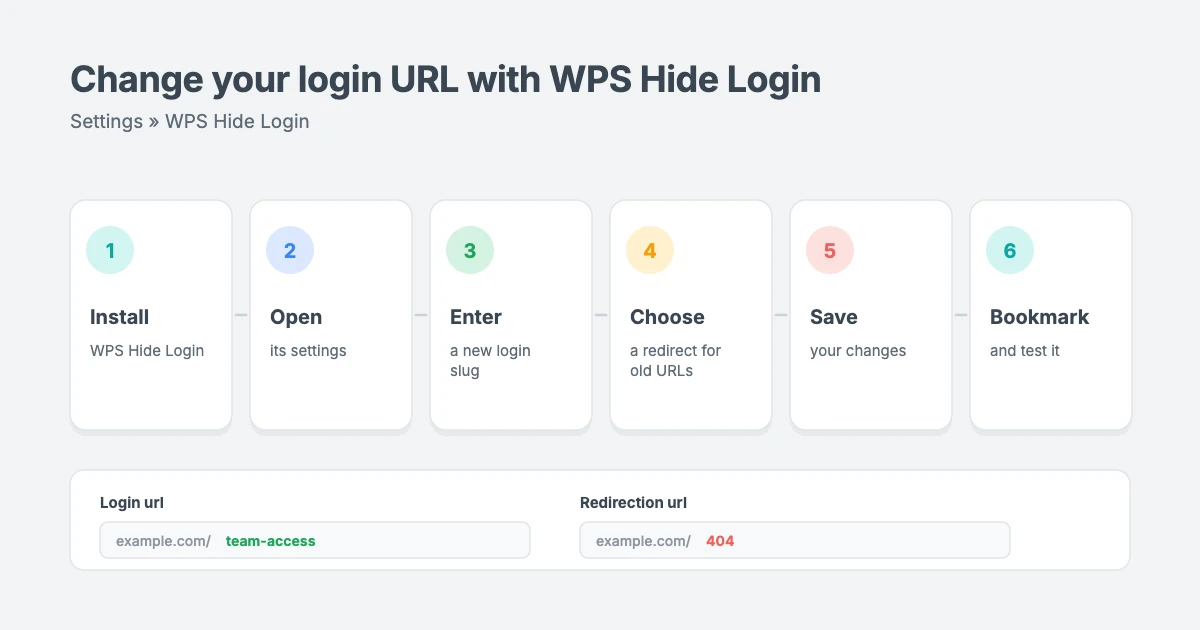
Step 1: Install and activate the plugin
- Go to Plugins » Add New Plugin in your dashboard.
- Search for WPS Hide Login.
- Click Install Now, then Activate.
Step 2: Set your new login URL
- Go to Settings » WPS Hide Login. On some versions, the settings appear at the bottom of Settings » General.
- In the Login url field, type your new login slug, for example
team-access. Your new login address will beexample.com/team-access. - In the Redirection url field, choose where people go if they try the old login pages. By default this is a 404 page, which is a good choice. You can also enter a page of your own.
- Click Save Changes.
Step 3: Bookmark and test the new address
- Copy your new login URL and save it somewhere safe, such as your browser bookmarks and your password manager.
- Log out, then visit your new login URL and log in to check it works.
- Visit
example.com/wp-login.phpandexample.com/wp-adminin a private browser window. You should see your 404 page or the redirect page you chose, not the login form.
That’s it. Bots that try the default login pages will now hit a dead end.
Using a caching plugin?
If you use a page caching plugin, add your new login slug to its list of pages that should never be cached. Otherwise, some visitors may see a cached version of the login page. WP Rocket handles this automatically, but other caching plugins may need it set by hand.
How to choose a good WordPress login URL
Your new WordPress login URL only helps if it’s hard to guess. Bots don’t just try wp-login.php. Many also try common alternatives, so a predictable slug gives you very little protection.
| Avoid | Better choice | Why |
|---|---|---|
/login | /team-access | /login is one of the first addresses bots try |
/admin | /studio-entry | /admin is already a well-known WordPress shortcut |
/dashboard | /north-gate-24 | Anything that sounds like WordPress is easy to guess |
/yourname | /blue-lantern | Your name or brand is public information |
A few simple rules help:
- Use two or three unrelated words, such as
quiet-harborormaple-door. - Add a number if you like, but don’t use your birth year or founding year.
- Keep it lowercase with hyphens, so it’s easy to type on any device.
- Don’t share it publicly. Give it only to people who need to log in.
What to update after you change your WordPress login URL
Once your new WordPress login URL is live, take a minute to update the places that still point to the old one:
- Bookmarks and password managers for everyone on your team.
- Login links in menus or footers. If your theme or a widget shows a “Log in” link, check that it uses the new address or remove it.
- Documentation and client handovers that mention
/wp-admin. - Uptime and security monitoring tools that check your login page.
- Your caching plugin’s exclusion list, so the new login page is never cached.
Method 2: Use your security plugin’s built-in option
If you already use a security plugin, you may not need a separate one. Many security plugins include a WordPress login URL feature. For example, All-In-One Security (AIOS) includes a Rename Login Page option, and Solid Security includes a Hide Backend feature.
The steps are similar in each one: open the security plugin’s settings, find the login or brute force section, turn on the feature, choose your new slug and save. Don’t run two plugins that change the login URL at the same time, because they can conflict and lock you out.
Method 3: Create a custom front-end login page
Membership, community and online course sites often want a branded login page that matches the rest of the site. Plugins such as User Registration & Membership, and the account pages built into WooCommerce, let you create a login page with a block or shortcode. Many of them can also redirect the default WordPress login page to your new one.
This is a great option for sites where customers or members log in. For sites where only your team logs in, Method 1 is simpler.
Why you shouldn’t rename wp-login.php by hand
Some older guides suggest renaming the wp-login.php file in your site’s root folder and editing the code inside it. We don’t recommend this:
- WordPress updates undo it. Every core update replaces
wp-login.php, so your changes disappear and the old login page comes back. - It can break features. Password resets, logouts and some plugins expect the original file and can stop working.
- It’s easy to lock yourself out. One mistake in the file can make it impossible to log in at all.
A plugin does the same job safely, survives updates and can be undone in seconds.
What to do if you forget your login URL or get locked out
It happens to everyone. Here’s how to get back into your dashboard.
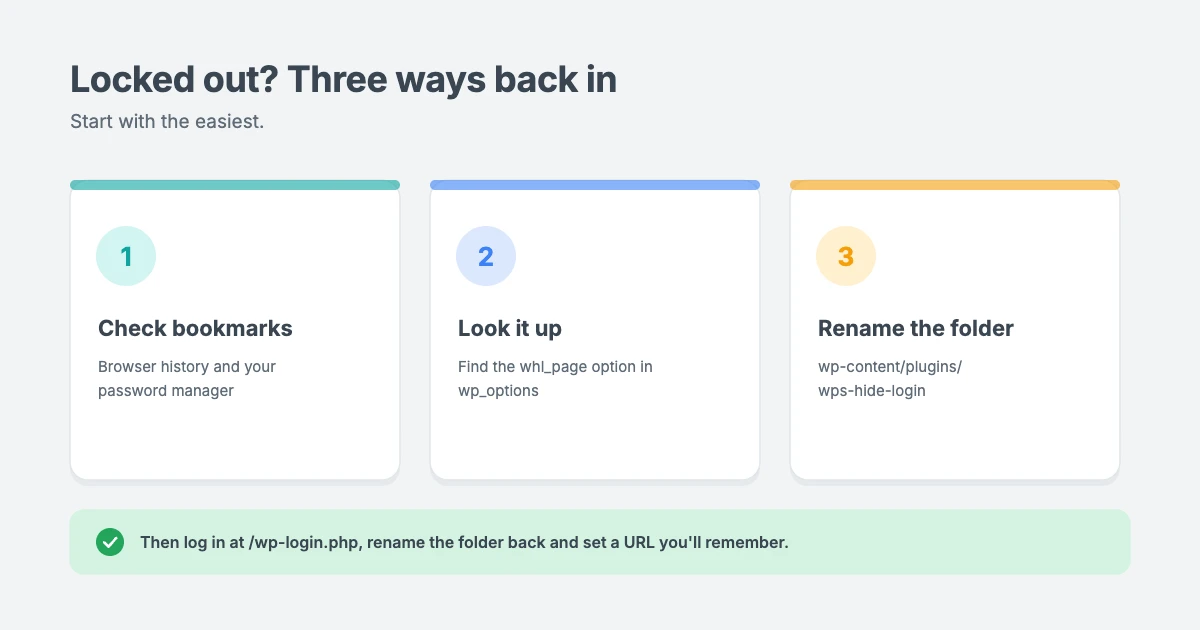
Option 1: Check your bookmarks and password manager
Before anything else, check your browser bookmarks, browser history and password manager. The address is often saved there.
Option 2: Look up the slug in your database
If you can open phpMyAdmin from your hosting control panel:
- Open your WordPress database and the
wp_optionstable (your prefix may be different fromwp_). - Search for the option named
whl_page. - Its value is your login slug. Add it to the end of your domain to log in.
Option 3: Turn the plugin off from your files
If you can’t find the slug, deactivating the plugin brings back the default login page:
- Open your host’s File Manager or connect with FTP.
- Go to
wp-content/plugins. - Rename the
wps-hide-loginfolder, for example towps-hide-login-off. - Visit
example.com/wp-login.phpand log in as normal. - Rename the folder back, reactivate the plugin under Plugins, and set a login URL you’ll remember.
The same approach works for security plugins: rename that plugin’s folder to turn it off temporarily.
If you still can’t log in and see a server error instead, follow our guide on how to fix the 500 internal server error in WordPress.
Other ways to protect your WordPress login page
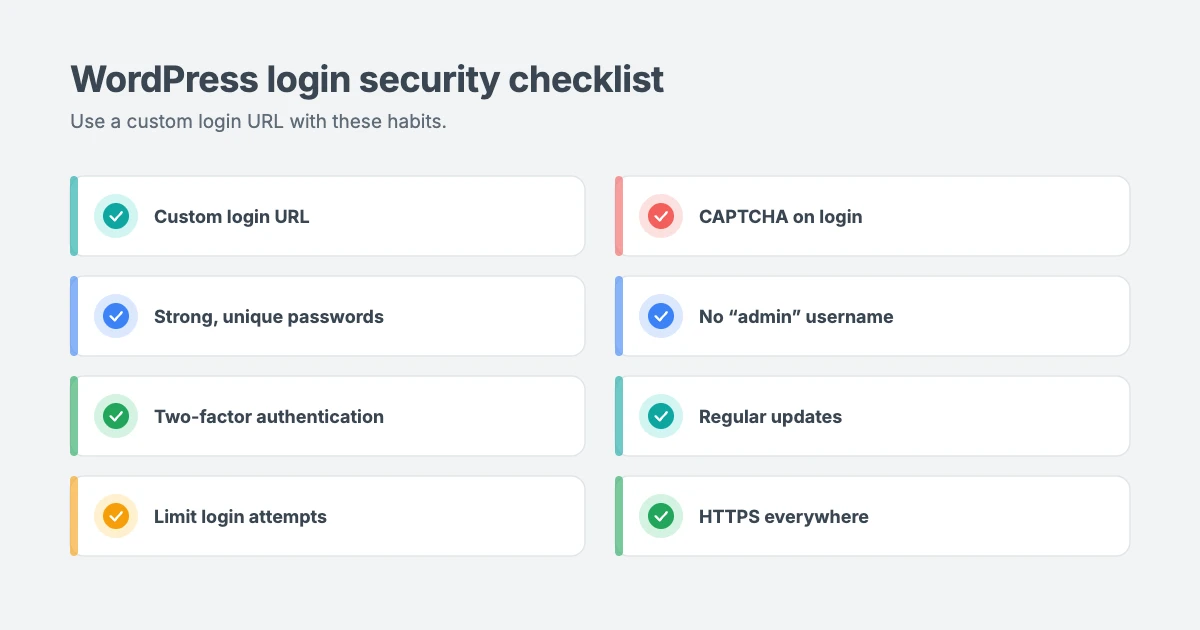
Changing the WordPress login URL works best alongside other security habits. Here are the most effective ones:
- Use strong, unique passwords for every account, and store them in a password manager.
- Turn on two-factor authentication (2FA) so a stolen password isn’t enough to log in.
- Limit login attempts to block anyone who keeps guessing passwords. Many security plugins include this.
- Add a CAPTCHA to your login form to stop automated bots.
- Don’t use “admin” as a username. It’s the first name every bot tries.
- Remove old user accounts that no one uses anymore, and give each person only the role they need.
- Keep WordPress, plugins and your theme updated, because most hacks use known, already-fixed vulnerabilities.
- Use HTTPS so login details are always encrypted.
The WordPress project’s own guide to hardening WordPress is a good next read if you want to go further.
Let our team secure your WordPress site
If you’d rather leave security to experts, the WPInterface team can help:
- Malware Removal and Security Hardening: we clean infected sites by hand and harden your login, files and server settings so it doesn’t happen again.
- WordPress Care Plans: weekly updates, daily off-site backups and security monitoring, so problems are caught early.
- VIP Support: a $29 priority ticket for fast, expert help, for example if you’re locked out of your dashboard.
- WordPress Speed Optimization: fewer bot attacks and a faster, leaner site.
You can also see all our professional WordPress services.
Frequently asked questions
Does changing the login URL make WordPress secure?
It makes your site a much harder target for automated attacks, but it isn’t enough on its own. Some bots can still find a hidden login page. Use it together with strong passwords, two-factor authentication, limited login attempts and regular updates.
Will changing the login URL break my website?
No. With a plugin like WPS Hide Login, only the login address changes. Your pages, posts and front-end visitors aren’t affected. Password resets, registration and logouts keep working.
What happens to wp-admin after I change the login URL?
Visitors who aren’t logged in are sent to a 404 page or the redirect page you chose. Once you’re logged in, /wp-admin works as normal.
Can I change the login URL without a plugin?
You can rename wp-login.php by hand, but we don’t recommend it. Every WordPress update restores the original file, and a small mistake can lock you out. A plugin is safer and survives updates.
How do I find my login URL if I forgot it?
Check your bookmarks and password manager first. If you use WPS Hide Login, look up the whl_page option in your database, or rename the plugin’s folder in wp-content/plugins to bring back the default wp-login.php page.
Does changing the login URL affect WooCommerce customers?
No. WooCommerce customers log in through the My Account page, which is a normal page on your site and isn’t affected by the plugin.
Will my new login URL work with multisite?
Yes. WPS Hide Login supports multisite networks with subdomains or subfolders. You can set a network-wide default, and individual sites can choose their own.
Conclusion
Changing your WordPress login URL takes less than five minutes and stops most automated login attacks before they start. Install WPS Hide Login, choose a new login slug, save it somewhere safe and test it in a private window. Avoid editing core files by hand, and keep a recovery plan ready in case you’re ever locked out.
For complete peace of mind, combine a custom login URL with strong passwords, two-factor authentication and our WordPress Care Plans.
Reactions
How did this make you feel?
Be the first to react
One reaction per visitor. Tap again to change or remove it.



Leave a reply