Did you know that WordPress adds a small emoji script and some extra styles to every page of your website? It’s been there since WordPress 4.2, and most site owners never notice it.
Today, almost every browser and device can show emojis on its own, so for many sites that extra code is no longer needed. Removing it is a quick, safe way to trim a little weight from every page.
In this tutorial, we’ll show you how to disable emojis in WordPress step by step, using a code snippet or a setting in your caching plugin, and how to check that it worked.
What does the WordPress emoji script do?
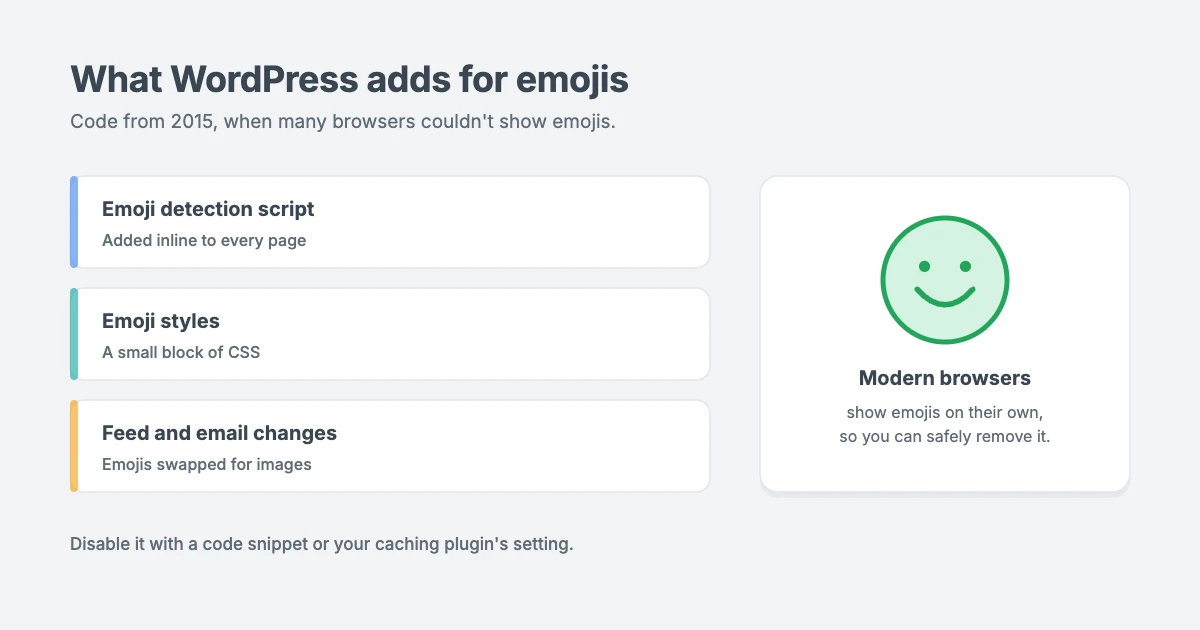
When WordPress 4.2 was released in 2015, many browsers and operating systems couldn’t display emojis properly. To fix that, WordPress started adding its own emoji support to every site. On each page, it adds:
- An inline emoji detection script that checks whether the visitor’s browser can show emojis. If it can’t, WordPress loads a second script that swaps emojis for images.
- A small block of CSS that styles those emoji images.
- Emoji conversion in feeds and emails, where emojis are replaced with images.
Back then, this was helpful. Today, modern browsers on phones, tablets and computers show emojis natively, so in most cases the script checks the browser and then does nothing.
Why disable emojis in WordPress?
The emoji code isn’t large, but there are good reasons to disable emojis in WordPress:
- Less code on every page. The detection script and CSS are added inline to every page, even pages that never use an emoji.
- A cleaner page source. Removing unused code makes it easier to read your HTML and find real performance problems.
- Fewer items flagged in speed tests. Every small saving helps when you’re working on Core Web Vitals such as INP.
- A more consistent look. Without the script, emojis display in each device’s own style instead of being swapped for images.
Be realistic about the gain. Disabling emojis in WordPress is a small optimisation. It won’t transform a slow site by itself, but it’s one of many small changes that add up. Our own site, wpinterface.com, doesn’t load the WordPress emoji script.
Will I still be able to use emojis?
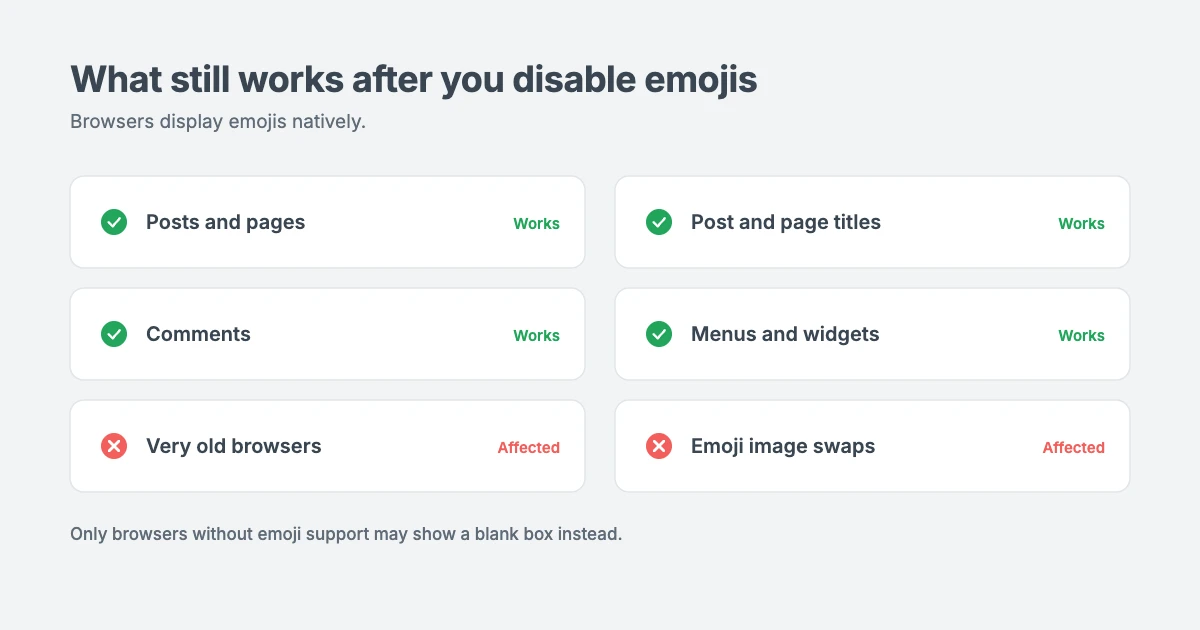
Yes. When you disable emojis in WordPress, it doesn’t stop you or your visitors from using emojis in posts, pages, titles or comments. They will still display, using the browser’s built-in emoji support.
The only difference is for very old browsers without emoji support. Visitors using them may see a blank box instead of an emoji, which is why this change is safe for almost every modern website.
Before you begin
- Take a full backup of your site, especially before adding code. Our tutorial on how to roll back a WordPress update shows why a recent backup matters.
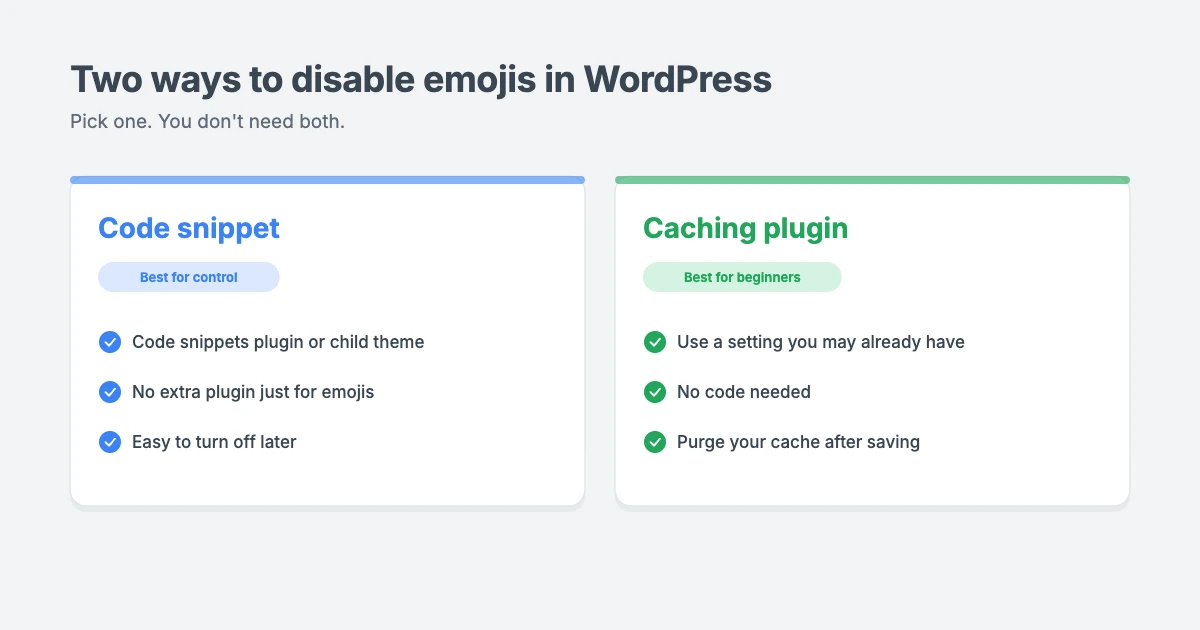
- Choose one method only. Use either the code snippet or your caching plugin’s setting, not both.
- Clear your cache afterwards, so visitors get the updated pages.
Method 1: Disable emojis in WordPress with a code snippet
This is the most flexible way to disable emojis in WordPress. It gives you full control and doesn’t need a dedicated plugin. You can add the code in one of two places:
- A code snippets plugin. This is the safest option for beginners, because the code is kept separate from your theme and you can turn it off with one click.
- Your child theme’s functions.php file. Only edit a child theme, never the parent theme, or your changes will be lost when the theme updates.
Avoid editing files directly on a live site if you can. A small typing mistake in PHP can cause an error that takes your site offline. If you add the code through a code snippets plugin, choose PHP snippet as the code type and set it to run everywhere.
Copy and paste this code to disable emojis in WordPress:
// Disable emojis in WordPress.
add_action( 'init', function () {
    $hooks = array(
        'wp_head'             => 'print_emoji_detection_script',
        'admin_print_scripts' => 'print_emoji_detection_script',
        'embed_head'          => 'print_emoji_detection_script',
        'wp_print_styles'     => 'print_emoji_styles',
        'admin_print_styles'  => 'print_emoji_styles',
    );

    foreach ( $hooks as $hook => $callback ) {
        $priority = has_action( $hook, $callback );
        if ( false !== $priority ) {
            remove_action( $hook, $callback, $priority );
        }
    }

    remove_filter( 'the_content_feed', 'wp_staticize_emoji' );
    remove_filter( 'comment_text_rss', 'wp_staticize_emoji' );
    remove_filter( 'wp_mail', 'wp_staticize_emoji_for_email' );
} );

// Remove the emoji plugin from the classic editor.
add_filter( 'tiny_mce_plugins', function ( $plugins ) {
    return is_array( $plugins ) ? array_diff( $plugins, array( 'wpemoji' ) ) : array();
} );
Here’s how this code helps you disable emojis in WordPress:
- The first block stops WordPress from adding the emoji detection script and styles to your site, your dashboard and embedded posts. It finds each emoji hook and removes it, so it keeps working even if WordPress changes the order these run in. It also stops emojis being turned into images in RSS feeds and emails.
- The second block removes the emoji plugin from the classic editor, if you use it.
Save the snippet or file, then activate the snippet if you’re using a code snippets plugin.
Good to know: since WordPress 6.4, emoji styles are added in a new way, but WordPress still checks for the original print_emoji_styles hook for backwards compatibility, as you can see in the WordPress developer reference, so removing it, as this code does, still works on current versions.
Method 2: Disable emojis in WordPress with your caching plugin
If you’d rather not add code, you can disable emojis in WordPress from your caching or performance plugin. Many include an option to remove the WordPress emoji script, so you don’t need to install another plugin.
For example, if you use LiteSpeed Cache, as we do here at WPInterface:
- Go to LiteSpeed Cache » Page Optimization in your WordPress dashboard.
- Click the HTML Settings tab.
- Turn on Remove WordPress Emoji.
- Click Save Changes. The LiteSpeed Cache documentation explains this setting in more detail.
- Purge the cache from the LiteSpeed Cache menu.
Other caching plugins often have a similar setting with a name such as “Disable emojis” or “Remove emoji script”. Look in their file optimisation or advanced settings, or check the plugin’s documentation.
If your plugin doesn’t have this option, use the code snippet in Method 1. There’s no need to install a separate plugin just for this.
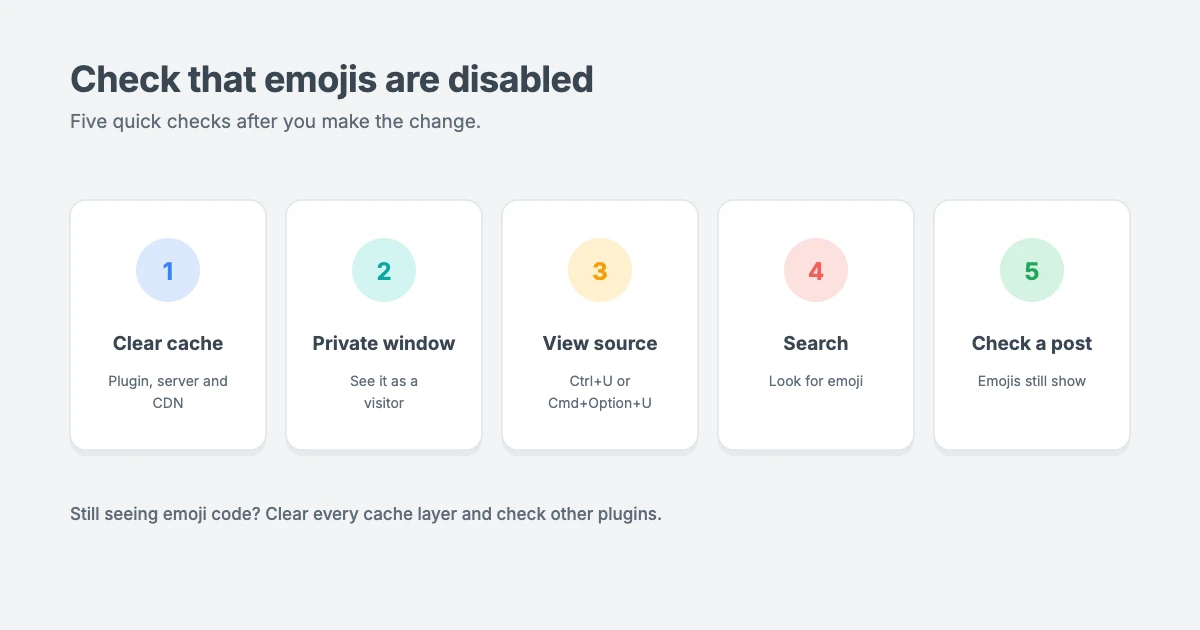
Step 3: Check that emojis are disabled
Once you disable emojis in WordPress with either method, make sure the change worked:
- Clear your cache, including any caching plugin, server cache or CDN cache.
- Open your site in a private browser window, so you see it as a logged-out visitor.
- View the page source. Right-click the page and choose View page source, or press Ctrl+U on Windows or Cmd+Option+U on a Mac.
- Search for “emoji”. Press Ctrl+F or Cmd+F and type
emoji. If you no longer find the WordPress emoji script orwp-emojistyles, you’ve successfully disabled emojis in WordPress. - Check a post that uses emojis to confirm they still display normally.
If you still see the emoji code, clear every layer of cache again. If it’s still there, a plugin or your theme may be adding it back, so test with other plugins temporarily disabled on a staging site.
How to undo the change
Changed your mind after you disable emojis in WordPress? It’s easy to bring emoji support back:
- Code snippets plugin: deactivate or delete the snippet.
- Child theme: remove the code from your
functions.phpfile. - Caching plugin: turn the setting off and save.
Then clear your cache, and WordPress will add the emoji script again. You can always disable emojis in WordPress later with the same steps.
More small speed wins
Disabling emojis in WordPress works best as part of a wider clean-up. While you’re optimising, consider these other quick wins:
- Remove plugins you don’t use, and replace heavy plugins with lighter ones where you can.
- Compress and resize images before you upload them.
- Delay or defer non-essential JavaScript, such as chat widgets and social embeds.
- Use good hosting and a caching plugin. Our guide to Apache vs Nginx vs LiteSpeed explains how web servers affect speed.
- Choose a lightweight theme that only loads what each page needs.
Lightweight WPInterface themes
Small optimisations make the biggest difference on a site that’s already lean. Every WPInterface Pro theme is built with lean code and design settings in the WordPress Customizer, and every theme is translation ready and RTL compliant.
SpeedNews Pro
SpeedNews Pro is a fast news and magazine theme with a trending ticker, mosaic headlines and three-column layouts, built for publishers who need pages to load quickly.

SpeedBlog Pro
SpeedBlog Pro is a fast blog theme for travel, tech, personal and creative blogs, with a clean layout that keeps readers focused.

Business Interface Pro
Business Interface Pro is a lightweight multipurpose business theme with 12 starter sites, ideal for company websites that need to be fast and professional.

You can see all our themes on the WordPress themes page.
Want us to speed up your site?
If you’d rather leave performance tweaks to an expert, the WPInterface team can help:
- WordPress Speed Optimization: we optimise scripts, images, caching and hosting settings for better Core Web Vitals, starting with a free speed audit.
- Must-Have Plugins Installation: for $59, we install and configure the essential plugins every site needs.
- WordPress Care Plans: updates, backups and monitoring, so your optimisations keep working after updates.
- VIP Support: a $29 priority ticket for quick expert help.
Frequently asked questions
Is it safe to disable emojis in WordPress?
Yes. It’s a common, safe optimisation. It only removes WordPress’s extra emoji support code. Your content, plugins and theme keep working as normal.
Will emojis still show on my site?
Yes. Modern browsers display emojis on their own, so emojis in your posts, titles and comments will still appear. Only very old browsers without emoji support may show a blank box.
How much faster will my site be?
Only a little. The emoji script is small, so you shouldn’t expect a big change on its own. It’s most useful as one of several small optimisations.
Why does WordPress load an emoji script at all?
WordPress added emoji support in version 4.2 in 2015, when many browsers couldn’t display emojis. Most browsers can now, but WordPress still includes the script for older devices.
Do I need a plugin to disable emojis?
No. You can use a short code snippet, or a setting in a caching plugin you may already have, such as LiteSpeed Cache.
Should I use the code snippet and the caching plugin setting together?
No. One method is enough. Using both won’t break anything, but it adds nothing and makes troubleshooting harder later.
Final thoughts
Disabling emojis in WordPress takes a couple of minutes and removes code most modern sites no longer need. Add the code snippet, or turn on the setting in your caching plugin, clear your cache and check your page source.
Your visitors will still see emojis, and your pages will carry a little less weight. Combine it with a lightweight theme, good hosting and careful caching, and those small wins soon add up.
Reactions
How did this make you feel?
Be the first to react
One reaction per visitor. Tap again to change or remove it.




Leave a reply