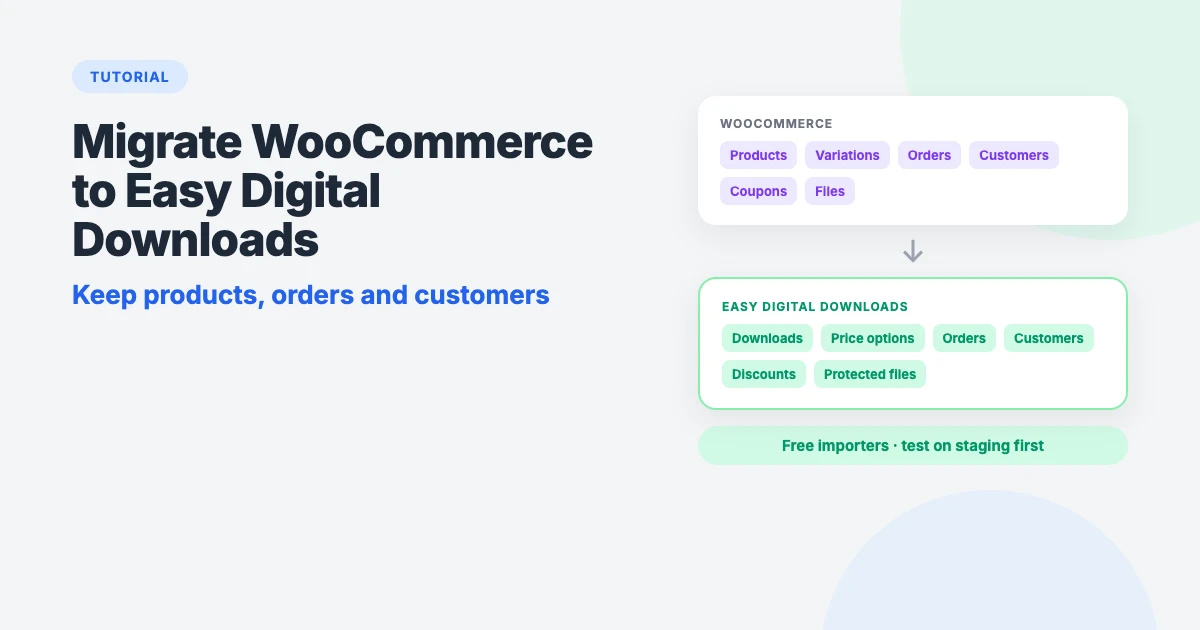
WooCommerce is brilliant for physical products, but if you only sell e-books, themes, plugins, music or courses, much of it gets in your way. Shipping settings, stock levels and product dimensions don’t apply, and features digital sellers need, such as download limits or license keys, usually mean extra extensions.
Easy Digital Downloads (EDD) is built for exactly this kind of store. The good news is that you can move from WooCommerce to Easy Digital Downloads with free tools, keeping your products, files, order history and customers, without starting from scratch.
In this tutorial, we’ll walk you through the whole migration step by step: what transfers and what doesn’t, how to prepare your CSV files so the importers accept them, how to test before you go live, and how to keep your customers and search rankings when you switch.
Why move a digital store from WooCommerce to Easy Digital Downloads?
- It’s built for digital products. No shipping, stock or weight settings to switch off. Secure file delivery, download limits and link expiry are built in.
- Simpler checkout. EDD’s checkout asks only for what a digital purchase needs, so it’s shorter and faster.
- Customer purchase history. Customers can log in and download everything they’ve bought, any time.
- Software and subscriptions. EDD’s Software Licensing and Recurring Payments extensions are designed around digital products, if you sell plugins, themes or memberships.
- A lighter site. Fewer extensions and fewer settings mean less to update and less to go wrong.
If you also sell physical products, stay with WooCommerce. EDD is for stores that are digital only. Our guide on creating a digital product marketplace in WordPress explains what EDD can do in more depth.
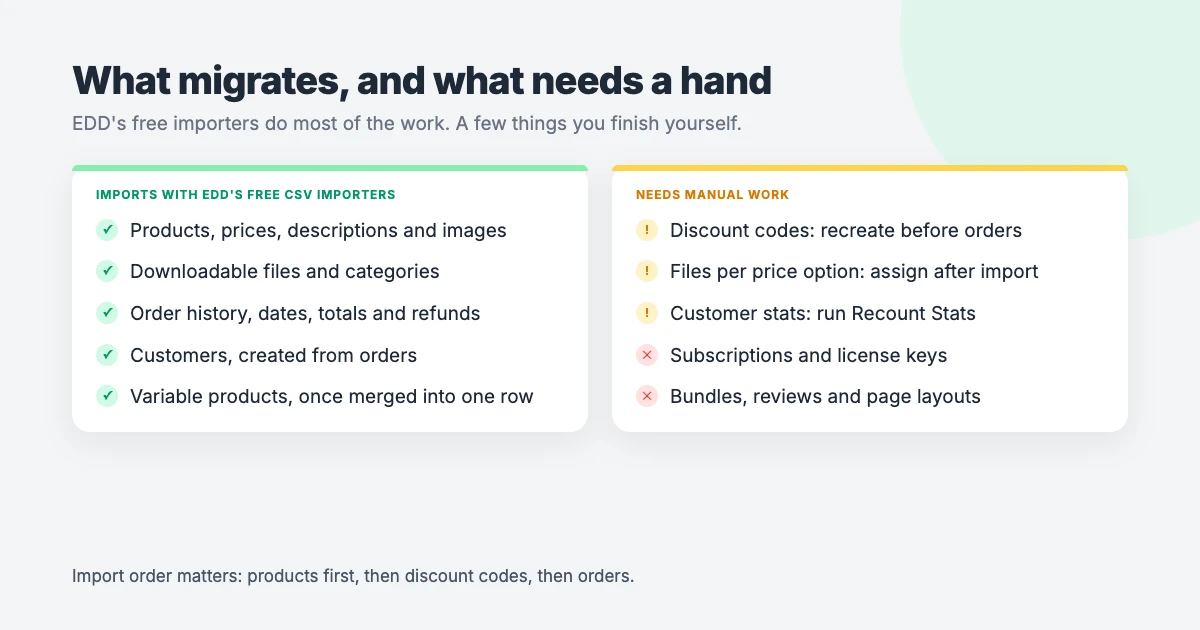
What migrates, and what needs manual work
| Data | How it moves |
|---|---|
| Products, prices, descriptions, images | EDD product importer (CSV) |
| Downloadable files | Product importer, using file URLs |
| Categories and tags | Product importer |
| Variable products | Product importer, after merging variations into one row |
| Orders, dates, totals and refunds | EDD order importer (CSV) |
| Customers | Created automatically from imported orders |
| Discount codes | Recreate by hand before importing orders |
| Files per price option | Assign by hand after import |
| Customer lifetime stats | Rebuild with Recount Stats |
| Subscriptions and license keys | Not moved by the importers; plan separately |
| Product bundles | Not supported by the importer; rebuild by hand |
| Reviews, theme and page layouts | Not migrated |
If most of your revenue comes from subscriptions or software licenses, read the section on subscriptions and licenses before you start. For a simple store selling one-off downloads, the free importers handle almost everything.
Before you start
A little preparation makes the move from WooCommerce to Easy Digital Downloads painless:
- Take a full backup. Use your host’s backup tool or a free plugin such as Duplicator, and store a copy off the server. Our guide on backing up WordPress to Dropbox shows one way.
- Work on a staging copy. Do the whole migration on a staging site or a local copy first. Our comparison of Local vs XAMPP can help you set one up on your computer.
- Install Easy Digital Downloads alongside WooCommerce. Install the free Easy Digital Downloads plugin and keep WooCommerce active until you’ve exported everything.
- Install an order exporter. WooCommerce’s built-in exports don’t include everything you need, such as customer emails. The free Advanced Order Export For WooCommerce plugin does.
- List your WooCommerce extensions. Write down every extension you use and what replaces it in EDD, for example your payment gateway, email marketing integration and any tax tools.
- Pick a quiet time. Plan the live switch for your lowest-traffic day, and pause marketing emails while you do it.
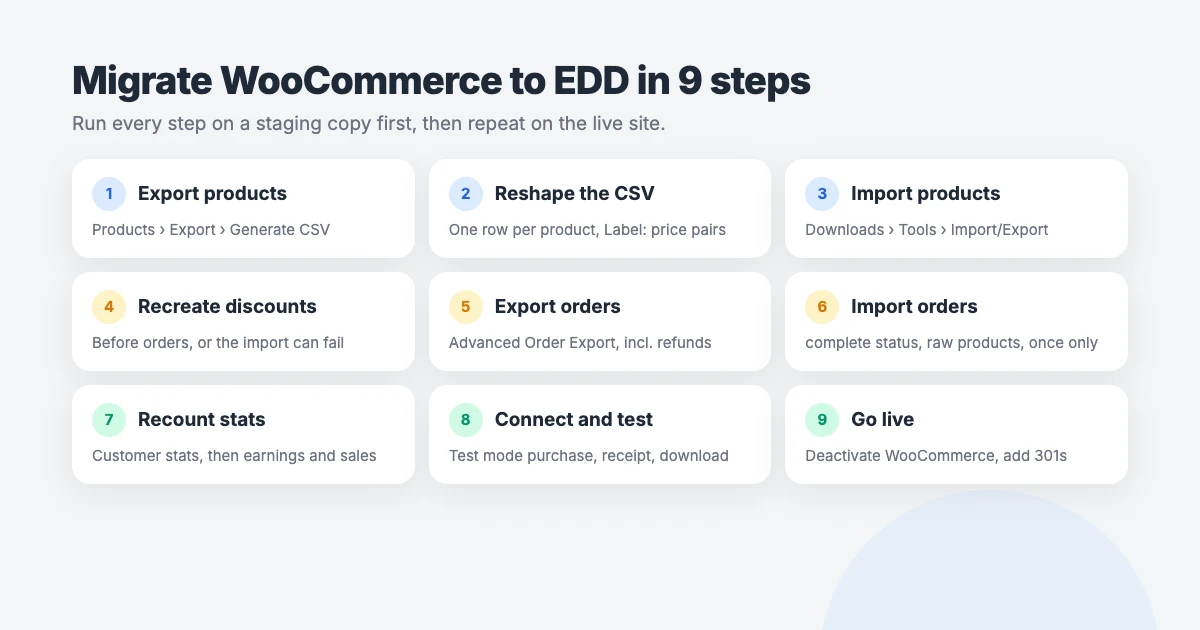
Step 1: Export your WooCommerce products
Go to Products → All Products and click Export at the top of the screen. Leave all columns, product types and categories selected, then click Generate CSV. WooCommerce downloads a CSV file of your whole catalogue.
Make a copy of this file before you edit it, so you always have the original.
Step 2: Reshape the product CSV for EDD
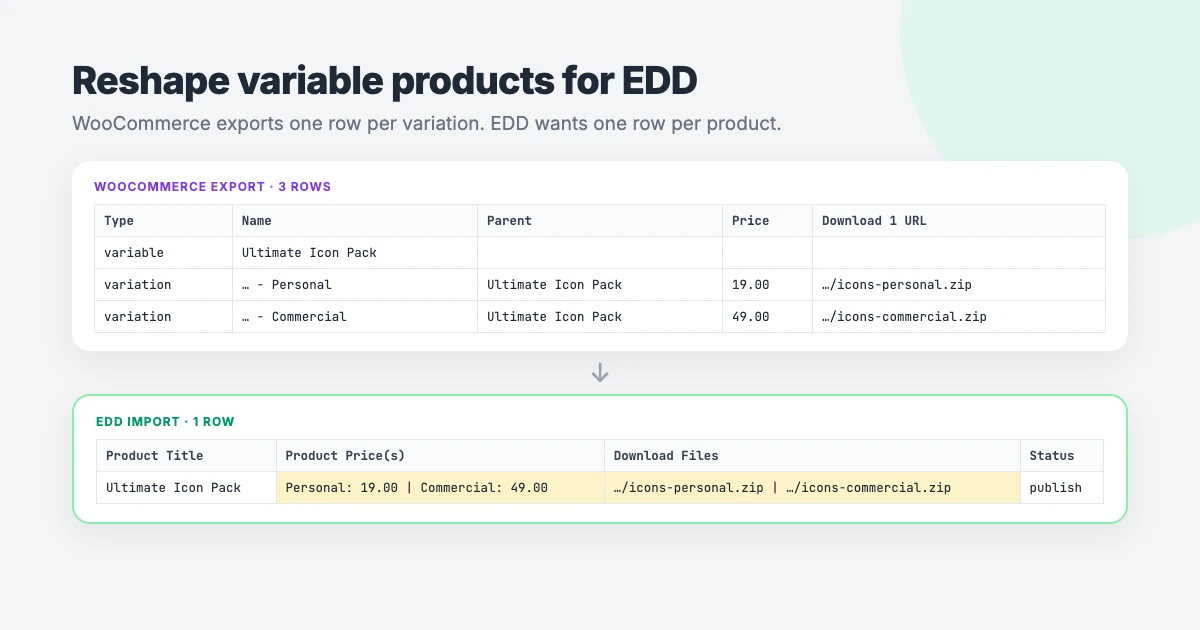
WooCommerce and Easy Digital Downloads store products differently, so going from WooCommerce to Easy Digital Downloads means a little CSV work. Open the CSV in a spreadsheet app and tidy it up. The EDD product import documentation lists every supported column. The essentials are:
- One row per product. WooCommerce exports a variable product as a parent row plus one row per variation. Merge them into a single row.
- Prices as label and amount pairs. A simple product just needs a number, like
19.00. A product with options needsLabel: pricepairs separated by a pipe, likePersonal: 19.00 | Commercial: 49.00. - Files in one cell. List every file URL in the download files column, separated by
|. - Download limit. WooCommerce uses
-1for unlimited downloads. Leave the cell blank in EDD instead, or it may import as a limit of 1. - Status. Add a status column set to
publishfor products that should be live. - Keep names and slugs the same. Matching product names and slugs make redirects much simpler later.
A finished row for a product with two price options looks like this:
"Product Title","Product Slug","Product Price(s)","Download Files","Product Categories","Product Status"
"Ultimate Icon Pack","ultimate-icon-pack","Personal: 19.00 | Commercial: 49.00","https://example.com/wp-content/uploads/edd/icons-personal.zip | https://example.com/wp-content/uploads/edd/icons-commercial.zip","Icons | Design","publish"
Your files need to be somewhere EDD can reach. The simplest option is to upload them to wp-content/uploads/edd/ by FTP and use those URLs, because EDD protects that folder from direct access. Save the file as CSV with every field in double quotes.
Step 3: Import your products into EDD
- Go to Downloads → Tools → Import/Export.
- In the Import Download Products box, choose your CSV file and click Import CSV.
- On the mapping screen, match each column in your file to the EDD field. Empty preview values are normal if the first row has no data in that column.
- Click Process Import.
Test with a CSV containing just one or two products first. Check the result under Downloads, fix your file if anything looks wrong, delete the test products and then import the full catalogue.
After the import, open each product with price options and check the Download Files section. Make sure each file is assigned to the right price option, so a customer who buys the Personal licence gets the Personal file. Product bundles can’t be imported, so recreate those by hand.
Step 4: Recreate your discount codes
Go to Downloads → Discounts and create any coupon codes you still want to use, with the same codes, amounts and expiry dates as before. Do this before importing orders: orders that reference a coupon EDD doesn’t recognise can make the import fail.
For expired or one-off codes you don’t want to keep, you can simply remove the coupon column from your order CSV instead.
Step 5: Export your WooCommerce orders
- With Advanced Order Export For WooCommerce active, go to WooCommerce → Export Orders.
- Under Order statuses, select Completed and also add Refunded, so your history and reports stay accurate.
- Set products to export as one row per order, so orders with several items aren’t split.
- Make sure the billing email, first name, last name, order date, totals and line items are included.
- Choose CSV as the format and click Express export.
Step 6: Format and import your orders
Open the orders CSV and adjust it to match the EDD order import format:
- Status: change WooCommerce’s
completedtocomplete. Refunded orders stayrefunded. - Products: use EDD’s raw product format,
Product name|price{tax}{price option}, with several products separated by/. Use0as the price option for products without options, or the option’s number (1, 2 and so on) for products with them. Copy the exact column header from EDD’s sample order CSV, because the importer only reads price options when the header matches. - Customer email: required for every order. EDD creates a customer record for each new email address.
- User: if a customer had a WordPress account, put their email or username in the user column. That links the order to their existing login, so their purchase history appears straight away.
- Payment method: if you map it, use EDD’s gateway names, such as
stripeorpaypal_commerce.
For example, an order for the Commercial licence of the icon pack plus a simple e-book would have a products cell like this:
Ultimate Icon Pack|49{0}{2} / The Freelance Handbook|15{0}{0}Then go to Downloads → Tools → Import/Export, choose your file in the Import Orders box, map the fields and click Process Import. As with products, test with a handful of orders first.
Import each file only once. EDD doesn’t check for duplicates, so importing the same CSV twice creates every order twice. If you need to retry, restore your backup or delete the imported orders first.
Step 7: Recount your stats
Orders you import when you migrate WooCommerce to Easy Digital Downloads don’t automatically update customer lifetime values or product sales figures. Go to Downloads → Tools → General and find Recount Stats. Choose Recount Customer Stats and click Submit, then run Recount Earnings and Sales for All Downloads.
Now spot-check a few things: open some customers and compare their totals with WooCommerce, check that a refunded order shows as refunded, and compare your total earnings in Downloads → Reports with WooCommerce’s analytics.
Step 8: Connect payments and make a test purchase
Go to Downloads → Settings → Payments and connect your gateway. Stripe and PayPal are built in. If you sell worldwide and want someone else to handle VAT and sales tax, our free Checkout with Paddle for Easy Digital Downloads plugin connects EDD to Paddle as your merchant of record.
Then turn on Test Mode under Downloads → Settings → Payments → General and buy one of your products. Check that:
- Checkout completes without errors.
- The purchase receipt email arrives.
- The download link delivers the correct file for the price option you bought.
- An existing customer can log in and see both their old and new purchases.
Turn test mode off when you’re happy.
Step 9: Go live and set up redirects
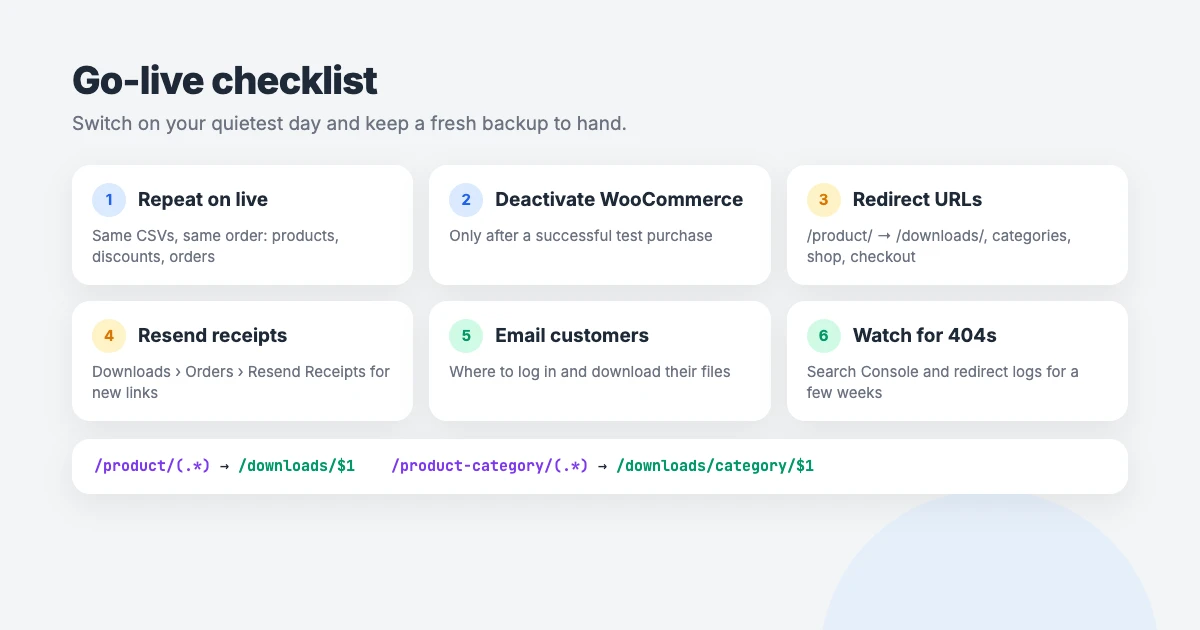
When staging works perfectly, migrate WooCommerce to Easy Digital Downloads on your live site the same way, or push the staging site live if no new orders have come in since you copied it. Then deactivate WooCommerce.
Your URLs will change, and you don’t want to lose the rankings your shop has built. WooCommerce products live at /product/product-name/, while EDD uses /downloads/product-name/. Set up 301 redirects for:
- Products:
/product/(.*)to/downloads/$1, if you kept the same slugs. - Categories:
/product-category/(.*)to/downloads/category/$1. - Shop page: point your old shop page to your new EDD store page, or put the
Checkout with Paddle for WooCommerce
Checkout with Paddle for WooCommerce Sell with Paddle in WooCommerce. Let Paddle handle the tax. Connect your WooCommerce store to Paddle, the merchant of record that charges your customers, collects […]
Checkout with Paddle for Easy Digital Downloads Pro
Everything in the free version, plus subscriptions with EDD Recurring Payments, refunds from the EDD order screen, inline checkout and automatic chargeback handling.

Coworking Interface
Coworking Interface Pro is a modern coworking space WordPress theme for shared offices and flexible workspaces, with pricing plans, a tour booking button and a 95 PageSpeed score.

Corporate Interface
Corporate Interface Pro is a modern corporate business WordPress theme for companies, agencies and consultants, with services, client stories, results and a 95 PageSpeed score.

SpeedBlog
SpeedBlog Pro is a fast, premium blog WordPress theme for travel, tech, personal and creative blogs, with clean magazine-style layouts, one-click demo import and a 95 PageSpeed score.

Business Interface
Business Interface Pro is a lightweight multipurpose business WordPress theme with 12 starter sites, Elementor and WooCommerce support and a 95 PageSpeed score.

SpeedNews
SpeedNews Pro is a fast news and magazine WordPress theme for tech, business and lifestyle publishers, with a trending ticker, mosaic headlines and a 95 PageSpeed score.

BlogAura
BlogAura Pro is a colorful, magazine-style blog WordPress theme for creative bloggers and media sites, with a full-width slider, an Exclusive section and a 95 PageSpeed score.

BlogSky
BlogSky Pro is a clean, minimalist blog WordPress theme for writers and content creators, with a focus on typography, a slider hero and a 95 PageSpeed score.
- Cart, checkout and account pages: redirect them to EDD’s checkout and purchase history pages.


The free Redirection plugin handles these, including the regex rules above, and Rank Math’s Redirections module is another option if you already use it. Afterwards, submit your new sitemap in Google Search Console and watch for 404 errors for a few weeks. Our guide on WooCommerce SEO covers the product SEO basics that still apply after the move.
Tell your customers about the move
When you migrate WooCommerce to EDD this way, registered customers keep their logins, and their imported orders are linked to their accounts. Guest buyers get an EDD customer record and can use the
shortcode or EDD’s purchase history login to access their downloads.
Old WooCommerce download links stop working once WooCommerce is deactivated. To give customers working links, go to Downloads → Orders, select their orders and use the Resend Receipts bulk action, or resend individual receipts from an order’s screen. Follow up with a short “we’ve moved” email explaining where to log in and download their files.
Subscriptions and software licenses
When you move from WooCommerce to Easy Digital Downloads, the free importers don’t move active subscriptions or license keys. Subscriptions are especially delicate, because the recurring billing agreement lives with your payment gateway, and moving it incorrectly can mean customers are charged twice or not at all.
EDD supports both through its Recurring Payments and Software Licensing extensions, which are part of its paid passes. If your store depends on either, contact the EDD team through their migration form before you start, or let renewals run their course in WooCommerce while new sales go through EDD.
You may also come across an old PHP migration script for WooCommerce to Easy Digital Downloads. It was written before WooCommerce switched to its newer order storage (HPOS), which is the default on modern stores, so it doesn’t migrate orders reliably today. Stick with the CSV importers.
Troubleshooting common problems
These are the problems we see most often when moving from WooCommerce to Easy Digital Downloads, and how to fix them:
- The order import stops partway. Usually a discount code EDD doesn’t know or a product name that doesn’t match exactly. Fix the row, remove orders already imported from the file, and import the rest.
- Products show the wrong price option on orders. The products column header doesn’t match EDD’s raw format, so the price option numbers were ignored. Copy the header from EDD’s sample CSV.
- Downloads are limited to one. You imported WooCommerce’s
-1unlimited value. Clear the file download limit on affected products. - Customers can’t see their purchases. The user column was empty, so EDD didn’t link the order to their WordPress account. Edit the customer in Downloads → Customers and attach their user account.
- The import times out on a large store. Split your CSV into files of a few hundred orders each, or ask your host for a higher PHP memory and execution time limit. Our guide to fixing the 500 internal server error covers these limits.
Sell worldwide without the tax headache
Moving to EDD is a good moment to rethink how you handle tax. If you sell to customers in many countries, Checkout with Paddle for Easy Digital Downloads lets Paddle act as your merchant of record, collecting and paying VAT and sales tax worldwide and sending compliant invoices. It comes in a free Lite version and a Pro version. If you already use our Checkout with Paddle for WooCommerce plugin, the EDD version works in a similar way, so you can keep your Paddle account when you switch.
Need a hand with your migration?
- WordPress Migration: we move your store from WooCommerce to Easy Digital Downloads for you, including CSV preparation, redirects and testing.
- WordPress Care Plans: updates, backups and monitoring for your new store.
- VIP Support: a $29 priority ticket if one step of the migration gets stuck.
Frequently asked questions
Can I migrate WooCommerce to Easy Digital Downloads for free?
Yes. Easy Digital Downloads includes free product and order importers, and Advanced Order Export For WooCommerce is free. You only need a paid EDD pass if you want features such as subscriptions or software licensing.
Can I run WooCommerce and EDD at the same time?
Yes, during the migration. Keep WooCommerce active until your exports and tests are done, then deactivate it so customers only see one store.
Will my customers keep their accounts?
Yes. WordPress user accounts aren’t touched, and orders imported with the user column filled in are linked to those accounts. Customers need new download links, which you can send with Resend Receipts.
Will I lose my Google rankings?
Not if you set up 301 redirects from your old product, category and shop URLs to the new EDD URLs, and keep product names, descriptions and slugs the same.
How long does the migration take?
For a store with a few dozen products and a few thousand orders, moving from WooCommerce to Easy Digital Downloads takes about an afternoon on staging and an hour for the live switch. Most of the time goes into preparing the CSV files.
Can I migrate subscriptions and license keys?
Not with the free importers. Contact the EDD team before migrating, or let existing subscriptions finish in WooCommerce while new ones start in EDD.
Final thoughts
If you only sell digital products, moving from WooCommerce to Easy Digital Downloads gives you a simpler store with exactly the features you need. The free importers handle the heavy lifting; your job is to prepare clean CSV files, import in the right order (products, discounts, orders), and test properly before you switch.
Do it on staging first, redirect every old URL, and resend receipts so customers have working links. Your customers will barely notice the move, apart from a faster checkout.
Reactions
How did this make you feel?
Be the first to react
One reaction per visitor. Tap again to change or remove it.






Leave a reply