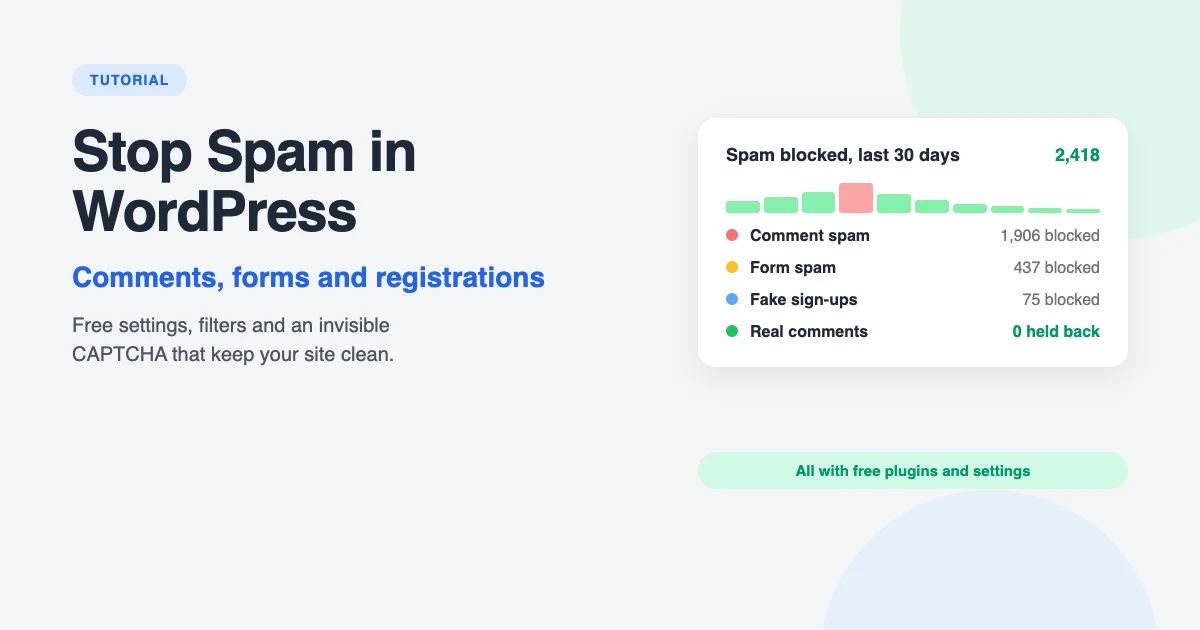
Open your WordPress dashboard after a week away and you may find hundreds of comments about cheap watches, a contact form inbox full of “SEO offers” and a list of new users with names like qwzxk8821. Spam wastes your time, clutters your database and, if any of it gets published, makes your site look abandoned.
The good news is that WordPress spam protection doesn’t have to cost anything. A few built-in settings, one free filtering plugin and an invisible CAPTCHA will stop almost all of it, without making life harder for your real visitors.
In this tutorial, we’ll show you how to stop spam in WordPress comments, contact forms and user registrations, step by step, using free tools only. We’ll also cover how to clean up the spam you already have and keep it from coming back.
Where WordPress spam comes from
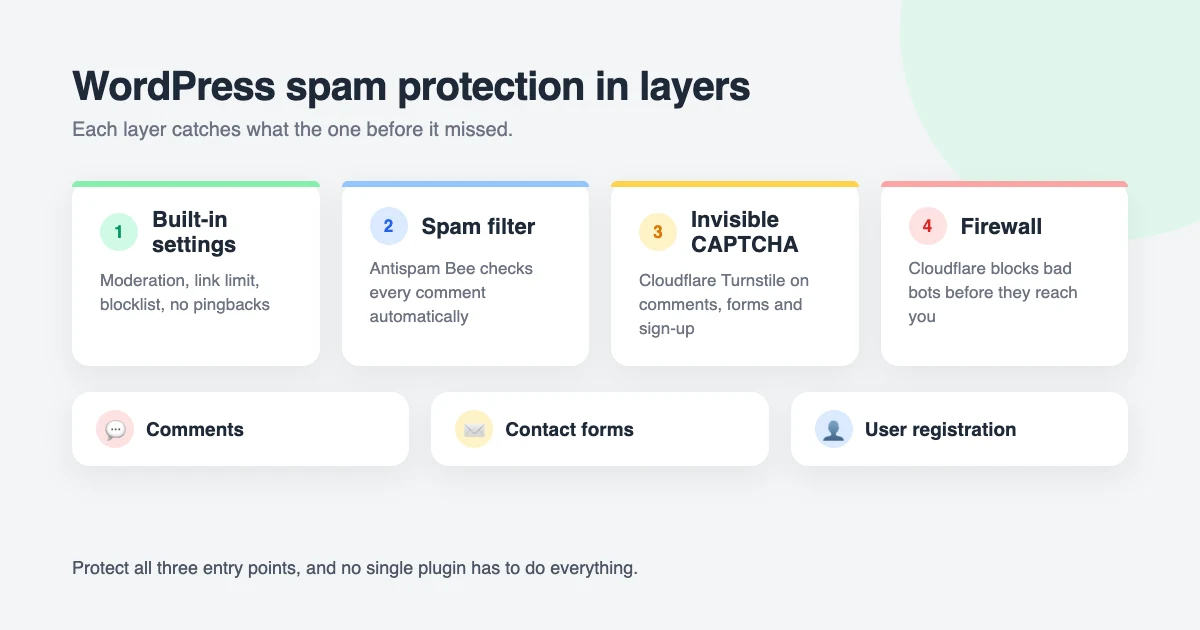
Good WordPress spam protection starts with knowing where spam comes from. Almost all of it is sent by bots. They crawl the web looking for the three places where a WordPress site accepts input from strangers:
- Comments. The classic target. Bots post links hoping to get traffic or a backlink, even though WordPress marks comment links as
nofollow. - Contact forms. Anything that sends you an email is attractive to spammers, because a form submission lands straight in your inbox.
- User registration. If “Anyone can register” is turned on, bots create accounts to post spam later, test stolen passwords or simply bloat your users table.
Because spam arrives through several doors, no single plugin stops all of it. The approach that works is to protect each door with a couple of light layers: sensible settings first, then an automatic filter, then a challenge that only bots fail.
Step 1: Tighten the built-in Discussion settings
Before you install anything, use the WordPress spam protection that’s already built in. Go to Settings → Discussion and work through these options.
Require a name and email
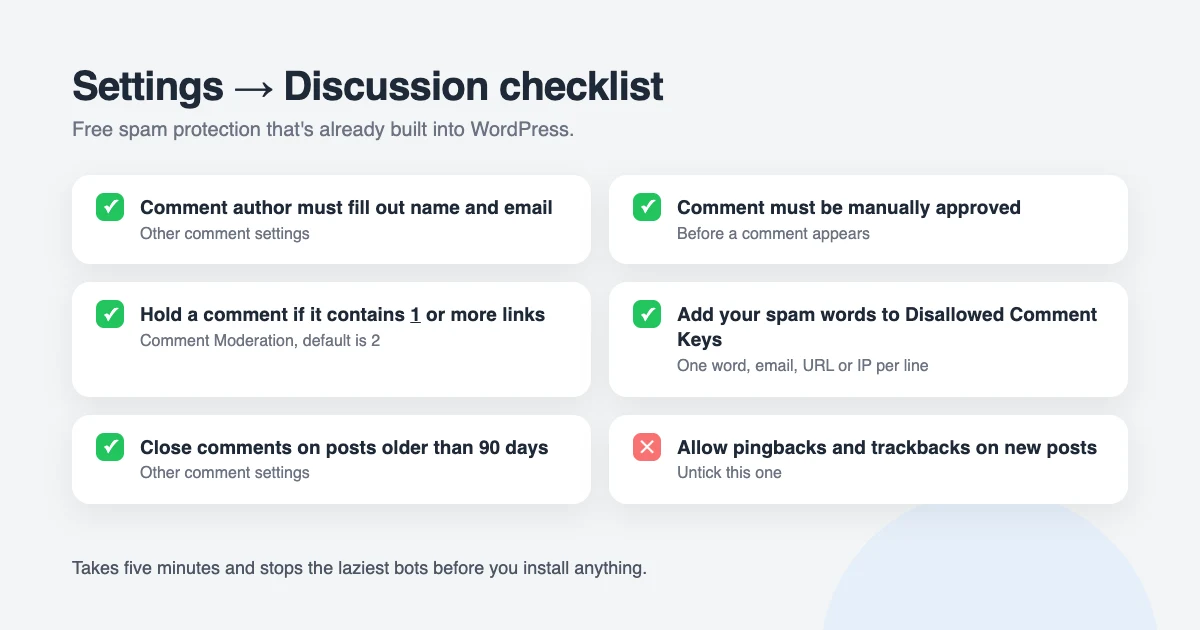
Under Other comment settings, tick Comment author must fill out name and email. Simple bots that only fill in the comment box will be rejected straight away.
Hold comments for moderation
Under Before a comment appears, tick Comment must be manually approved. Nothing is published until you say so, which means spam can never appear on your site.
If you have an active community and don’t want to approve every comment, use Comment author must have a previously approved comment instead. Regular readers skip the queue, while first-time commenters wait for approval. Our guide on notifying users when their comment is approved helps keep those first-time commenters engaged.
Lower the link limit
Spam comments almost always contain links. Under Comment Moderation, the setting Hold a comment in the queue if it contains 2 or more links defaults to 2. Change it to 1, so any comment with a link waits for your approval.
Add disallowed comment keys
The Disallowed Comment Keys box is your personal blocklist. Add one word, name, email address, URL or IP address per line. Any comment that matches goes straight to the bin, not even to the moderation queue.
Start with the words you see most often in your spam, such as casino, viagra, crypto or “buy followers”. WordPress matches inside words too, so be careful with short terms: blocking “ass” would also block “class” and “passport”.
Close comments on old posts
Bots love old posts, because nobody is watching them. Tick Automatically close comments on posts older than and enter 60 or 90 days. If you’d rather close comments on a single post, open it in the editor and set Discussion → Allow comments to off.
Turn off pingbacks and trackbacks
Pingbacks and trackbacks were designed to tell you when another blog links to you. Today they are used almost entirely for spam. Untick Allow link notifications from other blogs (pingbacks and trackbacks) on new posts and save.
That setting only affects new posts. To close pings on everything you’ve already published, add this snippet to your child theme’s functions.php file or a free code snippets plugin:
// Disable pingbacks and trackbacks on all posts.
add_filter( 'pings_open', '__return_false', 20, 2 );

// Remove the X-Pingback header and the pingback link tag.
add_filter( 'wp_headers', function ( $headers ) {
    unset( $headers['X-Pingback'] );
    return $headers;
} );
remove_action( 'wp_head', 'rsd_link' );
Disable comments completely (optional)
If your site is a business brochure or an online shop and you never want comments, you can switch them off everywhere with one snippet. It closes comments on all post types, hides existing comments and removes the Comments menu from the dashboard.
add_action( 'admin_init', function () {
    // Remove comment support from every post type.
    foreach ( get_post_types() as $post_type ) {
        if ( post_type_supports( $post_type, 'comments' ) ) {
            remove_post_type_support( $post_type, 'comments' );
            remove_post_type_support( $post_type, 'trackbacks' );
        }
    }
    // Remove the Recent Comments dashboard widget.
    remove_meta_box( 'dashboard_recent_comments', 'dashboard', 'normal' );
} );

// Close comments and pings on the front end.
add_filter( 'comments_open', '__return_false', 20, 2 );
add_filter( 'pings_open', '__return_false', 20, 2 );

// Hide comments that already exist.
add_filter( 'comments_array', '__return_empty_array', 10, 2 );

// Remove the Comments menu and admin bar item.
add_action( 'admin_menu', function () {
    remove_menu_page( 'edit-comments.php' );
} );
add_action( 'wp_before_admin_bar_render', function () {
    global $wp_admin_bar;
    $wp_admin_bar->remove_menu( 'comments' );
} );
Step 2: Add a free spam filter plugin
Settings slow bots down, but a spam filter plugin does the real work of WordPress spam protection: it looks at every comment and decides, automatically, whether it’s spam. Two free plugins do this well. Install one, not both, because two filters can disagree and block genuine visitors.
Antispam Bee (free, no account needed)
Antispam Bee is a free, open source plugin from the German developers at pluginkollektiv. It needs no API key and no account, and it doesn’t send your visitors’ data to a third party, which makes it a good choice for GDPR.
Install and activate it from Plugins → Add New Plugin, then go to Settings → Antispam Bee and turn on:
- Trust approved commenters, so loyal readers are never held back.
- Trust commenters with a Gravatar, which catches many throwaway identities.
- Look in the local spam database, so repeat offenders are blocked on sight.
- Use regular expressions to catch common spam patterns.
- Mark as spam, do not delete, so you can check for false positives.
- Delete existing spam after 30 days, to keep your database lean.
Leave the spam email notification switched off, or your inbox will fill up with reports about comments that were already blocked.
Akismet (free for personal sites)
Akismet comes pre-installed with WordPress and checks comments against a huge, shared database of known spam. It is very accurate, but it needs an API key, sends comment data to Akismet’s servers and is only free for personal, non-commercial sites. Business sites need a paid plan, so for most readers Antispam Bee is the simpler option.
Step 3: Add an invisible CAPTCHA
A CAPTCHA is a challenge that humans pass and bots fail. The old picture puzzles annoyed visitors and cost sites sign-ups, but modern CAPTCHAs run in the background and most people never see them.
For WordPress spam protection that visitors never notice, we recommend Cloudflare Turnstile. It’s free with no usage limits, it’s invisible for almost everyone, and it’s more privacy-friendly than Google reCAPTCHA, which now caps its free tier and tracks visitors across sites.
The free Simple Cloudflare Turnstile plugin adds it to your comment form, login page, registration page and all the popular form plugins in a few clicks:
- Create a free Cloudflare account and add a Turnstile widget for your domain. Cloudflare gives you a Site Key and a Secret Key.
- Install Simple Cloudflare Turnstile, go to Settings → Cloudflare Turnstile and paste both keys.
- Under WordPress Forms, enable Turnstile for comments, login and registration. Under the form plugin sections, enable it for your contact form plugin.
- Open your site in a private browser window and submit a test comment to make sure it works.
Our step-by-step guide on how to add Cloudflare Turnstile in WordPress walks you through every screen, including WooCommerce.
Step 4: Stop contact form spam
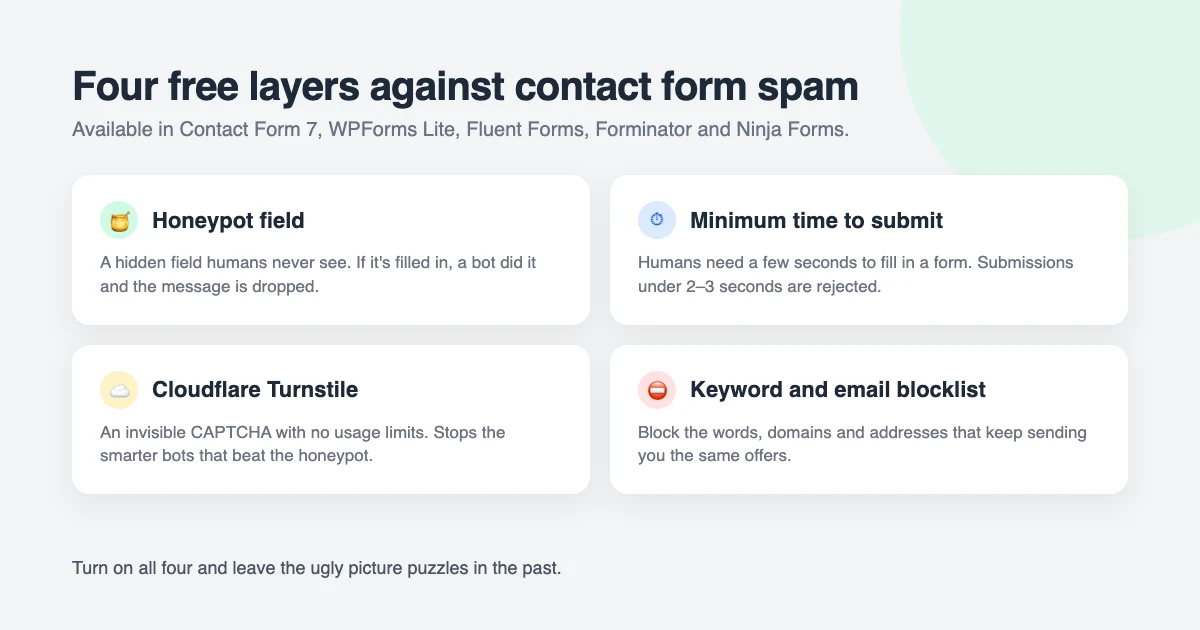
Contact forms get hammered because they email you directly. Luckily, every popular free form plugin, including Contact Form 7, WPForms Lite, Fluent Forms, Forminator and Ninja Forms, includes some protection. To stop spam in WordPress contact forms, make sure these four layers are switched on.
Honeypot field
A honeypot is an extra field that’s hidden from humans with CSS. Bots fill in every field they find, so a filled-in honeypot means the submission is spam. WPForms Lite, Fluent Forms and Forminator turn this on by default; look for an “anti-spam protection” or “honeypot” toggle in the form’s settings. Contact Form 7 users can add the free Honeypot for Contact Form 7 plugin.
Minimum time to submit
A human needs at least a few seconds to read and fill in a form. A bot submits it instantly. Several form plugins include a time check, usually set to 2 or 3 seconds. Leave it on.
Turnstile on the form
If you set up Turnstile in Step 3, enable it for your form plugin too. Some plugins, such as WPForms and Fluent Forms, have their own Turnstile settings where you can paste the same keys. This is the layer that stops the more sophisticated bots.
Keyword and email blocklists
If the same offers keep arriving, block the words or domains they use. Many form plugins let you add a blocklist, and Antispam Bee and the Disallowed Comment Keys from Step 1 can be applied to forms with free add-ons. A quick win is to block free-mail domains that only ever send spam, such as those with random letters before the @ sign.
Step 5: Stop spam user registrations
Turn registration off if you don’t need it
Most blogs and business sites don’t need visitors to create accounts. Go to Settings → General and make sure Anyone can register is unticked. This alone removes the whole problem.
Protect the registration form
If you run a membership site, a forum or a WooCommerce store, you need registration. To stop spam in WordPress registrations without turning them off, protect the form with:
- Turnstile on the registration page. Simple Cloudflare Turnstile covers the default WordPress registration form, WooCommerce registration and most membership plugins.
- A honeypot. The free WP Armour plugin adds a honeypot to the registration, login, comment and most contact forms, and logs what it blocks under WP Armour → Statistics.
- Email confirmation. A bot with a fake email address can’t click a confirmation link. BuddyPress includes this out of the box. For other sites, the free User Verification plugin keeps new accounts inactive until the email address is confirmed.
- A hidden login URL. Bots look for
/wp-login.php?action=register. Our guide on changing the WordPress login URL explains how to move it.
In WooCommerce, go to WooCommerce → Settings → Accounts & Privacy. If you don’t need standalone accounts, untick Allow customers to create an account on the “My account” page and let customers register during checkout instead.
Step 6: Put a firewall in front of your site
Everything so far works inside WordPress. A web application firewall (WAF) works one step earlier, blocking known bad bots before they ever reach your server. A firewall is the outermost layer of WordPress spam protection, and it saves server resources too.
Cloudflare’s free plan includes a DNS-level firewall, bot protection and caching. You point your domain’s nameservers at Cloudflare, and traffic is filtered on the way in. Because you’ll already have a Cloudflare account from setting up Turnstile, this takes about ten minutes.
Once your site is on Cloudflare, enable Bot Fight Mode under Security → Bots. If a particular country sends you nothing but spam and you have no customers there, you can also add a firewall rule to challenge visitors from that country. For the rest of your security setup, see our guide on how to harden WordPress security.
Step 7: Clean up existing spam and keep watch
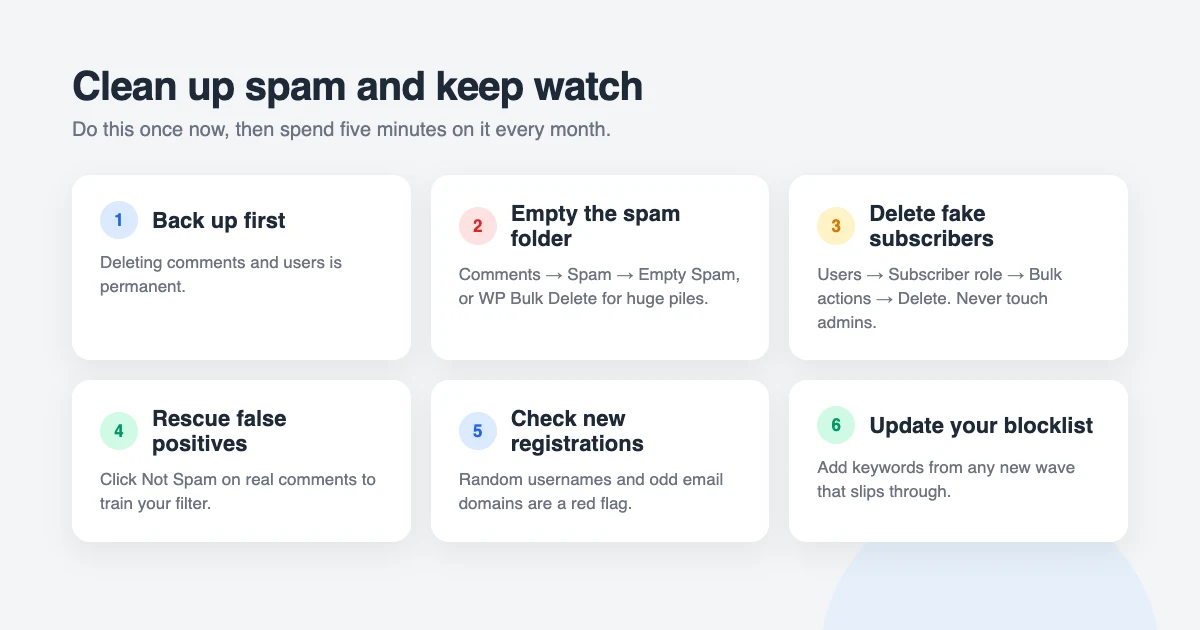
WordPress spam protection stops new spam, but you still have to deal with what’s already there. Take a full backup first, because deleting comments and users is permanent.
Empty the spam folder
Go to Comments → Spam, skim the list for anything genuine, then click Empty Spam. If you have tens of thousands of spam comments, the page may time out. The free WP Bulk Delete plugin removes them in batches.
Delete fake user accounts
Go to Users → All Users and filter by the Subscriber role. Fake accounts are easy to spot: random usernames, strange email domains and no activity. Select them, choose Bulk actions → Delete and, when asked, choose to delete their content. Never select Administrator or Editor accounts, and double-check before you confirm.
Rescue false positives
Every filter occasionally catches a real comment. Hover over it in Comments → Spam and click Not Spam. This also teaches your filter, so it makes fewer mistakes next time.
Set a monthly routine
Once a month, spend five minutes on spam: check the spam folder for false positives, empty it, look through new users for suspicious accounts and check your form plugin’s spam entries. If a new wave of spam gets through, add its keywords to your blocklist. That’s all it takes to keep a WordPress site clean.
Does spam hurt SEO?
Spam that sits in your moderation queue or spam folder is invisible to search engines, so it doesn’t affect your rankings. Published spam is different. Pages full of irrelevant comments and links look low quality to Google, and if a hacked site or spammy comment section is detected, you can receive a manual action. According to Google’s spam policies, user-generated spam is one of the things it looks for.
WordPress adds rel="nofollow ugc" to all comment links, which limits the damage, but the safest approach is moderation plus a filter, so spam is never published in the first place.
Secure, lightweight WPInterface themes
WordPress spam protection works best on a site that’s fast and well maintained. WPInterface Pro themes are built with lean, security-reviewed code, work with all the plugins mentioned above, and are translation ready and RTL compliant.
Business Interface Pro
Business Interface Pro is a lightweight multipurpose business theme with 12 starter sites, ideal for company websites that need a contact form that only real customers use.

SpeedNews Pro
SpeedNews Pro is a fast news and magazine theme with a trending ticker, mosaic headlines and three-column layouts, built for publishers with busy comment sections.

SpeedBlog Pro
SpeedBlog Pro is a fast blog theme for travel, tech, personal and creative blogs, with a clean comment layout that keeps readers focused.

You can see all our themes on the WordPress themes page.
Need a hand?
If you’d rather leave WordPress spam protection and security to someone else, the WPInterface team can help:
- WordPress Care Plans: updates, backups, monitoring and spam clean-up, every month.
- WordPress Malware Removal: if spam accounts or injected links point to a hack, we clean it up and lock the site down.
- VIP Support: a $29 priority ticket for quick expert help with any WordPress problem.
Frequently asked questions
What is the best free WordPress spam protection?
For most sites, the best free WordPress spam protection is the combination of the built-in Discussion settings, the Antispam Bee plugin and Cloudflare Turnstile stops almost all spam, and all three are free with no usage limits.
Do I need Akismet?
No. Akismet is accurate, but it’s only free for personal sites and sends comment data to a third party. Antispam Bee does a similar job for free on any site and keeps data on your server.
Will a CAPTCHA annoy my visitors?
Old-style picture puzzles can. Cloudflare Turnstile runs invisibly for the vast majority of visitors, so almost nobody has to solve anything.
Why am I still getting spam after installing a plugin?
Most plugins only protect one entry point. Check that your comments, contact forms and registration page are each covered, and add a Turnstile challenge wherever spam still gets through.
How do I stop fake registrations without disabling sign-ups?
Add Turnstile to the registration form, add a honeypot with WP Armour and require email confirmation with the User Verification plugin. Bots can’t complete all three.
Does comment spam hurt my SEO?
Only if it’s published. Spam held in moderation or the spam folder is invisible to search engines. Keep manual approval on and spam will never affect your rankings.
Final thoughts
WordPress spam protection isn’t about finding one magic plugin. It’s about closing the easy doors with settings, adding a free filter that works in the background, and challenging bots with an invisible CAPTCHA where they still get through.
Work through the seven steps above once, set a reminder for a five-minute monthly check, and you can stop thinking about spam and get back to running your site.
Reactions
How did this make you feel?
Be the first to react
One reaction per visitor. Tap again to change or remove it.






Leave a reply