
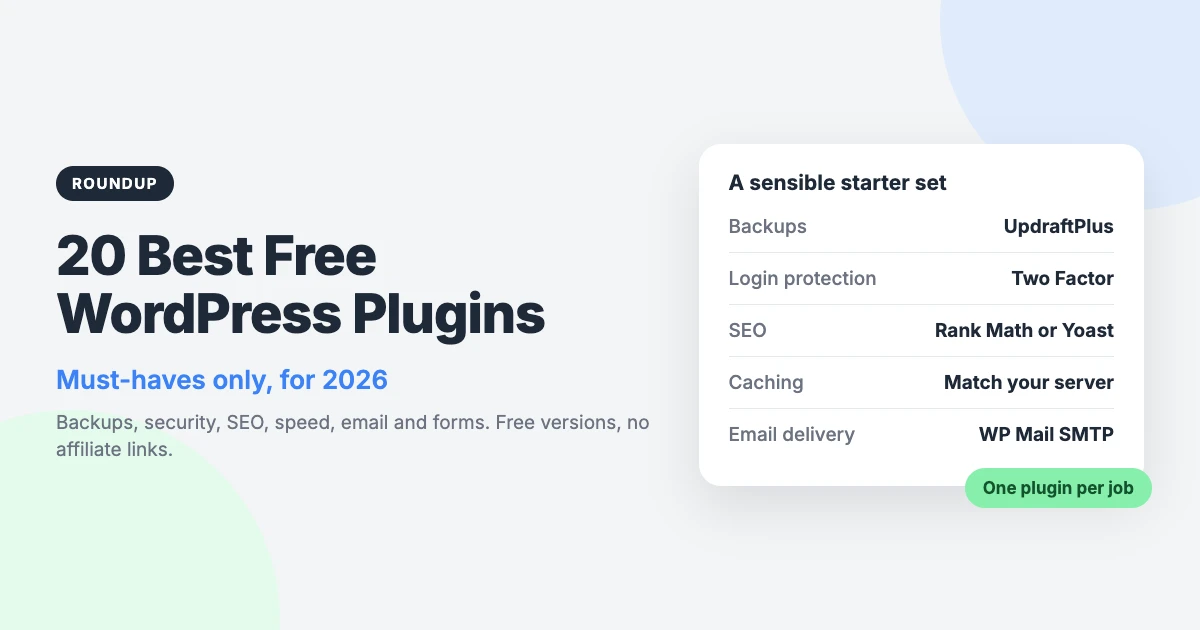
Plugins add features to WordPress without you writing code. This guide covers the best free WordPress plugins for the jobs most sites share: backups, security, SEO, speed and email.
Every plugin is also extra code to update and look after. So the aim here is a short, sensible set, not a long shopping list. Install only what you need.
Everything below is free and comes from the WordPress.org plugin directory. Many of these plugins have paid upgrades, but we only describe the free version. We have no affiliate links, so nobody pays us for a place on this list.
How we chose the best free WordPress plugins
We kept the rules simple. A plugin made the list only if it met all four of these points.
- The free version is useful on its own. You can do the main job without paying.
- It is maintained. The plugin gets regular updates in the WordPress.org directory.
- It solves a common job. Think backups, logins, search visibility and contact forms, not niche extras.
- It is widely used. Popular plugins tend to have more documentation and more people who can help.
Where two plugins do the same job, we list both so you can choose. You should still follow one rule: one plugin per job.
Best free WordPress plugins at a glance
| Job | Plugin | Why it’s on the list |
|---|---|---|
| Backups | UpdraftPlus | Scheduled backups to remote storage |
| Security | Wordfence Security | Firewall and malware scanner |
| Security | Limit Login Attempts Reloaded | Blocks repeated failed logins |
| Security | Two Factor | Adds a second step at login |
| SEO | Rank Math SEO | Titles, meta, sitemaps and schema |
| SEO | Yoast SEO | Titles, meta and sitemaps |
| Caching | LiteSpeed Cache | Page caching for LiteSpeed servers |
| Caching | WP Super Cache | Simple page caching |
| Images | EWWW Image Optimizer | Compression and WebP conversion |
| WP Mail SMTP | Sends email through a mail service | |
| Forms | WPForms Lite | Drag-and-drop contact forms |
| Forms | Contact Form 7 | Simple, flexible forms |
| Spam | Antispam Bee | Filters comment spam |
| Redirects | Redirection | 301 redirects and a 404 log |
| Staging | WP Staging | A staging copy of your site |
| Database | WP-Optimize | Cleans up the database |
| Analytics | Site Kit by Google | Google data in your dashboard |
| Troubleshooting | Health Check & Troubleshooting | Safe troubleshooting mode |
| Content | Yoast Duplicate Post | Copies posts and pages |
| Translation | Loco Translate | Translates themes and plugins |
Backups
A backup is the first thing to set up on any site. If an update goes wrong, you can go back.
1. UpdraftPlus
The free version of UpdraftPlus backs up your files and database on a schedule you choose. It can send each backup to remote storage, such as Google Drive or Dropbox.
That matters because a backup stored only on your server can be lost with the server. When you need one, you can restore it from the WordPress dashboard.
Best for: any site that needs automatic, off-site backups.
Security
Security plugins overlap a lot, so read what each one does before you add it. The three below cover different jobs.
2. Wordfence Security
Wordfence Security is known for two things: a firewall and a malware scanner. The firewall filters harmful requests, and the scanner checks your files for known problems.
The free version covers both. Scans use server resources, so on small hosting plans schedule them for quiet hours if you can.
Best for: site owners who want a firewall and scanning in one plugin.
Wordfence Security on WordPress.org
3. Limit Login Attempts Reloaded
By default, WordPress lets someone guess a password as many times as they like. This plugin limits repeated failed logins and locks out the address for a while.
It is light and does one job. If your security plugin already limits login attempts, you do not need this one too.
Best for: small sites that want login protection without a full security suite.
Limit Login Attempts Reloaded on WordPress.org
4. Two Factor
Two Factor adds two-factor authentication to your login. After your password, you confirm with a second step, such as a code from an authenticator app.
The plugin is maintained by WordPress contributors and keeps things simple. Each user turns it on from their own profile page.
Best for: any site with administrator or editor accounts worth protecting.
SEO
An SEO plugin handles the technical basics for search engines. Pick one SEO plugin, not both.
5. Rank Math SEO
The free version of Rank Math lets you set titles and meta descriptions for each post and page. It also creates XML sitemaps and adds schema markup.
A setup wizard walks you through the main settings. There are many options, so switch on only the parts you will use.
Best for: users who want sitemaps and schema in one free plugin.
Rank Math SEO on WordPress.org
6. Yoast SEO
Yoast SEO is one of the longest-standing SEO plugins for WordPress. The free version covers titles, meta descriptions and XML sitemaps.
It adds a panel to the editor where you write how each page should appear in search results. Many beginners find it easy to follow.
Best for: beginners who want a familiar SEO plugin with sensible defaults.
Caching and speed
Caching saves a ready-made copy of each page, so your server does less work per visit. Use the plugin that matches your server, and never run two caching plugins.
7. LiteSpeed Cache
LiteSpeed Cache provides page caching on LiteSpeed servers. Its caching relies on the server software, so check with your host before you install it.
It also includes optimisation features for your pages and assets. Turn these on one at a time and check your site after each change.
Best for: sites hosted on LiteSpeed servers.
LiteSpeed Cache on WordPress.org
8. WP Super Cache
WP Super Cache is a simple page caching plugin made by Automattic. It serves saved copies of your pages to visitors instead of building each one from scratch.
The basic setting is enough for many sites. It is a good choice when your host does not run LiteSpeed or provide its own caching.
Best for: blogs and small sites that want simple caching.
WP Super Cache on WordPress.org
Images
Large images are a common cause of slow pages. An optimiser reduces file sizes for you.
9. EWWW Image Optimizer
EWWW Image Optimizer compresses images as you upload them. It can also work through the images already in your media library.
The plugin can convert images to WebP, a format that is usually smaller than JPEG or PNG. Resize very large photos before uploading as well.
Best for: image-heavy blogs, portfolios and magazine sites.
EWWW Image Optimizer on WordPress.org
Email delivery
WordPress sends emails such as password resets and form notifications. On many hosts, these messages end up in spam or do not arrive.
10. WP Mail SMTP
WP Mail SMTP sends your WordPress email through an SMTP or mail service instead of the default method. Properly authenticated email is much less likely to land in spam.
You connect the plugin to a mail provider and then send a test email. Do this before you rely on any contact form.
Best for: any site that sends form notifications, order emails or password resets.
Forms
Almost every site needs a contact form. Both options below are free, so choose the one that suits how you like to work.
11. WPForms Lite
WPForms Lite is a drag-and-drop form builder. You add fields, reorder them with your mouse and see the form as you build it.
The free version is aimed at simple contact forms. It is one of the friendlier WordPress plugins for beginners.
Best for: beginners who want a contact form up quickly.
12. Contact Form 7
Contact Form 7 is simple and flexible. You build forms with short tags in a text template, not with a visual builder.
That takes a little longer to learn, but it gives you control over the form markup. It suits people comfortable with a bit of HTML.
Best for: users who want a light, flexible form plugin.
Contact Form 7 on WordPress.org
Spam protection
If you allow comments, spam will follow. A filter saves you from clearing it by hand.
13. Antispam Bee
Antispam Bee filters comment spam. By default, it does this without sending your visitors’ data to a third-party service.
That makes it a sensible choice if privacy matters to you or your audience. You do not need an account to use it.
Best for: blogs with comments switched on.
Redirects and 404s
When you change a URL or delete a page, old links break. Redirects send visitors and search engines to the right place.
14. Redirection
Redirection lets you manage 301 redirects from the dashboard. You enter the old URL and the new one, with no need to edit server files.
It also logs 404 errors, so you can see which missing pages people are trying to reach. Then you can redirect them.
Best for: sites that are changing URLs, merging content or moving to a new structure.
Staging and database
15. WP Staging
WP Staging creates a staging copy of your site. A staging site is a private clone where you can test changes without touching the live site.
Use it to try plugin updates, new plugins or a new theme. If something breaks, your visitors never see it.
Best for: testing updates and new plugins before they go live.
16. WP-Optimize
Over time, your database collects clutter. WP-Optimize cleans up items such as old post revisions, spam comments and expired transients.
Take a backup before your first clean-up, because deleted data does not come back. After that, an occasional clean-up is enough for most sites.
Best for: older sites with years of revisions and spam.
Analytics
You cannot improve what you do not measure. The next plugin brings Google’s data into WordPress.
17. Site Kit by Google
Site Kit is Google’s own plugin for WordPress. It shows Search Console, Analytics and PageSpeed data in your dashboard.
You connect your Google account once and see the key numbers in one place. It saves you logging in to several Google tools.
Best for: site owners who want traffic and search data without leaving WordPress.
Site Kit by Google on WordPress.org
Troubleshooting
Sooner or later, something will conflict. This plugin helps you find the cause without taking the site down.
18. Health Check & Troubleshooting
Health Check & Troubleshooting has a troubleshooting mode that disables plugins for your session only. Visitors keep seeing the normal site.
You then switch plugins back on one by one until the problem returns. That shows you which plugin is causing it.
Best for: finding plugin conflicts on a live site.
Health Check & Troubleshooting on WordPress.org
Content and translation
19. Yoast Duplicate Post
Yoast Duplicate Post lets you copy posts and pages. The copy keeps the content and settings of the original, ready for you to edit.
It is handy when you reuse a layout, such as a landing page or a weekly post format.
Best for: sites that publish content with a repeating structure.
Yoast Duplicate Post on WordPress.org
20. Loco Translate
Loco Translate lets you translate themes and plugins in the dashboard. You edit the text strings in your browser instead of separate translation software.
It is also useful for small wording changes, such as renaming a button label in your own language.
Best for: sites in languages other than English, or with custom wording needs.
Loco Translate on WordPress.org
Which must-have WordPress plugins do you really need?
You do not need all 20. For a typical blog or business site, six essential WordPress plugins cover the important jobs.
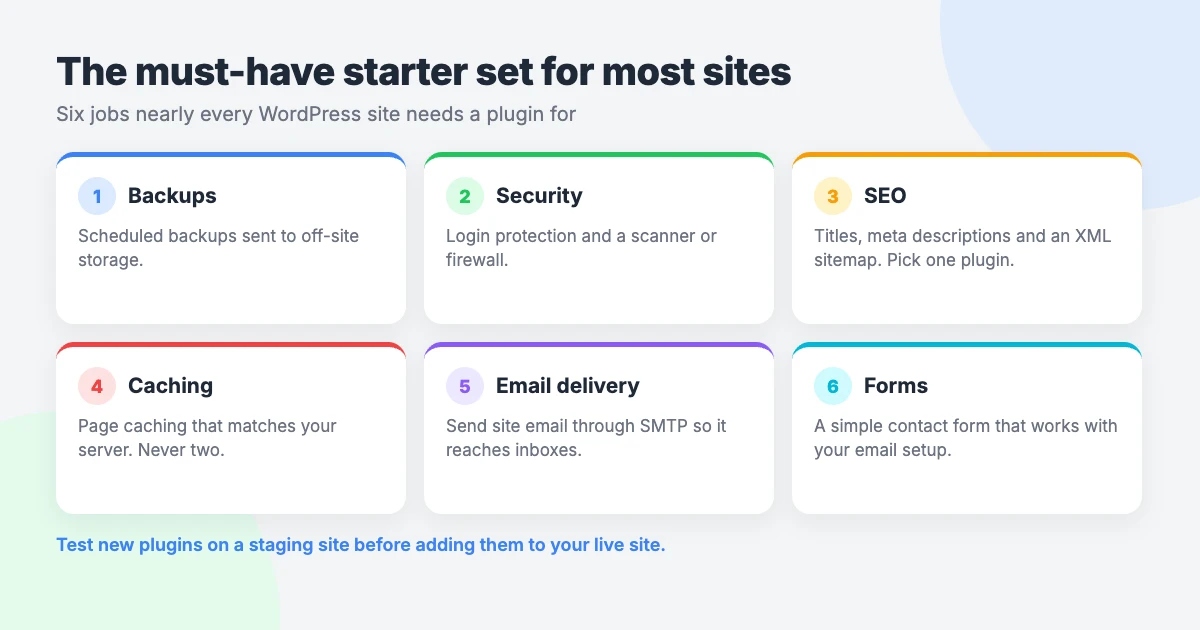
- Backup: UpdraftPlus, with remote storage connected.
- Security and login protection: Wordfence Security, or Limit Login Attempts Reloaded with Two Factor.
- SEO: Rank Math SEO or Yoast SEO.
- Caching matched to your server: LiteSpeed Cache on LiteSpeed hosting, otherwise WP Super Cache.
- Email: WP Mail SMTP.
- Forms: WPForms Lite or Contact Form 7.
Add the others only when you have the job for them. A site without comments does not need a spam filter, for example.
Tip: test new plugins on a staging copy first. Even the best free WordPress plugins can clash with a theme or with each other.
Plugins to avoid stacking
Most plugin trouble comes from overlap, not from a single bad plugin. Watch for these four cases.
- Two SEO plugins. Both will try to write titles, meta tags and sitemaps. Search engines then get mixed signals.
- Two caching plugins. They can serve stale or broken pages and are hard to debug together.
- Overlapping security plugins. Two firewalls or two login limiters can lock you out of your own site.
- Abandoned plugins. Check the “last updated” date on the WordPress.org page before you install anything.
Some plugins also include features outside their main job. If a plugin offers its own caching, leave it off when you already have a caching plugin.
When you stop using a plugin, deactivate and delete it. Our WordPress maintenance checklist covers this and other routine jobs.
Want them set up for you?
Choosing plugins is the easy part. Configuring them well takes longer, and that is where our Must-Have Plugins setup comes in.
We pick plugins for backups, security, SEO, caching and email delivery to suit your site. Then we install, configure and test them. You can add extras from a picker at no extra cost.
The service costs $59 as a one-time flat price and takes 1 business day.
Prefer to do the SEO side yourself? Our technical SEO checklist walks you through the next steps.
Frequently asked questions
How many plugins is too many?
There is no fixed number. Quality matters more than the count. A handful of well-maintained plugins is safer than one poorly coded plugin, so install only what you need and remove the rest.
Are free WordPress plugins safe?
Free WordPress plugins from the WordPress.org directory are generally a safe choice when they are actively maintained. Check the “last updated” date, keep them updated and delete any you no longer use. No plugin is risk-free, so keep backups too.
Do I need a security plugin?
Good habits come first: strong passwords, two-factor authentication, regular updates and backups. A security plugin adds useful layers, such as a firewall and login limits. Check what your host already provides, so you do not double up.
Can I use Rank Math and Yoast together?
No. They do the same job and will conflict over titles, meta tags and sitemaps. Pick one. If you switch later, deactivate the old plugin once the new one is set up.
That is our list of must have WordPress plugins for this year. Start with the six-plugin starter set, and treat the rest of the best free WordPress plugins as tools for when you need them.





Leave a reply