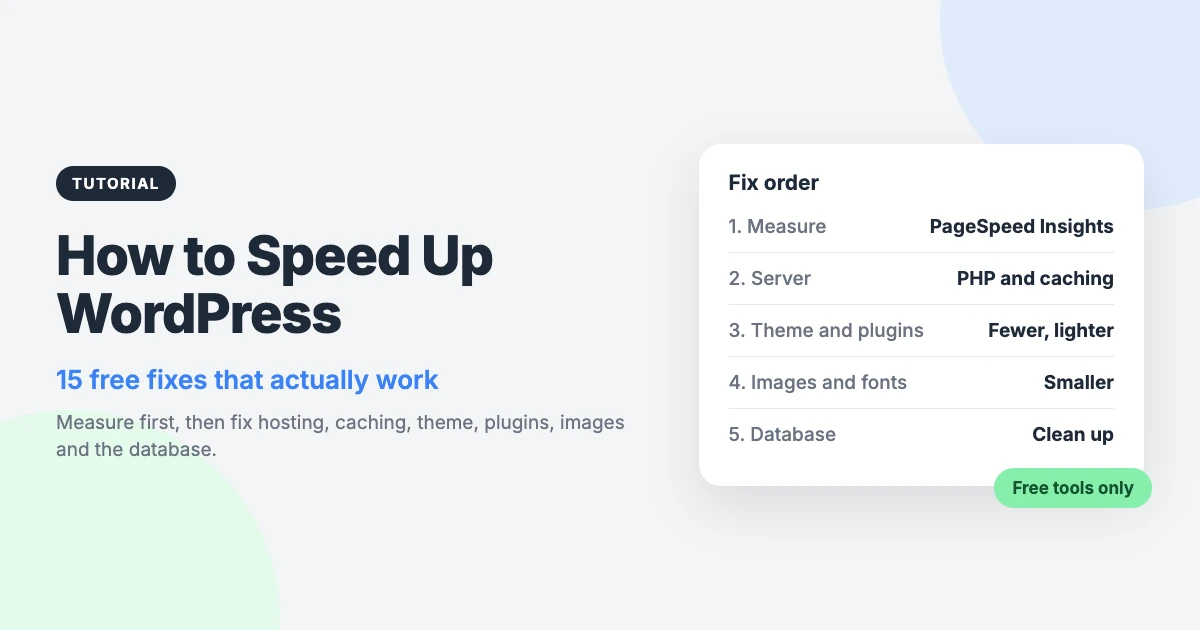
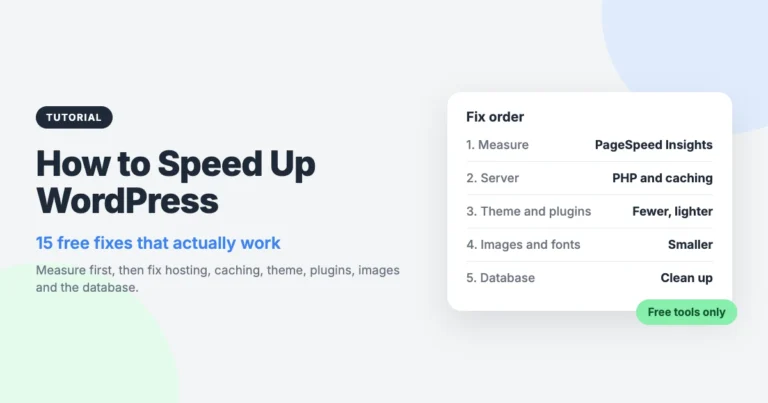
You can speed up WordPress without paying for a single plugin. Most slow sites share the same handful of problems, and each one has a free fix.
This guide covers 15 of them, in the order we would tackle them. If you have been searching for how to speed up WordPress site pages without a developer, start at fix 1 and work down. You do not need all 15: fix the biggest problem, then measure again.
Before you start: measure your speed
WordPress speed optimisation without measurement is guesswork. Two short jobs come before any change: take a baseline and make a backup.
1. Measure before you change anything
Open PageSpeed Insights and test your site. It is free and needs no account.
The report shows two kinds of data. Field data comes from real visitors using Chrome, and lab data comes from a single simulated test. Field data matters more, but smaller sites may not have enough traffic for it to appear.
Look at the mobile tab first. Phones are slower than desktops, so problems show up there more clearly.
Write down the three Core Web Vitals for each page you test. The “good” thresholds are:
- Largest Contentful Paint (LCP): 2.5 seconds or less. This is how long the main content takes to appear.
- Interaction to Next Paint (INP): 200 milliseconds or less. This is how quickly the page responds to taps and clicks.
- Cumulative Layout Shift (CLS): 0.1 or less. This is how much the layout jumps around while loading.
Do not test the homepage alone. Test one of each template: the homepage, a single post, a category archive, and a product or contact page if you have one. A slow WordPress site is often slow on only one template.
2. Back up first and use a staging site
Several fixes in this guide change how your site is built or stored. Take a full backup of your files and database before you begin, and check that you can restore it. If your host offers a staging site, make your changes there first.
Our WordPress maintenance checklist explains backups and the other routine jobs that keep a site healthy.
Server and hosting fixes to speed up WordPress
3. Update PHP
WordPress runs on PHP, and newer PHP versions are faster than old ones. They also still receive security fixes, which old versions do not.
Go to Tools > Site Health in your dashboard to see which version you are running. Most hosts let you switch versions from their control panel at no cost.
Test on staging first, because an old plugin or theme can break on a newer version. Our guide shows how to update PHP in WordPress safely.
While you are in your hosting panel, check that OPcache is on. It keeps compiled PHP code in memory, so the server does not recompile every file on every request. Many hosts enable it by default.
4. Turn on page caching
Without caching, WordPress builds every page from scratch for every visitor. It runs PHP, queries the database and assembles the HTML each time.
Page caching stores the finished HTML and serves that copy instead. For most sites, it is the biggest single thing you can do to make WordPress faster.
Pick one caching plugin and match it to your server:
- LiteSpeed Cache if your host runs LiteSpeed web server. Its page cache works with the server itself, so it needs LiteSpeed to do that job.
- WP Super Cache on other servers, such as Apache or Nginx. It creates static HTML files and has a simple setup mode.
Never run two page caching plugins together. They conflict, and the results are hard to debug. Some hosts also cache pages at server level, in which case you may not need a plugin at all.
If you are weighing up a paid option, read our LiteSpeed Cache vs WP Rocket comparison first.
5. Add an object cache for dynamic sites
Page caching cannot help with pages that differ for each visitor. Carts, checkouts, account pages, membership areas and the admin dashboard are all built fresh each time.
A persistent object cache helps here. It stores the results of database queries in memory, using Redis or Memcached, so WordPress can reuse them between page loads.
This depends on your host. Redis or Memcached must be installed on the server, so ask whether your plan includes one. LiteSpeed Cache can connect to either when they are available.
6. Use a CDN
A content delivery network (CDN) keeps copies of your files on servers around the world. Visitors download images, stylesheets and scripts from a location near them, rather than from your one server.
A CDN helps most when your visitors are spread across countries. If nearly everyone lives near your server, expect a smaller gain.
7. Consider better hosting
This is the one fix that may not stay free, so try the others first. Still, some hosting is too slow to tune around.
Signs that the host is the problem:
- Server response time stays high in PageSpeed Insights, even with page caching on.
- The dashboard is slow at busy times of day and fine at quiet ones.
- Your host does not offer a currently supported PHP version.
- You hit resource limits or see errors during traffic peaks.
Theme and plugin fixes to speed up WordPress
8. Use a lightweight theme
Your theme loads on every page, so its weight is paid on every visit. Some themes load sliders, icon libraries and animation scripts whether you use them or not.
A good theme loads only what the page needs. Test any switch on staging first. We compare some options in our guide to the fastest lightweight WordPress themes.
9. Remove plugins you do not need
The number of plugins matters less than what each one does. One badly built plugin can slow a site more than twenty light ones.
Delete plugins you have deactivated or no longer use. Then find the heavy ones with one of these free tools, or by deactivating plugins one at a time on staging:
- Query Monitor is a developer tool that shows the database queries behind each page. It groups them by plugin and theme, so you can see which component is running slow or frequent queries.
- Health Check & Troubleshooting has a troubleshooting mode. It turns plugins off for your own logged-in session only, so visitors still see the normal site while you test.
10. Limit third-party scripts
Third-party scripts load from other companies’ servers. Common examples are chat widgets, trackers, embedded videos and maps. They often hurt INP, because they keep the browser busy.
PageSpeed Insights lists third-party code in its diagnostics. Go through that list and ask three questions about each script:
- Do you still use it? Old tracking tags are often left behind after a campaign ends.
- Does it need to load on every page? A map belongs on the contact page, not site-wide.
- Can it wait? Many chat widgets and video embeds can load only when the visitor clicks.
Image and front-end fixes
11. Resize and compress images
Photos straight from a phone or camera are far larger than a web page needs. Resize them before you upload, so the width matches the widest size your theme will show.
Then compress them. EWWW Image Optimizer compresses images as you upload and can work through your existing media library too.
Use a modern format where you can. WordPress supports WebP uploads, and WebP files are usually smaller than the same image saved as JPEG or PNG. EWWW Image Optimizer can also create WebP versions of your images.
12. Do not lazy-load the LCP image
Lazy loading delays images until the visitor scrolls near them. WordPress has done this by default since version 5.5, and it saves a lot of data on long pages.
It backfires on one image: the large one at the top of the page. That image is usually your LCP element, and delaying it makes LCP worse.
Since version 6.3, WordPress tries to spot this image and adds fetchpriority=”high” to it. That tells the browser to download it early.
Plugins and themes can override this. If PageSpeed Insights flags a lazily loaded LCP image, look for an “exclude from lazy load” setting in your caching or image plugin. Exclude your logo and the first large image.
Layout shift is the other image problem. Give every image a width and height, so the browser can reserve the space before the file arrives. WordPress adds these for media library images, so check any you have added by hand in custom HTML.
13. Cut web fonts
Every font family and weight is a separate file to download. Three ways to reduce the cost:
- Use fewer fonts. One or two families, in two or three weights, is enough for most sites.
- Preload the main font. Preloading tells the browser to fetch your most important font file early. Many themes and caching plugins have a setting for it.
- Use system fonts. These are already on the visitor’s device, so nothing is downloaded at all.
For help choosing, see our guide to the best fonts for blogs.
14. Improve INP by reducing heavy JavaScript
INP measures how quickly your page reacts when someone taps, clicks or types. Poor INP nearly always comes from JavaScript that keeps the browser busy.
Next, look at what remains:
- Remove sliders, animations and pop-ups that visitors rarely use.
- Turn on “defer JavaScript” or “delay JavaScript” in your caching plugin, if it has one. Test your menus and forms afterwards, because these settings can break scripts.
- Load heavy features only on the pages that use them.
Our beginner’s guide covers how to improve INP in WordPress in more depth.
One related feature needs no work from you. Since version 6.8, WordPress core includes speculative loading, which lets supporting browsers start fetching a page just before the visitor clicks its link. Read more about speculative loading in WordPress if you want to adjust it.
Database fixes
15. Clean the database
Over time, your database fills with things you no longer need. Typical clutter includes:
- Old post revisions.
- Spam and binned comments.
- Expired transients, which are temporary data left by plugins and themes.
WP-Optimize can remove all three and optimise your database tables. Take a fresh backup first, because deleted rows cannot be recovered without one. It also has a page caching feature, so leave that off if you already cache with another plugin.
Then check your autoloaded options. These are settings that WordPress loads on every single page request. When plugins store too much there, every page slows down, including the dashboard.
The Site Health screen warns you when autoloaded data grows too large. Our guide to autoloaded options explains how to find and trim the worst offenders.
What to fix first
Match your test results to the table below, then jump to the fix that fits. Start with the symptom that affects the most pages.
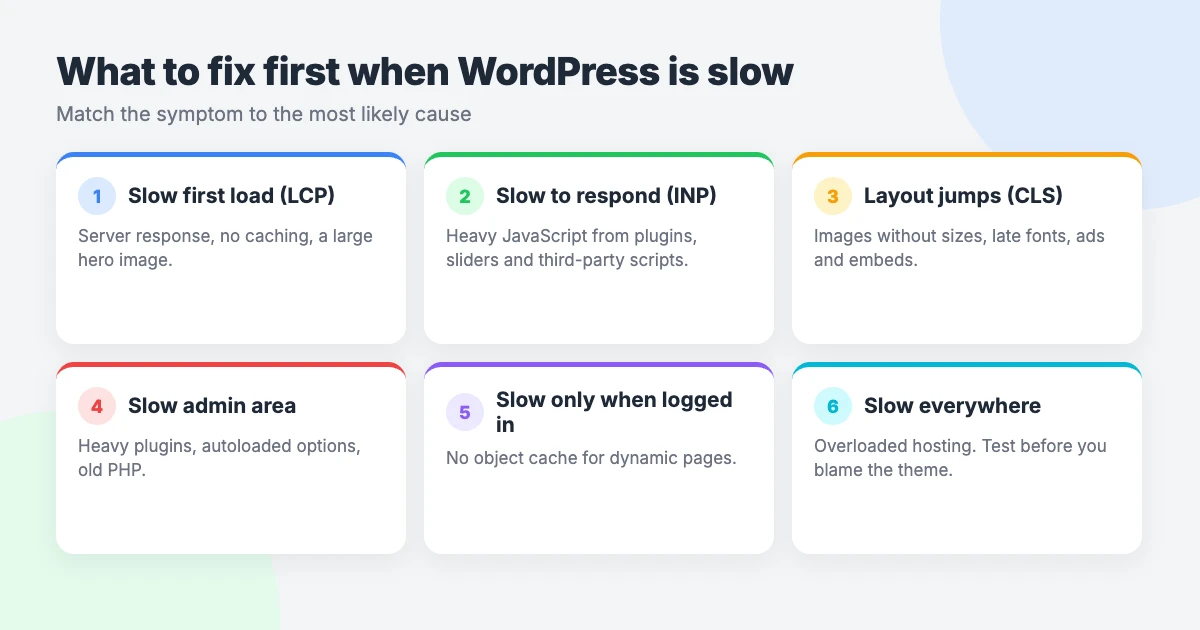
| Symptom | Likely cause | Fix number |
|---|---|---|
| Slow server response on every page | No page caching, old PHP or weak hosting | 3, 4, 7 |
| Cart, checkout or dashboard is slow | Uncached dynamic pages or slow queries | 5, 9, 15 |
| Poor LCP | Large or lazy-loaded main image | 11, 12 |
| Poor INP | Heavy JavaScript or third-party scripts | 9, 10, 14 |
| Poor CLS | Images without dimensions, or late-loading fonts | 12, 13 |
| Slow for visitors in other countries | Files served from one distant server | 6 |
| Even a near-empty page is heavy | Bloated theme or too many plugins | 8, 9 |
Keep your WordPress site fast
Build a short routine:
- Re-test your key templates in PageSpeed Insights once a month, and compare against your notes.
- Check the Core Web Vitals report in Google Search Console. It groups real visitor data by URL type and flags pages that slip.
- Test before and after you add any plugin. If it slows the site and you can live without it, remove it.
- Keep WordPress, your theme and your plugins updated.
When you do need a new plugin, choose with care. Our list of the best free WordPress plugins is a good place to start.
Want us to do it?
Some of these fixes take time, and a few can break things if a setting is wrong. If you would rather hand the job over, we can speed up WordPress for you.
Our Speed & Core Web Vitals Optimization service covers the audit, the fixes and the re-testing.
Stuck on a single problem instead? Open a VIP Support ticket for $29 and we will look at that one issue.
Frequently asked questions
Why is my WordPress site so slow?
The usual causes are missing page caching, an old PHP version, oversized images, a heavy theme, too many plugins and too many third-party scripts. Slow hosting can sit underneath all of them. Test your site with PageSpeed Insights first, so you fix the real cause rather than guessing.
Do I need a caching plugin?
Most sites benefit from page caching, but it does not always need a plugin. If your host does not cache pages at server level, install one free plugin: LiteSpeed Cache on LiteSpeed servers, or WP Super Cache elsewhere. Never run two together.
Will a CDN speed up WordPress?
It can, mainly for visitors who are far from your server. A CDN delivers images, stylesheets and scripts from a location near each visitor. It will not fix a slow server response or heavy JavaScript, so treat it as one fix among several.
Does the theme affect speed?
Yes. The theme loads on every page, so its stylesheets, scripts and fonts are part of every visit. A lightweight theme that loads only what each page needs gives you a faster starting point than one packed with unused features.
How fast should a WordPress site load?
There is no single number to aim for, because load time depends on the page, the device and the connection. Use the Core Web Vitals thresholds instead, and aim to pass all three on mobile. They are LCP of 2.5 seconds or less, INP of 200 milliseconds or less, and CLS of 0.1 or less.
Reactions
How did this make you feel?
Be the first to react
One reaction per visitor. Tap again to change or remove it.




Leave a reply