If you are wondering how to choose a WordPress theme, the number of options can feel like the hardest part. There are thousands of themes, and most demos look good at first glance.
This guide gives you a 12-point WordPress theme checklist you can work through in an afternoon. Each check tells you what matters, why it matters and how to test it yourself.
One disclosure before we begin: we make and sell WordPress themes at WPInterface. This checklist is written to help you judge any theme, from any source, including ours.
Before you start: know what you need
A theme can only be right or wrong for a particular site. Before you browse, write down short answers to these questions.
- What is the site for: a blog, a news site, a business site, a portfolio or a shop?
- What will you publish most often: long articles, photos, short news posts or service pages?
- Which features must you have on day one, and which can wait?
- Which languages will the site use, and are any of them written right to left?
- What is your budget, both now and each year after?
- Who will maintain the site, and how comfortable are they with WordPress?
Keep the answers beside you. They turn “which theme looks nicest?” into “which is the best WordPress theme for my site?”, which is a much easier question.
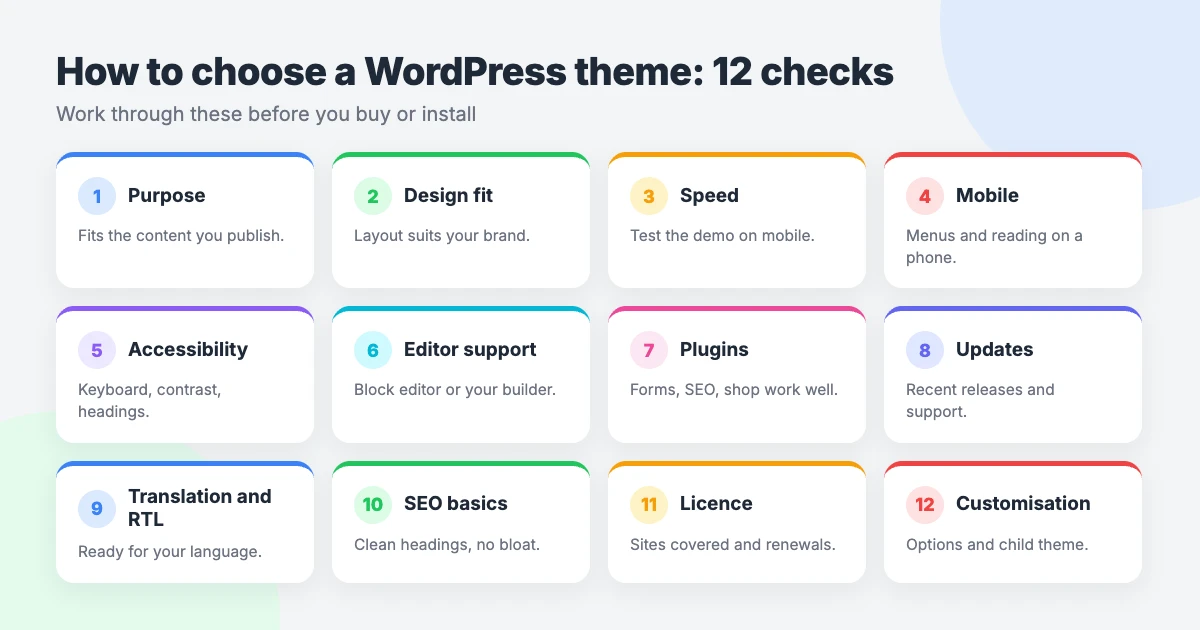
How to choose a WordPress theme: the 12-point checklist
You do not need a perfect score on every point. Decide which checks matter most for your site, then use the rest to compare your shortlist.
1. Start with your site’s purpose
Themes are built around a type of content. A magazine theme expects many posts across several categories. A business theme expects service pages, a clear call to action and a contact page.
Pick a theme designed for what you publish. Forcing a portfolio theme to run a news site usually means extra work and an awkward result.
How to check: read the theme description and ask whether the demo content looks like the content you plan to publish.
2. Check the layout and design fit
Look past the demo’s photography. Professional images make almost any layout look good, and your own content will be different.
Focus on structure instead: the header, the homepage sections, the single post layout, the sidebar and the footer. Check that the typography is comfortable to read at length.
How to check: open a single post, an archive page and the homepage in the demo, and picture each with your own text and images.
3. Test the speed of the demo
A theme sets the baseline for how fast your pages load. Google’s Core Web Vitals give you three targets: LCP of 2.5 seconds or less, INP of 200 milliseconds or less, and CLS of 0.1 or less.
A demo result is only a guide, because your hosting, images and plugins also affect speed. Still, a demo that scores poorly is unlikely to improve on your site.
How to check: paste the demo URL into PageSpeed Insights and read the mobile results first.
4. Try the mobile experience
Many of your visitors will arrive on a phone. Almost every theme describes itself as responsive, but the quality of the mobile layout varies a lot.
Pay attention to the menu, the text size, the spacing between links and how tables or wide images behave. Nothing should need sideways scrolling.
How to check: open the demo on your own phone, use the menu, read a full post and tap every button you can find.
5. Look for accessibility
An accessible theme works for people who use a keyboard, a screen reader or a magnified display. It also tends to be clearer for everyone else.
Look for good colour contrast, visible focus outlines, a “skip to content” link and menus that work without a mouse. The WordPress.org directory has an accessibility-ready tag for themes that meet its accessibility requirements.
How to check: press the Tab key through the demo and confirm you can always see where you are and reach every menu item.
6. Confirm block editor and page builder compatibility
WordPress themes come in two kinds. Block themes let you edit the whole site, including headers and footers, in the Site Editor under Appearance » Editor. Classic themes use the Customizer and widget areas instead.
Both kinds can work well. What matters is that the theme styles core blocks properly and, if you rely on a page builder, that the theme states it supports that builder.
How to check: read the theme’s feature list for “block theme” or “full site editing”, and look for your page builder by name in the documentation.
7. Check plugin compatibility
Your theme has to work alongside the plugins you depend on. For most sites that means a contact form plugin, an SEO plugin and perhaps a shop plugin such as WooCommerce.
A well-built theme styles the output of popular plugins so forms, product pages and checkout screens match the rest of the design.
How to check: look for the plugins you need in the theme’s documentation, and view any shop or contact page included in the demo.
8. Review updates and support
WordPress changes several times a year. A theme that is no longer maintained can fall behind, and that may lead to display problems or security issues.
Support matters too. Sooner or later you will have a question, and it helps to know someone will answer it.
How to check: on a theme’s WordPress.org page, look at the “last updated” date and open the support forum to see whether questions get replies.
9. Check translation and RTL support
If your site is not in English, or uses more than one language, the theme must be translation-ready. This means its built-in text, such as “Read more” or “Search”, can be translated.
Languages written right to left, such as Arabic and Hebrew, also need RTL support. The theme should mirror its layout, not only the text direction.
How to check: look for “translation ready” and “RTL language support” in the feature list, and ask the developer for an RTL demo if none is shown.
10. Look at the SEO basics
A theme will not rank your site by itself, but it can make the job easier or harder. Good themes use clean headings: one H1 per page, with H2s and H3s in a logical order.
The markup should also work well with the schema your SEO plugin adds. Avoid themes that load many scripts, sliders and fonts you will never use.
How to check: run a demo post through PageSpeed Insights and review the SEO and performance sections for warnings.
11. Understand the licence and price
Free themes cost nothing to use. Premium themes are usually sold as a one-off purchase or a yearly licence, and the terms differ from one seller to the next.
Read what the price covers: how many sites you can use the theme on, how long updates and support last, and what happens if you do not renew.
How to check: read the pricing page and licence terms in full before you pay, and note the renewal price as well as the first-year price.
12. Judge the ease of customisation
You will want to change colours, fonts, the logo and the layout without writing code. Check what the theme offers in the Customizer or the Site Editor, and whether those options are easy to follow.
If you plan to edit code, use a child theme. A child theme protects your customisations when the parent theme updates.
How to check: read the theme documentation, or install the free version on a test site and explore its settings for ten minutes.
Free vs premium WordPress themes
Neither option is better in every case. The WordPress.org theme directory lists free themes that have passed a review, and many sites run on them for years.
The table below shows the typical differences. Individual themes vary, so treat it as a starting point.
| Free | Premium | |
|---|---|---|
| Cost | No charge to download or use. | One-off or yearly fee, set by the seller. |
| Support | Usually a public forum, answered when the developer has time. | Usually direct support for as long as your licence is active. |
| Updates | Delivered through your dashboard; frequency depends on the developer. | Normally included while the licence is active; may stop if you do not renew. |
| Features | Often a focused set of options, which can mean less to learn. | Often more layouts, options and starter content. |
| Licence | Directory themes are GPL-compatible and can be used on any number of sites. | Terms vary; check the number of sites and the renewal rules. |
A sensible route is to start with a free theme, then upgrade when you reach a clear limit. For a fuller comparison, read our article on paid vs free WordPress themes.
Red flags when choosing a theme
Some warning signs are easy to spot once you know them. Think twice if you see any of these.
- The theme has not been updated for a long time.
- Support questions sit unanswered in the forum.
- There is no live demo, or the demo is slow to load.
- The theme needs a long list of plugins before it works at all.
- A paid theme is offered as a free download on an unofficial site. Such copies can contain harmful code.
- There is little or no documentation.
- The licence terms or renewal price are hard to find.
- Your content is locked into the theme’s own shortcodes or builder, so switching later would mean rebuilding pages.
Theme roundups by type
Once you know what you need, a shortlist saves time. These roundups group themes by site type and by the checks above.
- Best WordPress blog themes: a general starting point for personal and professional blogs.
- Minimal blog WordPress themes: clean designs that keep the focus on your writing.
- Lifestyle blog WordPress themes: image-led layouts for food, fashion, home and wellbeing topics.
- Travel blog WordPress themes: layouts suited to large photos, destinations and trip stories.
- Premium WordPress magazine themes: paid options for busy, multi-category publications.
- Free news and magazine themes: no-cost options for news sites and online magazines.
- Business WordPress themes: themes for company sites, services and local businesses.
- Accessible WordPress themes: themes built with keyboard and screen reader users in mind.
- RTL WordPress themes: themes that support right-to-left languages.
- Fastest lightweight WordPress themes: themes chosen for small page size and quick loading.
After you choose: test before you switch
Knowing how to choose a WordPress theme is half the job. The other half is switching without breaking a live site.
- Back up your site. Take a full backup of files and database before you change anything.
- Use a staging site if you can. Many hosts offer a staging copy where you can test safely. Check your host’s documentation.
- Use Live Preview. Go to Appearance » Themes and choose Live Preview to see the theme with your own content before activating it.
- Check menus and widgets. Menu locations and widget areas differ between themes, so you may need to reassign them.
- Review your key pages. Look at the homepage, a post, a page, the contact form and any shop pages on desktop and mobile.
- Re-test speed. Run your own pages through PageSpeed Insights and compare the results with your old theme.
If you would like someone else to handle the setup, our WordPress installation service covers it for a fixed price.
Frequently asked questions about how to choose a WordPress theme
How do I know if a WordPress theme is good?
A good theme fits your content, loads quickly, works well on a phone and is updated regularly. Test the demo in PageSpeed Insights, check the “last updated” date and read the support forum. If it passes most of the 12 checks above, it is a sound choice.
Should I choose a block theme or a classic theme?
Choose a block theme if you want to edit headers, footers and templates visually in the Site Editor. Choose a classic theme if you prefer the Customizer and widgets, or if a plugin you rely on works better with one. Both kinds are supported by WordPress.
Does my theme affect SEO?
Yes, indirectly. Your theme affects page speed, mobile usability and heading structure, and all three influence how search engines and visitors experience your site. Your content and your SEO plugin settings still do most of the work.
Can I change my WordPress theme later?
Yes. Your posts, pages and media stay in place when you switch themes. Menus, widgets and theme-specific settings may need setting up again, so test the new theme on a staging site or with Live Preview first.
Are free WordPress themes safe?
Free themes from the WordPress.org directory pass a review before they are listed, which makes them a safe place to start. Keep the theme updated, and avoid free copies of paid themes from unofficial sites, as these can contain harmful code.
Reactions
How did this make you feel?
Be the first to react
One reaction per visitor. Tap again to change or remove it.



Leave a reply