Great images make your posts more engaging, but you can’t just grab any picture from a search engine. Most images online are protected by copyright, and using them without permission can lead to takedown notices or legal claims.
Creative Commons images are a safe, free alternative. Millions of photographers, artists and institutions share their work under Creative Commons licences, so you can use it on your website as long as you follow the licence terms.
In this tutorial, we’ll show you how to find and insert Creative Commons images in WordPress, including a built-in tool many site owners don’t know about, and how to credit images properly.
What are Creative Commons images?
Creative Commons (CC) is a non-profit organisation that offers free, standard licences creators can use to share their work. Instead of “all rights reserved”, a Creative Commons licence says “some rights reserved”, giving everyone permission to use the work in advance under certain conditions.
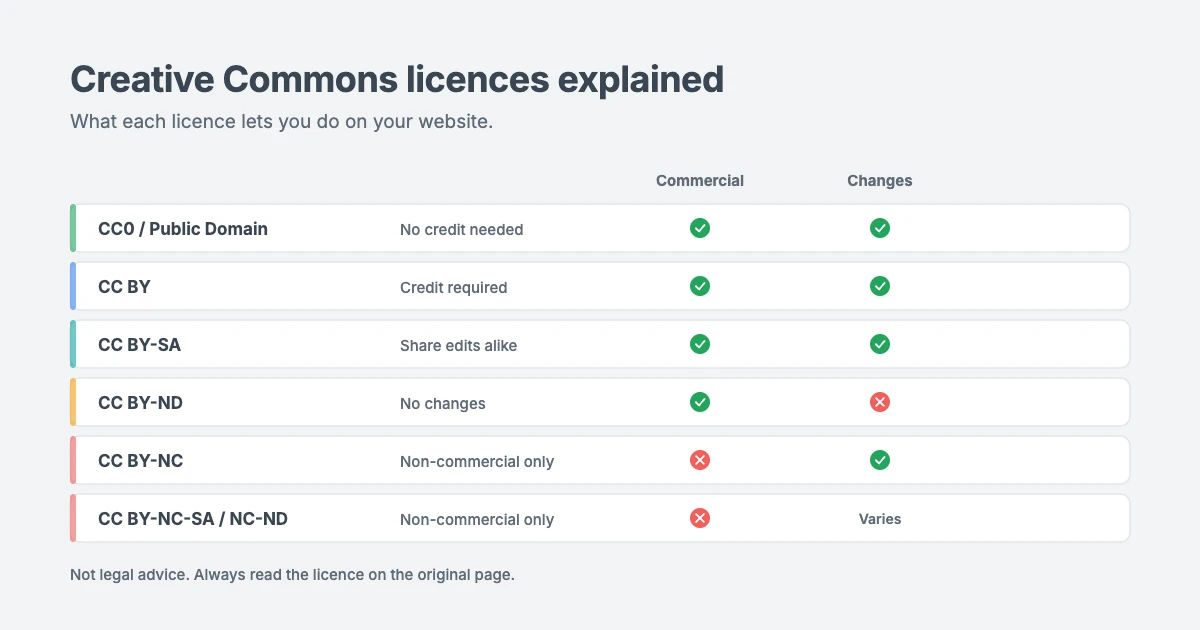
There are six Creative Commons licences, plus two tools for works with no restrictions at all:
| Licence | Credit required | Commercial use | Changes allowed |
|---|---|---|---|
| CC0 | No | Yes | Yes |
| Public Domain Mark | No | Yes | Yes |
| CC BY | Yes | Yes | Yes |
| CC BY-SA | Yes | Yes | Yes, shared under the same licence |
| CC BY-ND | Yes | Yes | No |
| CC BY-NC | Yes | No | Yes |
| CC BY-NC-SA | Yes | No | Yes, shared under the same licence |
| CC BY-NC-ND | Yes | No | No |
Here’s what each part means:
- BY: you must credit the creator.
- SA (ShareAlike): if you change the work, you must share your version under the same or a compatible licence.
- ND (NoDerivatives): you can share the work, but not edit, crop or remix it.
- NC (NonCommercial): you can only use the work for non-commercial purposes.
You can read the full details on the Creative Commons licences page.
Which Creative Commons images can you use on your website?
For most blogs and business websites, the safest choices are:
- CC0 and Public Domain Mark images, which you can use freely without credit.
- CC BY images, which you can use for any purpose, including commercial sites, as long as you credit the creator.
Be careful with the others:
- Avoid NC licences on business websites. If your site sells products, runs ads or promotes a business, it’s safest to treat it as commercial use.
- Avoid ND licences if you plan to edit images. Cropping, adding text or applying filters may count as a change.
- Be careful with SA licences. If you edit an SA image, your version must be shared under the same licence.
Please note: we’re not lawyers, and this isn’t legal advice. If you’re unsure whether a use is allowed, ask the creator or a legal professional.
Method 1: Insert Creative Commons images from the block editor
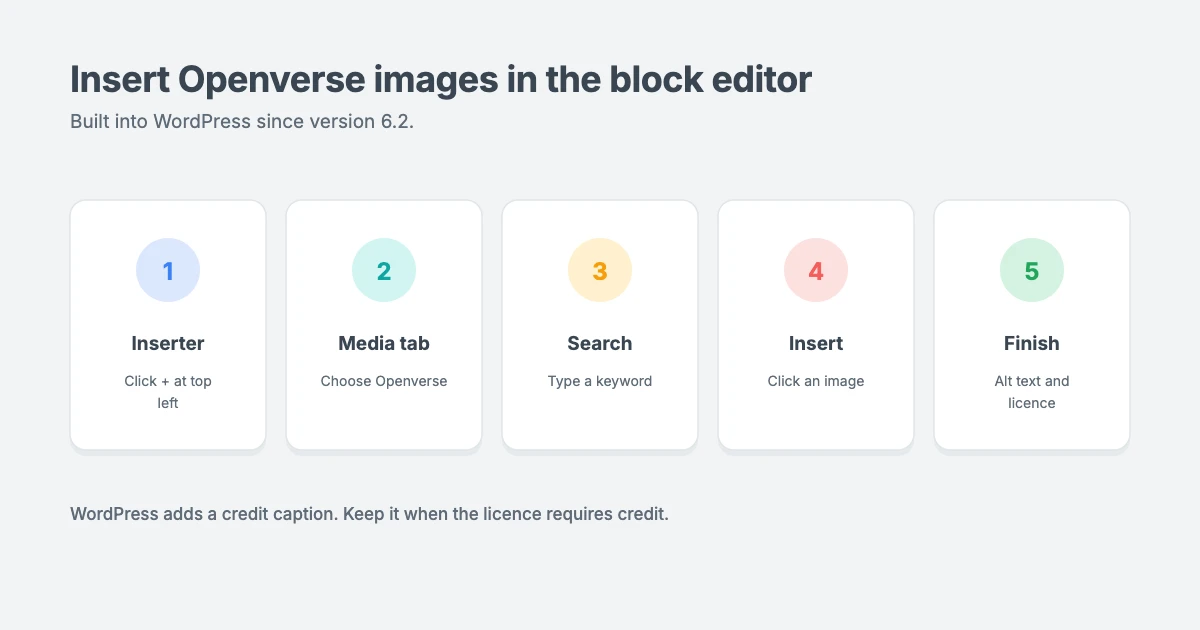
Since WordPress 6.2, the block editor includes a built-in connection to Openverse, a free search engine for openly licensed images and audio that’s part of the WordPress project. WordPress says Openverse catalogues more than 600 million openly licensed images and audio files.
This is the quickest way to add Creative Commons images in WordPress, and you don’t need a plugin.
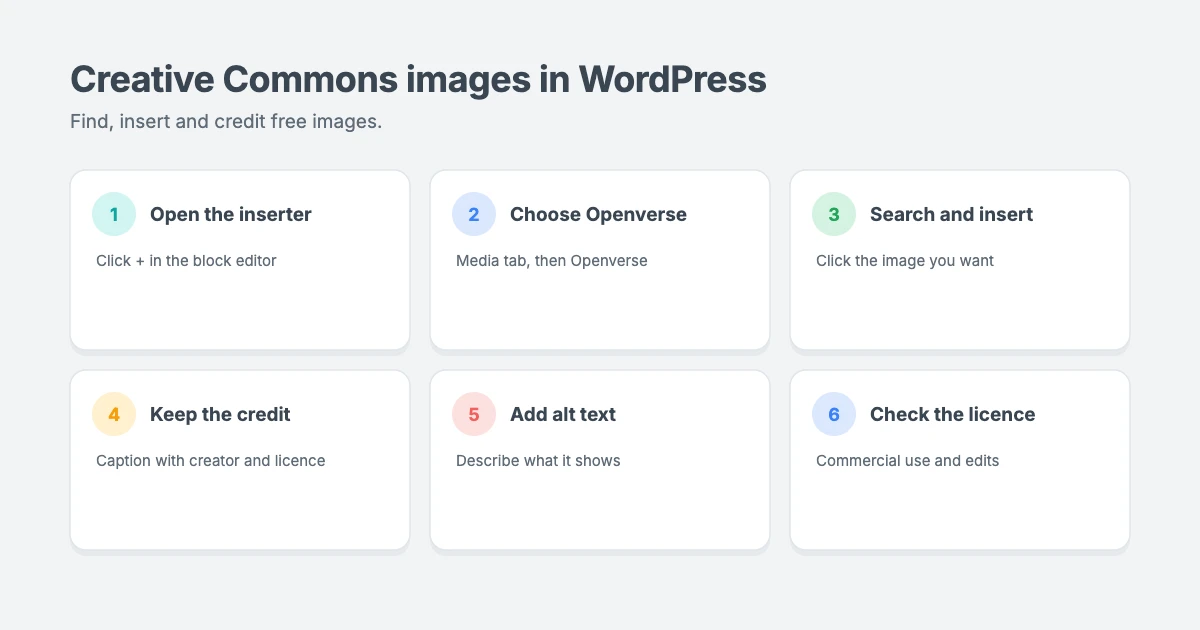
- Open the post or page where you want to add an image.
- Click the + block inserter button at the top left of the editor.
- Click the Media tab.
- Choose Openverse.
- Type what you’re looking for in the search box, such as “mountain” or “coffee”.
- Click an image to insert it into your post.
WordPress adds the image together with a caption that credits the creator and links to the original image and its licence. Don’t delete this caption if the licence requires credit.
- Add alt text. Select the image, then describe what it shows in the Alternative text field in the block settings. This helps visitors who use screen readers and helps search engines understand your image.
- Check the licence. Click the licence link in the caption to confirm the image’s licence allows your use, especially if your site is commercial.
Method 2: Search Openverse and filter by licence
The block editor’s Openverse tab is a fast way to find Creative Commons images, but the Openverse website gives you more control, including filters for how you’re allowed to use each image.
- Go to openverse.org and search for an image.
- Click Filters.
- Under Use, tick Use commercially if your site is commercial, and Modify or adapt if you plan to edit the image.
- You can also filter by specific licences, such as CC0 or CC BY, and by image type, size and source.
- Click an image to see its details and licence.
- Visit the original source page to download the image and check the licence there too.
- Copy the attribution text that Openverse provides, so you can credit the image.
Then upload the image to WordPress:
- Add an Image block to your post, or go to Media » Add New.
- Upload the image file.
- Add descriptive alt text.
- Paste the credit into the image caption, and link to the creator, the source and the licence.
Tip: Openverse gathers licence information from many sources. Always check the image’s original page before you use it, because a licence can be changed or listed incorrectly.
How to credit Creative Commons images
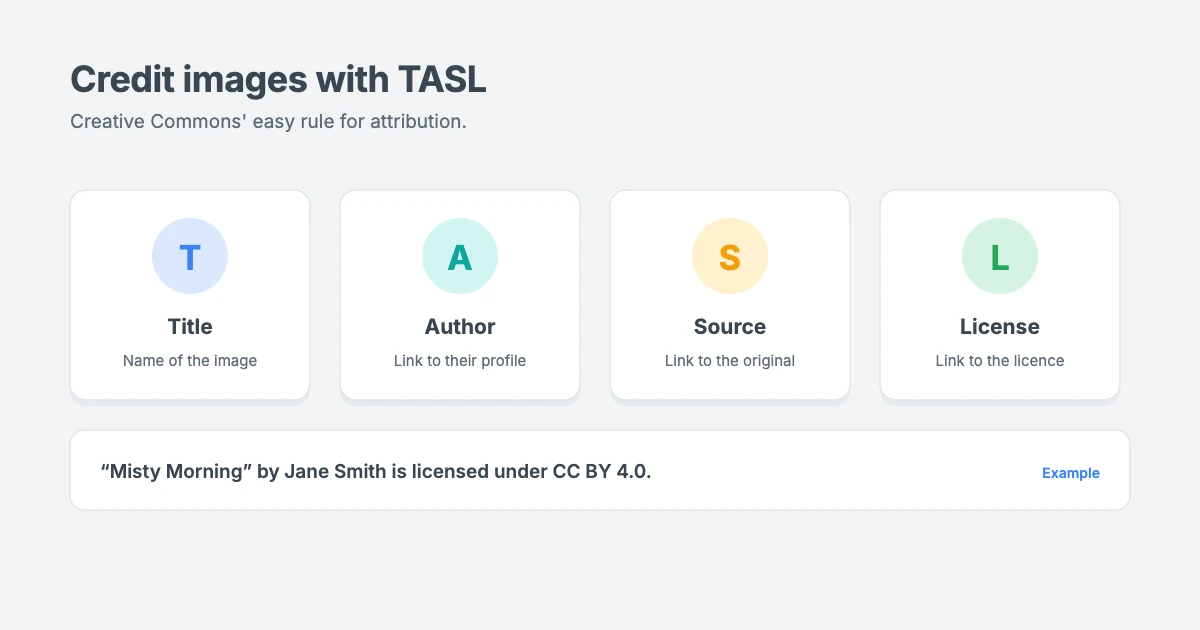
Most Creative Commons images need a credit. Creative Commons recommends an easy rule to remember, TASL:
- Title of the image, if it has one
- Author, with a link to their profile page if possible
- Source, with a link to the original image
- License, with a link to the licence
For example, a credit in your image caption might look like this:
“Misty Morning” by Jane Smith is licensed under CC BY 4.0.
With “Misty Morning” linked to the original image, “Jane Smith” linked to the creator’s profile and “CC BY 4.0” linked to the licence page.
You can add credits in the image caption, which is the clearest option, or in a credits section at the end of your post. If you edited the image, say so, for example “cropped from the original”.
Other places to find free images
Openverse is a great starting point for Creative Commons images, but it’s not the only one:
- Museums and libraries. Many cultural institutions share public domain images of artworks, maps and historical photos.
- Government and space agency archives. Many publish photos that can be reused, but check each archive’s terms.
- Free stock photo sites. Some popular free photo sites use their own licences rather than Creative Commons. Their terms are often generous, but they differ, so always read each site’s licence.
- Your own photos and graphics. Original images are always the safest choice, and they make your site stand out.
Before you use any free image
Run through this quick checklist every time you use Creative Commons images:
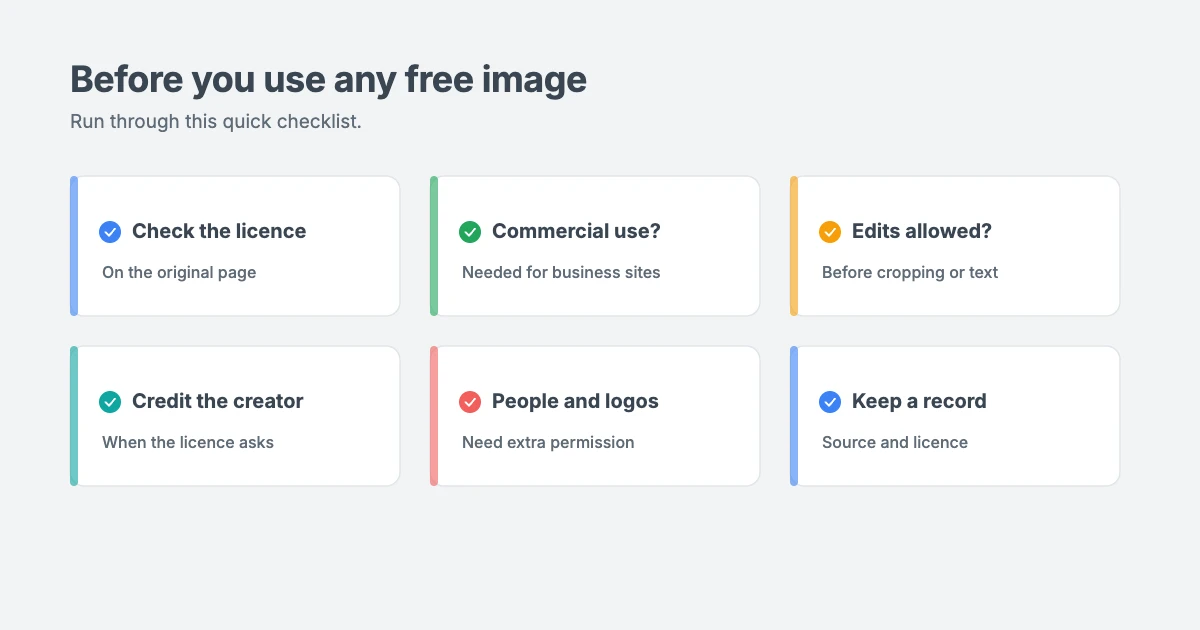
- Check the licence on the original page, not just in a search result.
- Confirm commercial use is allowed if your site makes money in any way.
- Check whether you can edit it before cropping or adding text.
- Credit the creator when the licence requires it.
- Avoid images of recognisable people or brand logos for commercial use, unless you know you have permission. A Creative Commons licence covers copyright, not other rights such as privacy or trademarks.
- Keep a record of where each image came from and its licence, such as a screenshot or note, in case questions come up later.
Tips for using images in WordPress
Creative Commons images still need a little care to keep your site fast and accessible:
- Resize large images before uploading. Many free photos are several thousand pixels wide.
- Compress your images and use modern formats such as WebP.
- Write useful alt text for every image.
- Remove unused images from your media library from time to time. Our guide on how to free up disk space in WordPress explains how.
- Use a fast theme that displays images beautifully without slowing your pages down.
WPInterface themes for image-rich sites
If your site leads with photos, a fast, clean theme makes your Creative Commons images look their best. WPInterface Pro themes are lightweight, translation ready and RTL compliant.
SpeedBlog Pro
SpeedBlog Pro is a fast blog theme for travel, tech, personal and creative blogs, ideal for travel and photography blogs that lead with big images.

MagFusion Pro
MagFusion Pro is a trendy blog and magazine theme with a tall card carousel and featured grid, a great fit for image-rich lifestyle and travel magazines.

TruthBlog Pro
TruthBlog Pro is a clean lifestyle blog theme with a full-width hero, story cards, category filter tabs and a post grid that shows off your photos.

You can see all our themes on the WordPress themes page.
Need a hand?
If you’d like help setting up your site or speeding up image-heavy pages, the WPInterface team can help:
- WordPress Installation and Theme Setup: for $99, we install WordPress and set up your theme.
- WordPress Speed Optimization: we optimise your images and pages for Core Web Vitals, starting with a free speed audit.
- VIP Support: a $29 priority ticket for quick expert help.
Frequently asked questions
Are Creative Commons images free to use?
Yes, Creative Commons images are free, but you must follow the licence. Most licences require you to credit the creator, and some don’t allow commercial use or changes.
Can I use Creative Commons images on a business website?
You can use images licensed under CC0, the Public Domain Mark, CC BY, CC BY-SA and CC BY-ND on commercial sites, as long as you follow their conditions. Avoid licences that include NC (NonCommercial).
Do I have to credit CC0 images?
No. CC0 images don’t require credit, but crediting the creator is still a kind gesture and helps you keep track of where images came from.
Can I edit Creative Commons images?
Yes, unless the licence includes ND (NoDerivatives). If the licence includes SA (ShareAlike), share your edited version under the same licence.
Is Openverse safe to use?
Openverse is part of the WordPress project and only lists openly licensed and public domain works. However, it gathers licence information from other sources, so always confirm the licence on the image’s original page.
What happens if I use an image without following its licence?
The creator may ask you to remove it, send a copyright claim or, in some cases, take legal action. If you’re asked to remove an image, do so promptly and replace it with one you have permission to use.
Final thoughts
Creative Commons images are a free, legal way to add great visuals to your WordPress site. Use the Openverse tab in the block editor for a quick search, or the Openverse website when you need licence filters.
Choose licences that suit your site, credit creators with TASL, add alt text and keep a record of your sources. That way, you’ll get beautiful images and peace of mind.
Reactions
How did this make you feel?
Be the first to react
One reaction per visitor. Tap again to change or remove it.









Leave a reply