If you run a hotel, restaurant, tour company, or any travel business, your TripAdvisor reviews are some of the most persuasive content you own. Travelers trust what other guests say far more than what you say about yourself, and when you embed TripAdvisor reviews in WordPress, that trust shows up right where people decide to book.
The catch is that TripAdvisor’s official API is built for large partners, not small businesses. The good news is that you don’t need it. In this tutorial, you’ll learn three easy ways to embed TripAdvisor reviews in WordPress without an API key, how to place them where they convert best, and how to stay on the right side of TripAdvisor’s rules and Google’s review guidelines.
What you’ll need
- A WordPress site where you can install plugins (self-hosted WordPress.org, or a WordPress.com plan that allows plugins).
- The public URL of your TripAdvisor listing, for example
https://www.tripadvisor.com/Hotel_Review-g000000-d000000-Reviews-Your_Hotel_Name.html. - About 10 to 15 minutes.
To find your listing URL, search for your business on TripAdvisor, open your listing page, and copy the address from your browser bar. Use the main listing page, not a single review page.
Why skip the TripAdvisor API?
TripAdvisor does offer a Content API, but for most small businesses it is the slowest path to a TripAdvisor reviews section on their site.
- You have to apply and be approved. Access is reviewed by TripAdvisor and is aimed at partners such as booking platforms and travel apps. Many individual businesses never get a key.
- It needs developer work. Even with a key, you have to write code to request TripAdvisor reviews, cache them, and build the display yourself.
- It comes with strict display rules. API partners must follow TripAdvisor’s requirements on attribution, logos, and how much review text can be shown.
- Limits apply. The API typically returns only a handful of recent reviews per listing, so you can’t choose your best ones freely.
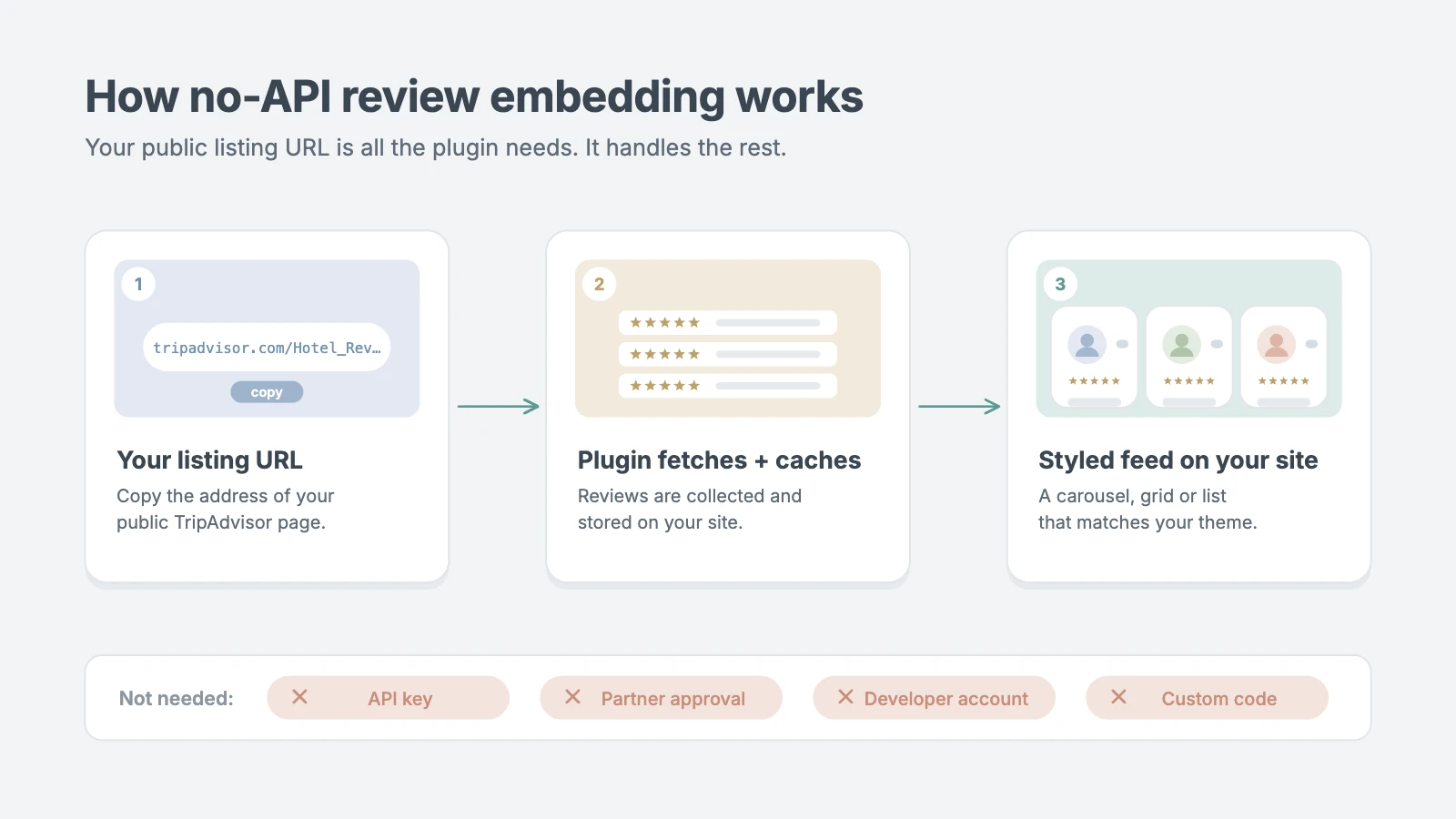
A no-API method avoids all of that. You paste your public listing URL into a plugin or widget tool, and it handles fetching, caching, styling, and updates for you.
3 ways to embed TripAdvisor reviews without an API
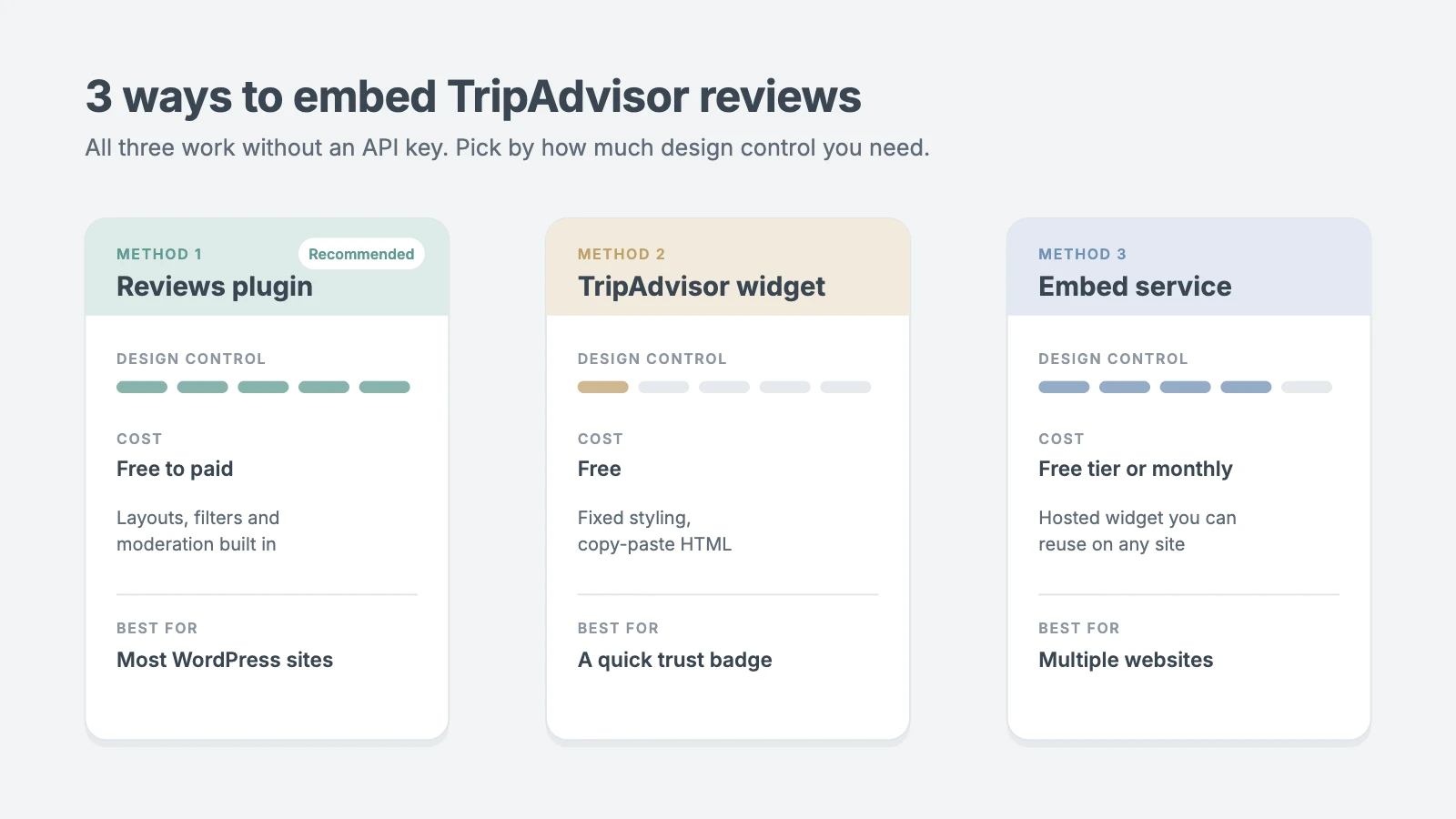
Each method below works without a TripAdvisor API key. Pick the one that matches how much control you want over the design.
| Method | Examples | Cost | Design control | Best for |
|---|---|---|---|---|
| 1. WordPress reviews plugin | Smash Balloon Reviews Feed Pro, Widgets for TripAdvisor Reviews (Trustindex), WP TripAdvisor Review Slider | Free to paid, depending on the plugin and plan | High: layouts, filters, colors, moderation | Most WordPress sites |
| 2. TripAdvisor’s own widgets | Rating badge, Certificate / Travelers’ Choice badge, review snippets | Free | Low: fixed TripAdvisor styling | A quick trust badge in a footer or sidebar |
| 3. No-code embed service | Elfsight, EmbedSocial, Trustmary | Free tier or monthly subscription | Medium to high | Sites that also embed reviews outside WordPress |
Plugin features and pricing change often, so check each vendor’s current plan details before you buy. If you show reviews from several platforms such as Google and Yelp as well, choose a plugin or service that supports all of them in one feed.
Our recommendation: use Method 1 for your main reviews section, and add a TripAdvisor badge from Method 2 if you’ve earned a Travelers’ Choice award.
Method 1: Embed TripAdvisor reviews with a WordPress plugin
A reviews plugin is the most flexible option. It connects using only your public TripAdvisor URL, stores TripAdvisor reviews in a cache so your pages stay fast, and lets you style the feed to match your theme. We’ll use Smash Balloon Reviews Feed Pro for this walkthrough because its visual editor is beginner-friendly. A free alternative is covered at the end of this method.
Step 1: Install and activate the plugin
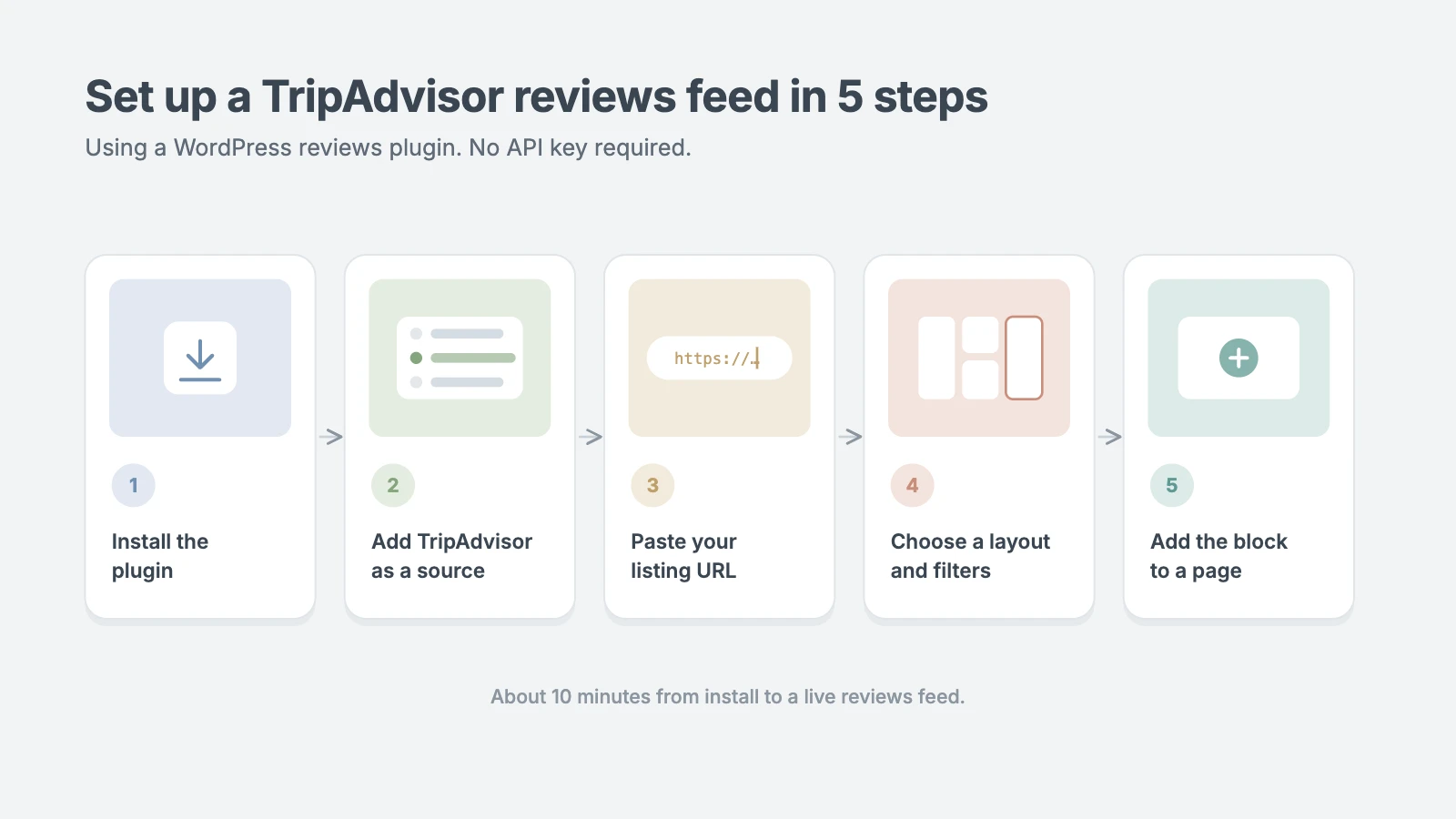
- Buy a Reviews Feed Pro plan that includes TripAdvisor. At the time of writing, TripAdvisor is included in the Elite plan and the All Access Bundle, not the lower tiers.
- Download the plugin zip file and copy your license key from your Smash Balloon account.
- In WordPress, go to Plugins › Add New Plugin › Upload Plugin, choose the zip file, and click Install Now, then Activate.
- Go to Reviews Feed › Settings, paste your license key on the General tab, and click Activate.
Step 2: Connect your TripAdvisor listing
- Go to Reviews Feed › All Feeds and click Add New.
- Click Add Source, select TripAdvisor, and click Next.
- Paste the full URL of your TripAdvisor listing page and click Finish.
- Select the new source and click Next to open the feed editor.
That’s the whole connection. No API key, no developer account, and no code.
Step 3: Choose a layout and customize the feed
Pick a starting template, then fine-tune it in the live editor:
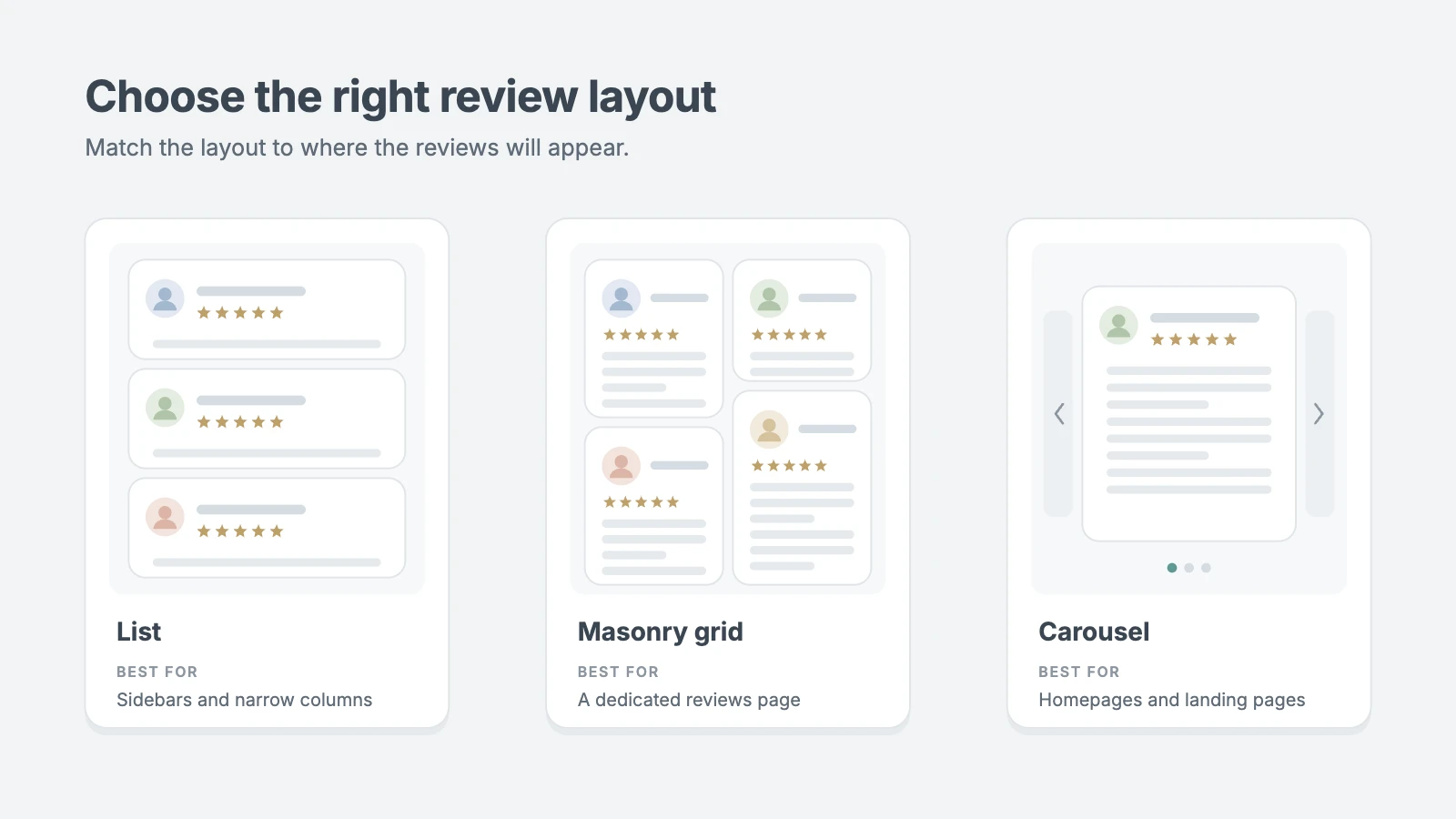
- Layout: choose List (stacked reviews), Masonry (a multi-column grid), or Carousel (a rotating slider). Carousels work well on homepages; grids suit a dedicated reviews page.
- Number of reviews: set separate counts for desktop, tablet, and mobile. Six to eight reviews on desktop and three to four on mobile is a good balance.
- Header: show your business name, average rating, total review count, and a Write a review button that links to your TripAdvisor listing.
- Review text length: trim long reviews so cards stay a consistent height, with a “Read more” link.
- Colors and spacing: match your theme’s fonts, background, and button colors.
Click Save when the preview looks right.
Step 4: Filter and moderate TripAdvisor reviews
Under the feed’s Settings › Filters, you can show only reviews at or above a minimum rating, include or exclude reviews containing certain words, and hide individual reviews from the moderation list. Hiding a review removes it only from your site; it stays on TripAdvisor.
Use filters with care. A feed of nothing but perfect five-star reviews can look curated. Showing a few honest four-star reviews often feels more believable to travelers.
Step 5: Add the feed to a page, post, or sidebar
On a page or post:
- Open the page in the block editor.
- Click the + (Add block) button and search for Reviews Feed.
- Insert the block and select your TripAdvisor feed in the right-hand settings panel.
- Click Update or Publish.
In a sidebar or footer: go to Appearance › Widgets, add the Reviews Feed block to the widget area you want, select your feed, and click Update. If you use a block theme with no Widgets screen, go to Appearance › Editor, open the footer template part, and add the Reviews Feed block there.
Anywhere else: every feed also has a shortcode (shown on the All Feeds screen) that you can paste into a Shortcode block or into page builders such as Elementor or Divi.
Free alternative: Widgets for TripAdvisor Reviews
If you’d rather not pay, the free Widgets for TripAdvisor Reviews plugin by Trustindex follows the same pattern:
- Go to Plugins › Add New Plugin, search for Widgets for TripAdvisor Reviews, then install and activate it.
- Open the plugin’s settings page from the admin menu and paste your TripAdvisor listing URL.
- Pick a widget layout, then copy the shortcode it generates.
- Paste the shortcode into a Shortcode block on any page.
The free version has fewer layouts and less control over which reviews appear. It may also show a small credit link unless you upgrade.
Method 2: Use TripAdvisor’s free widgets
TripAdvisor provides free embeddable widgets to listing owners, such as a rating badge, an award badge for Travelers’ Choice winners, and small review snippet boxes. They’re the fastest option, but you can’t restyle them, and TripAdvisor has retired or changed some widget types over the years, so availability depends on your listing.
How to add a TripAdvisor widget
- Sign in to your TripAdvisor account and open the Management Center for your listing (claim the listing first if you haven’t).
- Find the widgets or badges section under the marketing tools, and pick the widget you want.
- Choose its size and options, then copy the HTML embed code TripAdvisor provides.
- In WordPress, open the page or template where it should appear, add a Custom HTML block, and paste the code.
- Preview the page, then click Update.
For a site-wide badge, paste the code into a Custom HTML block in Appearance › Widgets (classic themes) or in the footer template part via Appearance › Editor (block themes).
Keep in mind: widgets load scripts from TripAdvisor’s servers on every page view, which adds a little weight. Use one badge per page rather than several.
Method 3: Use a no-code embed service
Services such as Elfsight, EmbedSocial, and Trustmary host the review widget on their own platform. You build the widget in their dashboard and paste one embed code into WordPress. This is a good fit if you also run a booking engine, landing pages, or a second website and want the same reviews widget everywhere.
- Create an account with the service and start a new TripAdvisor reviews widget.
- Paste your TripAdvisor listing URL as the source.
- Choose a layout, colors, and the minimum rating to display.
- Copy the embed code (or install the service’s WordPress plugin if it offers one).
- Add a Custom HTML block where you want the TripAdvisor reviews, paste the code, and publish.
The trade-offs are an ongoing subscription on most useful plans, a view or widget limit on free tiers, and an external script that can slow pages slightly. Free tiers often show the service’s branding on the widget.
Where to place TripAdvisor reviews on your site
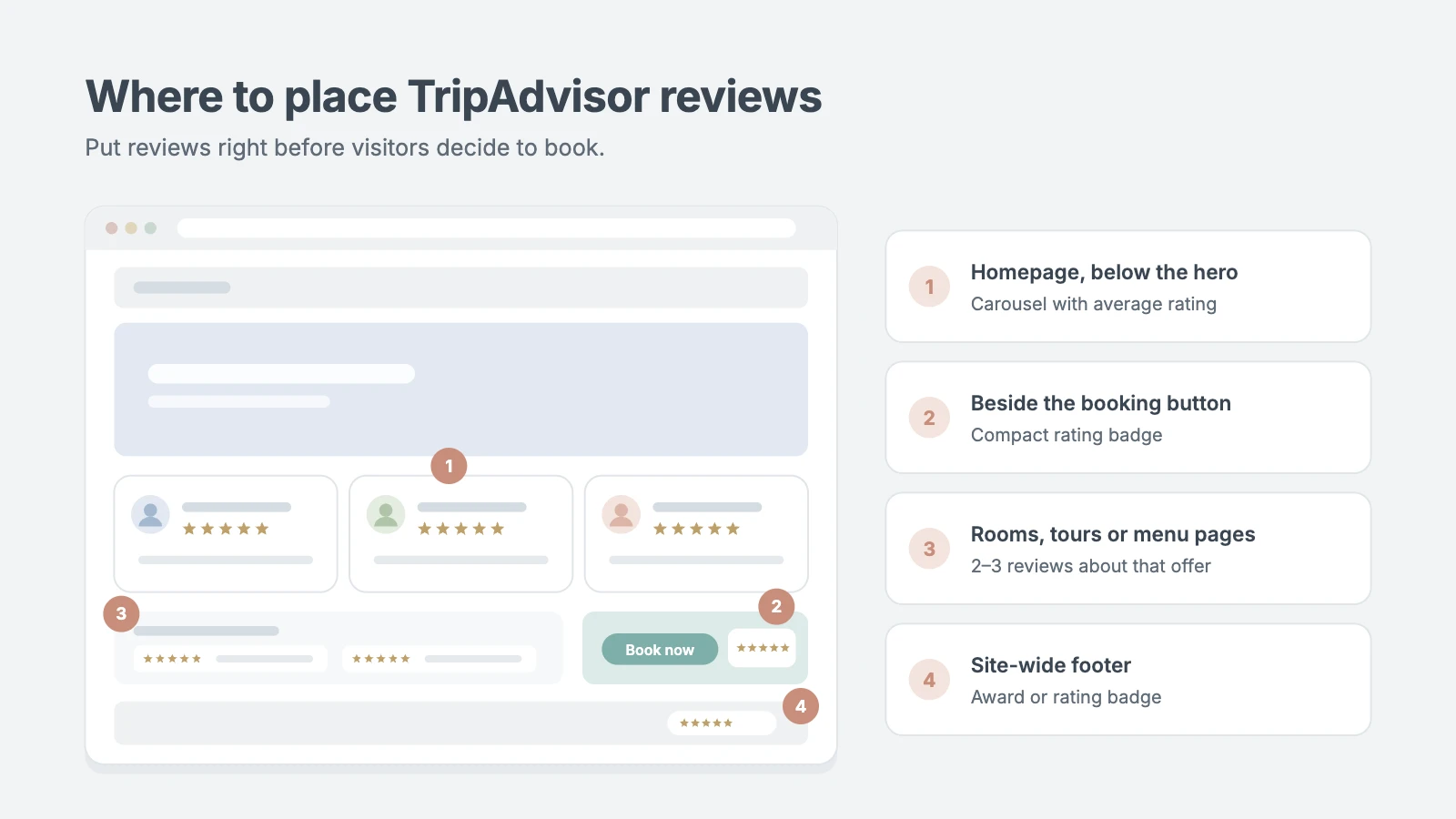
Reviews work hardest right before a visitor makes a decision. Start with these five spots:
| Placement | Format | Why it works |
|---|---|---|
| Homepage, below the hero section | Carousel with average rating in the header | Builds trust in the first scroll, before visitors explore |
| Rooms, tours, or menu pages | Two or three reviews that mention that specific offer | Answers “is this one good?” at the point of choice |
| Booking or reservation page | A compact rating badge beside the booking button | Reduces last-second hesitation |
| Dedicated “Reviews” page | Masonry grid with Load More | Gives undecided visitors depth, and ranks for “[your business] reviews” searches |
| Site-wide footer | Award or rating badge | Constant, low-key reassurance on every page |
On mobile, keep review sections short. Three reviews in a swipeable carousel beats a long scroll of text.
Best practices and troubleshooting
Follow TripAdvisor’s display rules
- Keep the attribution. Show that reviews come from TripAdvisor and link back to your listing. Good plugins and widgets do this by default; don’t hide it with CSS.
- Don’t edit review text. You can shorten a review with a “Read more” link, but never change the words or combine reviews.
- Don’t copy and paste TripAdvisor reviews as your own testimonials. Displaying them through a connected feed keeps them authentic and up to date.
- Use TripAdvisor’s logos only as provided. Don’t recolor, stretch, or redesign the TripAdvisor logo or rating graphics.
Don’t add review schema to embedded reviews
It’s tempting to add Review or AggregateRating structured data so star ratings appear in Google results. Google’s review snippet guidelines say it won’t show review stars for a business’s own reviews when those reviews are about the business itself and shown on its own site (“self-serving” reviews). Third-party reviews pulled from TripAdvisor fall into this category for most local businesses. Adding the markup won’t earn stars, and misleading markup can lead to a manual action. Leave review schema out, or turn it off in your plugin if it adds it automatically.
Keep pages fast
- Use a plugin that caches TripAdvisor reviews locally rather than loading them from TripAdvisor on every visit.
- Place feeds below the fold where possible, and enable lazy loading if your plugin offers it.
- Limit each page to one TripAdvisor reviews feed or widget.
Troubleshooting common problems
| Problem | Likely cause | Fix |
|---|---|---|
| Feed shows no reviews | Wrong URL, or filters exclude everything | Re-paste the main listing URL (not a single review URL) and relax rating or word filters |
| New reviews don’t appear | The feed cache hasn’t refreshed yet | Wait for the next refresh, or clear the feed cache in the plugin settings, then clear your page cache |
| Feed stopped updating suddenly | TripAdvisor changed its page structure | Update the plugin to the latest version and contact the plugin’s support if it persists |
| Widget looks broken | Theme CSS or a caching or minification plugin is interfering | Exclude the widget’s script from JavaScript minification and delay settings |
| Sidebar option missing | Block theme without classic widget areas | Add the block in Appearance › Editor inside a template part |
Frequently asked questions
Can I embed TripAdvisor reviews in WordPress for free?
Yes. TripAdvisor’s own widgets are free, and free plugins such as Widgets for TripAdvisor Reviews by Trustindex can display a basic reviews feed. Paid plugins add more layouts, filtering, moderation, and support for other review platforms.
Do I need a TripAdvisor API key?
No. All three methods in this guide connect using your public TripAdvisor listing URL. The official API is mainly for approved partners and requires developer work.
Is it allowed to show TripAdvisor reviews on my website?
Yes, as long as you display them honestly. Keep the TripAdvisor attribution and link, don’t alter review text, and use TripAdvisor logos only as provided.
Can I show only my best TripAdvisor reviews?
Most plugins let you set a minimum star rating or hide specific reviews on your site. It’s fine to feature strong reviews, but a mix of four- and five-star reviews usually looks more credible than a wall of perfect scores.
How often do the TripAdvisor reviews update?
Plugins refresh on a schedule set by their cache, often every few hours to once a day. You can usually clear the cache manually to pull in a new review right away.
Will embedded TripAdvisor reviews help my SEO?
Indirectly. They won’t earn star ratings in Google results because of Google’s self-serving review policy, and widget content loaded by JavaScript may not be indexed. Their real value is conversions: visitors who see recent, genuine reviews are more likely to book.
Can I combine TripAdvisor reviews with Google or Yelp reviews?
Yes. Multi-platform plugins and embed services can merge reviews from several sources into one feed, with each review labeled by its source.
Conclusion
You don’t need TripAdvisor’s API, a developer, or any code to put real TripAdvisor reviews on your WordPress site. For most sites, a reviews plugin connected to your public listing URL gives the best mix of control and convenience. TripAdvisor’s free badges cover quick trust signals, and an embed service makes sense when you need the same widget across several sites.
Start with one carousel on your homepage and a compact badge near your booking button, keep the TripAdvisor attribution in place, and check the feed once a month to make sure it’s still updating.
Want TripAdvisor reviews set up properly, without the trial and error?
If you’d rather spend your time on guests than on plugin settings, the WPInterface team can set up and style your reviews feed for you.
| If you want… | Our service |
|---|---|
| The right reviews plugin installed and configured with your TripAdvisor listing | Must-Have Plugins Installation Service |
| The reviews section styled to match your theme and brand | WordPress Theme Customization |
| A custom reviews display, or an official API integration if you’re an approved partner | Custom WordPress Development |
| Review widgets that don’t slow down your pages | Speed & Core Web Vitals Optimization |
| Ongoing updates and monitoring so the feed never quietly breaks | WordPress Care Plans |
Not sure where to start? Tell us about your site, and we’ll suggest the simplest setup, or browse all WPInterface services.
Reactions
How did this make you feel?
Be the first to react
One reaction per visitor. Tap again to change or remove it.







Leave a reply