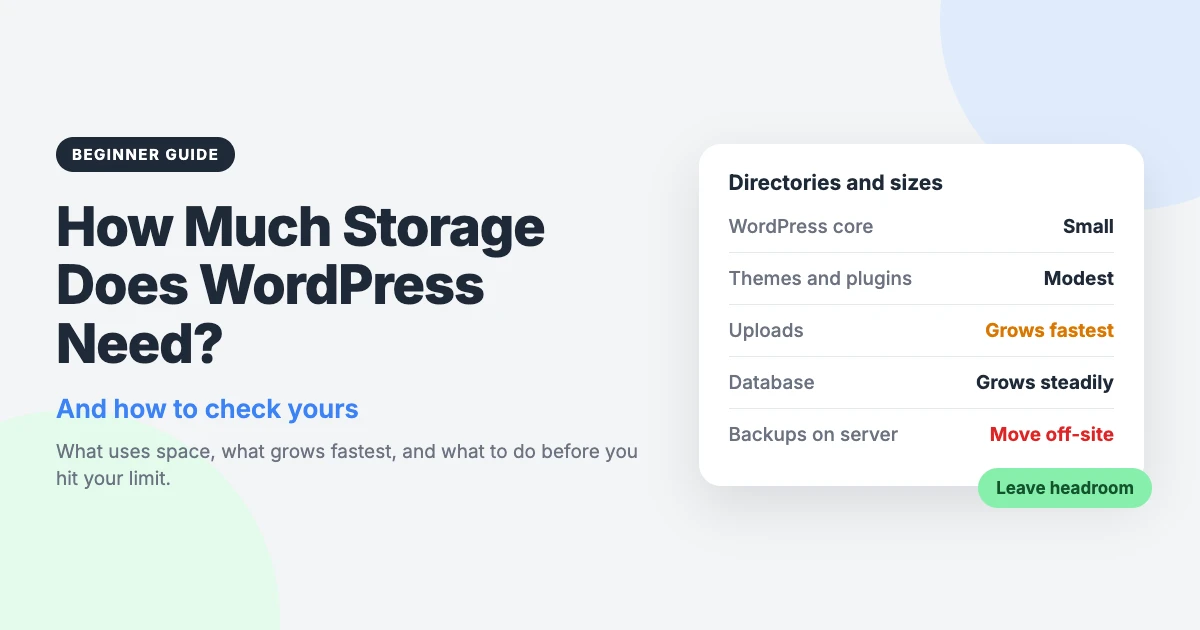
Every hosting plan comes with a set amount of disk space, and WordPress storage is easy to ignore until it runs out. Then uploads fail, updates stall, and you are left wondering where all the space went.
The good news is that WordPress itself is small. What fills a hosting account is nearly always the content and files that build up around it over time.
This guide explains what takes up space, how much different kinds of site tend to need, and how to check your own usage. You will also learn how to keep it under control and when it is time to upgrade.
What uses WordPress storage?
Your site is made of two parts: files on the server and a database. Both count towards your disk space on most hosting plans. Here is what sits inside them.
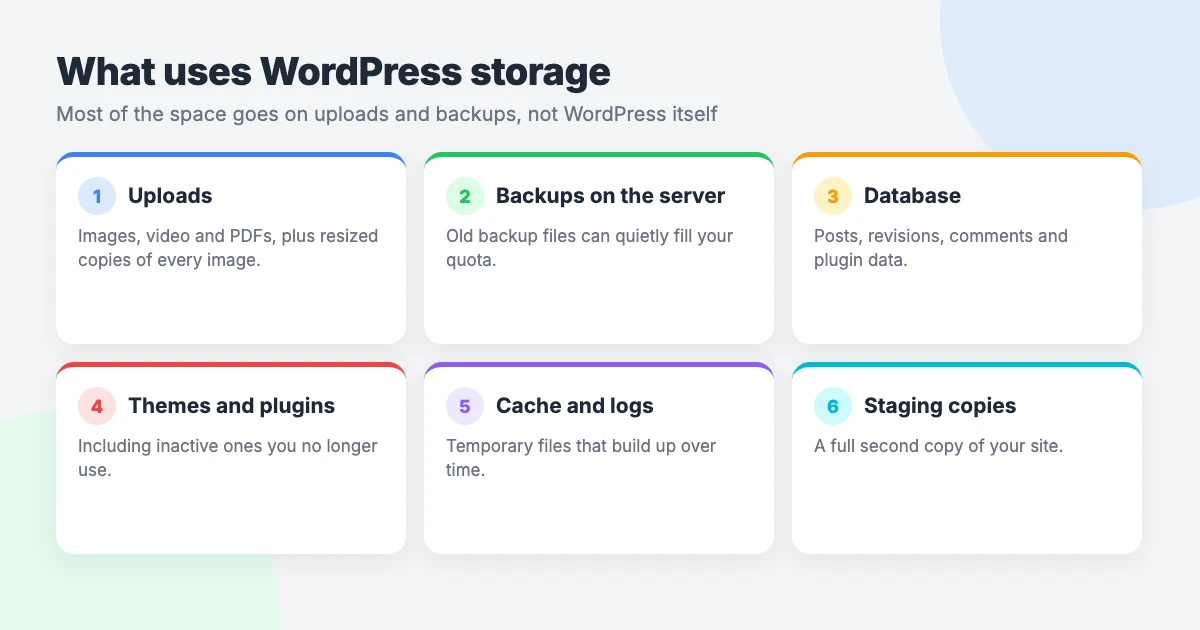
- WordPress core. The software itself is small. A fresh download is measured in tens of megabytes, and it barely grows between versions.
- Themes and plugins. Each one adds its own folder of files. Most are small, but page builders, large plugin suites and unused themes left installed all add up.
- Uploads. Images, video, audio and PDFs in your Media Library are usually the biggest item. WordPress also creates several resized copies of every image you upload: a thumbnail, a medium size, a large size, plus any extra sizes your theme registers. One photo can become many files.
- Backups kept on the server. If your backup plugin saves its archives to the same hosting account, each backup is roughly a full copy of your site. Keep a few of them and they can outweigh the site itself.
- The database. Your posts, pages, comments, settings and plugin data live here. It grows with every post, every saved revision, every comment and every plugin that stores its own records.
- Logs, cache files and staging copies. Error logs can grow quietly for months. Caching plugins store ready-made copies of your pages. A staging site is a second copy of your whole site, often stored in the same account.
How much storage does a WordPress site need?
There is no single figure that suits every site, and anyone who quotes one is guessing. What you can predict is how your type of site will grow.
A text-heavy blog stays small for years. Words take up very little room in the database. Growth comes almost entirely from the featured images and screenshots you add to each post.
A business brochure site has a handful of pages that rarely change. Once it is built, it hardly grows at all. The entry-level plan from most hosts is usually enough, as long as backups are not piling up beside it.
A photo-heavy blog or portfolio grows quickly. Every gallery adds large original files, and each of those gets its set of resized copies. Uploading images straight from a camera makes this far worse.
An online shop grows in two directions. Product photos fill the uploads folder, while orders, customers and product data swell the database. A shop with many products, each with several images, needs room to expand.
A video site grows fastest of all if you upload video files to your own hosting. A single video can be larger than everything else on the site combined. This is why most site owners host video elsewhere and embed it.
| Site type | What grows | What to watch |
|---|---|---|
| Text blog | Post images, revisions, comments | Image dimensions and old revisions |
| Business brochure site | Very little after launch | Backups and unused themes or plugins |
| Photo-heavy blog or portfolio | Original images and their resized copies | Upload size and extra image sizes from your theme |
| Online shop | Product images and the database | Database size and order-related plugin data |
| Video site | Video files, if self-hosted | Where the video files are stored |
Whatever your site type, do not plan to use every last megabyte. Updates need room to unpack new files before replacing old ones, and backups need space to build their archives. Leave comfortable headroom so these jobs can finish.
When you compare WordPress hosting storage, think about where your site will be in a year or two, not just on launch day.
How to check your WordPress storage
You do not need extra tools to see how much space your site uses. WordPress and your host both report it, and each gives you a slightly different view.
In Site Health
WordPress has a built-in report on the Site Health screen. To find it:
- Log in to your dashboard and go to Tools » Site Health.
- Click the Info tab.
- Open the Directories and Sizes section.
After a moment, you will see the size of the WordPress directory, the uploads folder, the themes folder, the plugins folder and the database. A total is shown too.
In your hosting control panel
Site Health only measures the WordPress folders. It does not count email, backups saved outside those folders, staging copies or other sites in the same account.
For the full picture, log in to your hosting account. Many hosts show disk usage and your plan’s limit on the main control panel screen, often as a bar or percentage. Some also offer a disk usage tool that breaks the total down by folder.
If the host’s figure is much higher than the Site Health total, something outside WordPress is using the space. Old backups and mailboxes are the usual suspects.
While you are there, look for an inode count. Inodes are a limit on the number of files, which some shared hosting plans apply alongside the disk space limit.
Check the database size
The database size appears in the same Directories and Sizes section of Site Health. For most sites it is a small share of the total.
If yours looks large, your host’s database tool, such as phpMyAdmin, lists the size of each table. That shows whether the bulk comes from posts, options or a plugin’s own tables.
What happens when you hit your WordPress storage limit
A full disk rarely takes your site offline in one go. Instead, things stop working one by one, often with error messages that do not mention disk space at all.
- Uploads fail. New images and files will not save to the Media Library, or they upload without their resized copies.
- Updates fail. WordPress cannot unpack new versions of core, themes or plugins. A half-finished update can leave a plugin broken or the site stuck in maintenance mode.
- Backups fail. There is no room to build the archive, so scheduled backups stop or produce incomplete files. You may not notice until you need one.
- Emails may bounce. If your mailboxes share the same quota as your site, incoming messages can be rejected once the account is full.
- The site shows errors. WordPress and its plugins need to write temporary files, cache files and database records. When they cannot, visitors may see error pages and you may be unable to save changes.
How to keep WordPress storage under control
- Compress and resize images before uploading. A photo straight from a camera or phone is far larger than any web page needs.
- Convert images to WebP. WebP files are usually smaller than JPEGs at similar quality, and WordPress supports the format.
- Host video elsewhere. Upload videos to a video platform and embed them in your posts.
- Store backups off-site. Send them to cloud storage and keep only the most recent copy, if any, on the server.
- Limit post revisions. WordPress saves a new revision each time you update a post, and old ones stay in the database.
- Remove unused plugins and themes. Delete them, as deactivated ones still take up space. Keep one default theme as a fallback.
- Clear old cache files and staging copies. Empty your cache now and then, and delete staging sites once you have finished testing.
Our guide on how to free up disk space in WordPress walks through each of these steps in detail.
Your choice of tools matters as well. Several of the best free WordPress plugins handle image compression and off-site backups. Lightweight themes tend to have fewer files and register fewer extra image sizes.
Finally, make the check routine. Add a disk usage review to your WordPress maintenance checklist so you spot growth early. If you would rather hand the job over, a WordPress care plan usually covers this kind of monitoring.
When to upgrade your hosting storage
Tidying up only goes so far. If your site is growing because your business or audience is growing, more space is the right answer.
These are the signs that it is time:
- You have cleaned up and usage is still close to your limit.
- Usage climbs steadily every month because of content you need to keep.
- Your host keeps sending disk space warnings.
- Backups or updates have failed more than once for lack of space.
- You are about to add a shop, a large gallery or a second site to the account.
When you compare plans, look past the headline figure. Four details matter:
- Storage. How much WordPress storage space you get, and whether email and databases count towards it.
- Inodes. Whether the plan limits the number of files. A site with many small images can hit this before it runs out of disk space.
- Backups. Whether the host takes its own backups, how long it keeps them, and whether they use your quota.
- Drive type. Whether the storage is SSD or NVMe. Both are faster than older hard drives, and NVMe is the faster of the two.
Frequently asked questions
How much storage does a WordPress blog need?
It depends on your images more than your words. A text-heavy blog with a few optimised images per post stays small for years, and an entry-level plan is usually enough. A blog full of large photos grows much faster and needs more room.
Does WordPress have a storage limit?
The WordPress software does not set one. Your limit comes from your hosting plan, which decides how much disk space, and sometimes how many files, your account can hold. You can find it in your hosting control panel.
Why is my WordPress site using so much space?
The usual causes are large image uploads with their resized copies, backups saved on the server, and self-hosted video. Check Directories and Sizes in Site Health, then compare the total with the figure in your hosting control panel. A big gap points to files outside WordPress, such as old backups or email.
Do backups count towards my storage?
Yes, if they are saved in your hosting account. Backups made by a plugin and stored on the server use your quota like any other file. Backups your host takes on its own systems often do not count, but check your plan’s terms to be sure.
Is unlimited storage really unlimited?
Usually not. Plans sold as unlimited normally come with a fair-use policy, and many also set an inode limit on the number of files. Some restrict what the space can be used for, such as storing backups or large media archives. Read the terms before you rely on it.
Reactions
How did this make you feel?
Be the first to react
One reaction per visitor. Tap again to change or remove it.






Leave a reply